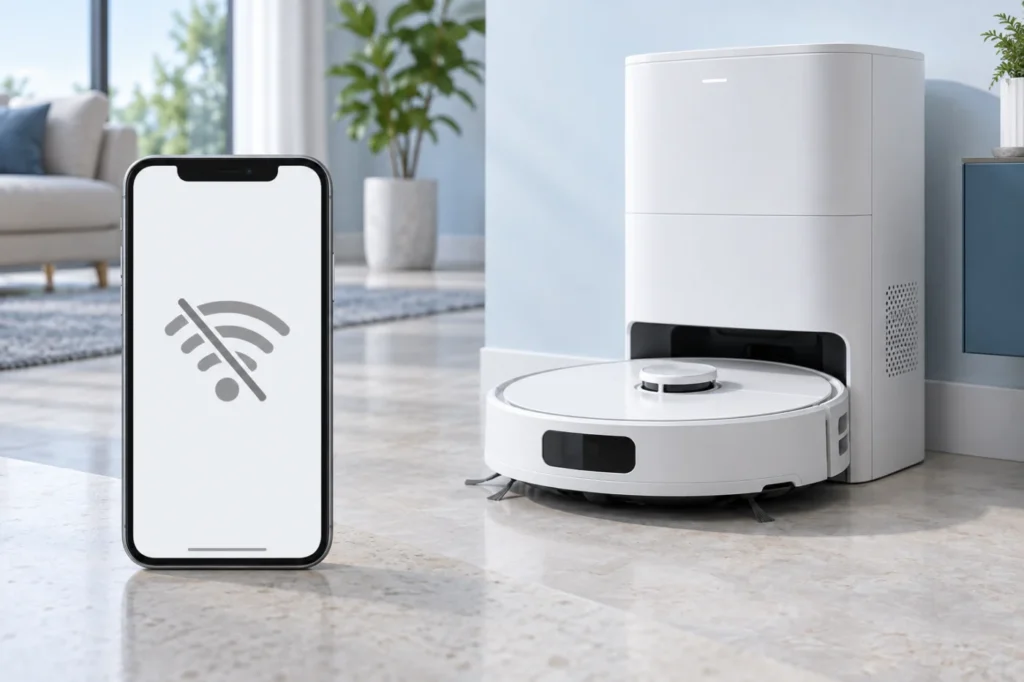
Begin with the quick checks. Stop if a step requires tools or experience you do not have.
If your Dreame X40 Ultra shows Offline in Dreamehome, check whether the robot still responds to its buttons and whether your home Wi-Fi is working. A robot can continue an existing cleaning task while its app connection is lost. If it has no lights or button response, begin with power and charging. If it is responsive, work through network and app checks before resetting anything.
Not sure which check to try next?
Follow guided questions and report what changes after each check.
Start step-by-step diagnosisWhat changed before it went offline?
- Router or password changed: The robot may still have old credentials; prepare to reconnect it in the app.
- Only offline near the dock: Check 2.4 GHz coverage at that location.
- Phone and other devices also lack internet: Restore the home connection first.
- New pairing fails: Identify whether the app cannot find the robot, lacks phone permissions, or rejects the home network.
1. Check the robot, phone and dock location
Press the robot’s normal cleaning control once. If it responds, power is present even if the app says Offline. On your phone, load a website over the home Wi-Fi and reopen Dreamehome. Check for an app update. If other devices are offline too, restart the router using its normal controls and wait until it has reconnected.
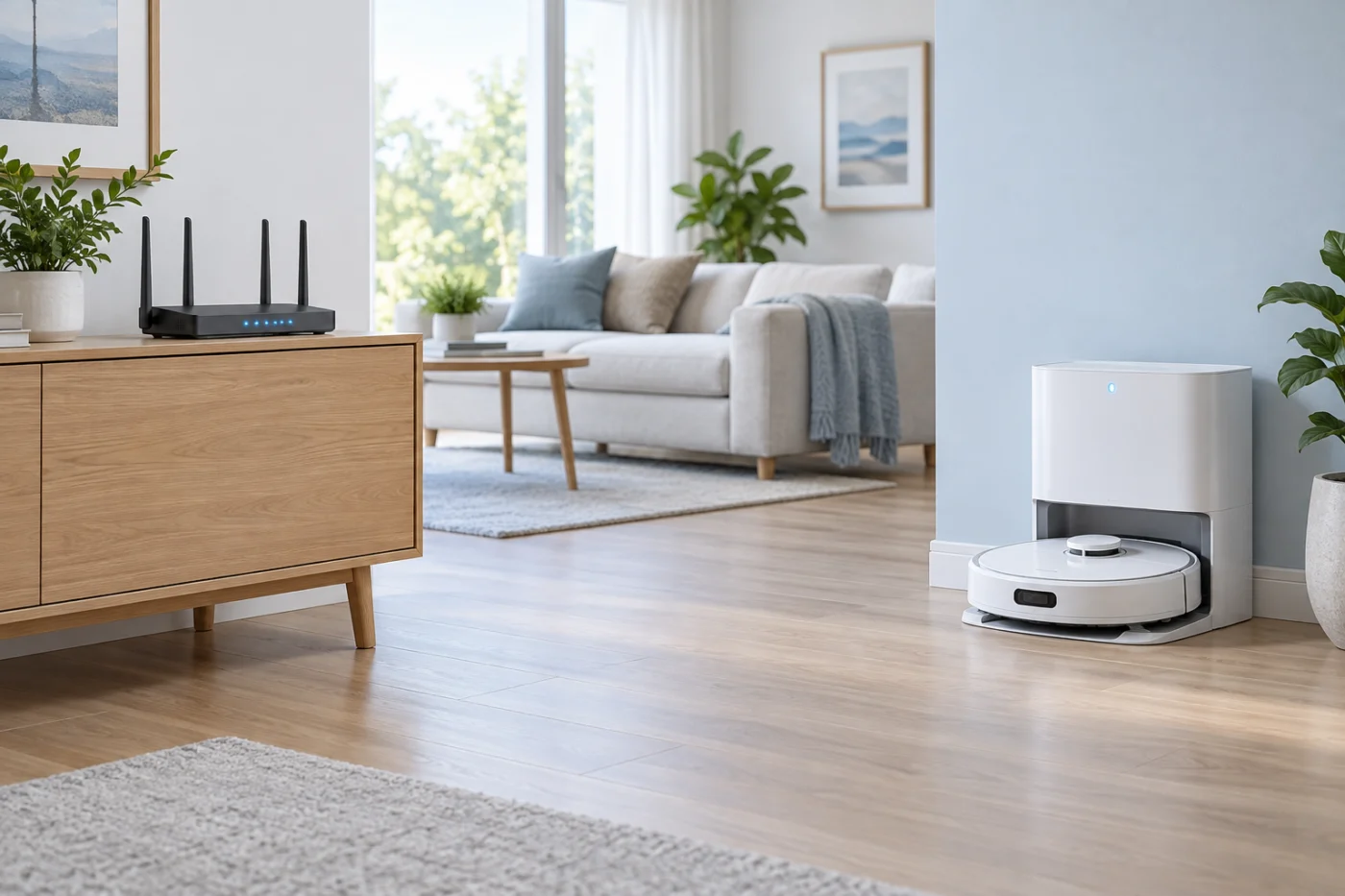
Stand near the dock and see whether your phone can use the home Wi-Fi there. Phone reception is only a rough comparison, but a weak signal at that spot is a useful lead. Dreame lists weak or unstable coverage as a reason for Offline status. Avoid moving the dock repeatedly during a map-based test; improve router placement or coverage if needed.
2. Check the network used for pairing
Dreame’s Wi-Fi troubleshooting specifies a 2.4 GHz home network. If your router has separate 2.4 GHz and 5 GHz names, connect the phone to the 2.4 GHz name for setup and enter that network’s current password. A hidden network name, a captive-portal network requiring browser sign-in, or router settings that block new devices can also prevent pairing. If the router combines its bands and pairing repeatedly fails, consult its instructions for a separate 2.4 GHz network rather than changing unrelated settings.
Check that Dreamehome has location and local-network permissions where your phone offers them. During one failed setup attempt, temporarily disable a VPN or proxy, then restore your usual phone settings afterward. Use one phone to configure the robot at a time.
3. Reconnect without a factory reset
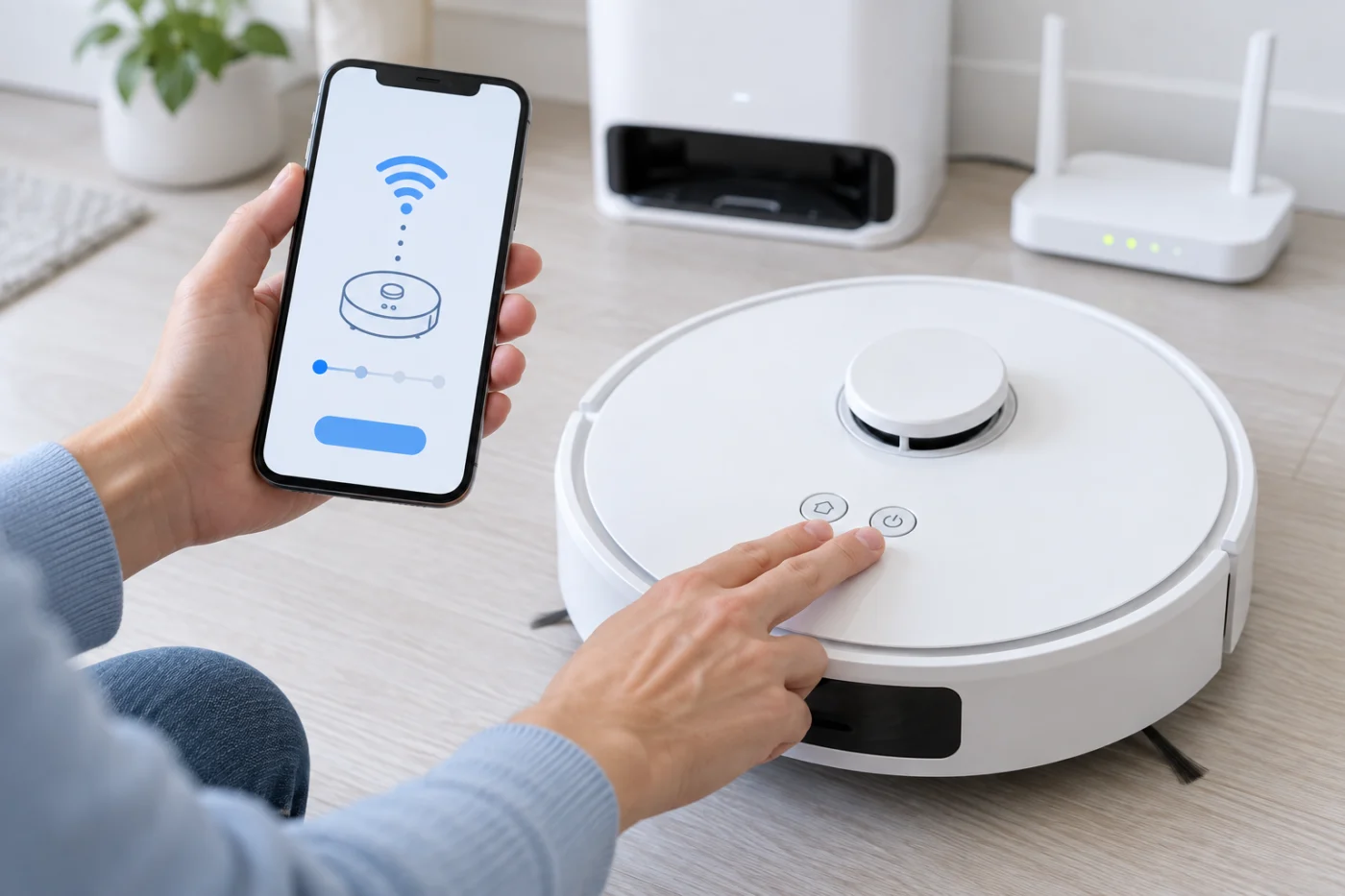
If the password changed or the robot remains offline, use Dreamehome’s add-device or reconnect flow and follow the X40 Ultra instructions shown for your device to reset its Wi-Fi connection. Button labels can differ across models and revisions, so do not guess from another Dreame model. Confirm the robot enters the network-configuration mode, then choose your home 2.4 GHz network and finish setup close to the router.
Do not choose a system or factory reset simply because the app says Offline. Read the app confirmation before accepting any reset that could affect saved settings or maps.
Which pairing stage failed?
Robot not found: Confirm power, keep the phone close and follow the app’s network-configuration prompt again.
Phone cannot continue setup: Check location and local-network permissions and the current app version.
Home network rejected: Verify the 2.4 GHz network name and password, router access controls and VPN or proxy settings.
Connects near router, then Offline at dock: Investigate coverage at the dock.
If the robot has no lights and does not respond to its physical controls even on a powered base, use the X40 Ultra power checks before another pairing attempt.
When to contact Dreame
Write down the exact error and the step where pairing fails. If the robot’s network hotspot never appears, the connection fails on a known-working 2.4 GHz network, or it drops offline immediately beside the router, contact Dreame support with the router model and app version. If the app connects but the robot cannot locate the base, use the X40 Ultra docking guide for that separate problem.
References: Dreame Offline guidance and Dreame Wi-Fi pairing FAQ.