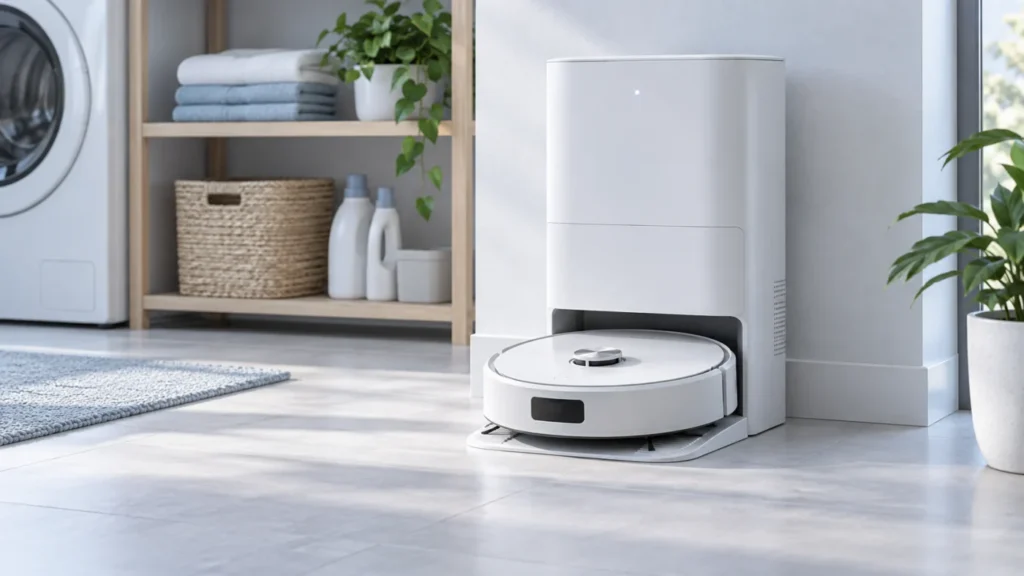
Begin with the quick checks. Stop if a step requires tools or experience you do not have.
If your Dreame X40 Ultra will not turn on, check the base station’s power and charging contacts before trying a reset. Make sure the cord is seated at both ends and the rear rocker switch is on. With the station disconnected from power, clean its contacts and the robot’s contacts, then dock the robot correctly. Dreame recommends allowing two to three hours of charging when it may be deeply discharged.
Not sure which check to try next?
Follow guided questions and report what changes after each check.
Start step-by-step diagnosisWhich symptom do you have?
- Both station and robot are dark: Check the outlet, power cord and rear station switch.
- Station is on, robot is dark: Check docking alignment and clean the charging contacts.
- Robot lights briefly, then goes dark: Allow a stable charging period and note whether it works only while docked.
- Buttons work but the app says Offline: Follow the Wi-Fi and app checks instead.
1. Confirm station power
Check a known-working wall outlet and reseat the base station’s power cord at both ends. Turn on its rear rocker switch and look for its normal indicator. Dreame lists the cord and switch as the first checks for X40 Ultra charging problems. Stop using a visibly damaged cord or plug; seek a compatible replacement or service rather than trying to repair it.
2. Clean and align the charging contacts
Switch off and unplug the station before touching the contacts. Wipe the accessible metal contacts on the station and robot with a soft, dry cloth. Check for visible debris and that the robot can sit squarely in the base. Do not use a wet cloth, abrasive tool or metal object on powered contacts.
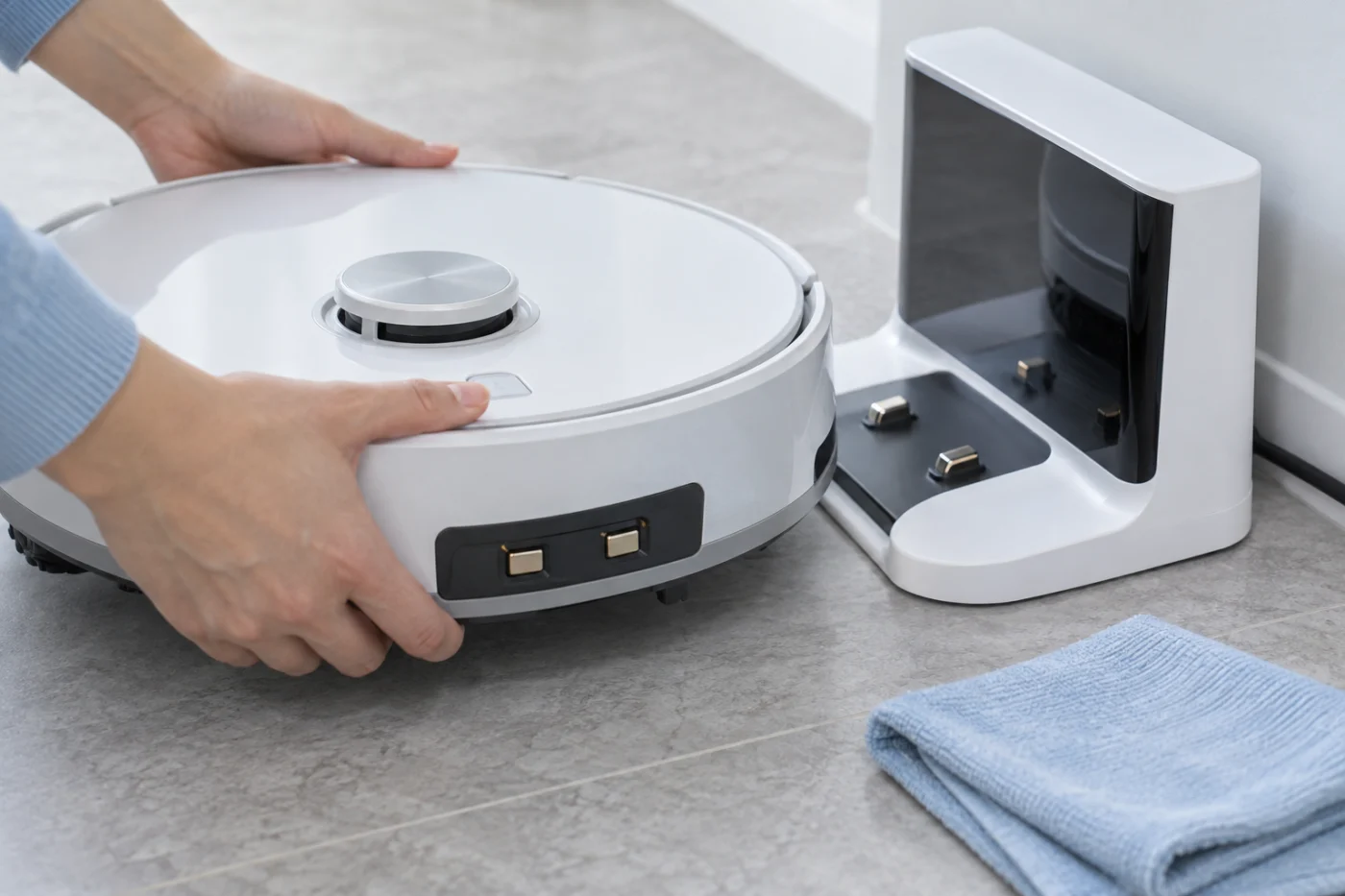
Reconnect the station and place the robot correctly in it. If the robot repeatedly misses the charging position, use the docking guide. If it powers on but its battery level does not rise, use the separate charging guide.
3. Allow a charging recovery, then try the power control
After confirming the base has power and the robot is seated, allow two to three hours of charging and check the battery indication if available. This period follows Dreame’s charging FAQ; it is a diagnostic interval, not a guarantee that a failed battery will recover. Then press and hold the robot’s Power/Clean button to start it, following the control label on your device.
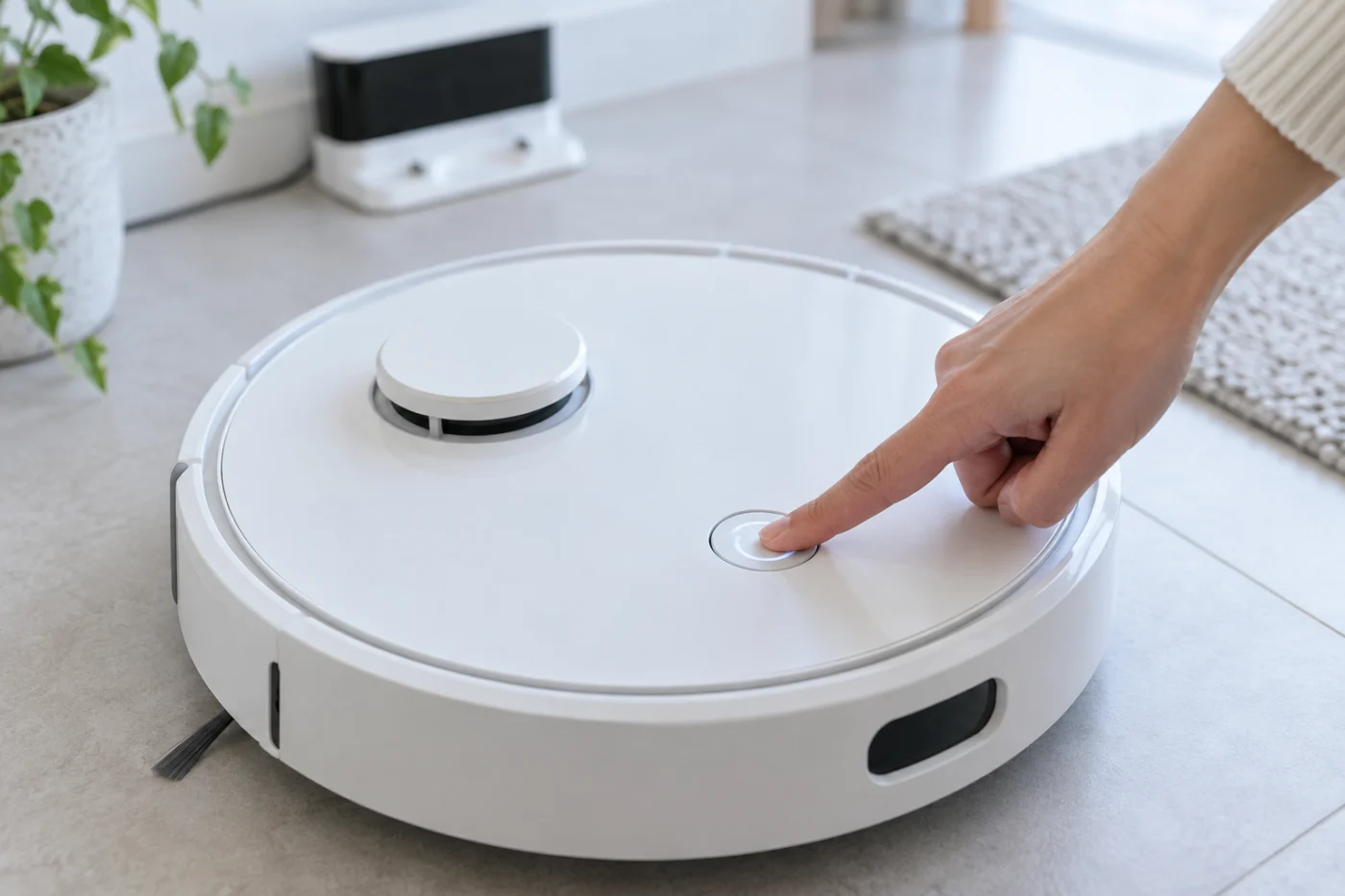
If it starts only on the dock and shuts down as soon as you remove it, record that result for Dreame support. An app status by itself is not a power test; the physical button and charging indication tell you more.
What did the power test show?
No station indicator: Resolve outlet, cord or rear-switch power first.
Station on, robot still dark: Check the contacts, seating and charging interval, then seek support if unchanged.
Robot starts but the app cannot see it: Diagnose Wi-Fi and the app rather than resetting the robot.
When to stop
Do not open the robot or station, remove the battery, or repeatedly reset an unpowered device. If it remains dark after a verified powered base, clean contacts, correct seating and a charging interval, contact Dreame support. Report whether the station light is on and whether the robot ever shows a charging or power indication. A system reset is a separate software step for a responsive device and can affect saved settings; it is not a substitute for restoring electrical power.
References: Dreame X40 Ultra charging checks and Dreame charging FAQ.