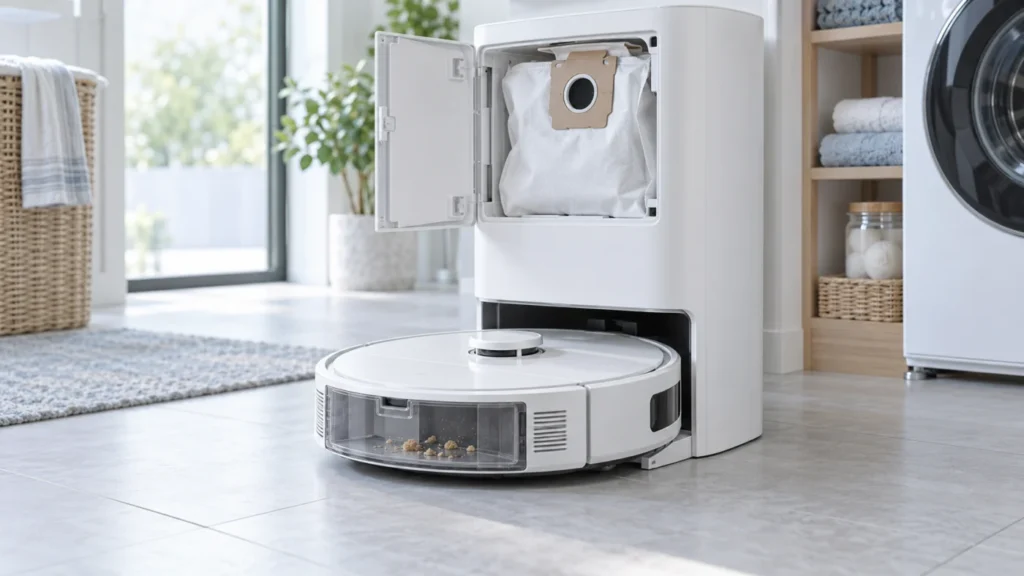
Begin with the quick checks. Stop if a step requires tools or experience you do not have.
If the Dreame X40 Ultra does not auto-empty, first see whether the station stays silent or runs but leaves debris in the robot. A silent station calls for a check of dock power, app dust-collection settings and whether the robot is seated. A station that runs with poor results calls for a full bag, blocked dust ports or a clogged robot dustbin outlet. Dreame lists these checks in its X40 Ultra support guide.
Not sure which check to try next?
Follow guided questions and report what changes after each check.
Start step-by-step diagnosisChoose the first check
- No suction sound after a run: Check station power and the app’s dust-collection control, then request one manual collection cycle.
- Suction starts but little dirt moves: Check the bag, both accessible dust ports and the robot bin outlet.
- It empties only sometimes: Review the selected collection frequency and any quiet-hours options in your app.
- The robot misses or leaves the base: Solve the docking problem first.
1. Confirm power, seating and the app setting
Check that the base station has power and the robot is fully docked. In Dreamehome, look for the dust-collection control and selected frequency. Dreame describes Daily, Intelligent and Comfort options for the X40 Ultra; the exact app layout can change. If a Do Not Disturb schedule or a low-frequency setting could affect your test, note it and start one manual collection cycle at a suitable time. Record whether the station starts and whether the app displays an error.
If the robot does not charge reliably, use the X40 Ultra charging guide before diagnosing automatic dust collection.
2. Inspect the bag and accessible dust path
Stop the cycle, turn off and unplug the base station, and switch off the robot before opening removable parts. Remove the station dust bag and check whether it is full, torn, or seated incorrectly. Replace a full bag with a compatible one and refit it fully. Do not run the station without a bag.
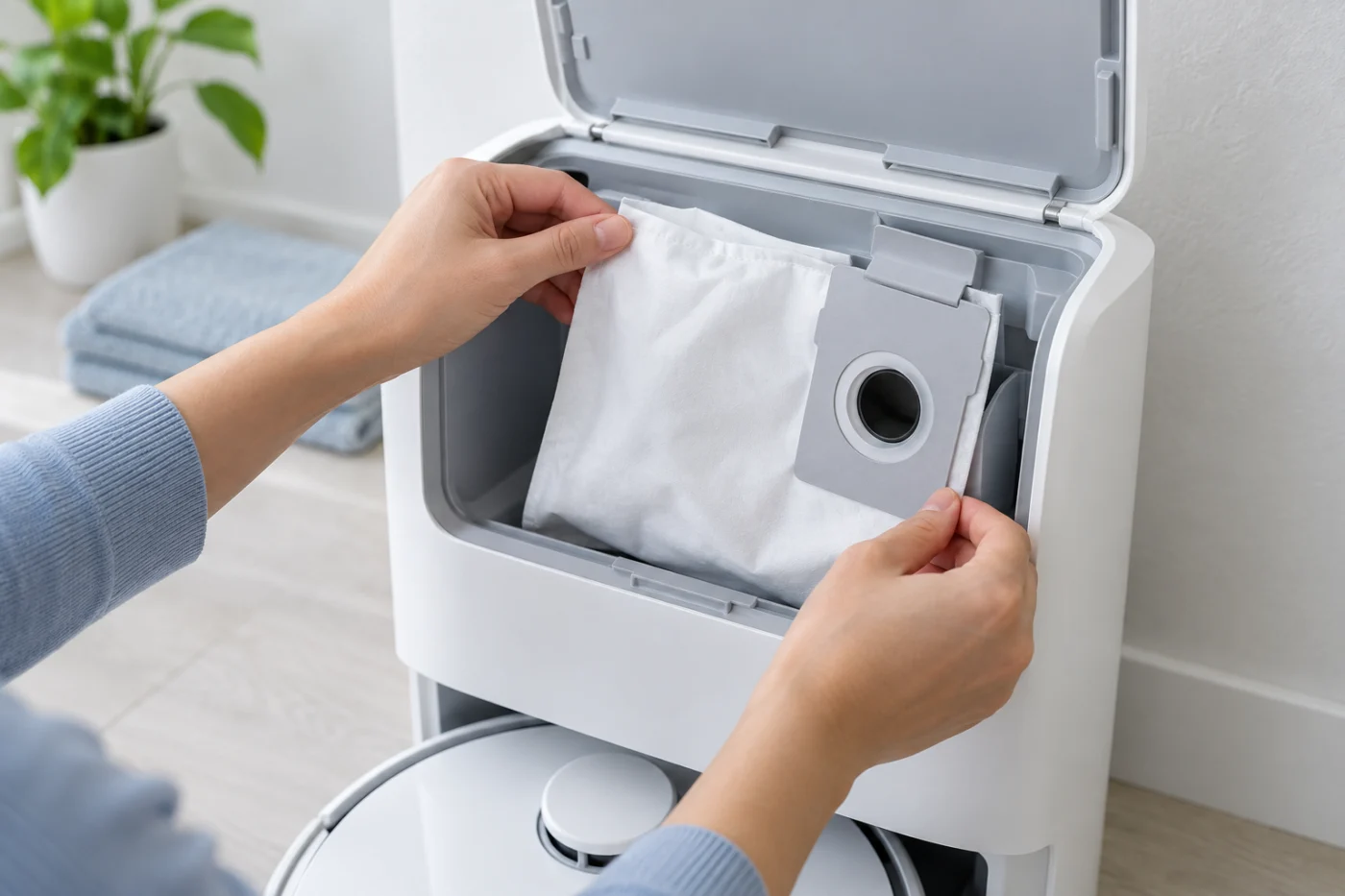
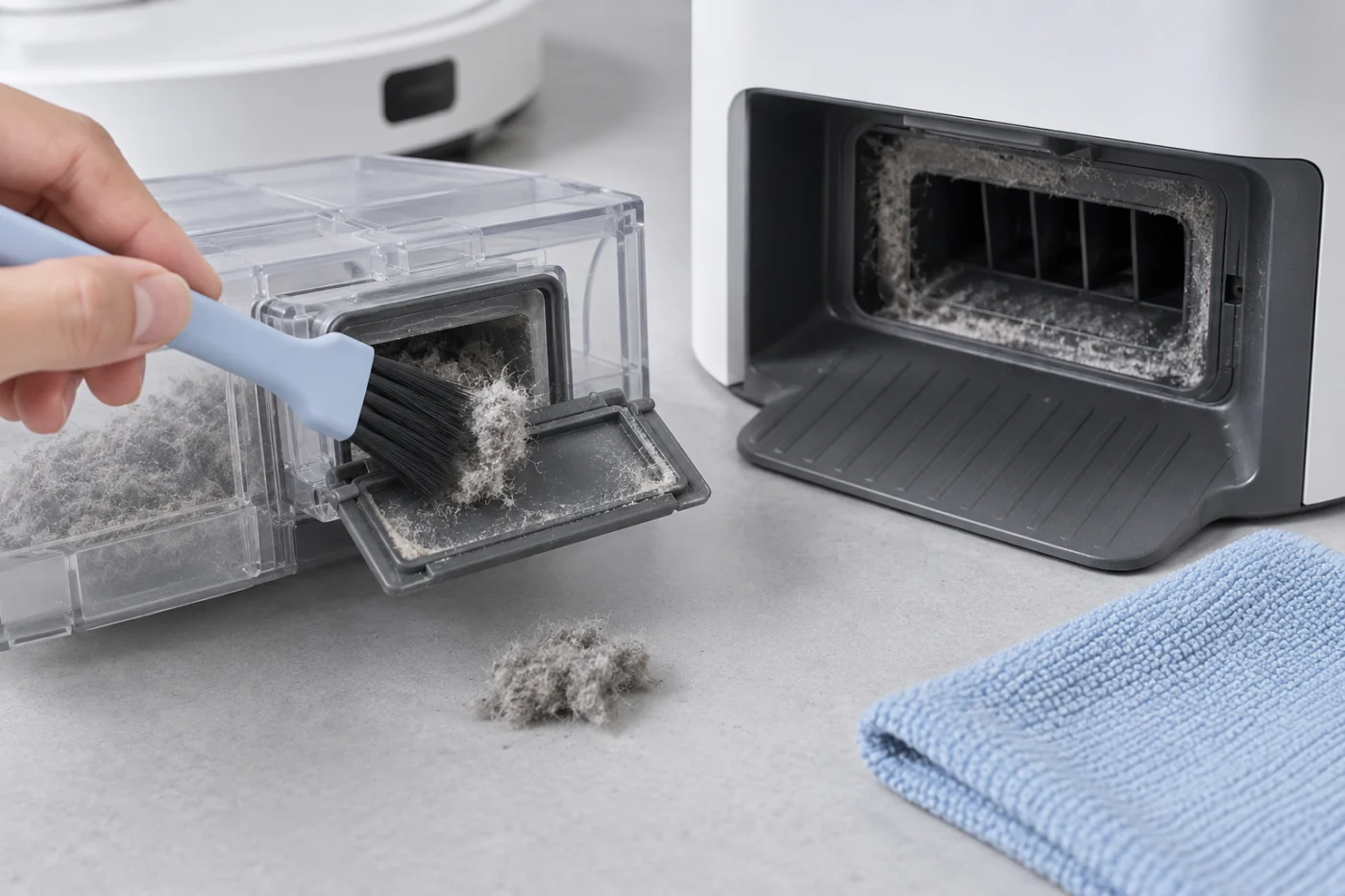
Empty the robot’s onboard dustbin and inspect its outlet for a compacted wad of hair, paper or lint. Check only the accessible suction ports on the robot and station, removing debris you can reach without forcing a tool into a duct. Dreame specifically calls out blocked dust ports and the dust-box outlet when collection fails.
3. Retest once, then identify the remaining fault
Reassemble the bin and bag, close the station, reconnect power, and seat the robot. Start one manual dust-collection cycle in the app. If the station now sounds normal and the robot bin empties, the immediate obstruction or seating problem is resolved. If suction runs but debris remains, check the outlet flap and ports once more; do not repeat long cycles against an obvious blockage.
What did the manual cycle show?
No motor sound: Check the app message, station power, dust-collection setting and docking.
Strained or brief sound: Recheck bag seating and accessible ports, then stop if the fault repeats.
Normal sound but full robot bin: Inspect the robot’s dust-box outlet for compacted debris.
If the station repeatedly refuses the command, stops with an error, or remains ineffective with a clear accessible path and correctly installed bag, contact Dreame support. Send the exact app warning and the result of the manual test. Do not open the station housing or probe its powered motor.
Model reference: Dreame X40 Ultra FAQ, dust-collection troubleshooting and frequency settings.