Begin with the quick checks. Stop if a step requires tools or experience you do not have.
Quick answer: If your Dreame X40 Ultra docking failed, place the robot one to two metres directly in front of the powered station and send it home. If it docks from that position, check station placement, nearby obstacles, reflections, LDS operation, wheels, and map context. If it reaches the ramp but repeatedly backs out, clean the charging contacts, inspect the spring-loaded pins, and check wheel traction.
The way the docking attempt fails is the most useful diagnostic clue. A robot that cannot find the station has a different problem from one that reaches the dock, reverses into the bay, and then immediately drives out again.
Do not delete the map or reset the robot until the station, approach area, contacts, sensors, and wheels have been checked. Most of those checks are reversible and take only a few minutes.
Before you start
- Confirm that the station is connected to power.
- Place the station on a hard, flat floor.
- Remove cables, toys, shoes, and other objects from the approach area.
- Use only a clean, dry cloth on sensors and charging contacts.
- Turn the robot off before removing hair from its wheels.
- Do not spray cleaner into the robot or station.
- Do not reset the map until the physical checks are complete.
Run each docking test from the same starting position. Moving the robot, station, or surrounding furniture between tests makes the results harder to compare.
Dreame X40 Ultra docking failed: identify the behavior
| Docking behavior | Likely area | First check |
|---|---|---|
| The robot searches without reaching the station | Station power, placement, navigation, or map | Run the one-to-two-metre return test |
| The robot reaches the ramp and backs out | Contacts, spring pins, alignment, or traction | Clean the contact area and inspect both pins |
| Short-distance docking works, but long returns fail | Map, LDS, interference, or moved station | Check the station location and navigation sensors |
| The robot approaches the station at an angle | Blocked path, reflection, sensor dirt, or wheel slip | Clear the approach and clean sensors and wheels |
| The robot docks but the battery does not increase | Charging rather than docking | Switch to the charging-specific diagnosis |
| The robot cannot leave the station smoothly | Ramp installation or wheel traction | Check that the ramp is flat and fully seated |
When the Dreame X40 Ultra docking failed message appears, watch the final metre of travel. This reveals whether the failure occurs before the robot locates the base or while it is trying to make physical contact.
1. Confirm that the station is powered
A loose power cable can prevent the station from providing the signal and charging response required for a normal return sequence.
- Disconnect the station’s cable from the wall outlet.
- Inspect the visible cable and plug for damage.
- Reconnect the cable firmly at the station.
- Reconnect it to a verified working wall outlet.
- Turn on the station’s power switch, if present.
- Check for the normal indicator response.
If the station remains completely inactive on a working outlet, stop the docking tests. Diagnose the station power supply before changing maps or navigation settings.
2. Run the one-to-two-metre docking test
Dreame’s official return-to-charge procedure uses a short-distance test to separate a base-engagement problem from a longer navigation problem.
- Place the station against the wall.
- Position the robot one to two metres directly in front of it.
- Point the robot toward the centre of the station.
- Press the Recharge button or use Return to Dock in the app.
- Do not touch the robot during the attempt.
- Watch whether it reaches and enters the station.
If the robot docks correctly: the station can be detected from close range. Concentrate on room navigation, map context, station placement, reflections, LDS operation, or wheel traction.
If the robot still cannot dock: check the ramp, charging contacts, spring pins, sensors, and final alignment. Record a short video if you expect to contact support.
3. Give the station a clear approach lane
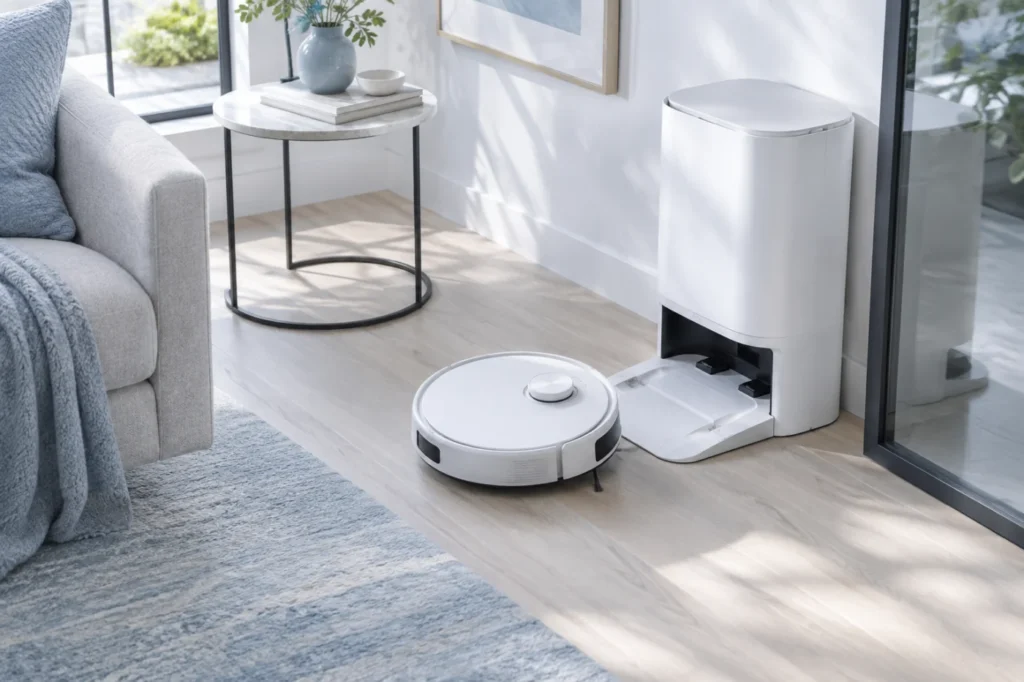
Dreame recommends placing the station against a wall, leaving approximately 5 cm of clearance on both sides and about 1.5 metres of open space in front.
- Remove furniture or storage boxes close to the sides.
- Move cables, slippers, toys, and pet bowls from the front.
- Make sure the station is not inside a narrow recess.
- Place it on tile, wood, concrete, or another hard level surface.
- Do not place the station on thick carpet or a soft mat.
- Make sure the ramp is flat and completely connected.
- Prevent the power cable from crossing the approach path.
If the station rocks, slides, or tilts when the robot enters, the contacts may not align consistently.
4. Reduce signal interference and reflections
Dreame advises keeping the station away from strong signal sources such as routers and televisions. Mirror-like surfaces opposite the station may also interfere with the robot’s interpretation of the docking area.
- Check whether a Wi-Fi router is immediately beside or above the station.
- Move strong electronic equipment farther away for one test.
- Inspect the wall opposite the dock for mirrors or reflective glass.
- Temporarily cover the lower reflective area with a non-reflective cloth.
- Remove highly reflective objects near the approach lane.
- Run the same short-distance docking test again.
Reflection is more likely when the robot approaches inconsistently, turns toward glass, or stops and corrects its direction repeatedly despite a clear floor.
5. Clean sensors, contacts, and spring pins
Dust on the robot’s sensor windows can affect the final approach. Dirty charging contacts or a recessed station pin can cause the robot to enter the dock and then back out because a stable connection is not detected.
- Remove the robot from the station.
- Disconnect the station from power.
- Wipe the robot’s front and underside sensor windows with a soft, dry cloth.
- Clean the visible dock-location sensor area.
- Wipe the metal contacts on the robot and station.
- Gently press each spring-loaded charging pin.
- Confirm that both pins move and return freely.
Do not use a wet cloth on electrical contacts. Do not bend, pull, lubricate, or pry a stuck charging pin.
If the robot reaches the dock but charging does not start after it remains correctly positioned, follow our Dreame X40 Ultra not charging guide.
6. Check the LDS and other navigation sensors
The top-mounted LDS laser helps the robot determine its position and navigate back to the station. Dreame’s return-to-charge guidance asks owners to confirm that the LDS rotates normally.
- Start the robot and listen for abnormal noise from the LDS area.
- Check that the turret is not blocked by dust or a foreign object.
- Wipe the visible LDS cover with a clean, dry cloth.
- Clean the front obstacle-sensor window.
- Clean the wall and cliff sensors underneath the robot.
- Remove objects that press against or cover the top turret.
Do not force the LDS turret to rotate by hand. If it does not operate normally or produces grinding sounds, arrange professional inspection.
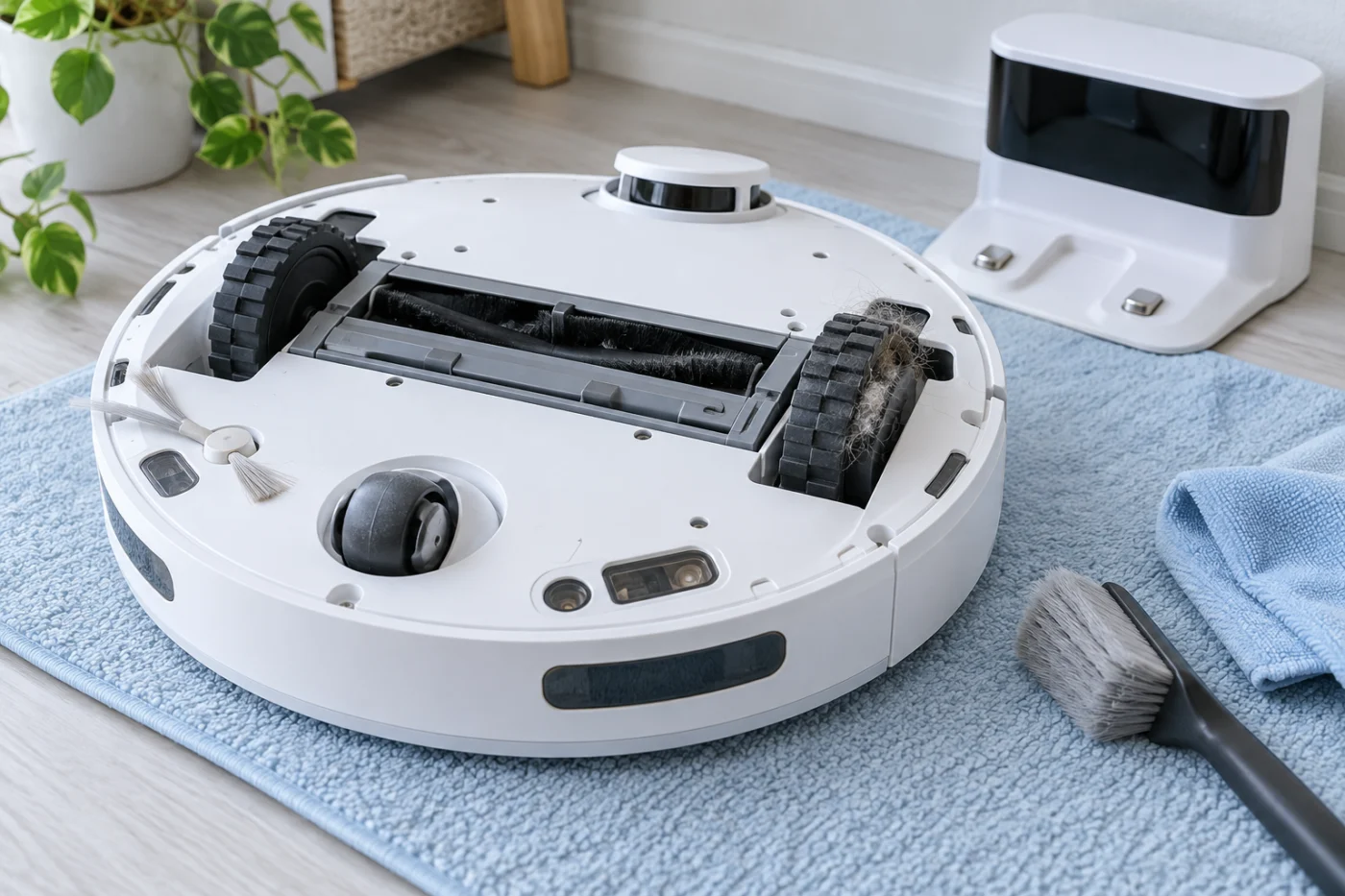
7. Inspect the drive wheels and front caster
A wheel that slips, sticks, or cannot move through its full suspension travel may turn the robot away from the centre of the ramp.
- Turn the robot off.
- Place it upside down on a soft towel.
- Remove hair and thread from both drive wheels.
- Press each drive wheel gently and confirm that it moves through a similar range.
- Rotate each wheel and feel for unusual resistance.
- Remove debris from the front caster.
- Clean dust from the tyre surfaces.
- Check the dock ramp for moisture or slippery residue.
Dry the wheels and ramp before another test. If one drive wheel does not turn or return normally, the Dreame X40 Ultra docking failed behavior may require wheel-module service.
8. Correct the station location, restart, and reset last
If the station was recently moved, place the robot on it and begin the next cleaning run from the new station position. Avoid moving the base again during diagnosis.
- Place the station in its final open location.
- Put the robot correctly on the station.
- Restart the robot.
- Start a short cleaning task from the station.
- Let the robot return without moving it manually.
- Check whether the map now shows the station correctly.
If the problem continues, restarting is safer than immediately deleting the map. A factory reset is the final software check because Dreame warns that resetting the robot erases saved data, including maps.
Before resetting:
- Save screenshots of important schedules and settings.
- Confirm that the dock is powered and correctly positioned.
- Repeat the short-distance test.
- Confirm that sensors, contacts, pins, and wheels are clean.
- Record the failed docking attempt for support.
What your test result means
| Test result | What it suggests | Best next step |
|---|---|---|
| The robot docks from one to two metres away | The station and final approach can work | Check navigation, placement, reflections, and map context |
| The robot reaches the ramp and backs out | Contact, pin, alignment, or traction problem | Clean contacts and inspect the ramp and wheels |
| The robot cannot locate the station at all | Power, LDS, interference, or map problem | Check station power and navigation conditions |
| Docking works after cleaning a wheel | Wheel slip changed the final approach | Inspect the wheels regularly for hair |
| The robot docks but does not charge | The docking movement is complete | Switch to charging-contact diagnosis |
| Every external check passes but docking still fails | Possible sensor, wheel, or internal fault | Contact Dreame support with a video |
Frequently asked questions
Why does my Dreame X40 Ultra keep backing out of the dock?
The robot may not be detecting a stable final position. Clean the charging surfaces, check both spring-loaded pins, make sure the ramp is flat, and inspect the drive wheels for slipping or trapped hair.
How much free space does the station need?
Dreame recommends approximately 5 cm on each side and 1.5 metres of unobstructed space in front, with the station placed against a wall.
How do I know whether the problem is navigation or alignment?
Run the one-to-two-metre test. If the robot docks from directly in front but fails after a normal cleaning run, concentrate on navigation, station placement, reflections, LDS operation, and map context.
Should I delete the map when docking fails?
Not initially. Check power, placement, sensors, contacts, wheels, interference, and station location first. If the station was moved, start a new cleaning task from the station before rebuilding the map.
Will a factory reset fix the problem?
It may help with a persistent software fault, but it is a final step. A factory reset removes saved maps and settings and will not repair a dirty contact, stuck pin, slipping wheel, or faulty sensor.
What if the Dreame X40 Ultra docking failed after every check?
Contact Dreame support and provide a video of the final approach. Explain whether the robot locates the station, reaches the ramp, backs out, or docks without charging.
Final checklist
- The station has power.
- The station is against a wall on a hard, level floor.
- Approximately 5 cm is clear on each side.
- Approximately 1.5 metres is clear in front.
- Reflective surfaces and strong interference have been checked.
- The robot completed the one-to-two-metre test.
- The LDS and visible sensor windows are clean.
- The charging contacts and spring pins are clean and moving.
- The wheels and front caster rotate freely.
- The station has not been moved between tests.
- Restart was attempted before factory reset.
When the Dreame X40 Ultra docking failed, the most important step is to identify where the attempt breaks down. Failure to locate the station points toward placement or navigation, while repeated backing out after reaching the ramp points toward alignment, contacts, pins, or wheel traction.
For more help, visit the Dreame troubleshooting section, compare the symptoms with our Dreame X40 Ultra charging guide, read the Dreame L10s Ultra water guide, or browse the complete robot vacuum troubleshooting directory.
Official references: Dreame X40 Ultra docking-failed procedure and Dreame return-to-charge troubleshooting.