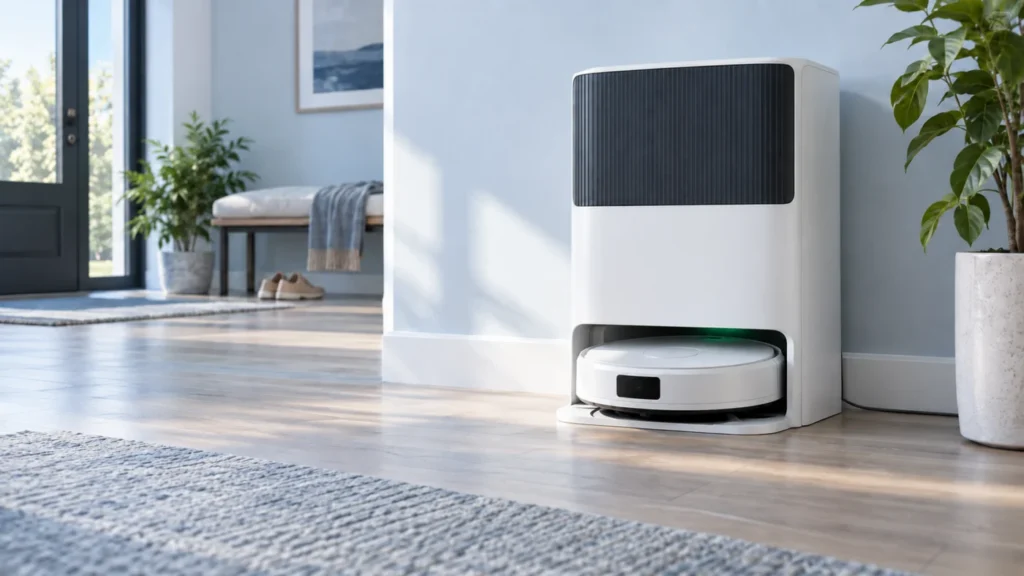
Begin with the quick checks. Stop if a step requires tools or experience you do not have.
Quick answer: If your Dreame X50 Ultra is not charging, confirm that its base station has power, then check whether off-peak charging is scheduled in Dreamehome. If charging should be active now, clean the robot and base contacts with a dry cloth while the base is unplugged, dock the robot again, and compare its battery percentage after about 30 minutes.
Not sure which check to try next?
Follow guided questions and report what changes after each check.
Start step-by-step diagnosisThe confusing case is a robot that looks perfectly parked. You come back later, open the app, and the battery is still at the same percentage. Before changing anything, note whether the station has power, whether the robot reports charging, and whether a charging schedule is active. Those three observations tell you where to look next.
Dreame X50 Ultra not charging: match the symptom
| What happens | Where to look | First check |
|---|---|---|
| The base has no apparent power | Outlet, power cord or base switch | Verify the outlet and reconnect the cord at both ends |
| The robot is docked, but charging waits until later | Off-peak charging schedule | Check the permitted charging hours in Dreamehome |
| It enters the base and immediately backs out | Dock position, ramp or contact connection | Check the approach and let it dock once while you watch |
| Charging appears to start, but the percentage does not rise | Schedule, intermittent contact or temperature | Check the schedule, clean contacts and repeat a timed test |
| The robot does not respond at all | Very low battery or absent charging connection | Place it correctly on a verified powered base and give it time |
Work safely: Keep the station and your hands dry. Unplug the station before touching its charging contacts. Do not spray cleaner into the dock, scrape the metal with a blade, or open the robot or station. If a plug, cord or battery looks damaged, stop using it and arrange service.
1. Confirm that the base station has power
Start at the wall, even if the robot is already sitting inside the station. Make sure the outlet works with another small device. Check that the power cord is firmly connected at the wall and at the station. The X50 Ultra manual also shows an I/O power switch on the base; it needs to be in the on position.
The base normally displays a white status indicator when powered. An orange base indicator points to a station error. Bear in mind that the indicators can dim after the robot is fully charged, so a dark light on its own does not prove the outlet has failed. Use the outlet and cable checks to confirm power.
If the station remains unresponsive on a known working outlet, do not continue with contact cleaning as though this were a robot battery problem. The base or its power connection needs attention first.
2. Check the off-peak charging schedule
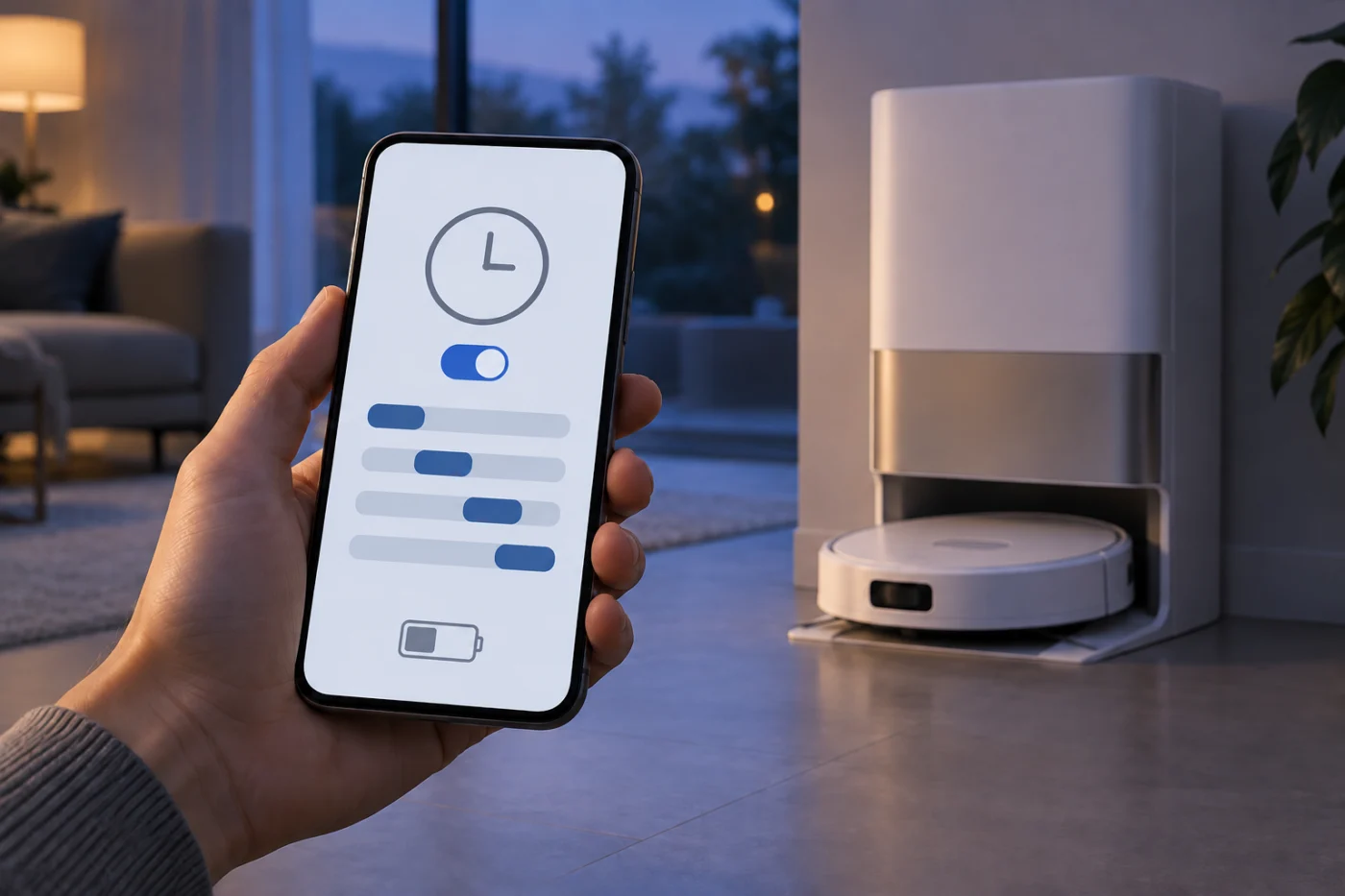
This is easy to miss on the X50 Ultra. Dreame offers an off-peak charging option, and an enabled schedule can leave the robot docked while full charging waits for the allowed time window.
In Dreamehome, open the settings for your X50 Ultra and look for off-peak or scheduled charging. Check the hours shown in the app. For a controlled test, temporarily turn that option off, or test while the current time falls inside its charging window. Give the robot time to register the change, then look again at its charging state. You can restore your preferred schedule afterward.
Do Not Disturb is a separate setting; do not assume it explains an unchanged battery percentage. The useful question here is whether the app currently permits charging.
3. Read the robot’s indicators, then record the battery level
The X50 Ultra has more than one light to interpret. Its manual describes a solid green circular indicator while charging. The button indicator may breathe white during normal charging or orange when charging at a low battery level. A blinking orange indicator signals an error and is worth checking in the app.
Open Dreamehome and write down the battery percentage. If the robot is below full charge and your charging schedule permits charging now, leave it undisturbed for approximately 30 minutes and check the percentage again. Dreame uses a similar timed percentage check in its charging guidance. A robot already at 100% has no percentage left to gain; if the app is offline, its displayed value may not be a useful live measurement.
If the status changes to charging but the battery reading remains flat, continue with the physical connection checks. Record any voice prompt or app error rather than relying on the light alone.
4. Clean the charging surfaces while the base is unplugged
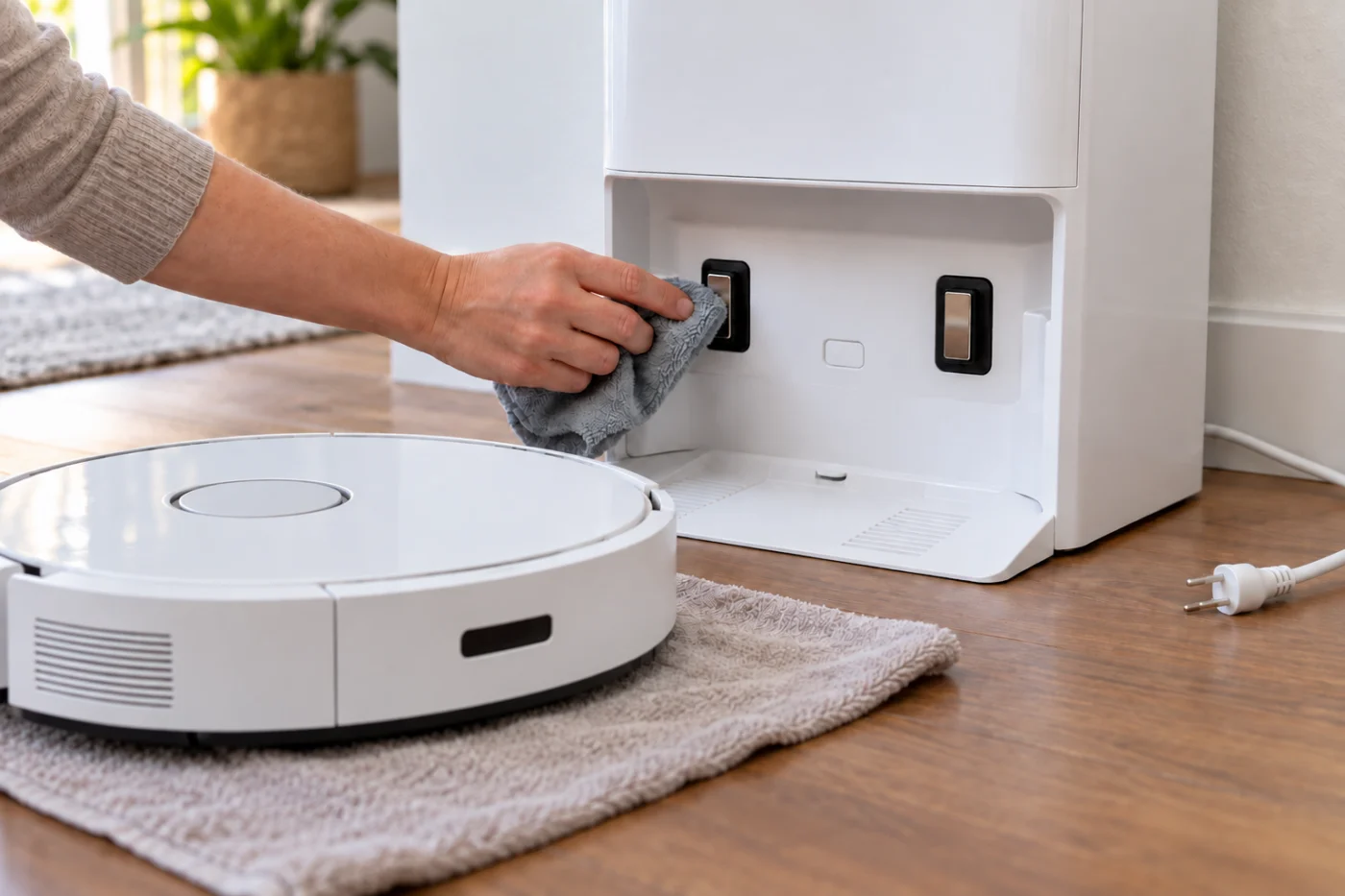
Remove the robot from the station and unplug the base. Locate the exposed metal charging surfaces on the robot and their matching contacts in the base. Wipe them gently with a clean, soft, dry cloth. Look for visible hair, grit or a small foreign object at the contact area, and remove only debris you can reach without opening anything.
Do not use a wet cloth, alcohol spray, metal scraper or abrasive pad. If a contact appears badly corroded, loose or damaged, stop cleaning and ask Dreame about repair. Once the surfaces are dry and clear, reconnect the station.
5. Watch the final docking position
Put the robot a short distance in front of the powered station and send it home with the Dock button. Watch the last part of the approach. Does it enter, settle and stay there? Or does it touch the station, reverse and try again?
The X50 Ultra base has a ramp extension plate. Check that it is installed correctly and that no rug edge, cable or object lifts the robot as it enters. Keep the station on a flat, dry floor. The robot needs a stable final position for its charging contacts to meet the base contacts.
If it cannot enter or remain in the base, that is a docking symptom. If it remains seated but receives no charge, focus on the power, schedule, contacts and battery checks in this guide.
6. Check the room and battery temperature
Dreame’s X50 Ultra manual specifies charging above 0°C (32°F) and below 40°C (104°F). It also says charging can slow when the robot is used outside its specified temperature range. A robot brought in from a very cold space or left beside a strong heat source may therefore behave differently from one sitting in a normal room.
Move the station to a dry, normally heated indoor location and let the robot return to room temperature before repeating the test. Do not try to speed this up with a hair dryer, radiator or direct hot air.
7. Restart the robot if it still responds
If the robot has enough power to operate, remove it from the base and restart it normally. Then dock it again and repeat the timed battery check. Dreame includes a restart in its X50 Ultra Complete charging procedure after the power and contact checks.
You can check for firmware updates in Dreamehome once charging is stable. Avoid starting an update while the robot repeatedly loses power. Also avoid using the small factory-reset control as an early troubleshooting step: a factory reset can erase saved maps and other data.
If the robot is completely unresponsive, skip the restart and use the next check instead.
8. Give a deeply discharged robot a chance to recover
The X50 Ultra manual says that when the robot cannot turn on after its battery is depleted, you can place it manually onto the station to charge. First verify that the station is powered and the contacts are clean. Set the robot in its proper charging position, then leave it undisturbed and check again after about 30 minutes. A very low battery may need more time before the robot responds.
If there is still no charging indication after it has spent a reasonable period on a verified powered station, or charging repeatedly begins and stops despite a stable dock position, contact Dreame support. Note the initial battery percentage, whether off-peak charging was enabled, the light or voice response, and the results of your timed test. Those details are more useful than a factory reset performed before the fault is identified.
What did your test show?
The station has no power
Confirm the outlet, both ends of the cord and the base power switch. If the station stays unresponsive on a working outlet, stop and arrange support for the base or power supply.
The robot is docked, but charging is scheduled for later
Check the off-peak window in Dreamehome. Test once with charging permitted at the current time, then restore the schedule you want.
The robot keeps backing out of the station
Check the flat floor, clear approach, ramp extension plate and accessible contacts. Watch one complete return-to-base attempt so you can describe exactly where it fails.
The robot reports charging, but the percentage remains unchanged
Confirm that charging is permitted now and the battery is below full charge. Clean the contacts, leave the robot seated, and compare the app reading after approximately 30 minutes. If it remains flat, record any error and contact support.
When to stop troubleshooting
Stop at the external checks if the cable or station is damaged, a charging contact is loose, or the robot still cannot gain battery power after a verified live base, an allowed charging window, clean contacts and a stable docking position. Battery and station repairs belong with qualified service.
This guide uses the official X50 Ultra user manual and Dreame’s charging troubleshooting guidance. You can find other model-specific problems in our Dreame troubleshooting collection. If your robot is actually an X40 Ultra, follow the separate X40 Ultra charging guide for that model.
Check replacement battery compatibility first
A charging problem does not by itself identify a failed battery. Complete the external checks above; if the manufacturer recommends a replacement, match the exact model and official item number.