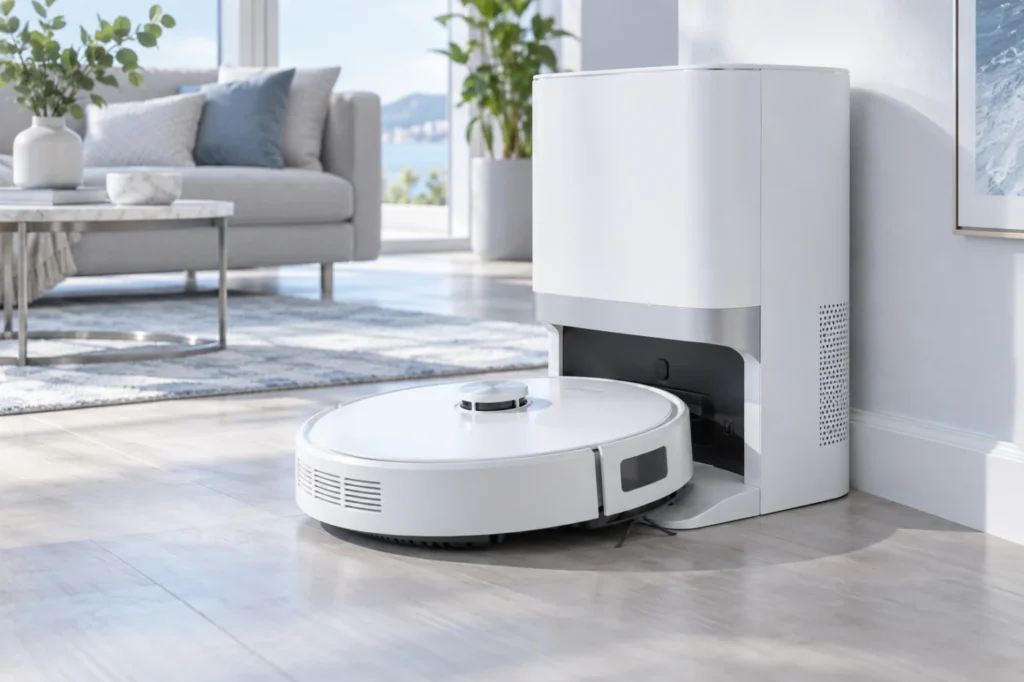
Begin with the quick checks. Stop if a step requires tools or experience you do not have.
Quick answer: If your Dreame X40 Ultra is not charging, first confirm that the base station has power. Then unplug the station, clean the metal contacts on both the robot and dock with a dry cloth, check that both spring-loaded dock pins move freely, and let the robot dock itself. If the battery is completely discharged, leave the robot correctly positioned on the powered station for two to three hours before testing it again.
A robot that reaches the station but does not gain battery power does not automatically have a failed battery. Charging problems are often caused by an unpowered base, dirty contacts, a recessed spring pin, poor alignment, or the robot stopping slightly short of its correct charging position.
Start with the safe external checks below. Do not factory-reset the robot until its power supply, contacts, dock alignment, temperature, and battery state have been checked.
Before you start
- Remove the robot from the station before cleaning the contacts.
- Disconnect the station from the wall outlet.
- Use only a clean, dry, lint-free cloth on charging surfaces.
- Do not spray water or cleaning solution onto the contacts.
- Do not scrape the metal surfaces with a knife or abrasive tool.
- Do not open the battery, robot housing, or powered station.
- Stop using the robot if the battery is swollen, leaking, unusually hot, or damaged.
Move the station onto a hard, flat floor before testing. Thick carpet, a soft mat, or an uneven surface can prevent the robot from settling into the correct charging position.
Dreame X40 Ultra not charging: what to check first
| Symptom | Likely area | First check |
|---|---|---|
| The station has no lights or response | Wall outlet, power cable, or station power | Test the outlet and reconnect both ends of the cable |
| The robot reaches the dock and backs out | Alignment, charging contacts, or spring pins | Clean the contacts and inspect pin movement |
| The robot stays on the dock but does not charge | Poor electrical contact | Confirm that both charging surfaces meet evenly |
| The robot appears completely dead | Deeply discharged battery | Leave it correctly docked for two to three hours |
| Charging starts and stops repeatedly | Dirty contact or unstable pin pressure | Clean and inspect both spring-loaded pins |
| The robot shows a charging error | Temperature, battery, station, or contact fault | Check the app message and room temperature |
When diagnosing Dreame X40 Ultra not charging, begin with the station and connection. A battery failure should be considered only after the robot has been given a stable power source and correct contact with the dock.
1. Confirm that the base station has power
Dreame’s official charging guidance starts by checking whether the base station is energized. The robot cannot charge even when it is perfectly aligned if the station has no power.
- Disconnect the power cable from the wall and station.
- Inspect the visible cable and plug for damage.
- Reconnect the cable firmly at both ends.
- Check the station’s rear or side power switch, if present.
- Test the wall outlet with another working device.
- Avoid using a switched extension lead during diagnosis.
- Reconnect the station directly to a known working outlet.
Look for the station’s normal indicator response. If the station remains completely inactive on a verified outlet, stop troubleshooting the robot and contact Dreame support about the station or power cable.
2. Dry-clean the charging contacts
A thin layer of dust, oxidation, cleaning residue, or moisture can create an unreliable connection. The robot may appear docked while electrical contact is incomplete.
- Unplug the base station.
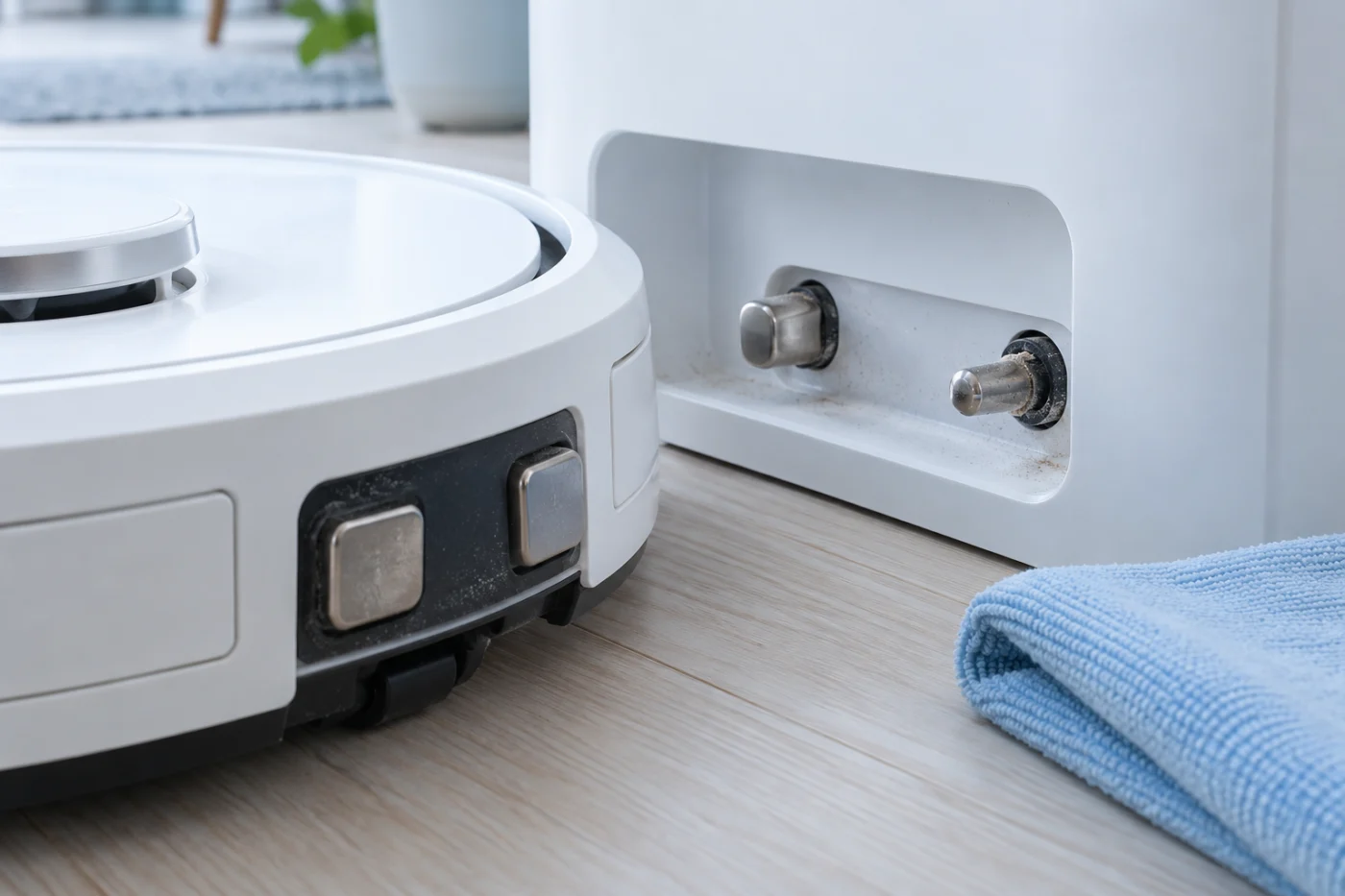
- Locate the metal charging pads on the robot.
- Locate the corresponding contacts inside the station.
- Wipe every metal surface with a clean, dry microfiber cloth.
- Remove dust from the surrounding plastic surfaces.
- Wait until every area is completely dry.
- Reconnect the station and test charging again.
Do not apply oil, polish, abrasive cleaner, vinegar, or household spray to the charging contacts. If dry wiping does not remove visible corrosion, the contact may require professional inspection.
3. Check the spring-loaded dock pins
The charging pins inside the station must move inward when the robot docks and return when pressure is released. If one pin remains recessed, only one side may touch the robot.
- Disconnect the station from power.
- Inspect both pins for dirt or foreign material.
- Gently press each accessible pin using a clean, dry finger.
- Confirm that each pin moves smoothly.
- Check that both pins return to approximately the same position.
- Remove only loose surface debris with a dry cloth.
Do not pull, bend, rotate, lubricate, or pry the pins. A damaged or permanently recessed pin should be repaired by qualified service personnel.
If the Dreame X40 Ultra is not charging and one pin sits noticeably deeper than the other, the robot may not be receiving stable charging voltage even though it remains on the station.
4. Let the robot dock itself
Manually pushing the robot onto the station can place it close to the charging area without correctly aligning the contacts. An automatic docking test shows whether the robot can complete its final approach.
- Place the station against a flat wall on a hard floor.
- Clear objects, cables, and reflective obstacles around it.
- Clean the robot’s dock-navigation sensors with a soft, dry cloth.
- Position the robot approximately one to two metres in front of the station.
- Point it generally toward the station.
- Use the Recharge or Return to Dock command.
- Watch the robot complete the approach without touching it.
The robot should approach squarely, settle fully into the bay, remain in place, and announce or display that charging has started.
If it repeatedly approaches, reverses, or corrects its position, the problem may be docking rather than charging. That symptom will be covered in our separate Dreame X40 Ultra docking guide.
5. Restart the robot and station
A temporary robot or station error can prevent the charging state from being recognized correctly.
- Remove the robot from the station.
- Turn the robot off normally, if it responds.
- Unplug the station.
- Wait approximately two minutes.
- Reconnect the station and confirm that it has power.
- Turn the robot back on.
- Place it in front of the station and command it to recharge.
Listen for the charging voice prompt and check the battery symbol in the Dreame app. Leave the robot in place for at least 15–20 minutes before deciding that the battery percentage is not increasing.
6. Allow a deeply discharged battery to recover
A fully discharged battery can make the X40 Ultra appear completely dead. The buttons may not respond immediately, and the app may show the robot as offline.
Dreame’s official guidance recommends placing an X40 Ultra that will not turn on back on the powered charging station and leaving it there for two to three hours.
- Confirm that the station is powered.
- Clean the robot and station contacts.
- Position the robot so both contacts meet securely.
- Leave it undisturbed for two to three hours.
- Remove it from the station after that period.
- Try turning the robot on normally.
Do not repeatedly remove the robot every few minutes. A deeply discharged battery may need time before the robot can show a charging indicator or respond to its buttons.
If the Dreame X40 Ultra is not charging after several hours on a confirmed working station, continue to the final software and service checks.
7. Check temperature and reset only as a final test
Dreame states that an environment below 0°C or above 40°C may interfere with normal startup. Move the robot and station to a dry, room-temperature location before testing again.
If the temperature is normal and all physical checks have passed, try one more restart. A factory reset should be used only as a final software test because it can remove saved maps and other settings.
- Record important schedules, settings, and map information.
- Confirm once more that the station has power.
- Confirm that the contacts and pins are clean.
- Make sure the robot can dock squarely.
- Attempt a normal restart first.
- Use the official reset procedure only if the robot still does not respond.
- Reconnect the robot to the app and test charging.
If the reset does not help, stop troubleshooting. The battery, charging circuit, internal wiring, or base-station electronics may require professional testing.
What the charging test means
| Test result | What it suggests | Best next step |
|---|---|---|
| The station has no response on a working outlet | Station, cable, switch, or power-supply fault | Contact Dreame support |
| Charging starts after cleaning the contacts | Dust or residue caused poor contact | Keep the charging area clean and dry |
| One charging pin remains recessed | Mechanical contact failure | Stop testing and arrange service |
| The robot charges only when repositioned | Alignment or uneven contact pressure | Check dock placement and automatic docking |
| The robot powers on after two to three hours | The battery was deeply discharged | Allow a complete uninterrupted charge |
| The station is powered but charging never starts | Possible battery or charging-circuit fault | Arrange professional diagnosis |
Charging light clues
- Breathing white: the robot is normally charging with the battery above the low-battery state.
- Breathing orange: the robot is charging while the battery level is low.
- Blinking orange: the robot is reporting an error that should be checked in the app.
- No light or response: verify base power, contact alignment, and deep-discharge recovery.
Status lights should be used as a second clue, not as the only diagnosis. Confirm whether the battery percentage increases after the robot remains on the station.
Frequently asked questions
Why does my Dreame X40 Ultra dock but not charge?
The most likely first checks are station power, dirty charging surfaces, a stuck spring-loaded pin, or poor dock alignment. The robot can look correctly docked even when the metal contacts are not pressing together.
Why does the robot keep backing out of the station?
It may be unable to align with the charging contacts. Check the approach path, station position, charging surfaces, spring pins, and dock-navigation sensors.
How long should I leave a completely dead X40 Ultra on the charger?
Dreame recommends leaving an X40 Ultra that will not power on at the charging station for two to three hours before trying to turn it on again.
Should I factory-reset the X40 Ultra immediately?
No. Check power, contacts, pin movement, alignment, temperature, and deep discharge first. A factory reset can remove saved maps and other settings.
Can I clean the charging contacts with water?
No. Disconnect the station and use a clean, dry cloth. Do not spray water, detergent, or cleaning solution onto the metal contacts.
What if the Dreame X40 Ultra is not charging after every check?
If the station is powered, the contacts are clean, the pins move correctly, and the robot docks accurately but still does not charge, contact Dreame support. Do not open the battery or powered station.
Final checklist
- The base station is connected to a verified working outlet.
- The station power cable is fully inserted at both ends.
- The robot and dock contacts are clean and dry.
- Both spring-loaded pins move and return freely.
- The station is installed on a hard, level floor.
- The robot completes automatic docking correctly.
- The robot and station have been restarted.
- A deeply discharged battery was given two to three hours.
- The room temperature is between 0°C and 40°C.
- Internal battery or station faults have been referred for service.
When the Dreame X40 Ultra is not charging, check the complete connection from the wall outlet to the robot before blaming the battery. Base power, clean contacts, moving spring pins, and correct alignment solve or identify many charging problems without opening the robot.
For related troubleshooting, browse the Dreame troubleshooting section, read our guide for Dreame L10s Ultra not dispensing water, compare another robot vacuum charging problem, or visit the complete robot vacuum repair guide directory.
Official references: Dreame X40 Ultra abnormal charging guide and Dreame X40 Ultra will not turn on guide.