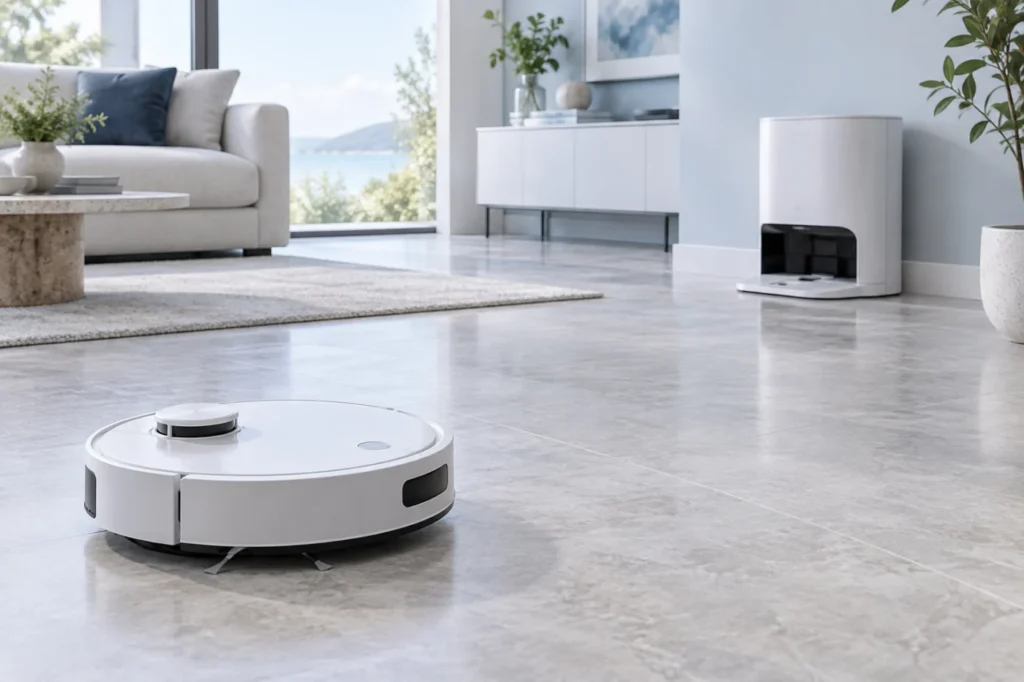
Begin with the quick checks. Stop if a step requires tools or experience you do not have.
Quick answer: If your Roborock Qrevo Curv cannot return to its dock, clear the route and the space around the station, then check that the dock is powered and sits flat against a wall on a hard floor. Keep its location beacon unobstructed and out of direct sunlight. Place the robot in the same room, send it home, and watch whether it fails to find the dock or reaches it but cannot enter. Those are different problems.
Not sure which check to try next?
Follow guided questions and report what changes after each check.
Start step-by-step diagnosisRoborock’s Qrevo Curv user manual specifically lists obstacles near the dock and excessive distance as reasons for a failed return. It also says to start cleaning from the dock and leave the station in place during a run. If the robot enters the dock but does not charge, use the separate Qrevo Curv charging guide.
Watch one return attempt
| What you see | First place to look |
|---|---|
| Robot searches without getting close | Blocked route, dock location, or an incorrect position on the map |
| Robot finds the area but misses the entrance | Floor, obstacles, dock location beacon, and robot dock locator |
| Robot enters, backs out, or stops short | Loose mat, debris at the base, wheels, and dock alignment |
| Robot seats itself but does not charge | Dock power and charging contacts; see the charging guide |
These observations narrow the next check; they do not identify a failed sensor by themselves.
1. Give the dock a stable, clear position
Remove shoes, cords, mats, pet bowls, and anything else that can shift near the approach. Put the station flat against a wall on a hard, level floor. The manual calls for a reserved space of at least 0.9 m high, 0.46 m wide, and 1.2 m deep. A soft mat can tilt the dock. Keep the dock location beacon clear of objects and direct sunlight, and route the power cord where the robot cannot catch it.
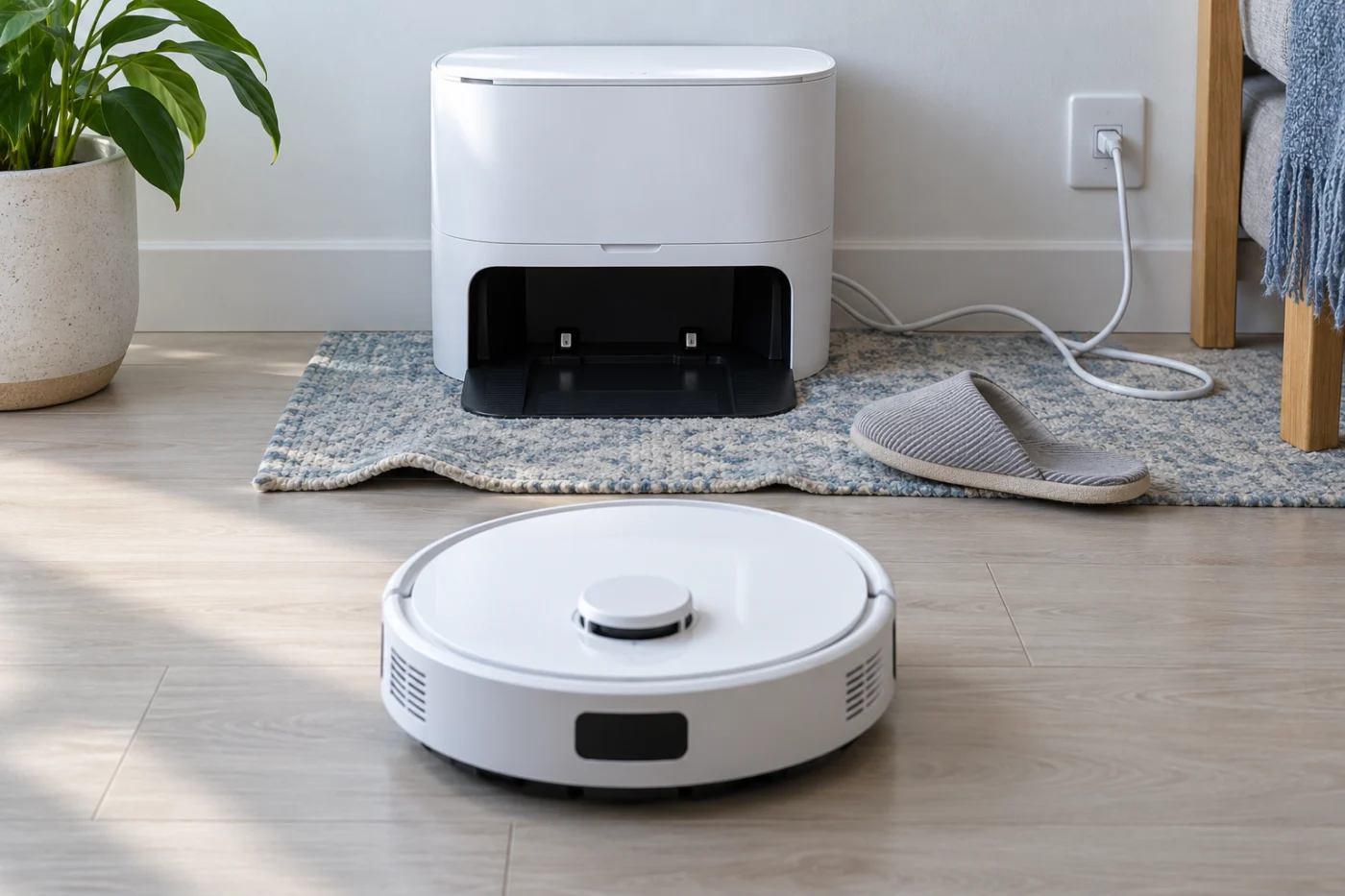
Check that the power cord is firmly connected. The dock status light normally goes out while the robot is charging, so an unlit dock with the robot seated is not, by itself, proof of lost power. A red light indicates a dock error; read the app or voice alert for the specific cause.
2. Try a return from nearby
With the dock plugged in, place the powered-on robot on the floor in front of it and press its Dock button or use the app’s return command. Roborock describes this placement as an initial docking test. If it returns from nearby but fails after cleaning elsewhere, inspect the longer route, closed doors, and map position. If it still misses the entrance from the same room, focus on the final approach, beacon, locator, and physical obstruction.
If the battery is too low for the robot to turn on, place it on the dock to charge rather than repeatedly commanding a return.
3. Clean the locator and accessible sensors
Switch off the robot for maintenance and use a soft, dry cloth on the dock locator, front obstacle sensor, wall sensor, communication sensor, and underside cliff sensors. Wipe accessible dirt from the dock beacon area without covering it. Check that the front bumper is free to move and that hair or debris does not stop the wheels. Avoid liquids, abrasive pads, and force on the LiDAR unit.
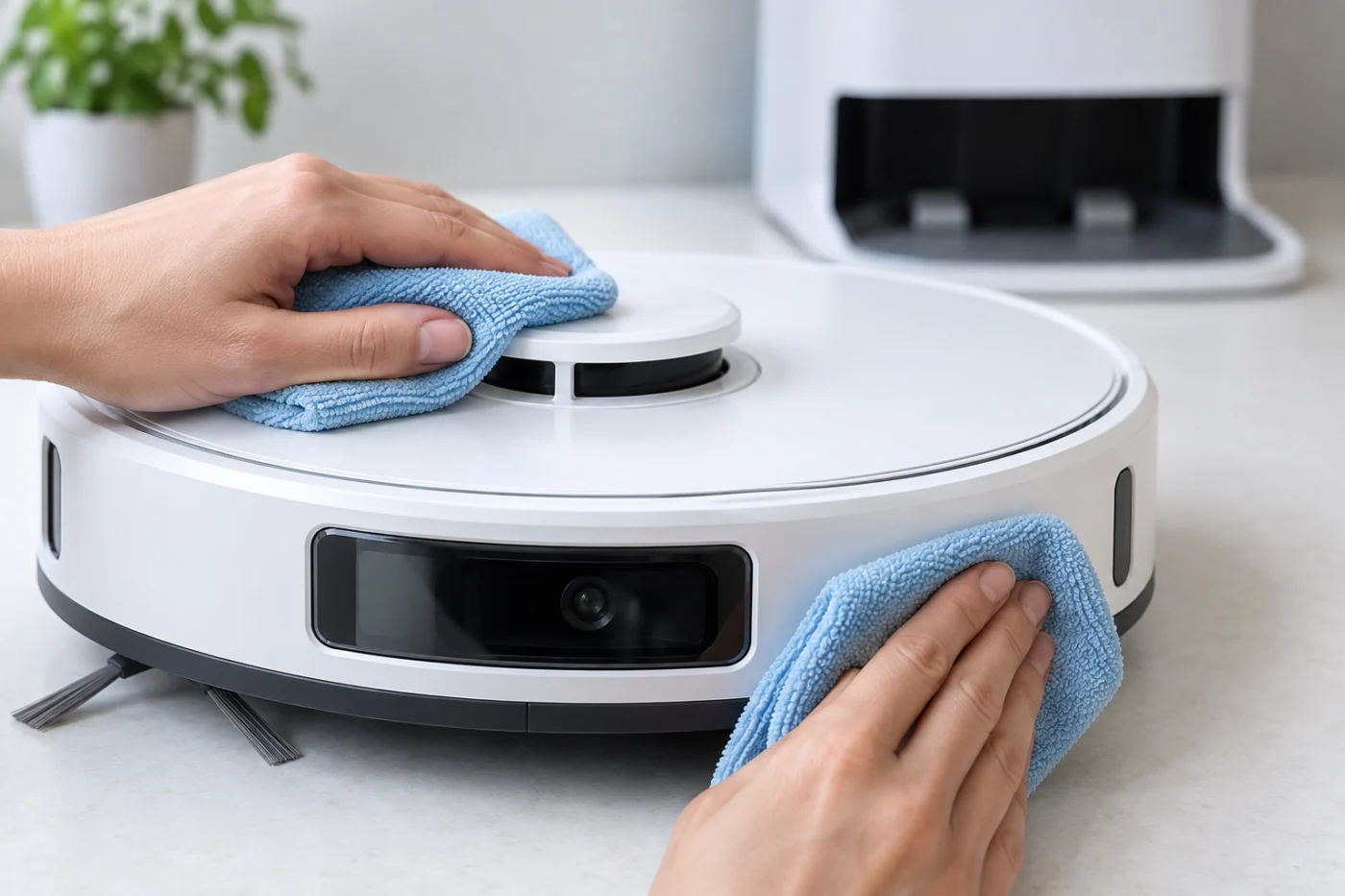
The manual identifies the dock locator among the robot’s maintenance points. Cleaning a window will not fix a damaged sensor; contact Roborock if the locator, bumper, wheel, or dock entrance is visibly damaged.
4. Check the map only after the physical test
Start a short cleaning task with the robot on its dock and let it return without moving the station. In the app, check that the active floor map puts the dock where it actually sits and that a no-go zone or virtual wall does not block the route. If a nearby return works but the longer trip repeatedly fails, review the path and selected floor before changing the map.
Restarting the robot is the manual’s suggested response to abnormal behavior. Rebuild the map only when positioning remains consistently wrong after the dock and route checks; doing so can lose saved room divisions and restricted areas. A factory reset is not a routine docking test.
When to stop troubleshooting
If the station is powered and unobstructed, the robot still cannot dock from the same room, or it repeatedly reports a locator or navigation error, record the exact app message and contact Roborock Support. Do not dismantle the robot, battery, or powered dock. For other Curv problems, see the Qrevo Curv troubleshooting hub.