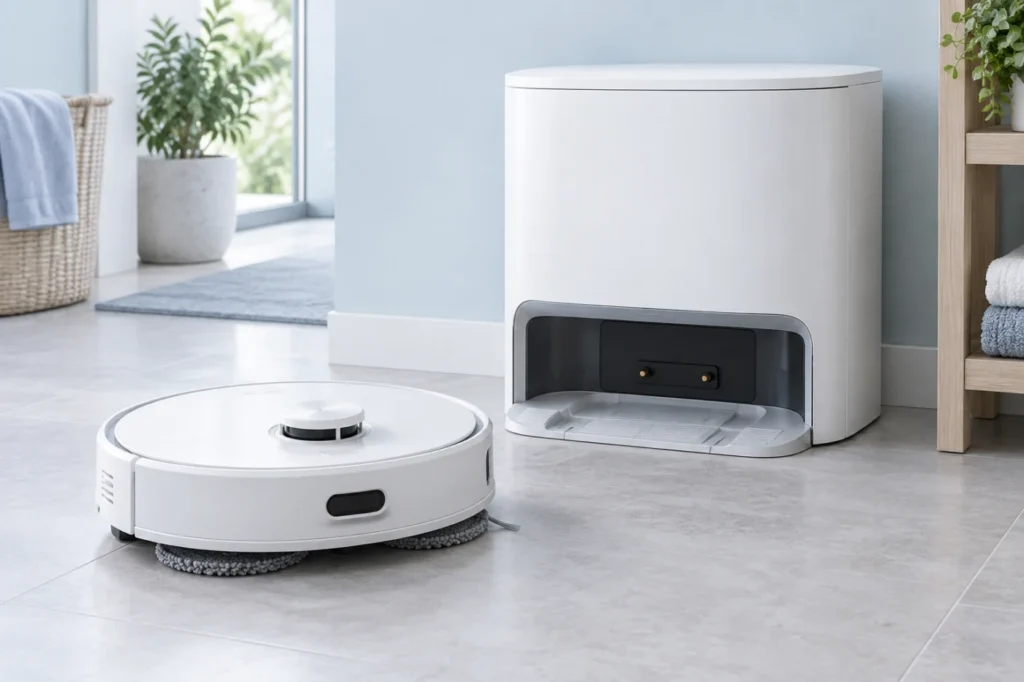
Begin with the quick checks. Stop if a step requires tools or experience you do not have.
Quick answer: If your Roborock Qrevo Curv is not charging, first confirm that the multifunction dock has power and place the robot on it by hand. Clean and dry the charging contacts on both the robot and dock, remove anything blocking the entrance, reboot the robot, and leave it docked for at least 30 minutes. If the dock is powered but the battery percentage never rises, the dock, charging circuit, or battery may need service.
Not sure which check to try next?
Follow guided questions and report what changes after each check.
Start step-by-step diagnosisA charging failure does not always mean the battery is dead. Dust on the contacts, a partially seated power cable, poor alignment, an overheated battery, or a temporary software error can all prevent charging. Work through the checks below in order, starting with the steps that do not require tools or disassembly.
Before you troubleshoot
- Turn the robot off before wiping its underside or moving the dock.
- Unplug the dock before cleaning its charging contacts.
- Use only a clean, dry, lint-free cloth on electrical contacts.
- Do not spray water or cleaner into the robot, dock, or power connection.
- Do not open the battery compartment or multifunction dock.
- Allow a very hot or very cold robot to return to room temperature before charging.
If your robot reaches the station but repeatedly backs away, the problem may be docking rather than charging. You can still use the alignment and contact checks below, then browse the complete robot vacuum troubleshooting guide directory for related symptoms.
Roborock Qrevo Curv not charging: what the symptom means
| Symptom | Likely area | First check |
|---|---|---|
| No lights or response from the dock | Outlet, power cable, or dock power supply | Test the outlet and reseat the cable at both ends |
| Robot docks but battery percentage stays unchanged | Dirty contacts, poor contact pressure, or charging circuit | Clean both sets of contacts and reseat the robot |
| Charging starts and stops | Loose connection, contamination, or unstable alignment | Inspect the contacts, dock base, cable, and floor |
| Robot repeatedly enters and leaves the dock | Blocked approach, misplaced dock, or dirty sensors | Clear the approach and wipe sensors with a dry cloth |
| Robot reports a temperature or battery warning | Battery outside its safe charging range | Let the robot reach room temperature before retrying |
1. Confirm that the multifunction dock has power
Begin at the wall outlet. Plug in a small appliance or lamp to confirm that the socket works. If the outlet is controlled by a wall switch, make sure the switch is on. Avoid testing through an overloaded extension lead or a switched smart plug.
Next, inspect the dock power cable. Disconnect power, then push the connector firmly into the dock and reconnect the wall plug. Look for cuts, crushing, heat damage, or a loose plug. Do not use a damaged cable.
A powered dock should react when the robot is correctly placed. If the dock remains completely unresponsive on a known-good outlet, the problem is more likely to be in the cable or dock than in the robot battery.
2. Place the robot on the dock by hand
Automatic return can fail even when charging itself works. Put the dock on a hard, level floor against a wall. Remove rugs, cables, pet bowls, and other objects that can tilt the robot or prevent it from reaching the final position.
- Place the robot about 30–50 cm in front of the dock.
- Align it with the center of the dock entrance.
- Move it gently into the charging position without forcing it.
- Wait for the charging indication, then check the battery percentage in the Roborock app.
If manual placement works but automatic docking does not, charging hardware is probably functioning. Concentrate on the dock location, approach path, sensors, and saved map rather than replacing the battery.
3. Clean the robot and dock charging contacts
When a Roborock Qrevo Curv is not charging despite a powered dock, contaminated contacts are one of the most useful things to check. Fine dust, residue, oxidation, or moisture can increase electrical resistance even when the metal surfaces look almost clean.
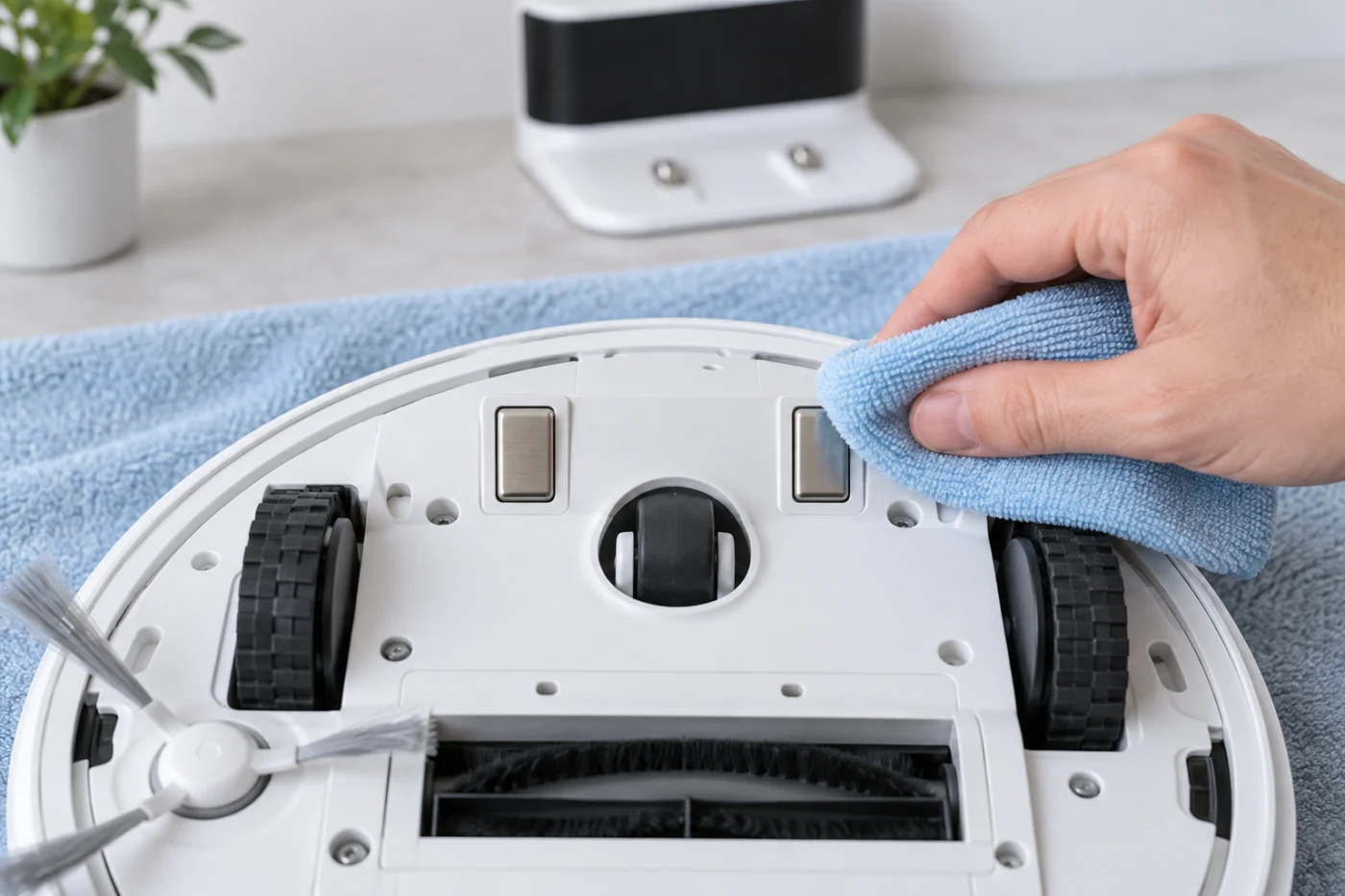
- Turn the robot off and unplug the dock.
- Place the robot upside down on a folded soft towel.
- Locate the metal charging contacts on the robot.
- Wipe each contact with a dry microfiber cloth.
- Wipe the corresponding contacts inside the dock.
- Check that no dirt is packed around the contact edges.
- Return the robot upright, reconnect power, and test again.
Do not use abrasive pads, metal tools, oil, or household cleaning spray. If a contact is recessed, loose, burnt, or badly discolored, stop testing and arrange service.
4. Check alignment and contact pressure
The two contact pairs must meet evenly. A small object under the dock tray, an uneven floor, or debris around a wheel can leave one side slightly raised. Check that the dock is stable and that the robot sits straight rather than leaning to one side.
Inspect the front caster and drive wheels for trapped hair or debris. Rotate the wheels by hand while the robot is off; they should move without a hard obstruction. Also check the dock entrance and wash tray for loose objects that could stop the robot short of its charging position.
If charging begins when you gently reseat the robot but stops again after you release it, there may be insufficient contact pressure or a damaged contact. That pattern is more useful for diagnosis than a simple “not charging” message.
5. Let the battery return to room temperature
Lithium-ion batteries may pause charging when they are too hot or too cold. This can happen after a long high-power cleaning run, direct sunlight, storage in an unheated room, or operation near a heater.
Move the robot and dock to a dry room at normal indoor temperature. Turn the robot off and wait 30–60 minutes before docking it again. Do not try to cool the battery with a refrigerator, cold air, water, or ice.
If the Roborock Qrevo Curv not charging problem appears only after demanding cleaning sessions, temperature protection is more likely than a permanently failed battery.
6. Reboot the robot and refresh the app status
A temporary software or communication error can make the charging state appear incorrect. Restart the robot using its normal power control, wait for it to finish booting, and place it back on the powered dock.
Then close and reopen the Roborock app. Confirm that the app is showing the correct robot and refresh the device screen. If a firmware update is available, install it only while the robot has a stable connection and enough remaining charge to complete the update.
A factory reset should not be the first response to a charging fault because it can remove maps and settings without repairing a physical power problem. Use it only when official support recommends it for your exact model and symptom.
7. Test for a dock, battery, or charging-circuit fault
After cleaning and reseating the robot, leave it on the powered dock for at least 30 minutes. Record the starting and ending battery percentages rather than relying only on an icon. A deeply discharged battery can take time before the percentage visibly increases.
Service is appropriate when any of the following remains true:
- The dock has no response on multiple known-good outlets.
- Charging starts only while the robot is physically held in position.
- The charging contacts are loose, recessed, burnt, or damaged.
- The battery percentage drops while the robot is docked.
- The robot becomes unusually hot, smells abnormal, or shows swelling.
- The same charging or battery error returns after a reboot.
Do not open the dock or replace internal battery cells yourself. The high-voltage and battery components should be inspected by an authorized technician. Roborock provides downloads, troubleshooting resources, and regional contact details through its official support center.
What not to do
- Do not bridge the contacts with wire, foil, or a metal tool.
- Do not spray contact cleaner into the dock unless the manufacturer specifically approves it.
- Do not charge a robot with a swollen, leaking, or unusually hot battery.
- Do not force the robot into the dock if the tray or entrance is obstructed.
- Do not replace the battery before confirming dock power and clean contact.
Frequently asked questions
Why is my Roborock Qrevo Curv docked but not charging?
The most common checks are dock power, dirty charging contacts, and incomplete alignment. Confirm the outlet works, reconnect the dock cable, clean both contact pairs, and place the robot squarely on the dock by hand.
How long should I leave a fully drained Qrevo Curv on the dock?
Leave it undisturbed for at least 30 minutes before judging the result. A deeply discharged battery may not show an immediate percentage increase. If there is still no charging indication or battery gain, continue with the dock and contact checks.
Can I clean the charging contacts with alcohol?
The safest first step is a clean, dry, lint-free cloth. Avoid liquids unless the product documentation or Roborock support specifically approves a method for your model. The contacts and surrounding openings must be completely dry before power is restored.
Does a charging problem mean the battery must be replaced?
No. A powerless dock, contaminated contacts, poor alignment, temperature protection, or a temporary software issue can cause the same symptom. Consider battery replacement only after the simpler checks are complete and a technician or diagnostic result points to battery failure.
Why does charging start and stop repeatedly?
Intermittent charging usually points to unstable contact, contamination, a loose power connection, or movement on an uneven surface. Clean the contacts, stabilize the dock, inspect the cable, and confirm that the robot sits evenly.
Where can I find more Roborock troubleshooting guides?
Browse the Roborock troubleshooting articles. If your dock charges normally but another station function fails, see Roborock Q Revo Auto-Empty Not Working or Roborock Q Revo Dirty Water Not Pumping.
STILL HAVING TROUBLE?
Check the dock symptom before replacing the battery
A powered dock, clean contacts, and a stable manual-docking test help separate an alignment problem from a hardware fault.
More problems with this model: Browse the Roborock Qrevo Curv troubleshooting hub to choose another symptom.
Check replacement battery compatibility first
A charging problem does not by itself identify a failed battery. Complete the external checks above; if the manufacturer recommends a replacement, match the exact model and official item number.