Begin with the quick checks. Stop if a step requires tools or experience you do not have.
If a Dreame L10s Ultra firmware update fails, first confirm that the robot is powered on, charging at its base and connected to stable Wi-Fi. Dreame’s update instructions specify a battery level above 15%. Charge it past that threshold before starting again.
This guide covers the original L10s Ultra. Record the app’s exact message so you can distinguish an update that has failed from one still in progress.
Choose the next check
| What the app shows | Next step |
|---|---|
| Battery too low or charging required | Confirm charging and wait until the battery is above 15%. |
| Robot offline | Restore the robot’s connection before starting an update. |
| Update failed | Save the message, check power and Wi-Fi, then retry once. |
| Update still in progress | Keep power and the network available; do not force a restart. |
1. Confirm that it is actually charging
Open the robot’s device page and check its charging state and battery reading. A robot parked near the base is not necessarily making contact. If the reading is low and does not rise, follow L10s Ultra not charging before attempting firmware installation.
Dreame’s firmware guide says to keep the robot turned on and charging. It also says the lights blink during an update, so blinking alone is not evidence that the process has failed.
2. Check Wi-Fi at the station
Dreame lists weak signal or being outside Wi-Fi range as causes of update failure. Check the robot’s connection where it sits on the station. A phone working elsewhere in the house does not establish the signal quality at the robot.
If the device is offline, use L10s Ultra offline. If it cannot connect at all, follow L10s Ultra Wi-Fi connection checks. The original manual specifies a 2.4 GHz network.
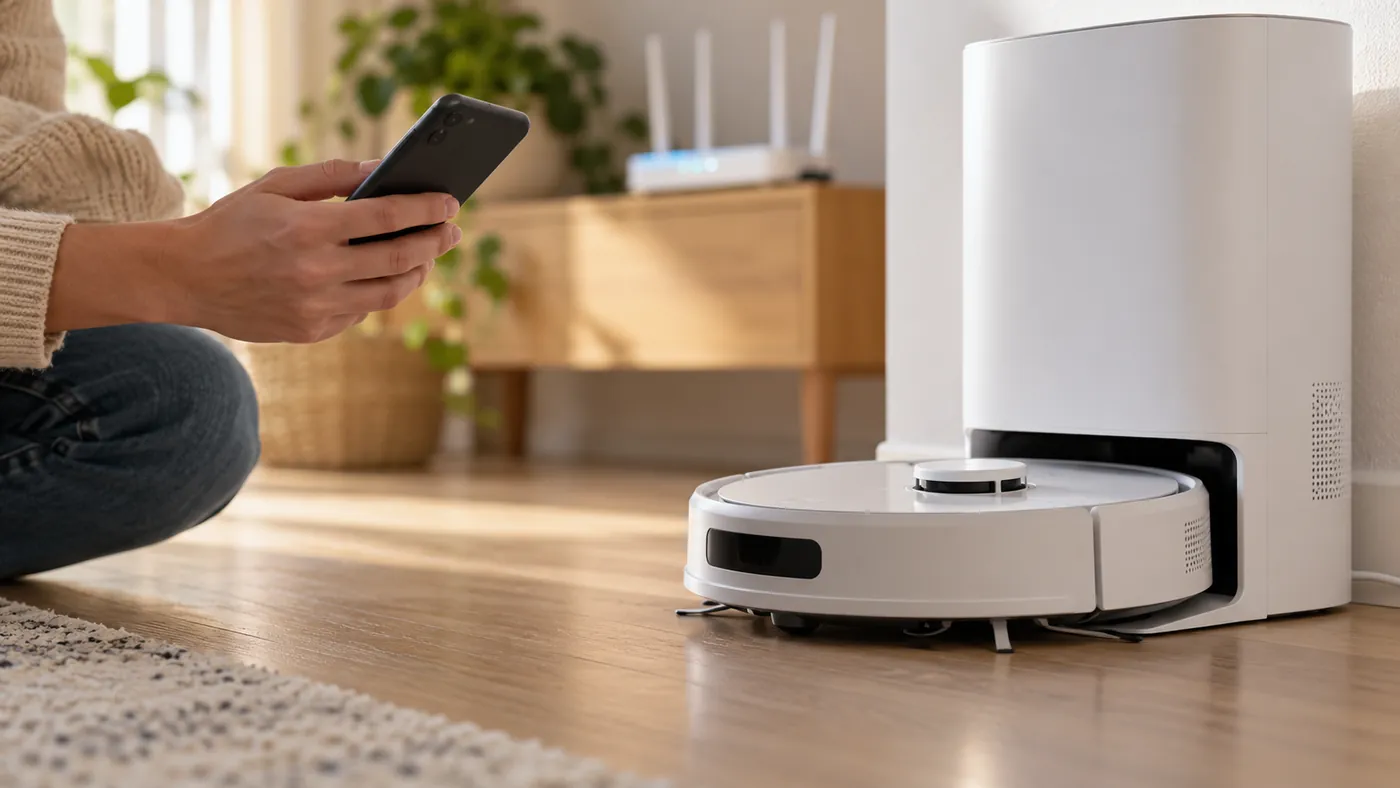
Restore any known network outage before retrying. Avoid relocating the station during installation. If you need to investigate the router, do that after the app has reported failure rather than while an update is active.
3. Reopen the firmware page
Dreame’s published path is Settings > Firmware Update. Open that page for the correct device; the exact wording may vary with app version. Check whether an update remains available and note the current and offered version numbers when shown.
If the previous attempt explicitly failed, retry once after correcting the power or connection problem. Keep the robot docked and avoid starting a cleaning task until the app reports completion. Do not interrupt installation with a forced power-off or a factory reset.
4. Confirm the result
After the app reports success, reopen the firmware page and check the installed version or completion status. If the app reports failure again, keep a screenshot rather than repeatedly restarting the same download.
There is no verified fixed installation time for every update in the sources below. If progress appears stalled without a clear failure message, keep the station powered and contact support with the displayed status before forcing a reboot.
What to send Dreame support
Include the exact L10s Ultra model, current firmware version if visible, offered version, app version, battery level, charging status and screenshot of the error. Note whether ordinary device controls were available before the update. These details are more useful than reporting only that an update “doesn’t work.”
FAQ
Is 15% battery enough?
Dreame’s installation guide says the battery must be above 15%. Let it charge beyond that value and keep it docked.
Are blinking lights normal while updating?
Yes. Dreame describes blinking robot lights during a firmware update. Check the app for the actual progress or error.
Should I factory-reset after one failed attempt?
The published failure checks focus on battery and Wi-Fi. Resolve those first; contact support if a corrected retry fails.
Sources: Dreame’s firmware update instructions and update failure checks, linked from its L10 Ultra and L10s Ultra FAQ, plus the original manual. Status recording and the controlled retry are practical troubleshooting suggestions. Browse all Dreame guides.