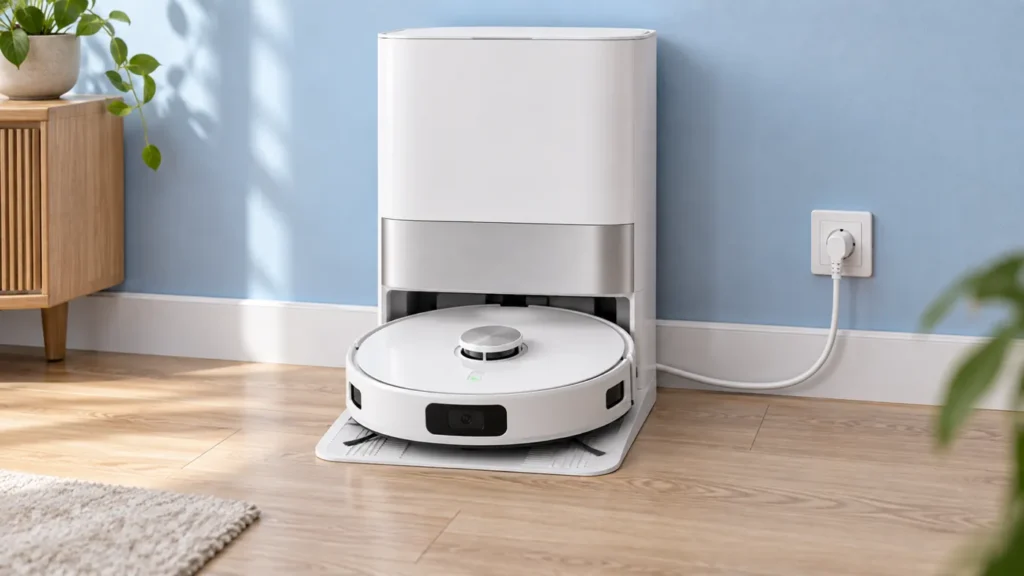
Begin with the quick checks. Stop if a step requires tools or experience you do not have.
Dreame L10s Ultra not charging? Check station power, clean charging contacts and normal alignment before assuming the battery has failed. Also distinguish a robot that never reaches its dock from one that docks correctly but does not gain charge. That difference determines what to inspect next.
This guide is for the original L10s Ultra. Use its own regional manual and supplied station; instructions for similarly named L10s models may describe different hardware.
Choose the matching charging symptom
| Observation | Next check |
|---|---|
| Station seems unpowered | Check both power-cord ends and its rear switch. |
| Robot docks without charging confirmation | Check dry contacts and normal positioning. |
| Robot cannot reach or settle on the station | Inspect the approach route and docking behavior. |
| Charging is acknowledged but seems slow | Compare battery readings over time under suitable conditions. |
1. Verify the station’s power supply
Dreame’s official L10s Ultra charging checklist starts with station power. Make sure the cord is properly connected at both ends and the rear power switch is on.
Inspect the setup before changing it. Was the station recently moved, unplugged or connected to a switched outlet? Write down what changed around the time charging stopped. This simple timeline is useful if reconnecting the original arrangement resolves the problem.
Use the correct supplied cable and station for your region. If a plug or cable is damaged, or the station has been exposed to liquid, stop using it and seek service. Do not open the station to investigate its electrical components.
2. Clean the charging contacts without liquid
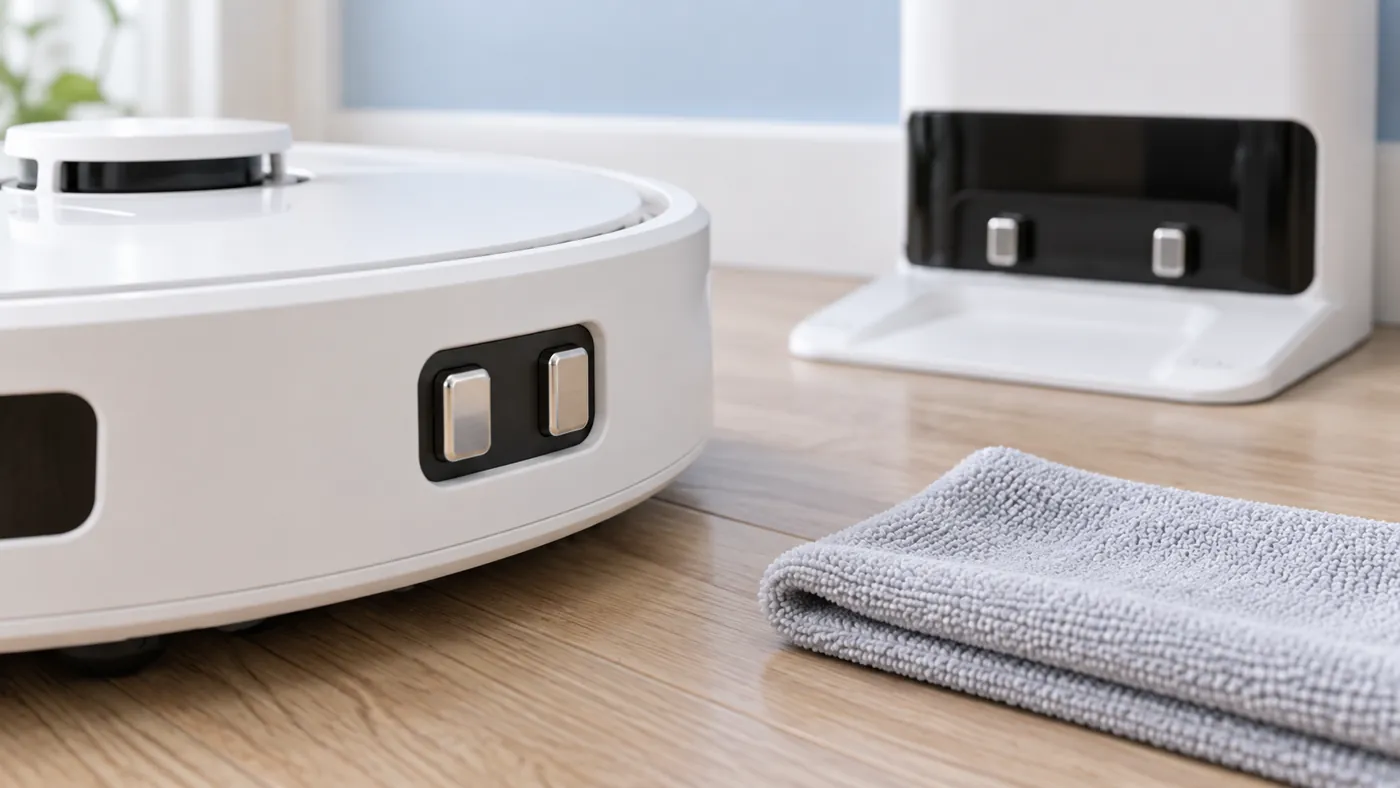
Move the robot off the station, turn it off and disconnect station power. Wipe the robot and station charging contacts with a soft, dry cloth. Remove loose visible debris around the mating area. The original L10s Ultra manual specifies dry cleaning for these contacts.
Use the manual’s drawings to identify the correct surfaces. The illustration above is a maintenance concept, not a parts-location reference. Do not scrape the contacts, bend them or apply pressure to compensate for an apparent mismatch.
Dreame’s docking-failed guidance also mentions checking for stuck charging pins. Inspect their appearance without forcing them. A damaged or visibly stuck pin is a reason to send a clear photograph to support.
3. Re-dock and listen for charging confirmation
Restore station power and let the robot return normally. Check that it settles into its usual position, rather than resting against an obstruction. Dreame recommends restarting the robot and retrying docking, then listening for the charging voice prompt.
For a normal restart, remove the robot from the base and hold its power button for three seconds to switch it off, then hold the same button for three seconds to turn it on, as described in the manual. Retry once and record what happens. This restart is separate from a factory reset.
Do not hold the robot against the contacts to maintain a connection. If it charges only while being pressed or repositioned repeatedly, report that behavior. A video of the docked position and charging announcement is more useful than a guess about the battery.
4. Separate docking trouble from charging trouble
If the robot never reaches the contact position, observe its approach from a short distance. Look for a cable, closed door or other object in its path. Keep the floor near the station dry and clear. Note whether the robot approaches, backs away or stops before entering.
A failed return does not establish a charging-circuit fault. Conversely, reaching the station does not establish successful charging. Capture those two events separately when recording a support video.
If your broader symptom is an interrupted cleaning session, compare it with the L10s Ultra keeps stopping guide. Explain whether the robot stopped before its return or after docking.
5. Check progress rather than one battery reading
Record the battery percentage and time when charging is acknowledged, then compare a later reading while the robot remains docked. Avoid starting another cleaning task during that comparison. A single percentage immediately after docking cannot show a charging trend.
The original manual gives roughly six hours for a full charge from a low battery and notes that charging can slow outside the specified temperature range. Treat that as context, not a promise that every battery percentage will advance at a fixed rate.
If readings remain unchanged despite charging confirmation, send the times and screenshots to Dreame. Distinguish “no charging announcement” from “announcement heard, no observed increase.” Neither description alone identifies the failed component.
When to request service
Ask Dreame for help if power, clean contacts, alignment and one restart do not restore normal charging. Provide the model and station labels, app version, battery observations, contact photos and a docking video. Mention any recent move or spill and list exactly what you tried.
If charging works but dust collection does not, continue with the L10s Ultra auto-empty troubleshooting guide.
FAQ
Does a dark indicator prove it is not charging?
No. The manual describes indicator changes during sleep and Do Not Disturb mode. Check charging confirmation and battery progress together.
Should I replace the battery first?
Check power and the docking connection first. Persistent failure needs diagnosis; it does not by itself prove a worn-out battery.
Should I factory-reset the robot?
Try the basic checks and normal restart first. Dreame warns that its factory-reset procedure erases data including maps. Discuss that step with support before using it.
Manufacturer references
- Dreame: L10s Ultra robot cannot charge.
- Dreame: L10s Ultra docking failed.
- Original L10s Ultra manual.
- All Dreame troubleshooting guides.
If the robot cannot reach or enter the base normally, see Dreame L10s Ultra Docking Failed.
If the robot also has no power-button response, see Dreame L10s Ultra Won’t Turn On.
If charging progresses but seems unusually slow, compare the timing and conditions in Dreame L10s Ultra Charging Slowly.