Begin with the quick checks. Stop if a step requires tools or experience you do not have.
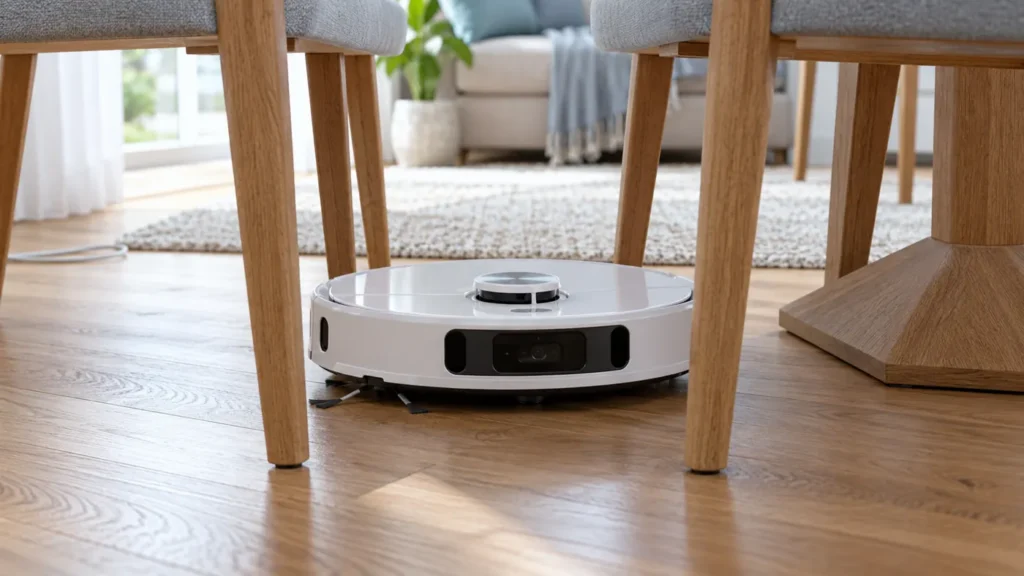
If your Dreame L10s Ultra keeps getting stuck, record the exact location before freeing it. A cable caught underneath, furniture that traps the body, and wheels slipping on a wet patch can all end a run, but each needs a different correction.
This guide concerns a robot that is physically trapped or cannot make progress. If it stops on an open floor with an error, use the keeps stopping guide and preserve the warning.
Identify the obstacle
| Observation | Next check |
|---|---|
| Stops repeatedly under one piece of furniture | Check clearance and protrusions at the entry point. |
| Hair, thread, or a cable is caught underneath | Switch off before removing the tangle. |
| Wheels move but the body does not advance | Check slippery flooring or a raised edge. |
| Gets trapped near the station | Check the return route and space around the dock. |
| Fails on clear floor without a visible obstruction | Record the error and investigate wheels or navigation. |
1. Free it without pulling against a tangle
Pause the task and switch off the robot before handling debris. If a cable is caught, do not pull the robot away while it remains wrapped around a brush or wheel. Inspect where the obstruction is held and release it gently.
Support the robot carefully when looking underneath. Keep its weight off the lidar turret and do not run it upside down. Take a photo of the obstruction if the same problem has happened more than once.
2. Check the route at floor level
Dreame recommends organizing cords and slippers before cleaning. Look along the robot’s path for dangling cables, small items, rug fringes, and narrow gaps between chair legs. Check clearance at the point it actually enters under furniture, including any low crossbar.
Remove or secure the identified obstacle and repeat a small task in that area. If it passes afterward, retain the physical correction. Where a permanent trap cannot be changed, use a suitable restriction available in your app and verify that it covers the troublesome area.
3. Distinguish a threshold from wheel slip
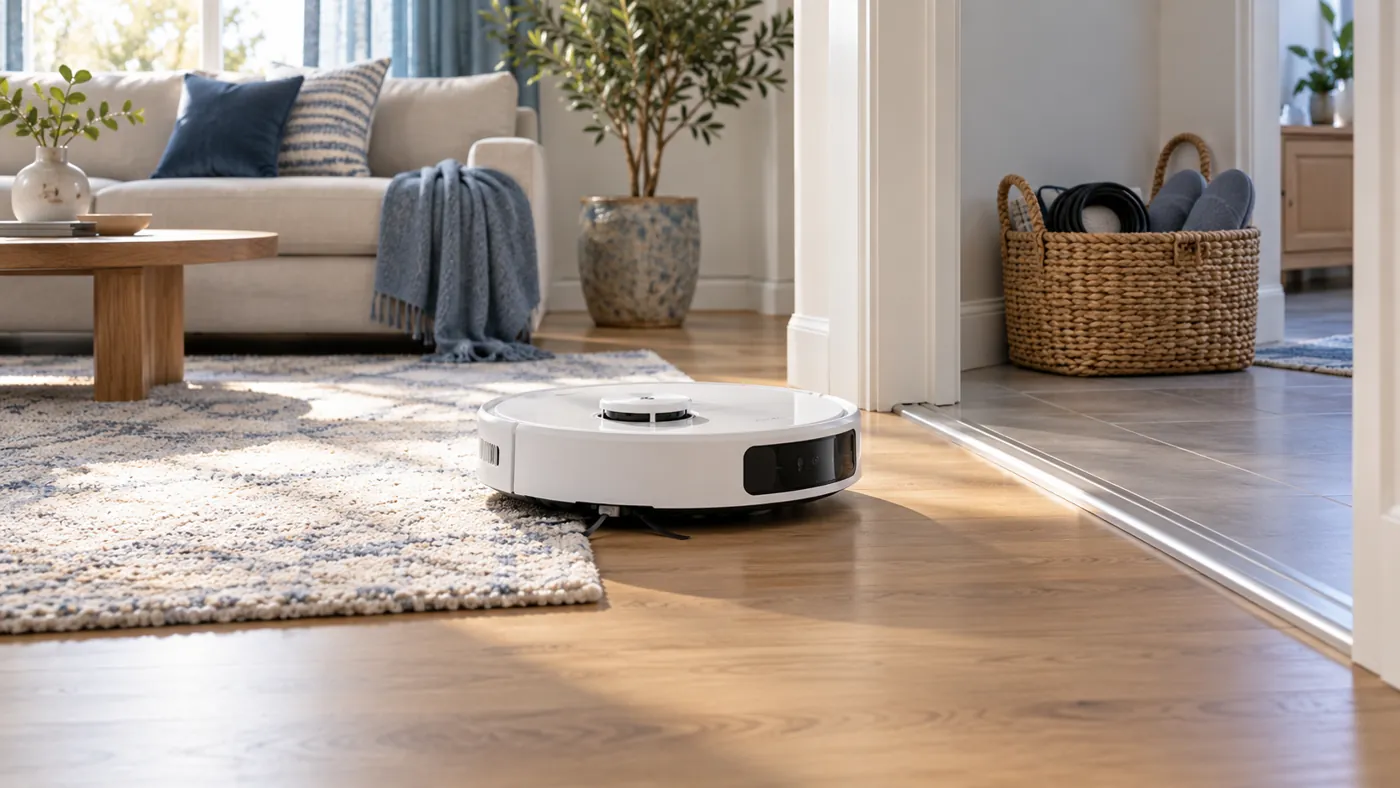
The original manual identifies wet slippery surfaces as a cause of wheel slip and notes that thresholds above 2 cm can prevent entry to rooms. Dry the floor and inspect raised edges rather than asking the robot to retry a wet or steep transition repeatedly.
Do not interpret that threshold reference as a guarantee for every shape or surface below it. Observe the actual transition and record whether the body catches, a rug bunches up, or the wheels spin without progress.
Keep tests on a safe, level area away from stairs. Do not cover cliff sensors to force movement over an obstacle.
4. Inspect accessible brushes and wheels
With the robot off, check for visible hair or debris at the roller, side brush, and small front caster. Follow main brush maintenance or universal wheel cleaning for the affected part.
If the robot repeatedly struggles on clear floor, record which wheel seems to drag and any warning. Do not force the powered wheels or open the drive housing as part of ordinary maintenance. A persistent movement fault needs further diagnosis.
5. Check whether the trouble is only near the dock
The manual specifies clear space of 0.5 m on each side and 1.5 m in front of the station. Check that a door, loose mat, or furniture has not narrowed the return route. For repeated failure to enter the base, continue with the docking guide.
If the robot has a clear route but appears unable to recognize its position, use the mapping guide. Physical trapping alone is not a reason to delete the map.
When to contact support
Send a short video of the failure, a photo of the location, the exact warning, and the result after removing the obstacle. Mention whether it fails only there or also on open dry floor. That comparison helps separate a local trap from a robot fault.
FAQ
Should I reset the map after every trap?
Correct the physical obstruction first. A new map does not remove a cable or low crossbar.
Why do the wheels spin without moving?
Inspect for slipping, a raised edge, or something supporting the body off the floor. Record the situation before assuming a drive failure.
Find related checks in the Dreame troubleshooting hub.
Manufacturer reference: Dreame L10s Ultra user manual, English edition. Model-specific instructions follow that manual. The comparison tests in this article are practical diagnostic suggestions, not guaranteed fixes. This guide covers the original L10s Ultra.
If the robot reports that its wheels are suspended, use the focused checks in Dreame L10s Ultra Wheels Are Suspended Error.
If the robot repeatedly approaches objects without avoiding them, follow Dreame L10s Ultra Obstacle Avoidance Not Working.