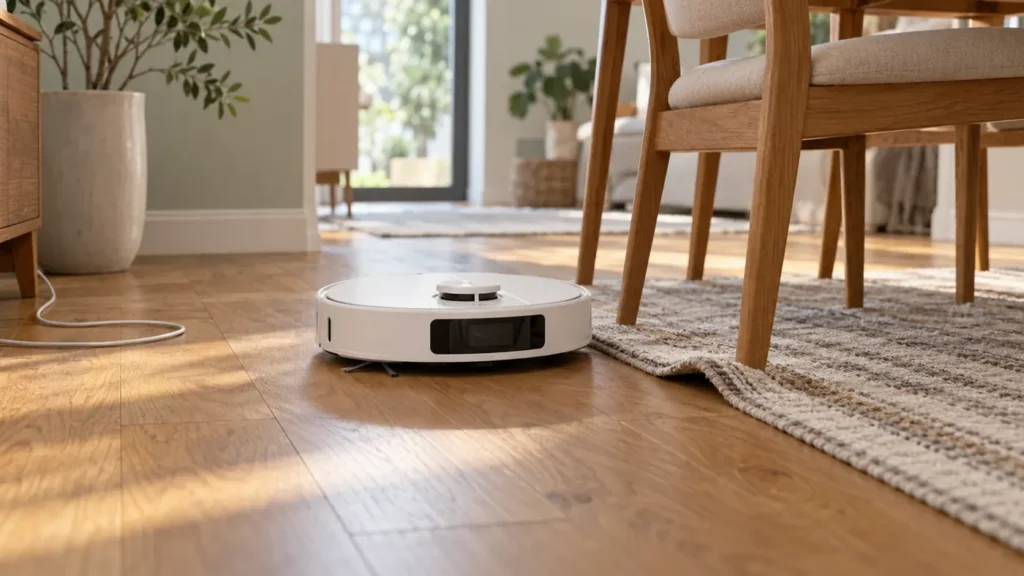
Begin with the quick checks. Stop if a step requires tools or experience you do not have.
If your Dreame L10s Ultra keeps stopping, record where it stops and what the app says before restarting it. Returning to the station, becoming trapped under furniture and going unresponsive on an open floor are different situations. This guide is for the original L10s Ultra.
Start here: check the active task, battery indication and exact alert. Then run one short room task on a clear, dry floor. Keep the result so you can compare the next attempt after a single change.
Identify the kind of stop
| What you notice | What to check next |
|---|---|
| Returns to the station during mopping | Check whether a mop-washing step is underway. |
| Returns with a low battery indication | Check charging and whether the task remains pending. |
| Stops repeatedly at one location | Look for rug edges, cables or tight furniture gaps. |
| Stops with a spoken or app error | Follow that specific alert before restarting. |
| App shows a completed task | Review the selected rooms and task scope. |
| Stops in different clear areas without an alert | Record the pattern and test a small task. |
1. Check whether the pause is expected
The original L10s Ultra can return to wash its mop pads during a cleaning task. Low battery can also interrupt cleaning for charging. Dreame’s manual says Do Not Disturb can prevent automatic cleaning resumption. Check that setting if the robot charges but does not continue; it does not mean every scheduled task is cancelled.
Watch the sequence rather than counting every station visit as a fault. Is the app showing washing, charging, an error or completion? Has the same job remained active? A screenshot at the time of the pause avoids confusion if the display changes later. Do not assume the robot is broken just because its route includes a station visit.
2. Read the alert before moving the robot
Copy the exact wording and note the location. A brush alert and a navigation alert lead to different checks. Use the error and alert guide to organize your next step, then confirm the instruction in your model’s manual.
Avoid repeatedly pressing resume against the same obstruction. If you move the robot to free it, note that intervention in your test record. Dreame’s manual states that manually placing a paused robot at the station ends the current cleaning task, so a later lack of continuation may reflect that action.
3. Test a clear route
Choose one room with open space around the robot. Pick up loose cables and small objects, straighten a folded rug edge and open the doorway needed for the selected task. Let the floor dry if it is slippery. Keep stairs protected and never cover the cliff sensors to make the robot cross a difficult surface.
If the task succeeds there but fails beside one chair or threshold, change that location first. For example, move the chair enough to create a wider route and repeat the same task. A location-dependent result is useful evidence; it does not establish an internal hardware fault.
4. Inspect the robot while powered off
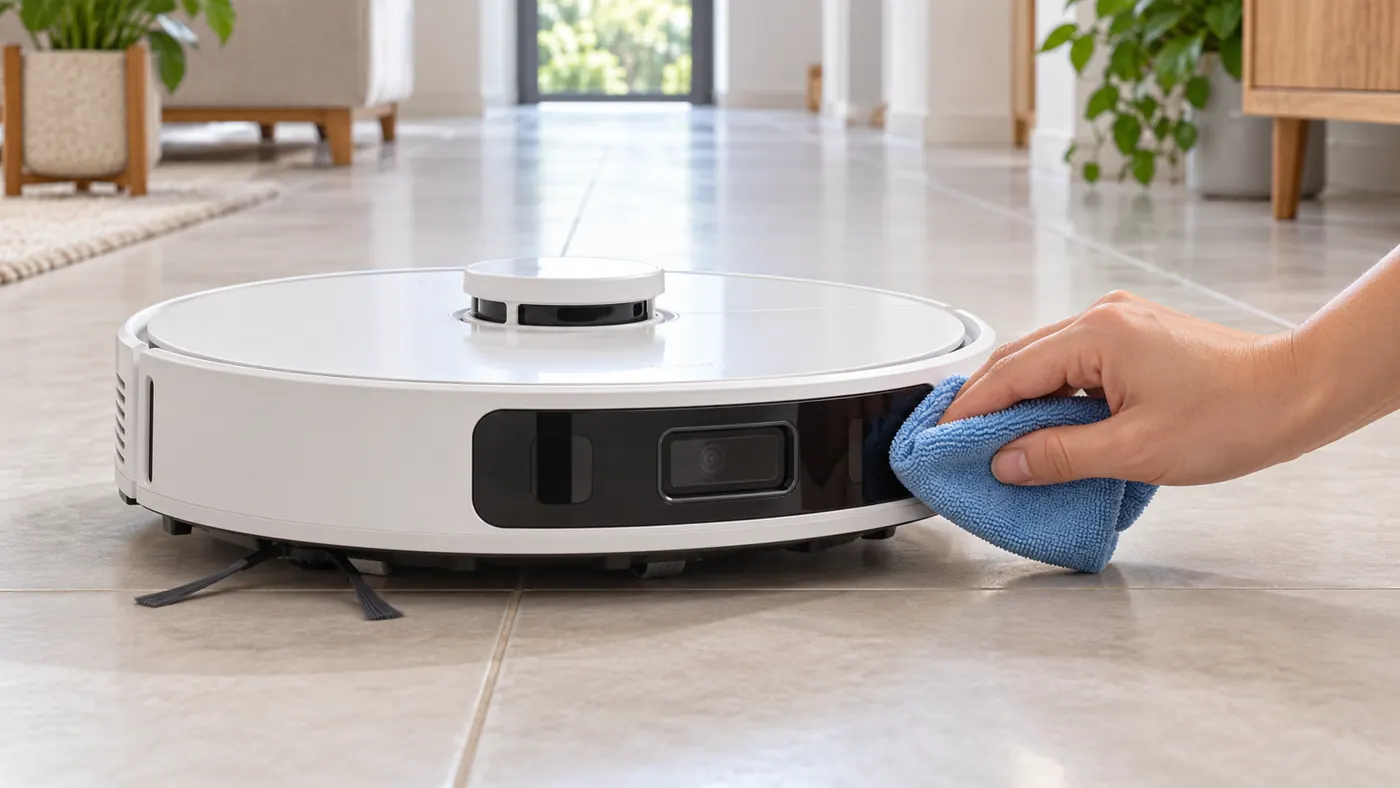
Check for visible hair or debris around accessible brushes and wheels using the manual’s maintenance procedure. Wipe the sensor surfaces with a soft dry cloth. Do not spray cleaner into the robot or force the lidar turret. Restore all removed parts before testing.
Compare the next task with the previous one. Did the stop disappear, move to another location or occur at roughly the same point? If dirt collection also deteriorated, follow the L10s Ultra pickup checks. Separate that symptom from a robot that stops despite collecting normally.
5. Investigate station-related interruptions
If every interruption happens during a station visit, write down the station message and check the indicated function. A water-system alert belongs in the L10s Ultra water troubleshooting guide; an unexpected lack of charging needs charging checks. Starting an entirely new job can hide whether the original task was still waiting.
Use a short vacuuming task as a comparison when the problem occurs during mopping. A successful vacuuming run narrows the investigation, but does not prove that every station component works. Keep the two results alongside the app messages for support.
When a restart or support check makes sense
If the robot is responsive, resolve the displayed condition first. If it becomes unresponsive, use the restart procedure in its regional manual. Avoid a factory reset as the first experiment: losing the map makes comparison harder. If stops continue on an unobstructed floor, send Dreame the task history, battery readings, exact alerts and a short video.
FAQ
Why does it stop at the same spot?
Compare that spot with a clear room. Furniture clearance, an object or the floor transition may explain the pattern.
Does going back to the dock mean cleaning failed?
Check the app status and active task. Station visits may be part of cleaning, so assess what happens afterward.
Should I rebuild the map?
First check the selected rooms and restrictions. Save screenshots before making changes so you can compare the result.
Continue with the L10s Ultra maintenance schedule or browse the Dreame troubleshooting hub.
Official reference: Dreame original L10s Ultra user manuals. App wording can vary by region and software version.
If stopping is followed by a failed charging attempt, use the Dreame L10s Ultra Not Charging guide to distinguish the next stage of the problem.
If the app reports the device offline, check connectivity separately with Dreame L10s Ultra Offline.
If the interruption includes an LDS abnormal prompt, see Dreame L10s Ultra LDS Error.
If the robot returns automatically to recharge but leaves the cleaning unfinished, check Dreame L10s Ultra Not Resuming Cleaning After Charging.
If stopping is accompanied by visible hair or binding at the small front caster, see How to Clean Dreame L10s Ultra Universal Wheel.
If the robot is physically trapped rather than stopped by a separate error, use Dreame L10s Ultra Keeps Getting Stuck.