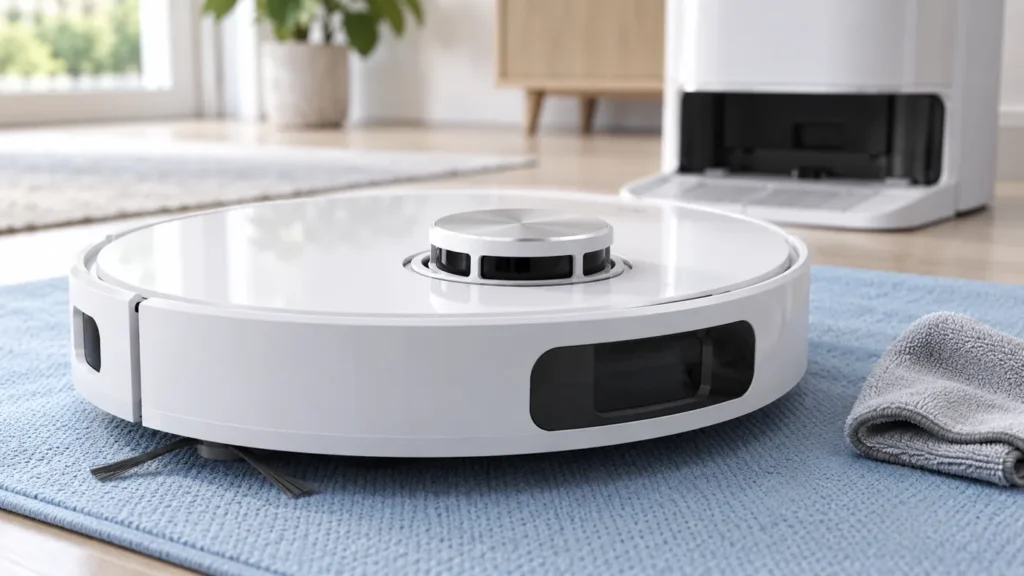
Begin with the quick checks. Stop if a step requires tools or experience you do not have.
Dreame L10s Ultra LDS error? Record the exact voice prompt or app message, then check firmware and the exterior of the raised laser-distance sensor. Dreame’s published checks cover the sensor cover, nearby foreign objects and normal rotation. They do not establish that every navigation problem requires a new lidar module.
This guide covers the original L10s Ultra. LDS refers to the laser-distance sensor on top of the robot. Use its manual to distinguish that assembly from the front camera and other sensors.
Check that the message is actually LDS-related
A robot stopping, missing a room or failing to dock can have several explanations. If there is no LDS prompt, start with the guide matching the observed behavior: keeps stopping or docking failed.
| Observation | Useful next check |
|---|---|
| Explicit LDS abnormal prompt | Record the message and follow the sensor checklist. |
| Visible loose debris around the turret | Switch off and clear the accessible exterior. |
| Cover appears stuck or damaged | Photograph it and avoid force. |
| Same error after the external checks | Send Dreame the results and a short video. |
1. Check the firmware status
Dreame’s LDS abnormal checklist starts by confirming the firmware is current and updating it if needed. Open the current app’s firmware section and record the installed version before making a change.
Use only the update offered through the official app, following its power and connection requirements. If the robot is offline, resolve that through the L10s Ultra connectivity guide. Do not guess whether an update succeeded from an interrupted screen.
If no update is offered, record that fact and continue. A current version is one observation; it does not rule out a physical obstruction.
2. Inspect and dry-clean the exterior
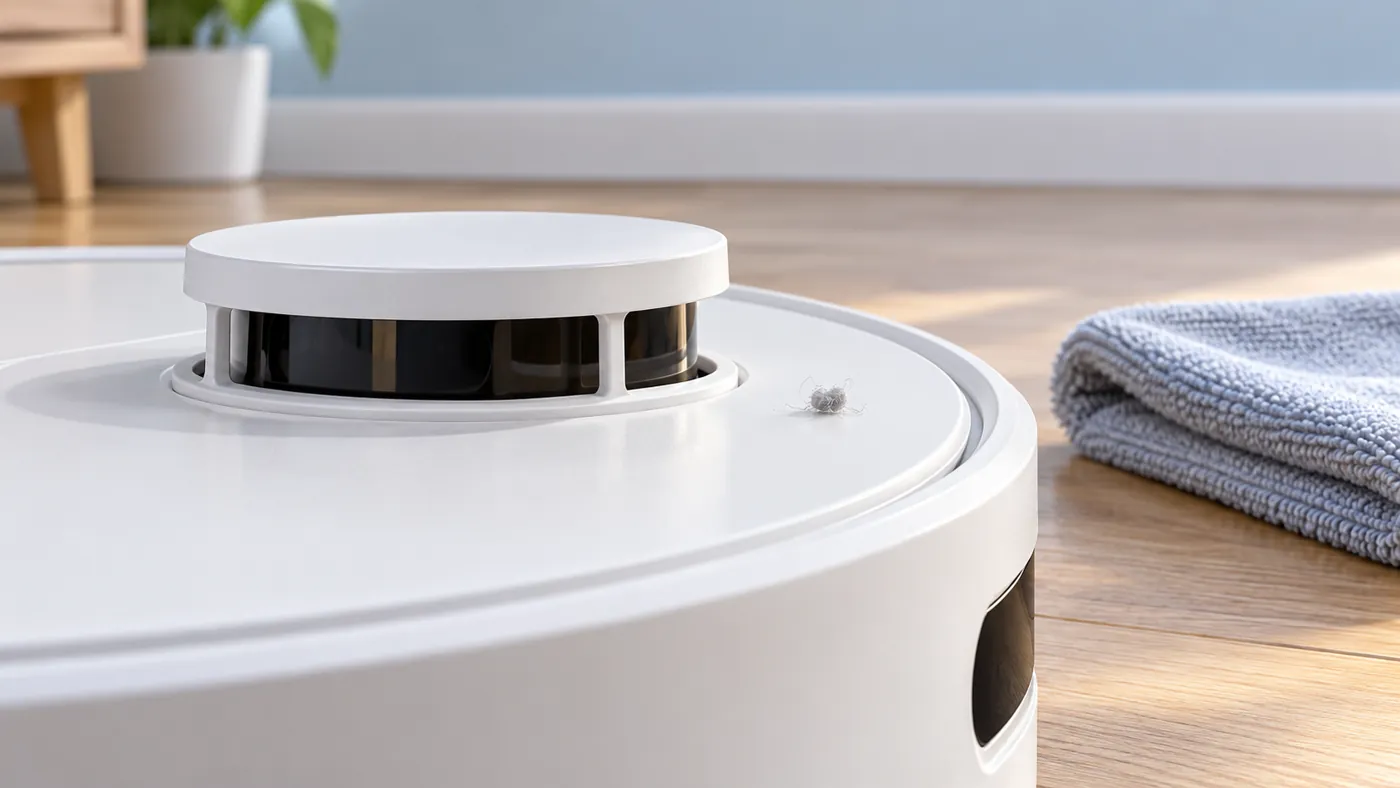
Stop the robot and turn it off before handling the sensor. Look for visible foreign objects around the laser sensor. The original L10s Ultra manual specifies a soft, dry cloth for sensor cleaning.
Remove only accessible loose debris. Do not push anything through the optical openings or spray liquid inside. If material is trapped beyond reach, photograph it and ask support for a next step.
Dreame’s support checklist also calls for a gentle cover movement or tap to check rebound. Use a light touch only. If the cover is visibly damaged or will not move normally, stop rather than repeatedly pressing it.
3. Observe rotation without touching the running sensor
After the inspection, place the robot in its normal position and make one short attempt. Dreame includes checking whether LDS rotation is normal. Observe externally and keep fingers and tools away while the robot is operating.
Record what you can actually see together with the prompt. If you cannot tell whether it rotates, say so in your support request. A sound or a brief movement is not enough to identify an internal motor or connection fault.
Compare the result with the initial attempt. Did the same message return immediately, after movement or only in one location? Keep the conditions similar so the comparison is useful.
When to contact Dreame
Contact support if the LDS prompt persists after the firmware and external checks. Provide the exact model, firmware version, message, photographs of the turret and a short video of the attempt. Mention any recent impact or visible damage.
Keep internal disassembly and module replacement outside this first inspection. Support can use the recorded behavior to decide which further test or repair is appropriate.
FAQ
Does an LDS error prove the whole module has failed?
No. Dreame’s checks include firmware, the cover and foreign objects before service.
Can I force the turret to spin?
Do not force rotation. Observe normal operation and report a suspected jam.
Should I factory-reset it first?
The published LDS checklist begins with firmware and sensor inspection. Start there and preserve the exact error details.
Manufacturer references
- Dreame: LDS abnormal.
- Original L10s Ultra manual — sensor locations and dry cleaning.
- All Dreame guides.
For a full exterior maintenance checklist covering the top, side, front, and underside, see How to Clean Dreame L10s Ultra Sensors.