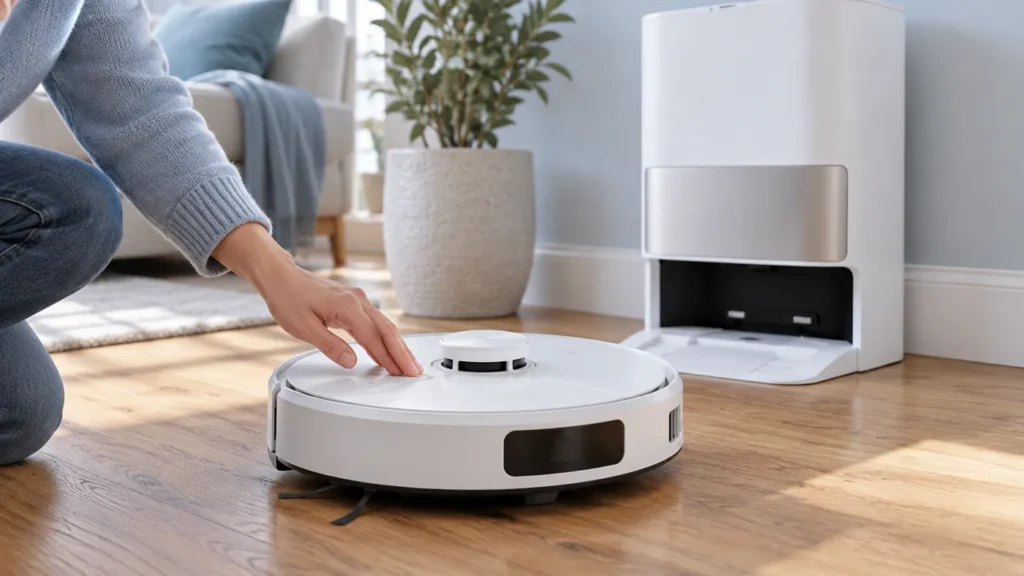
Begin with the quick checks. Stop if a step requires tools or experience you do not have.
If your Dreame L10s Ultra won’t turn off, check whether it is charging first. Dreame’s original L10s Ultra manual says the robot cannot be switched off while charging. Move it away from the base station, then press and hold the robot’s Power button for three seconds.
This guide covers the original L10s Ultra. Use the manual for your exact model if you own a different L10s variant.
Choose the right next step
| What you see | What to do |
|---|---|
| The robot is charging on its base | Move it off the base before holding Power for three seconds. |
| The robot responds but continues a cleaning task | Pause the task, then perform the normal power-off procedure away from the base. |
| The robot is unresponsive away from the base | Use the manual’s ten-second Power hold to force it off. |
| The indicators dim while it remains docked | Check its charging state; dim indicators alone do not confirm shutdown. |
1. Move the robot off the charging base
Pause cleaning if the robot is moving. Place it on a level floor away from the base so it is no longer charging. Use the Power button on the robot itself for shutdown; the base station controls perform different functions.
Disconnecting the station’s power does not remove the robot’s battery power. If the problem involves the station controls, see L10s Ultra station buttons not working.
2. Hold Power for three seconds
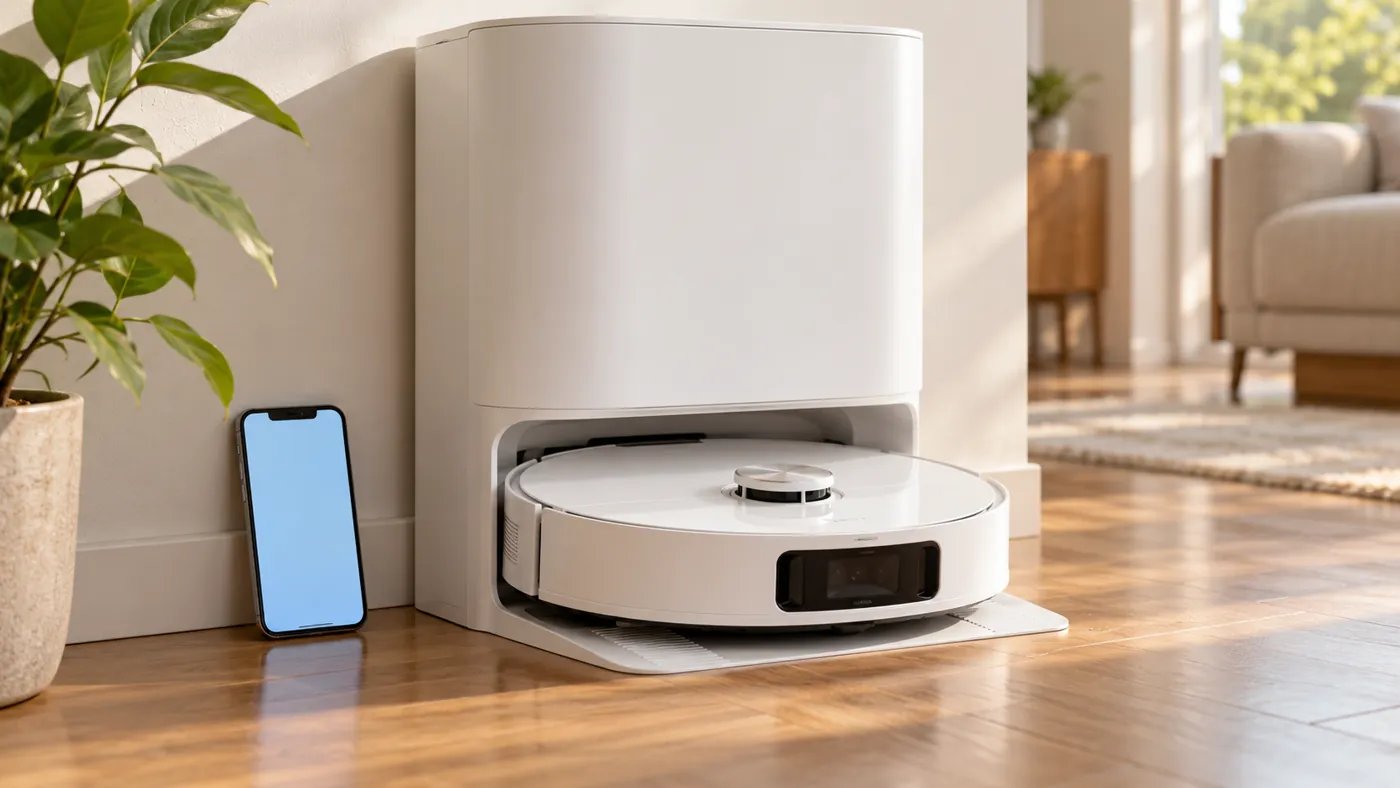
Press and hold the robot’s Power button continuously for three seconds, then release it. A brief tap is not the manual’s power-off command. Keep the robot off the base while checking the result: placing it back on the powered station automatically turns it on and starts charging.
3. Force a shutdown only if the normal hold fails
If the robot still will not turn off away from the station, the manual specifies holding Power for ten seconds to forcibly switch it off. If you need to restart it afterward, hold Power for three seconds to turn it on again.
Use this step for an unresponsive robot. A factory reset is not part of the manual’s shutdown procedure. If the robot subsequently fails to start, follow L10s Ultra won’t turn on checks before repeating button holds.
4. Check sleep mode and control lock
Sleep mode can make the robot look switched off because its indicators go out. The manual describes sleep after ten minutes paused and automatic shutdown after twelve hours in sleep mode. On the charging base, the indicators also dim after the robot is fully charged.
If buttons appear locked, check the child-lock setting in the app or your original manual. Record any voice message or app error. If both shutdown procedures fail, contact Dreame after-sales support with the model, charging state and steps already tried.
FAQ
Why won’t my L10s Ultra switch off on the dock?
The original manual says it cannot be turned off while charging. Move it off the station and hold the robot’s Power button for three seconds.
Is a ten-second hold the normal shutdown method?
No. Three seconds is the normal power-off hold. The manual gives ten seconds for a forced shutdown when the robot cannot be switched off normally.
Why does it turn on when I put it back on the base?
The L10s Ultra automatically powers on and starts charging when placed on the base station.
Source: Dreame L10s Ultra user manual, “How to Use” and “FAQ.” Browse more Dreame troubleshooting guides.
Before using the recessed Reset button, see how to reset the L10s Ultra for the difference between restarting, resetting Wi-Fi and restoring factory settings.