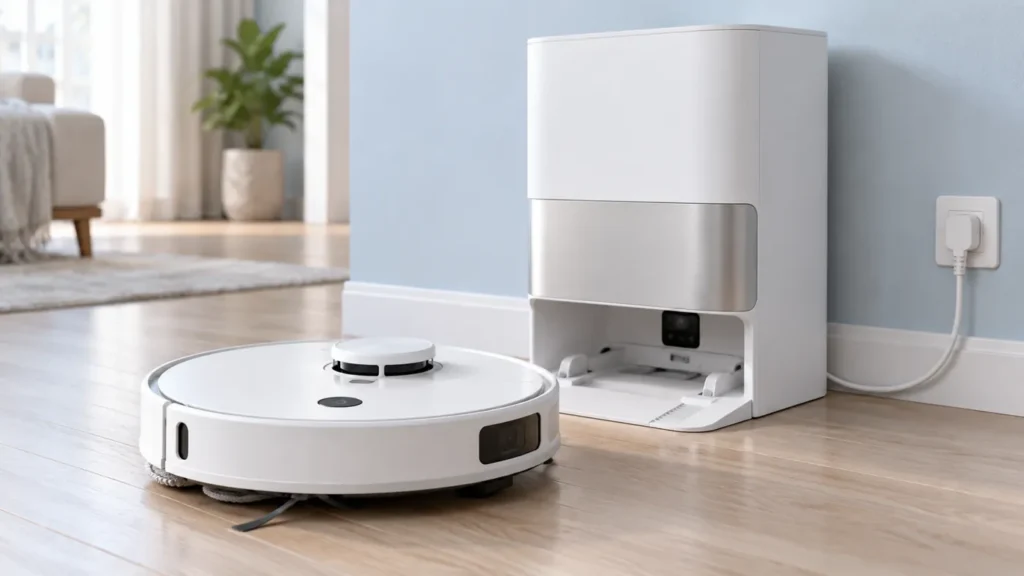
Begin with the quick checks. Stop if a step requires tools or experience you do not have.
Dreame L10s Ultra won’t turn on? Start with the Power/Clean button and charging connection. A robot with no light or voice response needs a different check from one that lights up but will not begin cleaning. Record that distinction before trying a restart or assuming the battery has failed.
This guide covers the original L10s Ultra. Use the original model’s station and regional manual; similarly named L10s versions can have different hardware and controls.
What does “won’t turn on” mean here?
| Observation | Next check |
|---|---|
| No indicator or voice response | Verify station power and normal charging contact. |
| Indicator lights, robot will not start | Read any message and try the documented restart. |
| Robot responds locally but app says offline | Use the Wi-Fi and offline checks. |
| Robot starts, then stops during a task | Use the interrupted-cleaning guide. |
1. Check the power-button response
Dreame’s L10s Ultra power-on checklist begins by checking whether the Power/Clean button indicator lights. For switching on, the original manual specifies holding the power button for three seconds.
Identify the correct button using the manual’s drawing. Make one deliberate attempt and note the indicator, voice response and app message. Repeated taps make it harder to tell which action produced a response.
A light without movement is still useful information. It separates a powered robot that cannot start its task from a robot with no observed response. Copy any error wording exactly rather than describing both cases as “dead.”
2. Verify the charging arrangement
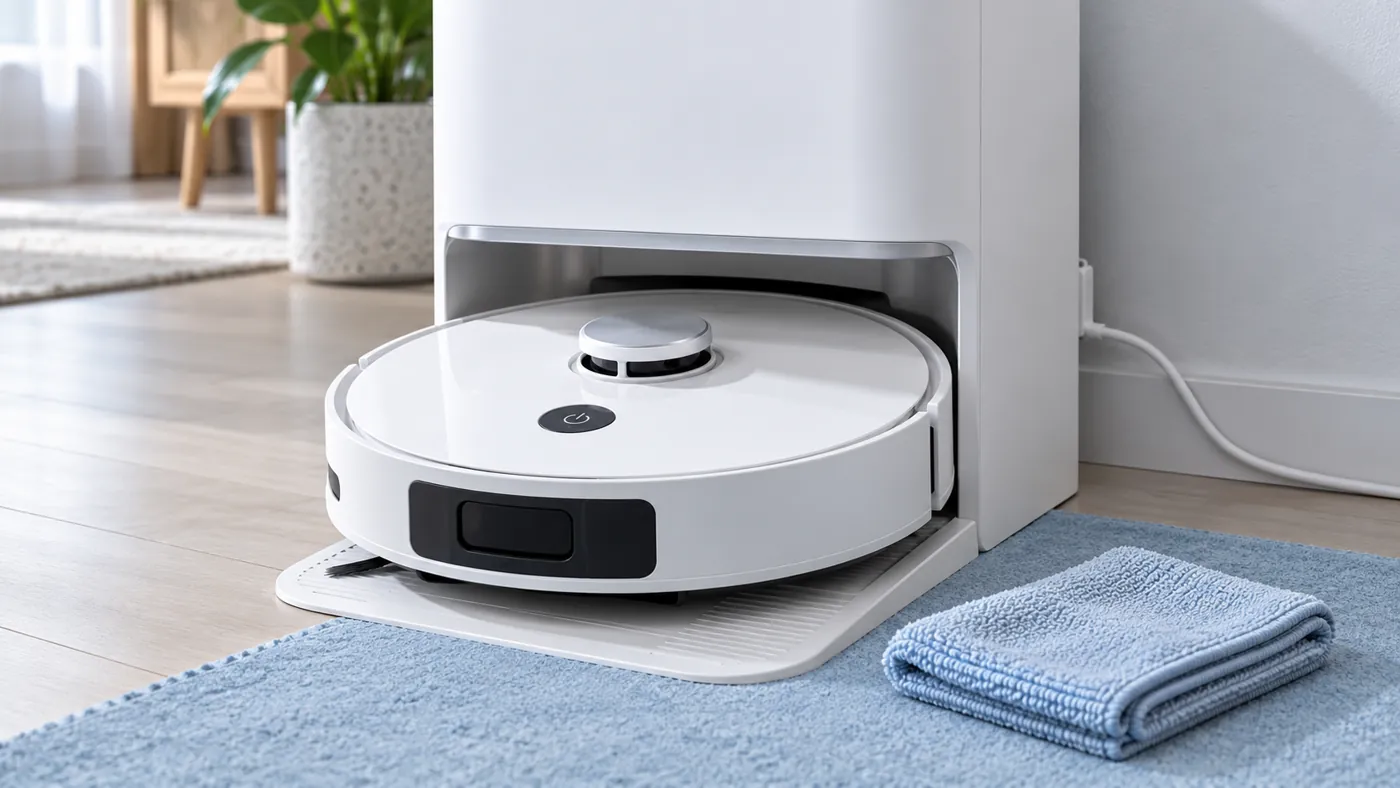
Dreame advises checking both ends of the station power cord, cleaning the robot and station contacts, and placing the robot on the station with the contacts normally aligned. Disconnect power and turn the robot off before cleaning contacts; use a soft, dry cloth.
Restore station power and place the robot in its usual docking position. Observe whether charging starts automatically. If it does not, Dreame’s checklist includes another three-second Power/Clean button hold.
Do not wedge the robot against the contacts or bend them to obtain a connection. If there is visible damage, photograph it and ask for service. Use the L10s Ultra not charging guide for the full external charging checks.
If the robot responds on the base but not away from it, report that exact behavior. It does not by itself identify a battery fault. Record whether charging was acknowledged and whether the app shows battery information.
3. Check the conditions around the failure
Think back to the last normal use. Was the robot stored, left away from its base, moved to another room or exposed to unusually hot or cold conditions? The original manual includes low charge and unsuitable battery temperature among reasons it may not turn on, and specifies an operating range of 0–40°C.
Let a robot that has been in an unsuitable environment return to normal indoor conditions. Do not try to speed this up with direct heating. If there was liquid exposure, stop attempting to power it and contact support.
4. Use the documented restart for an unresponsive robot
The manual describes a forced restart when the robot does not respond or cannot switch off: hold the power button for ten seconds to force it off, then hold it for three seconds to turn it on. Identify that button carefully and perform the sequence once.
Keep this separate from the reset hole under the cover. Dreame’s support article includes a factory reset later in its sequence and warns that it clears saved data, including maps. Discuss that step with support if the external checks and restart do not help.
A restart cannot repair a damaged contact or establish that a battery is healthy. Compare the same light and voice observations afterward, then record the result.
When to contact Dreame
Request help if the robot has no response with a verified powered station and normal contact, or if it remains unable to start after the restart. Send the model label, a short video of the button attempt and docking, and the checks completed.
Mention recent storage, station moves or spills. Avoid naming a failed battery, button or main board without diagnosis. If it powers on but cannot find its base, continue with the docking-failed guide.
FAQ
Does an unlit indicator prove the battery is defective?
No. Check the charging arrangement and local response first.
Can an offline app entry mean the robot is powered off?
It can, but network problems can also produce an offline entry. Check the robot itself.
Should I reset it immediately?
Start with power, contacts and the documented restart. A factory reset affects maps and settings.
Manufacturer references
- Dreame: L10s Ultra power-on failure.
- Original L10s Ultra manual — power, restart and operating conditions.
- All Dreame guides.
For a robot that is powered on but will not shut down, follow Dreame L10s Ultra Won’t Turn Off.