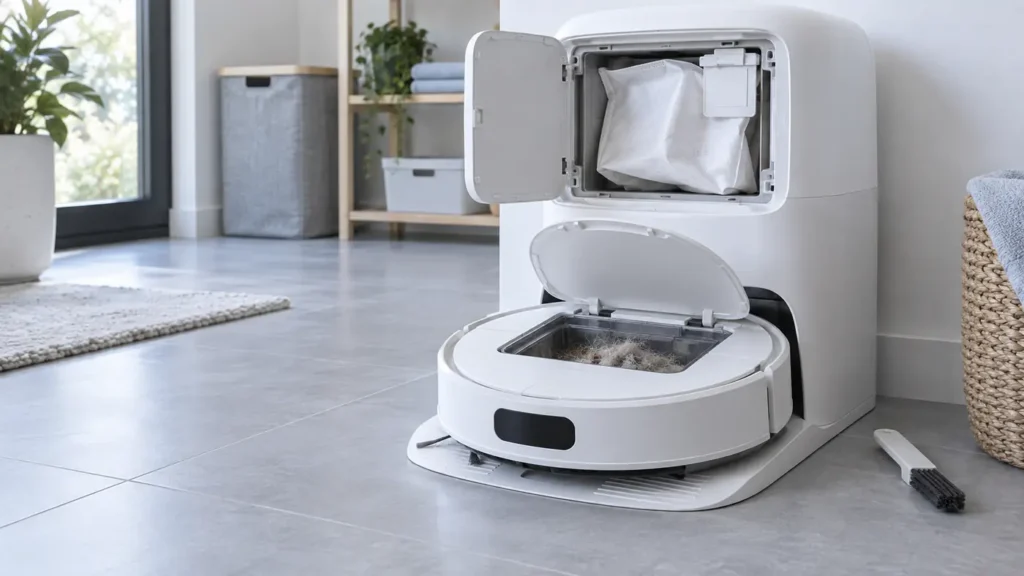
Begin with the quick checks. Stop if a step requires tools or experience you do not have.
Quick answer: If the Qrevo Curv docks but does not auto-empty, check that auto-emptying is enabled, the dust-container cover is installed, and the robot has at least 10% battery. Automatic emptying does not start after manual placement on the dock, a return without cleaning, or a return during Do Not Disturb (DND). If the dock runs but leaves debris in the robot, inspect the dust bag, main brushes and cover, dustbin, filter, and accessible inlets.
Not sure which check to try next?
Follow guided questions and report what changes after each check.
Start step-by-step diagnosisSeparate a cycle that never starts from one that runs but empties poorly. Roborock’s Qrevo Curv user manual lists the trigger conditions and the airflow parts that affect performance. A motor sound by itself does not identify a failed component.
When auto-emptying does not start
- In the Roborock app, check that automatic emptying is enabled. Confirm that the dock dust-container cover is closed and installed.
- Check the robot’s battery. The manual says emptying will not trigger below 10%; let it charge before retesting.
- Check DND. Test outside the quiet period or use the app’s manual emptying control.
- Start a normal cleaning task from the dock. Let the robot finish and return by itself. Carrying it back, or sending it home without cleaning, is not a valid automatic-emptying test.
To test the dock separately, use the app’s Empty control with the robot docked. The manual also describes pressing the Dock button on the docked robot for manual emptying. Avoid frequent manual cycles. If manual emptying works while the automatic trigger does not, review the conditions above again; the test does not establish that airflow is perfect.
When the dock runs but leaves dust behind
The manual names improper main-brush or brush-cover installation and blockages in the filter, air duct, suction inlet, air inlet, dustbin, or disposable bag as causes of reduced emptying and unusual noise. Work through the removable parts in order:
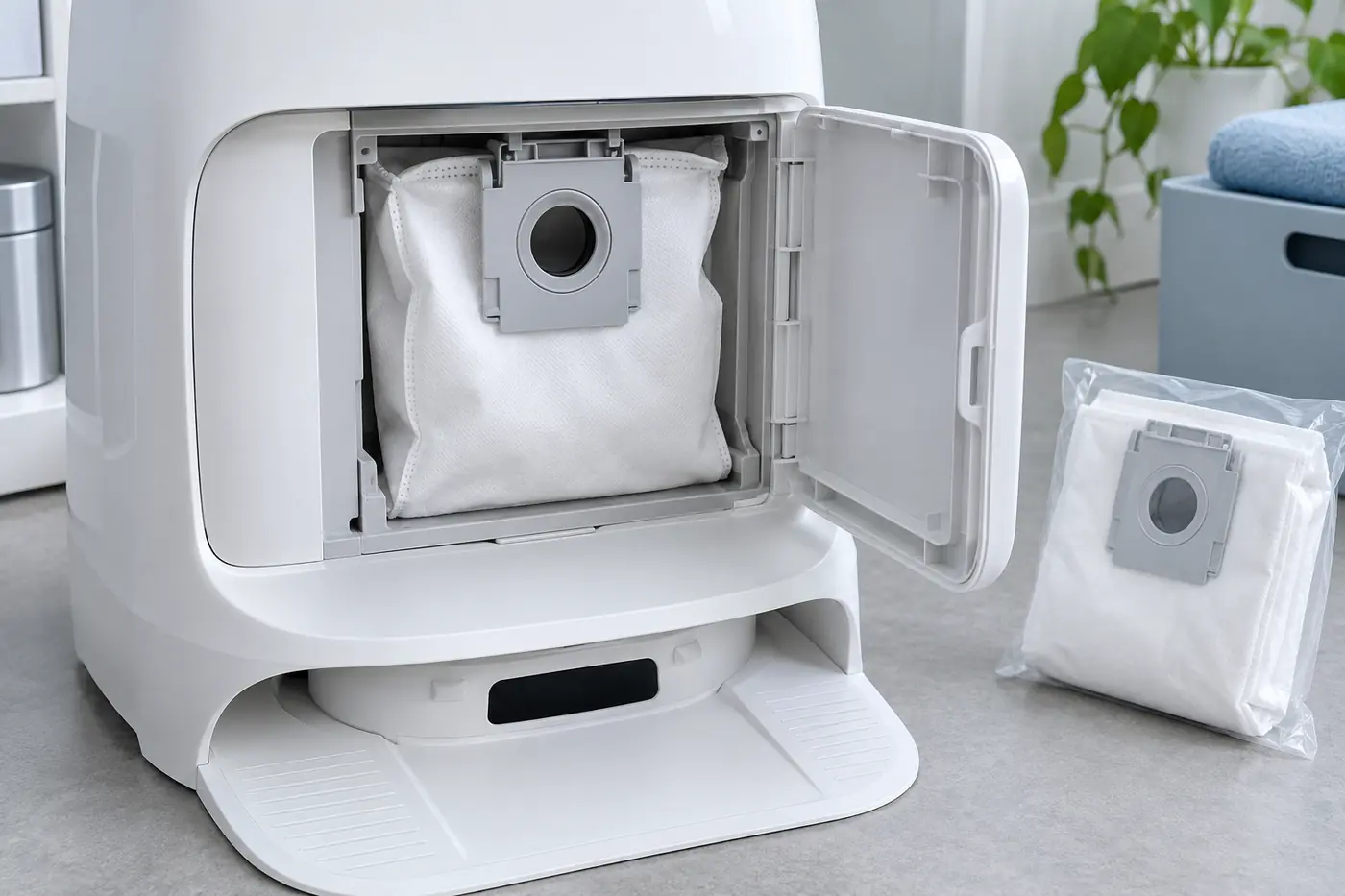
- Dust bag: Unplug the dock for maintenance. Open the dust-container cover and replace a full or blocked bag. Insert a new bag all the way into its slot, spread it open, and close the cover securely. Do not run auto-emptying without a disposable bag.
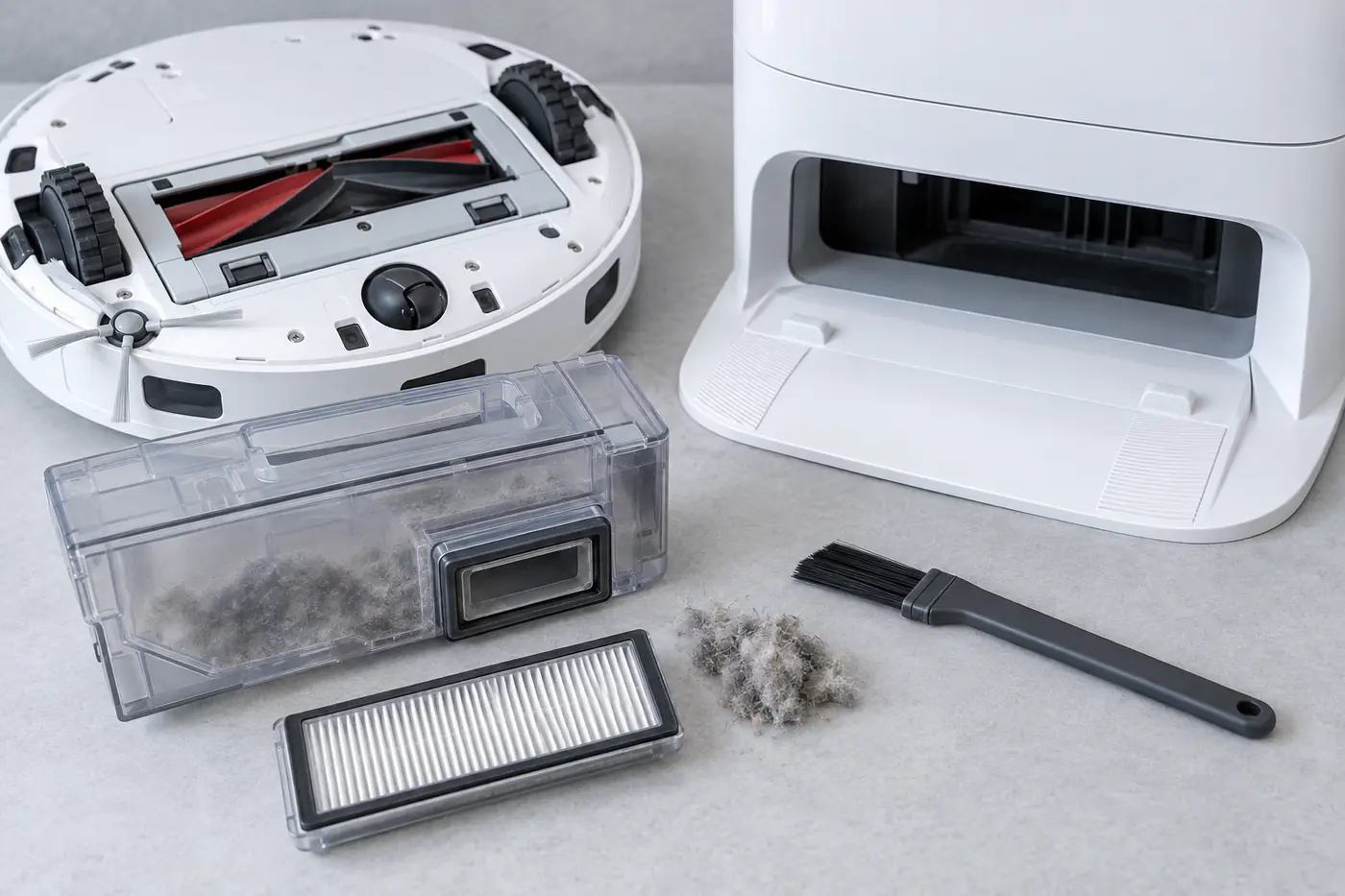
- Robot dustbin: Empty hair and compacted debris by hand. Check its visible openings. Clean the washable filter as the manual directs; if rinsed, both the filter and washed dustbin need at least 24 hours to dry before installation. Do not scrape the filter surface with a brush or hard tool.
- Main brushes and cover: Remove caught hair, reinstall the brushes correctly, and latch the cover fully. These are explicitly listed in Roborock’s reduced-emptying checks.
- Accessible suction inlets: With the dock unplugged, clear loose, visible debris from the robot and dock openings. Do not push tools into internal ducting or open the dock housing.
What the next test tells you
| After reassembly | Next action |
|---|---|
| Manual empty works, automatic empty does not | Check app setting, DND, battery level, cover, and return after a real cleaning task |
| Motor runs but little debris transfers | Recheck bag and removable airflow path for blockage or installation error |
| App reports a dock error | Record the exact message; a red light alone does not identify a dust-collection fault |
| Manual command repeatedly fails after checks | Contact Roborock with the app message and a short video; do not dismantle the dock |
If the dock makes a harsh mechanical noise, overheats, smells of burning, or leaks, stop using it and contact Roborock Support. For a robot that cannot physically return to its station, follow the Qrevo Curv docking guide. The earlier Q Revo model has a separate auto-emptying guide.