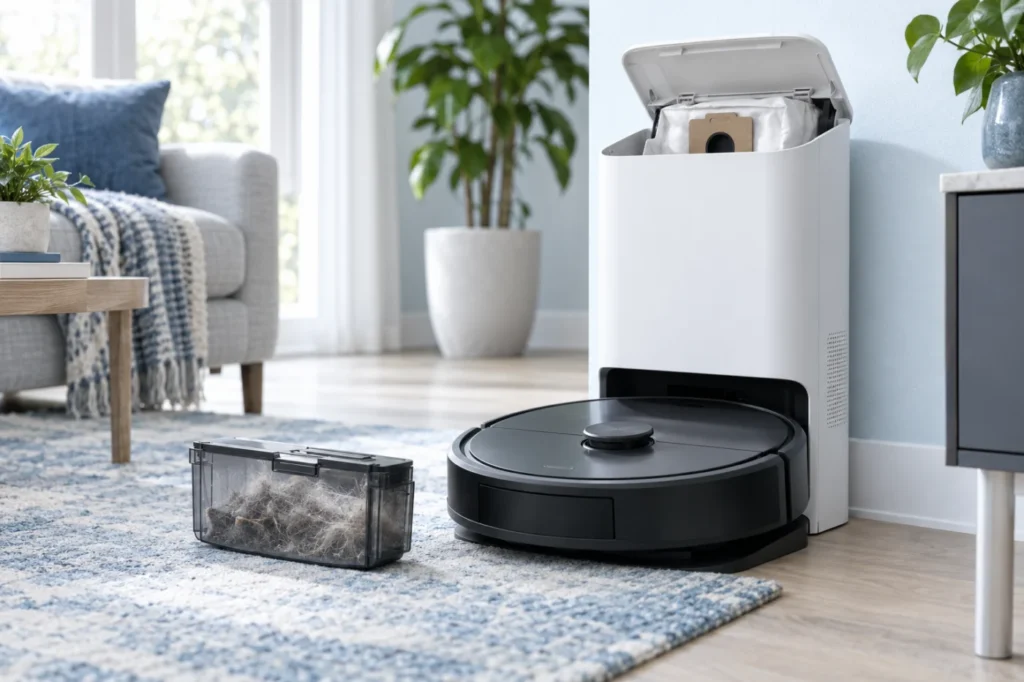
Begin with the quick checks. Stop if a step requires tools or experience you do not have.
Quick answer: If your Roborock Q Revo auto-empty is not working, first let the robot complete a normal cleaning run and return to the dock automatically. Then confirm that auto-emptying is enabled, DND is not blocking it, the dock dust-container cover and bag are installed correctly, and the airflow path is clear. If the motor runs but debris remains, inspect the robot dustbin, brush compartment, dock inlet, and dust bag for restrictions.
An auto-emptying failure can happen in two different ways. The dock may remain completely silent, or the emptying motor may start but leave dust inside the robot. These symptoms have different causes, so identify which one you have before cleaning or replacing parts.
Roborock’s official guidance confirms that automatic emptying may not start after manual docking, after a return without cleaning, when the feature is disabled, or when the DND setting blocks it. Poor emptying after the motor starts usually points instead to the bag, dustbin, brush installation, or airflow path.
Before you start
- Pause the robot and remove it from the dock before inspecting the inlet.
- Unplug the dock before removing its dust bag or cleaning accessible openings.
- Do not place fingers or tools inside the powered suction path.
- Do not wash the disposable dust bag.
- Allow a washable robot filter to dry completely before reinstalling it.
- Do not open the dock housing or access its motor, wiring, or internal ducting.
Auto-emptying is loud but normally lasts only a short time. If the dock makes grinding, rattling, or high-pitched sounds, stop the cycle and inspect the visible airflow path before testing again.
Roborock Q Revo auto-empty not working: what to check first
| Symptom | Likely area | First check |
|---|---|---|
| The dock remains completely silent | App setting, DND, or trigger condition | Run a normal cleaning and let the robot return automatically |
| The motor starts, but dust remains | Dustbin, brush area, inlet, or bag airflow | Inspect the visible air path for compacted debris |
| Emptying works manually but not automatically | Schedule, DND, or auto-empty setting | Review dock settings in the Roborock app |
| The dock sounds weak or strained | Full bag or partial blockage | Replace the bag and clean accessible openings |
| Dust returns to the robot after emptying | Restricted airflow or poorly seated dustbin | Reinstall the dustbin, filter, and main-brush cover |
| The dock shows a red indicator | Cover, bag, dock, or installation error | Check the app message and reinstall removable parts |
When diagnosing Roborock Q Revo auto-empty not working, first separate a trigger problem from an airflow problem. No motor sound usually points toward settings or operating conditions. A loud emptying cycle that removes little dust usually indicates a blockage or sealing problem.
1. Run the correct auto-emptying test
Placing the robot on the dock by hand does not always trigger automatic emptying. Roborock also states that auto-emptying will not begin if the robot returns to the dock without completing a cleaning task.
- Place the robot on the dock and allow it to charge.
- Start a normal vacuuming task from the dock.
- Let the robot clean for several minutes.
- Do not move the dock or carry the robot back manually.
- Allow the robot to end the task and return by itself.
- Listen for the automatic emptying cycle.
If emptying now starts, the system may be working normally. The earlier test may not have met the required trigger conditions.
If the Roborock Q Revo auto-empty is not working after a completed cleaning run and automatic return, continue with the app and DND checks.
2. Enable auto-emptying in the Roborock app
The automatic-emptying feature can be disabled in the dock settings. The menu name may differ slightly depending on the current app version.
- Open the Roborock app.
- Select your Q Revo.
- Open the dock or maintenance settings.
- Find the auto-emptying option.
- Confirm that automatic emptying is enabled.
- Check whether an emptying mode or frequency has been selected.
If the app provides a manual Empty command, test it while the robot is properly docked. A successful manual cycle suggests that the motor and basic airflow system can operate.
3. Check Do Not Disturb settings
Roborock allows auto-emptying to be disabled during the Do Not Disturb period. The robot may charge normally while the loud emptying cycle is intentionally suppressed.
- Open the Do Not Disturb settings in the app.
- Check the beginning and ending times.
- Find the option that disables automatic emptying during DND.
- Temporarily turn that restriction off or test outside the DND period.
- Run another short cleaning task and allow an automatic return.
If the problem occurs only at night or during scheduled quiet hours, DND is the most likely explanation. This is normal behavior rather than a dock failure.
4. Inspect the dock cover and dust bag
The dock needs a correctly installed cover and an unobstructed dust bag to maintain airflow. A full, folded, damaged, or incorrectly seated bag can reduce suction.
- Unplug the dock.
- Open the dock dust-container cover.
- Check that a compatible disposable bag is installed.
- Remove the bag by its handle if it is full or tightly packed.
- Inspect the bag connection for loose debris.
- Install a new bag along the correct slot.
- Unfold the bag so it has space to expand.
- Close the dock cover completely.
Do not reuse a torn bag or operate the dock without one. Fine dust can reach the dock’s internal filter and emptying motor.
5. Clean the robot dustbin and filter
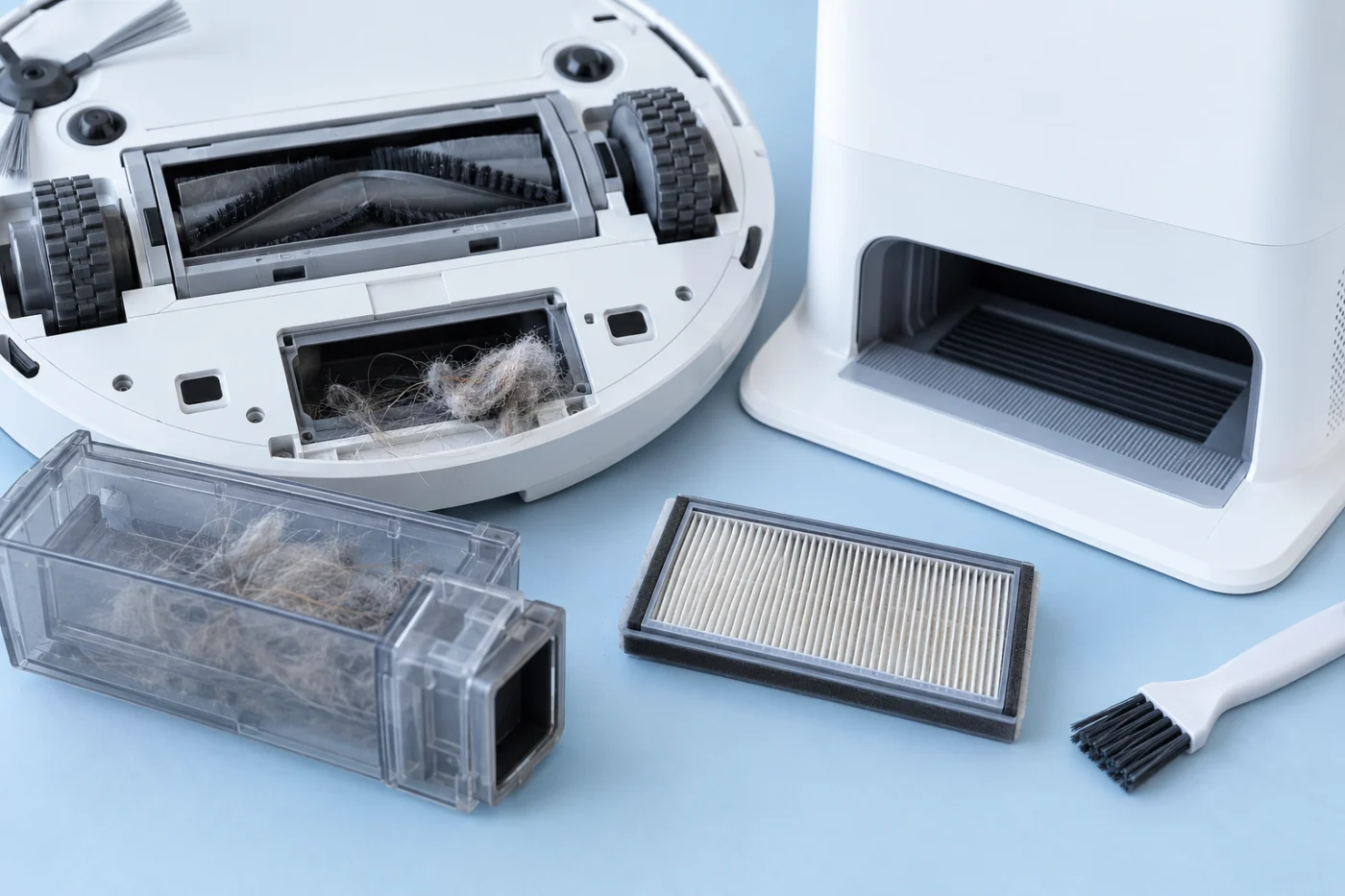
If the dock runs but debris remains in the robot, remove the robot dustbin and inspect it carefully.
- Empty loose debris manually.
- Remove hair packed around the dustbin outlet.
- Inspect the air inlet and outlet for lint.
- Remove and clean the washable filter according to the maintenance instructions.
- Allow the filter to dry completely before reinstalling it.
- Check that the dustbin lid and filter close correctly.
- Reinstall the dustbin firmly inside the robot.
A damp filter can restrict airflow and may damage the robot. If the filter was rinsed, allow approximately 24 hours for complete drying or follow the drying period specified in your manual.
The Roborock Q Revo auto-empty not working symptom may improve immediately after compacted lint is removed from the dustbin outlet.
6. Clean the main brush and visible airflow path
The self-emptying dock pulls debris through the robot’s internal dust path. A brush jam, incorrectly installed brush cover, or blocked dock inlet can weaken the airflow.
- Turn the robot upside down on a soft towel.
- Release the main-brush cover.
- Remove hair and thread from the brush and both ends.
- Check the brush compartment for compacted debris.
- Reinstall the main brush in the correct orientation.
- Lock every tab on the main-brush cover.
- Inspect the robot’s emptying outlet and the dock’s lower suction inlet.
- Remove only loose, visible debris with a soft brush or dry cloth.
Do not push objects deep into the dock intake. If debris cannot be reached through the normal maintenance openings, arrange professional service.
For detailed brush instructions, see our robot vacuum main-brush troubleshooting guide.
7. Restart the dock and identify a motor fault
After reinstalling the bag, cover, dustbin, filter, brush, and brush cover, perform a complete restart.
- Remove the robot from the dock.
- Unplug the dock for approximately two minutes.
- Reconnect the power.
- Place the robot on the dock correctly.
- Use the app’s manual Empty command if available.
- Otherwise, run a short cleaning task and allow an automatic return.
Observe the result:
- The motor starts and the dustbin empties: the setting, bag, or airflow problem has been corrected.
- The motor starts but sounds weak: another restriction or a worn bag may remain.
- The motor starts but dust does not move: inspect the robot and dock openings again.
- The dock remains silent: the dock motor, control system, or power supply may need service.
- The dock displays a persistent error: record the app message before contacting support.
If every visible component is installed correctly and the Roborock Q Revo auto-empty is not working, do not open the powered dock. Internal motor, wiring, duct, and control-board repairs should be performed by qualified service personnel.
What the test results mean
| Test result | What it suggests | Best next step |
|---|---|---|
| Manual emptying works | Motor and basic airflow are available | Check auto-empty and DND settings |
| Emptying works after a normal cleaning run | The earlier trigger condition was not met | Allow automatic return instead of manual docking |
| The motor runs but dust remains | Bag, filter, dustbin, brush, or inlet restriction | Clean the entire accessible airflow path |
| The dock sounds strained | Full bag or partial blockage | Replace the bag and inspect both openings |
| The dock remains silent in every test | Setting, power, control, or motor fault | Restart, record errors, and contact support |
Frequently asked questions
Why does Q Revo empty manually but not automatically?
The automatic function may be disabled, blocked during DND, or tested under the wrong conditions. Run a normal cleaning task and allow the robot to return to the dock on its own.
Why does the dock run but leave debris in the robot?
Check for a full bag, dirty filter, compacted dustbin outlet, blocked dock inlet, jammed main brush, or incorrectly installed brush cover. Heavy pet hair may require more frequent manual cleaning.
Will auto-emptying start if I place the robot on the dock?
Not necessarily. Roborock states that automatic emptying does not start when the robot is placed on the dock manually. Use the app’s manual Empty command or allow the robot to return after cleaning.
Can DND stop the Q Revo from emptying?
Yes. The Roborock app includes an option to suppress automatic emptying during the Do Not Disturb period because the cycle is loud.
Should I remove the robot filter before auto-emptying?
No. Install the dustbin and filter normally. Clean a restricted filter and let it dry completely before returning it to the robot.
What if the Roborock Q Revo auto-empty is not working after all checks?
If the dock remains silent or repeatedly reports an error after the settings and accessible airflow path are checked, contact Roborock support. Do not disassemble the powered dock.
Final checklist
- A normal cleaning task was completed.
- The robot returned to the dock automatically.
- Auto-emptying is enabled in the app.
- DND is not suppressing automatic emptying.
- The dock dust-container cover is installed.
- The disposable bag is present, open, and not full.
- The robot dustbin, filter, and outlet are clean.
- The main brush and brush cover are installed correctly.
- The dock inlet is free from visible debris.
- Persistent motor or electrical faults have been referred for service.
When the Roborock Q Revo auto-empty is not working, begin with the operating conditions and settings before assuming the dock motor has failed. If emptying starts but performs poorly, follow the airflow path from the robot’s brush compartment and dustbin to the dock inlet and disposable bag.
For more model-specific help, visit the Roborock troubleshooting section, read our guide for Q Revo dirty water not pumping, or browse the complete robot vacuum troubleshooting directory.
Official reference: Roborock auto-emptying troubleshooting guidance.