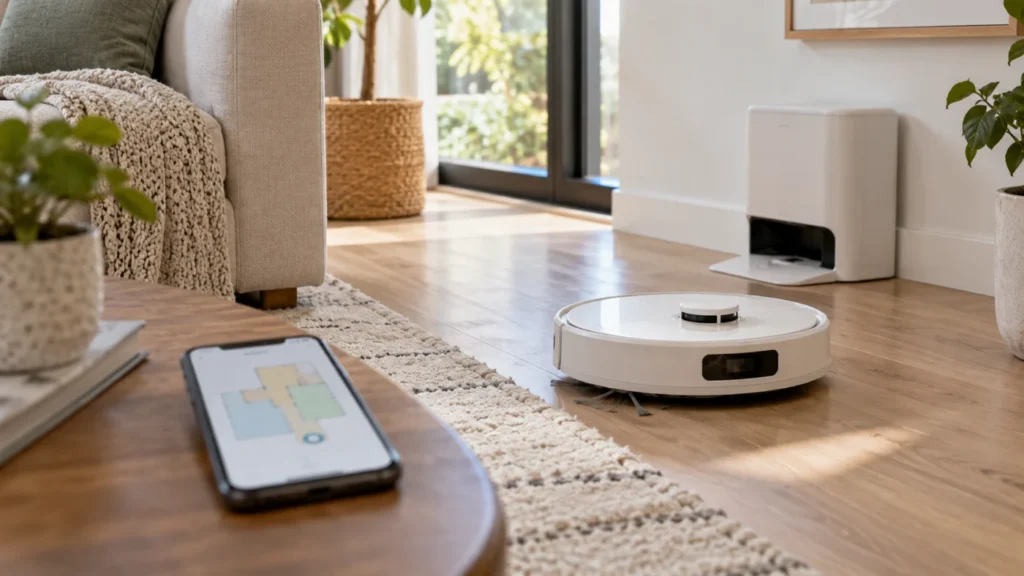
Begin with the quick checks. Stop if a step requires tools or experience you do not have.
Quick answer: If the Qrevo Curv map looks wrong, first distinguish an odd picture in the app from a robot that actually loses its way. Check the selected floor and dock position, clear a short route, and watch a cleaning run from the dock. If the robot hesitates or circles, clean accessible sensors with a soft, dry cloth and inspect the wheels and bumper. Save a screenshot of the current map before restoring or creating another one.
Not sure which check to try next?
Follow guided questions and report what changes after each check.
Start step-by-step diagnosisA missing room, a misplaced robot icon, and a robot that repeatedly turns in place are different symptoms. The Qrevo Curv user manual directs owners to start cleaning from the dock without moving it, keep loose objects and cords clear, clean sensors with a dry cloth, and restart for abnormal behavior. It does not make a new map the first remedy for every navigation problem.
What actually happens?
The robot travels normally, but the map looks distorted
Check the selected floor, dock position, and any saved map in the app. Keep the current map while you run a short test.
It circles, stalls, or cannot locate itself
Read any app alert, clean accessible sensors, inspect the wheels and bumper, and repeat on a clear route before changing the map.
It skips a room shown on the map
Check the real doorway, selected room, and any no-go zone or virtual wall crossing the route.
Check the route and dock before editing the map
Take a screenshot showing the odd area and the dock icon. Confirm the right floor map is selected. Check whether the dock was moved or a door closed since the last successful run. Clear cords, shoes, and temporary clutter on a short route from the station; leave the intended room accessible. Start the robot from the dock and watch where its physical movement first differs from the map.
If it cannot find or enter the station, use the focused Qrevo Curv docking guide. A failed final approach is easier to diagnose separately from an inaccurate room boundary.
Clean sensors and check movement
Move the robot off the dock and switch it off. Use a soft, dry cloth on its accessible dock locator, front obstacle-recognition window, wall and communication sensors, and underside cliff and carpet sensors. Gently wipe dust from the LiDAR cover without forcing the turret. The manual calls for a soft, dry cloth on the named sensors; do not spray them or open their housings.
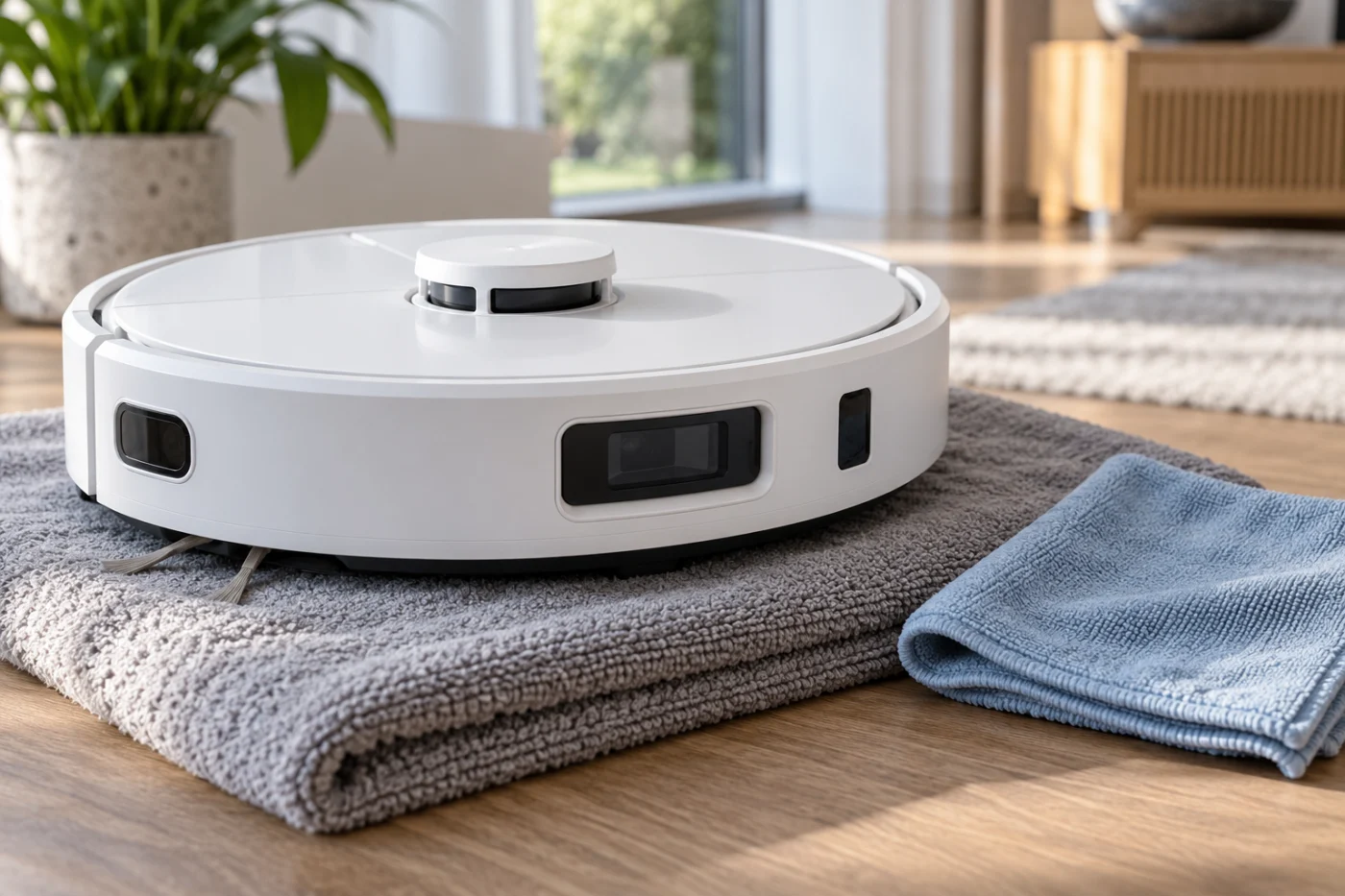
Remove hair or debris you can reach around the wheels. Check that the bumper is not visibly stuck. A wheel dragging or a pressed bumper can alter the route even when the saved map is fine. If the robot behaves normally in an open room but fails at one threshold or doorway, inspect that location before changing software settings.
Check map restrictions and repeat the same short route
If the physical route is clear but the robot avoids a room, inspect the map editor for a no-go zone, virtual wall, or selected-room limit crossing the entrance. Change one relevant restriction, then repeat the test. Keep protective restrictions around stairs or hazards in place.
Restart the robot if behavior remains abnormal, as the manual suggests, then run the same route from its dock. Note any recurring sensor or positioning error. A factory reset is a much broader change and should not be used merely to diagnose a room line that looks odd.
Restore or create a map only when needed
If the robot moves correctly but the saved map itself is unusable, check whether your app offers a previous version or another saved floor. Compare it with your screenshot before restoring anything. If no usable version exists and repeated runs produce the same incorrect layout, prepare a new map using the instructions in your app version.
- Keep the dock in its permanent position for the floor on which it is used.
- Open doors to rooms intended for that map and clear the route.
- For a map that includes this dock, start from it, let the robot cover the accessible area, and allow an automatic return without moving the station.
- Confirm that the new map is saved before adjusting room boundaries or recreating necessary no-go zones.
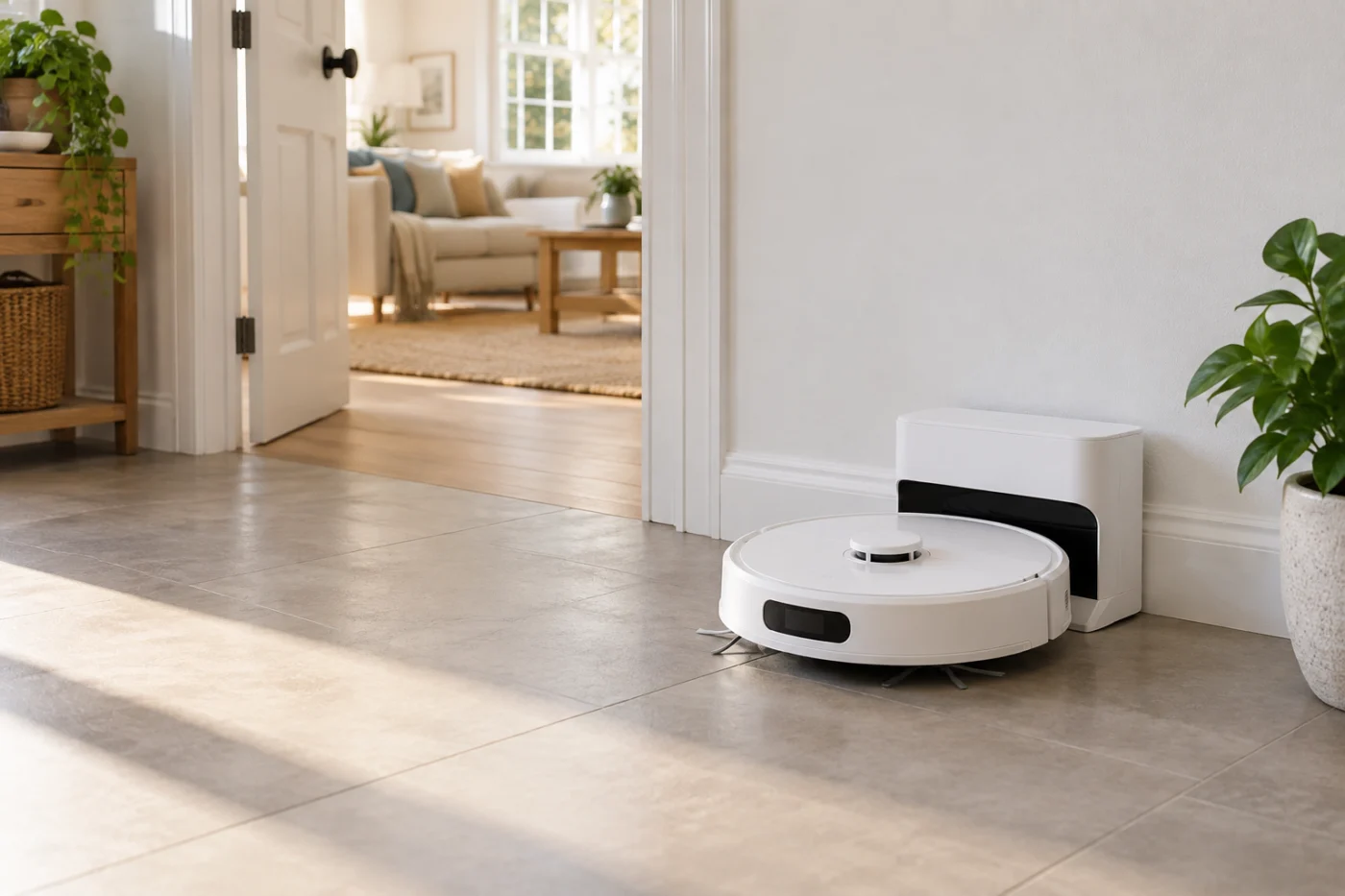
Multi-floor mapping controls can differ by app and firmware. Follow the options shown for your Qrevo Curv; do not move a station solely to test a map on another floor.
If the robot’s map is intact but it suddenly appears Offline in the app, follow the Qrevo Curv Wi-Fi checks. If navigation is normal and the issue is only missed small objects, see the obstacle-avoidance guide.
When to contact support
If the robot repeatedly loses its position on an open, familiar floor after cleaning the accessible sensors, clearing the wheels and restarting, record the exact app alert, a screenshot of the map and a short video. Contact Roborock Support if a sensor window is damaged or the same error returns. Do not dismantle the LiDAR or robot body.