Begin with the quick checks. Stop if a step requires tools or experience you do not have.
Quick answer: If the Qrevo Curv keeps bumping into ordinary objects, clean its front Reactive AI obstacle-recognition sensor with a soft, dry cloth, check the bumper and available app settings, then repeat one safe test with a stable shoe on open hard flooring. If it avoids an apparently empty patch instead, inspect that exact spot and any no-go zone on the active map. Do not test with cables, glass, liquids, or pet waste.
Not sure which check to try next?
Follow guided questions and report what changes after each check.
Start step-by-step diagnosisThe Qrevo Curv manual identifies the front obstacle-recognition sensor and calls for cleaning accessible sensors with a soft, dry cloth. One touch against a small or flat object does not diagnose a failed sensor; repeated behavior under the same conditions gives a more useful result.
Which behavior do you see?
It misses only thin or very small items
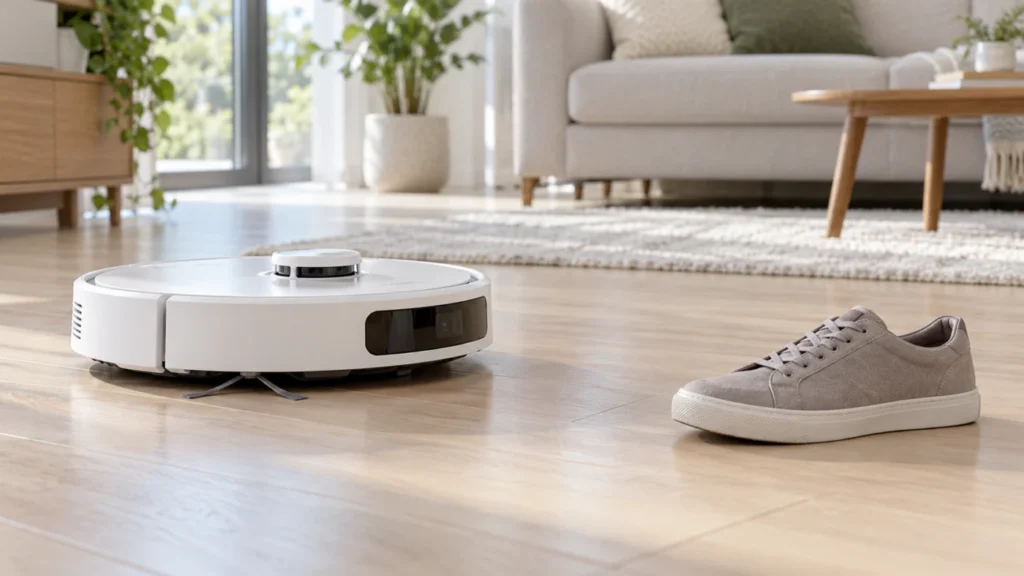
Remove loose cords and valuables before cleaning. Compare with one ordinary upright shoe in an open, safe test area; do not use a hazard as a test object.
It repeatedly pushes into ordinary objects
Check the app’s available obstacle settings, wipe the front sensor, inspect the bumper, then repeat the same controlled test and note any app error.
It turns away from empty floor
Check the physical spot, the selected map, and no-go zones. If it also loses its location elsewhere, investigate navigation separately.
1. Check the app and clean the sensor
Open the Qrevo Curv in the Roborock app and review any obstacle-recognition or cleaning-behavior options shown for your device. Menu names change with app versions. If you change an option, note its old value and change only one setting before repeating the test.
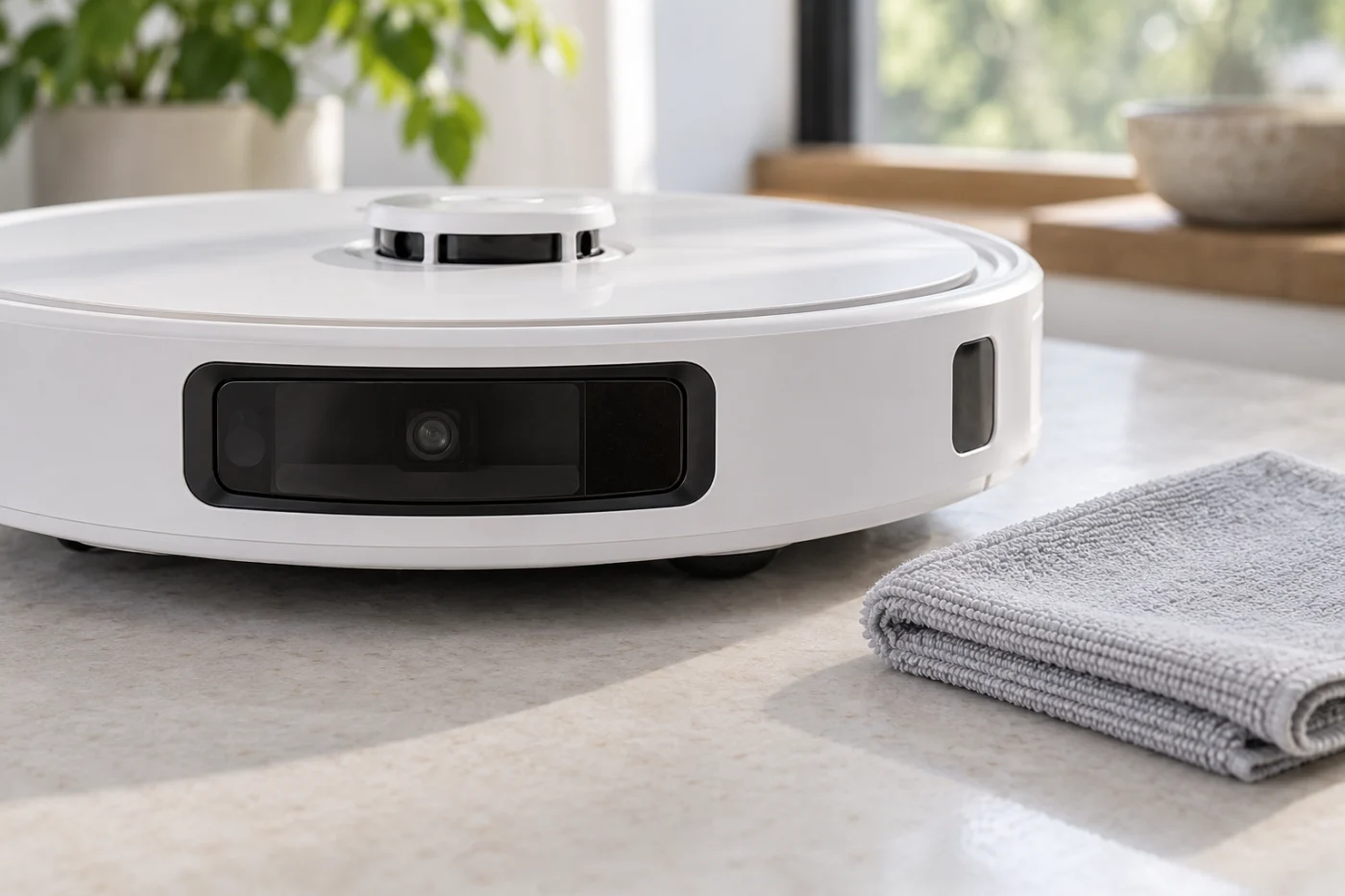
Stop the robot, remove it from the dock, and switch it off. Gently wipe the front obstacle-recognition window and accessible wall and cliff sensors with a soft, dry cloth. Check whether the bumper is visibly stuck or has loose debris around its edge. Do not spray cleaner into the sensor housing or pry the bumper off. A cracked window or moisture behind it needs service assessment.
2. Run one safe comparison
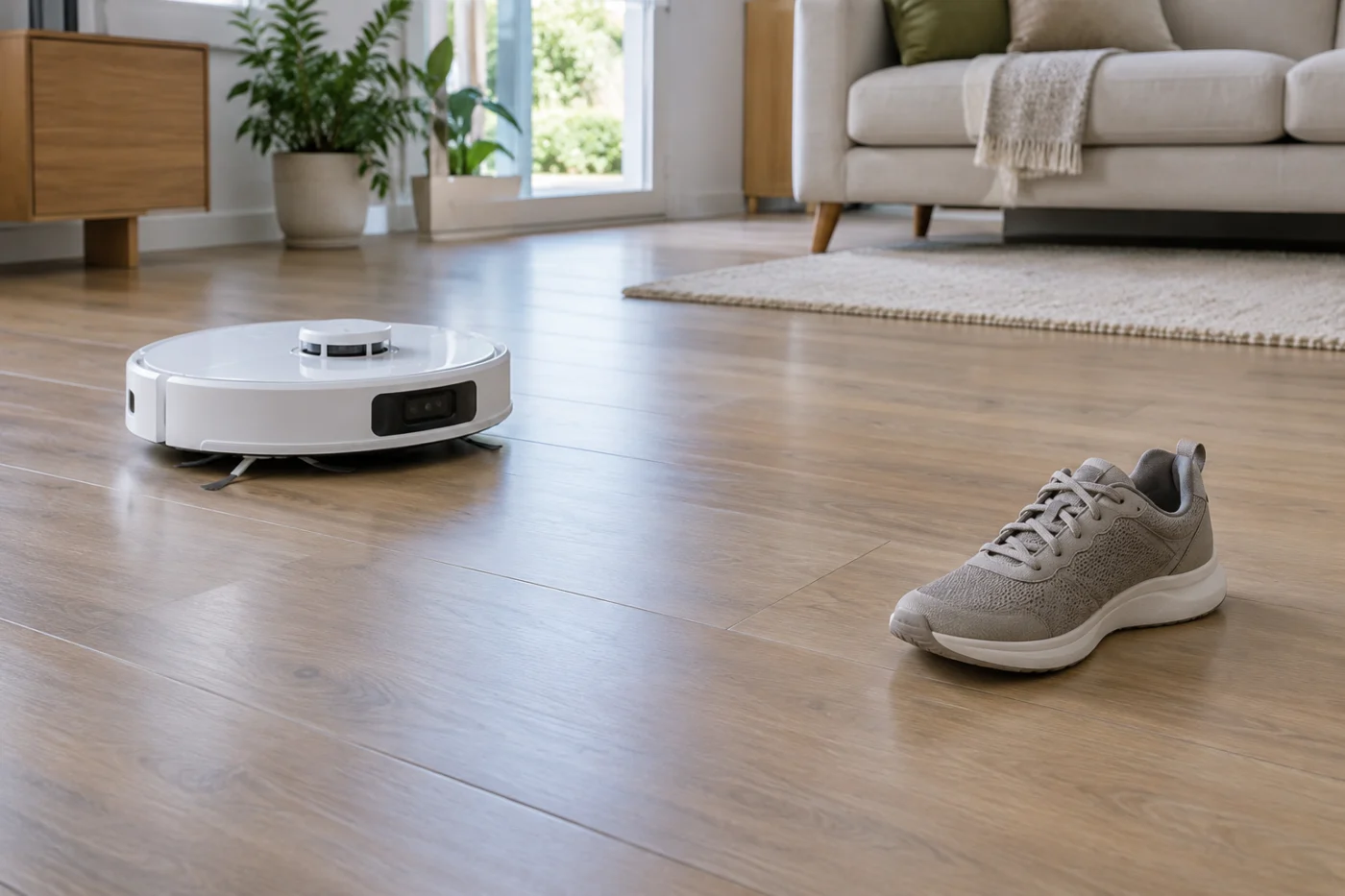
Choose an open hard-floor area away from stairs and breakable objects. Put one ordinary shoe upright on the floor. Start a short normal cleaning run and watch from a distance; do not stand in the robot’s path or move the shoe while it approaches.
- It turns around the shoe: Recognition worked in this test. Consider the size, shape, lighting, and position of the original item.
- It lightly touches the shoe, then turns: Repeat once under the same conditions. A brief touch is different from repeatedly pushing it across the floor.
- It pushes into the shoe repeatedly or shows a sensor error: Stop the test. Record a short video and the exact app message for Roborock Support.
Roborock markets obstacle recognition on the Qrevo Curv, but real-world performance can vary with the object and surroundings. Keep loose cords and fragile belongings out of the cleaning route even if this test succeeds.
3. If it avoids an empty-looking area
Check the actual floor for a low item, lifted rug edge, or an unusual dark or reflective patch. Then check the active map for a no-go zone, virtual wall, or wrong floor. Remove or adjust only an accidental restriction, and repeat the same short route. Preserve restrictions placed around hazards.
If the robot appears in the wrong room on the map or repeatedly cannot locate itself, follow the Qrevo Curv mapping and navigation guide. If it bumps only the station while returning, use the docking guide.
When to seek service
Restart the robot once and repeat the same controlled test if cleaning and settings checks have not helped. Contact Roborock Support if it repeatedly pushes into an ordinary object on clear flooring, reports the same sensor error, or has a damaged front window. Include the result, app setting, error message, and video. Do not open the camera or sensor housing or reset the entire robot merely because one small object was missed.