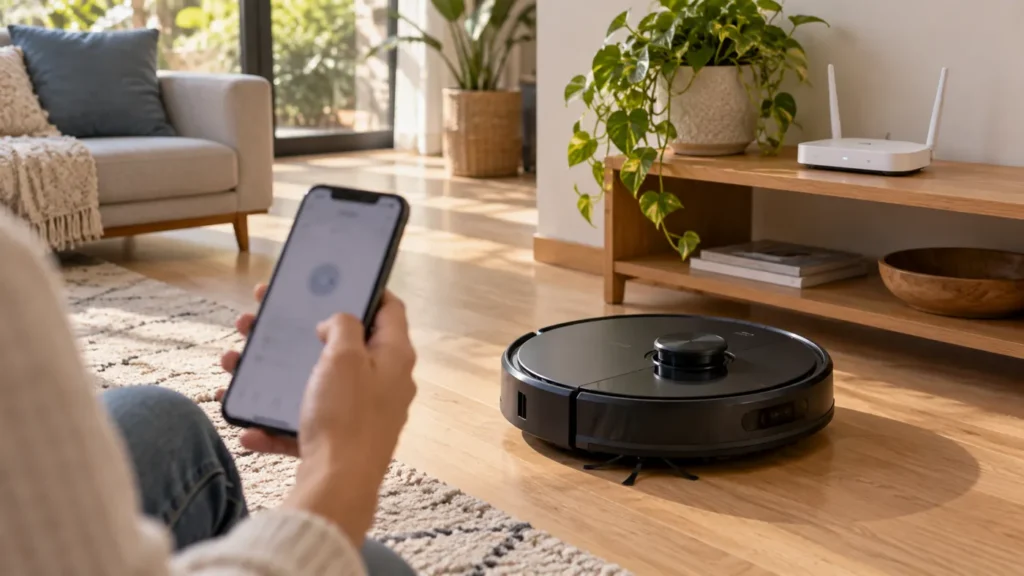
Begin with the quick checks. Stop if a step requires tools or experience you do not have.
Quick answer: If your Roborock S8 is not connecting to Wi-Fi, use a home network with 2.4 GHz enabled, check its password and allow the app’s connection permissions. For a fresh pairing attempt, hold the S8’s Spot Clean/Child Lock and Dock buttons together until the Wi-Fi reset announcement, then add it in the app. If it used to work and now shows Offline, check power and the home internet connection before resetting anything.
This guide covers the standard S8. “Not connecting” can mean the app cannot find the robot, pairing fails, or a previously connected robot disappears. Start with the case you actually have.
If your S8 was connected and suddenly went Offline
Check that the robot has power. If it is unresponsive at the dock, use our S8 not-charging guide first. Repeating Wi-Fi pairing on a robot with a power problem will not address that problem.
Next, check whether your phone can use the home internet connection. Reopen the robot in the app after the connection recovers. If several home devices have lost internet access, investigate that shared problem first.
Did you recently change the router, network name or password? That is a useful clue. Write down what changed so you can distinguish an old saved connection from a failure during a new pairing attempt.
Read the Wi-Fi light under the top cover
The S8 has a separate Wi-Fi indicator under its top cover. Read that light, rather than guessing from the main power light.
| Wi-Fi light | Meaning in the S8 manual |
|---|---|
| Off | Wi-Fi disabled |
| Flashing slowly | Waiting for a connection |
| Flashing quickly | Connecting |
| Steady | Wi-Fi connected |
A steady light with Offline in the app is a reason to check the app, account and internet connection before repeating a reset. It does not guarantee that every part of the app’s communication path is working.
1. Use the 2.4 GHz home network
The S8 supports 2.4 GHz Wi-Fi. If your router lists separate network names for 2.4 and 5 GHz, choose the 2.4 GHz name during setup. A phone that can use 5 GHz does not establish that the robot can.
A combined network name is not automatically unsuitable. Roborock advises trying it first; if pairing fails, ask your router provider for help exposing a separate 2.4 GHz network. Do not switch off network security to make the robot connect.
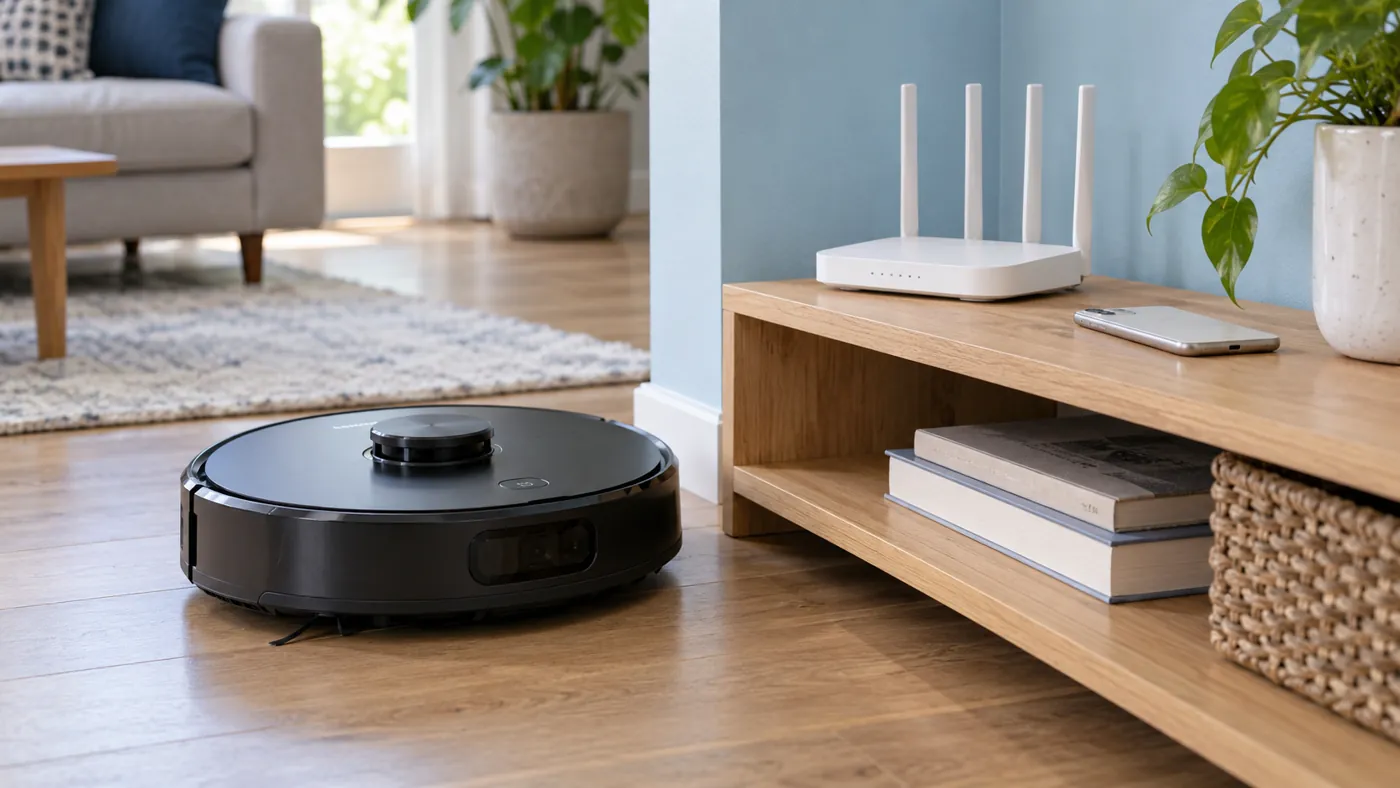
For one comparison attempt, keep the phone and robot in an area with good reception near the router. If setup succeeds there but the robot goes offline elsewhere, record the locations. That pattern makes coverage worth checking; it does not prove a failed Wi-Fi module.
2. Check the password and phone permissions
When the app asks for your Wi-Fi network, select the home network and enter its password. Roborock specifically warns against entering the home password for the robot’s temporary Wi-Fi network.
Allow the connection permissions requested by the app. Roborock’s guidance includes location permission and, on iOS, Local Network access. The names and prompts can vary with your phone and app version, so follow the current on-screen instructions.
For a controlled retry, Roborock also suggests temporarily disabling a phone VPN or cellular data. Restore them afterward. Avoid changing the router name, password and phone settings all at once: keep a note of the one change you are testing.
3. Reset Wi-Fi with the S8’s two top buttons
- Open the top cover to see the Wi-Fi indicator.
- Hold Spot Clean/Child Lock and Dock together. The manual shows the spot-clean symbol and the home-shaped dock symbol.
- Wait for the Wi-Fi reset voice message and a slowly flashing Wi-Fi light.
- Start adding the S8 in your chosen app and follow its connection prompts.
Use this Wi-Fi sequence rather than the small recessed Reset button. The manual describes system reset separately and warns that it restores settings such as Wi-Fi and scheduled cleaning. A factory reset is a further separate procedure.
The standard S8 manual lists Roborock and Xiaomi Home support. Continue in the app you use for this robot; switching apps midway makes it harder to compare attempts.
4. If scanning the QR code fails
Roborock’s QR-code guidance includes the S8 series, but notes that some products do not have a code. In the device-add flow, use the search or no-QR-code option offered by the app if scanning is unavailable.
A failed scan and a failed network connection happen at different stages. Record which stage you reach: no device found, password rejected, or connecting that never completes. That detail helps avoid repeating an irrelevant fix.
5. If another pairing attempt still fails
Keep the final error message or screenshot. Note the app version, phone model, whether 2.4 GHz is enabled, and the Wi-Fi light behavior. Do not include the Wi-Fi password in a screenshot or support message.
Roborock’s general guidance also suggests restarting the robot and router. Restart a shared router only when it will not interrupt important work, and check that normal internet service returns before another attempt.
If the problem persists, ask Roborock support or the router provider to review the recorded pairing stage. Do not open the robot or order a Wi-Fi board solely because the app says Offline.
Frequently asked questions
Can the S8 clean without Wi-Fi?
Roborock confirms that basic cleaning and return-to-dock commands can be used with physical buttons without Wi-Fi. App features require the connection. A short button-started run may help establish whether the robot itself responds.
Must I split my dual-band router into two names?
Not as the first step. Try the combined network with 2.4 GHz enabled. If pairing fails, follow the router provider’s instructions for a separate 2.4 GHz network.
Will pressing the small Reset button do the same thing?
No. Follow the two-button Wi-Fi procedure above. The S8 manual describes the small Reset button under system reset, which affects additional settings.
The S8 is online but the brushes do not work. What next?
That is a separate cleaning symptom. Follow our S8 main-brush checks instead of repeating pairing.
Browse the standard S8 guides in the Roborock section.
Sources: S8 manual for indicator states and the exact Wi-Fi reset buttons; Roborock connection and Offline guidance for phone and password checks; dual-band guidance; QR-code help; and operation without Wi-Fi. The symptom comparisons are editorial troubleshooting suggestions.
RoboFixGuide is independent of Roborock. Generated images illustrate representative setups.
If there are no lights or local responses, follow S8 will not turn on to separate charging, power and child-lock checks.