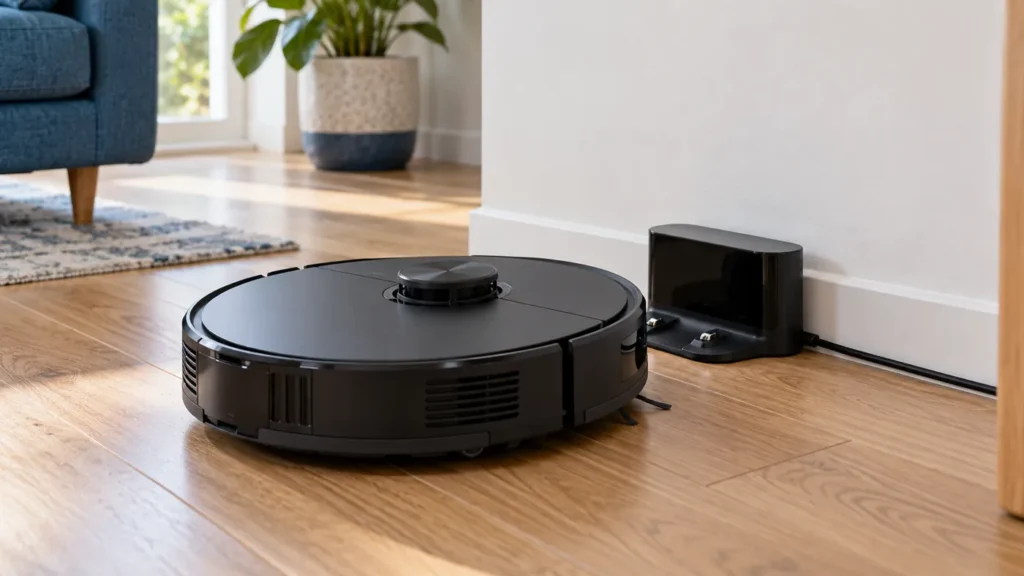
Begin with the quick checks. Stop if a step requires tools or experience you do not have.
Quick answer: If your Roborock S8 is not charging, first check whether its dock has power and whether the robot actually announces charging when seated. Then unplug the dock, switch the robot off, and wipe the accessible charging contacts with a soft, dry cloth. Reconnect and test once more. A robot that cannot find its dock needs a different check from one that reaches it but never starts charging.
This guide covers the standard S8 with its compact charging dock. Confirm your model before following the steps: an S8+, S8 Pro Ultra or S8 MaxV Ultra has a different station. The light behavior described here comes from the standard S8 manual.
What happens when you place the S8 on its dock?
Watch both devices and listen for the charging announcement. Do not rely on a single battery percentage in the app, especially if the robot is offline. Write down what changes when you remove the robot and when you place it back.
| What you notice | Next check |
|---|---|
| Dock light stays off with the robot removed | Wall outlet and both power-cable connections |
| Dock has power, but robot never announces charging | Seating and accessible contacts |
| Charging begins, then repeatedly disconnects | Record the interruptions; check for a shifting dock or poor contact |
| Charging is recognized, but seems unusually slow | Room conditions and a timed battery-level comparison |
| Robot searches for the dock but does not reach it | Dock approach and placement |
1. Check power before changing settings
On the standard S8 dock, the indicator is on when the powered dock is empty and turns off when the robot is charging. If the empty dock has no light, inspect the supply first.
Unplug it before checking that the cable is fully seated at the dock. Check the wall connection too. If the outlet is uncertain, try an accessible outlet you know works. A loose lead is easy to overlook when the station has been moved for cleaning.
Stop if the cable, plug or dock is damaged, wet or unusually hot. Do not open the charger or substitute an unverified power supply. Matching a connector shape does not establish compatibility.
2. Compare manual placement with an automatic return
If the robot has enough power to respond, try a normal return to the dock and observe its approach. If it cannot reach the contacts, place it on the dock manually as the manual permits.
When charging is recognized, the S8 gives a charging voice alert and its power indicator pulses. The dock light goes off. If that happens after manual placement but not after an automatic return, the approach is worth checking before blaming the battery.
Keep the compact dock stable on a level surface against a wall, with at least 0.5 m clear at each side and more than 1.5 m in front, as specified for this model. Remove objects and loose cable from the approach.
3. Clean both sets of accessible contacts
- Move the robot off the dock and switch it off.
- Unplug the dock from the wall.
- Wipe the robot and dock charging contacts with a soft, dry cloth.
- Check for visible damage, then reconnect and seat the robot again.
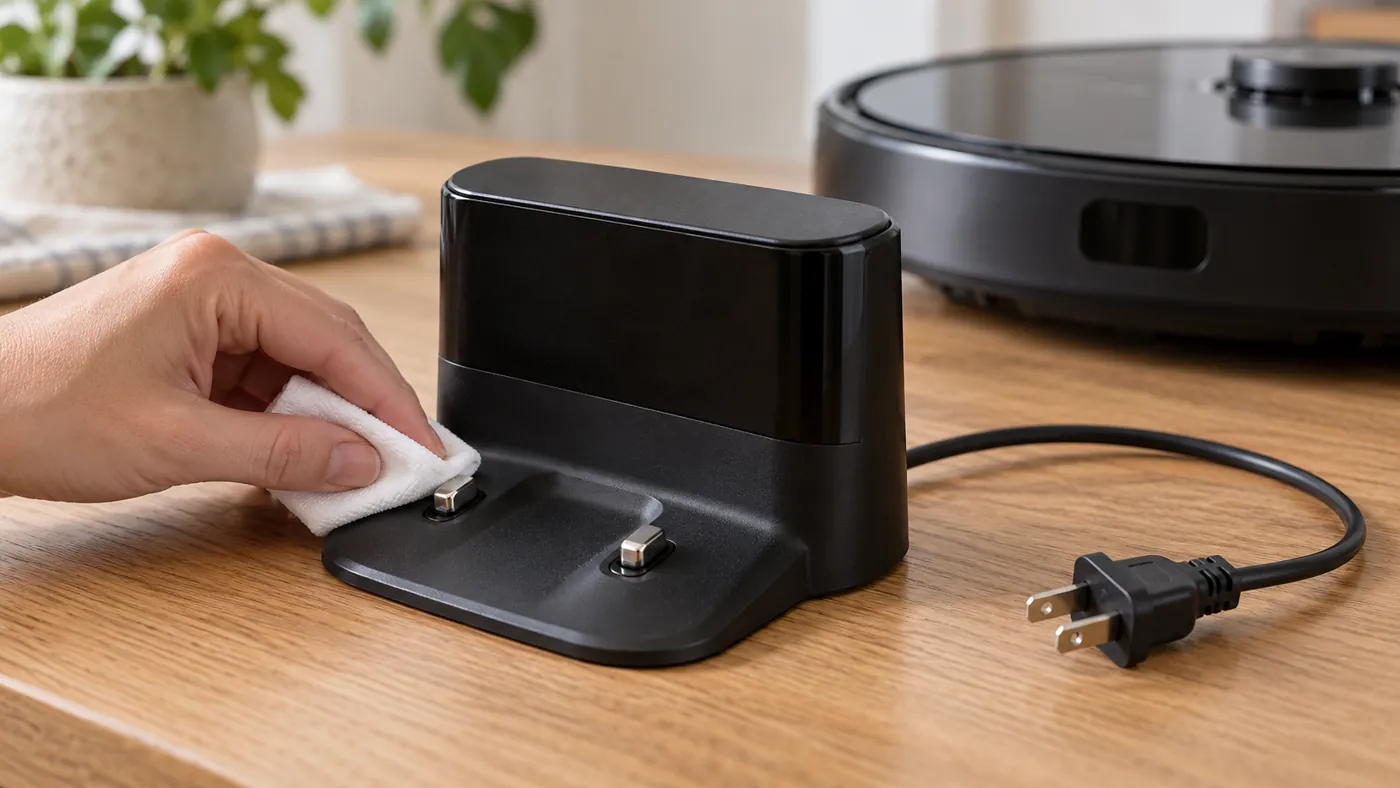
Clean both mating surfaces, not only the ones that look dusty. Do not scrape the contacts with a blade or bend them to make them touch. If you see pitting, corrosion or a loose contact, photograph it for support.
4. If Error 13 appears
Roborock’s Error 13 guidance focuses on charging contacts, power-cable seating and dock operation. It also suggests disconnecting the dock for about two minutes before reconnecting it. That is a dock power cycle, not a factory reset of the robot.
Begin with the dry cleaning procedure in the S8 manual. Record whether Error 13 returns immediately or only after charging has started. The error does not, by itself, identify a bad battery or charger.
You can find other warnings in our robot vacuum error-code reference. Match the model and the wording on your device before applying a fix.
5. When charging starts but the percentage barely changes
Compare readings over a recorded period while the robot stays docked and no cleaning task runs. Note the starting battery level, ending level and any interruption. This is a practical observation for support, not a battery-capacity test.
The S8 manual notes that charging may slow in hot or cold conditions. Move the setup away from a heater, direct sun or a cold outdoor area and let it return to ordinary indoor conditions. Do not try to warm the battery directly or cool it with water.
If the app is offline, fix the connection before trusting its displayed status. Use our S8 Wi-Fi and Offline guide. An app communication problem and a charging problem can appear together without having the same cause.
Before buying a replacement battery
A robot that never recognizes its dock and one that charges but runs for only a short time present different evidence. Send support your observations rather than choosing a battery from the symptom “not charging.”
Use the battery finder to understand the model and fit checks. Do not assume every S8-family battery fits your exact robot. If the robot or battery area is swollen, damaged or unusually hot, stop use and contact qualified service.
Frequently asked questions
Is it normal for the dock light to turn off?
Yes, on the standard S8 charging dock, the light turns off during charging. Check the charging voice alert and robot indicator too. Do not transfer this light rule to a different Ultra station.
Should I factory-reset the S8 to fix charging?
Start with power, seating and contacts. A reset does not repair a loose lead or damaged contact. If support recommends a reset later, check which settings it will erase.
What if the S8 will not turn on?
A low battery can prevent startup. Seat it on its powered dock and check for charging recognition. If it remains unresponsive after the external checks, report the dock-light behavior to support.
It charges, but cleaning still performs badly. Is that a battery fault?
Charging alone does not explain weak pickup. If the rollers are not operating, use the S8 main-brush checks rather than replacing the battery for that symptom.
Browse the standard S8 guides in the Roborock section for other problems.
Sources: Official S8 manual for dock indicators, placement and dry contact cleaning; Roborock Error 13 guidance for the dock power-cycle check. The observation table and comparisons are RoboFixGuide’s troubleshooting suggestions, not conclusive tests of an internal part.
RoboFixGuide is independent of Roborock. Generated illustrations are representative scenes, not service diagrams.
If the S8 charges when placed on the base but cannot return to it automatically, use the S8 docking guide to check the approach, signal surfaces and route.
If charging or docking works but an unfinished task does not continue, see S8 not resuming after charging for quiet-hours and manual-docking checks.
If there are no lights or local responses, follow S8 will not turn on to separate charging, power and child-lock checks.