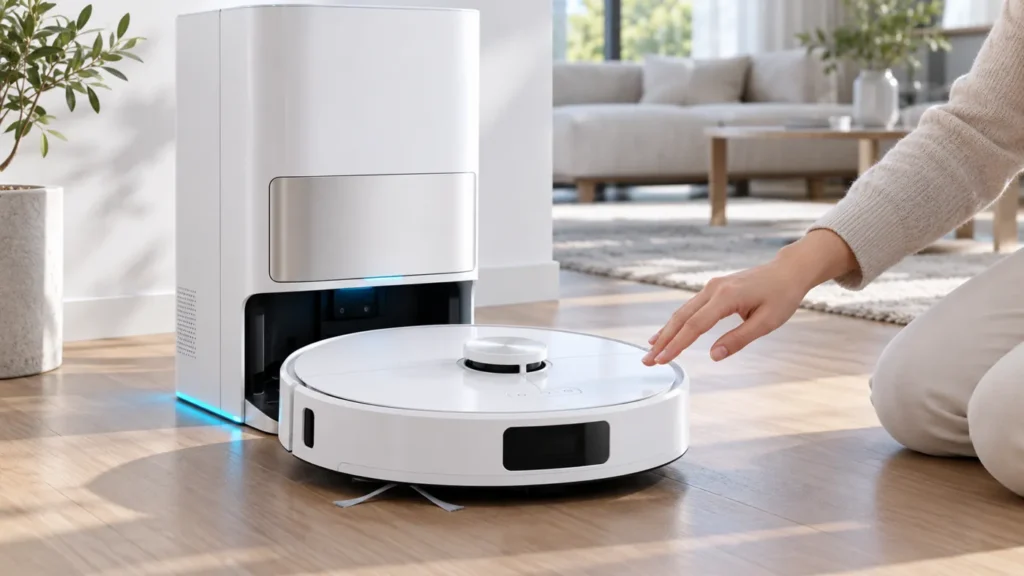
Begin with the quick checks. Stop if a step requires tools or experience you do not have.
To reset a Dreame L10s Ultra, first decide whether you need a restart, a new Wi-Fi connection, or a full factory reset. The original L10s Ultra has different controls for these actions. Pressing the recessed Reset button is the factory-reset procedure, so do not use it as your first response to an offline app.
This guide covers the original Dreame L10s Ultra. Check the manual for your exact model if you own a Gen 2 or another variant.
Choose the right reset
| Problem | Start here | What to expect |
|---|---|---|
| Robot responds but needs restarting | Normal power cycle | Turn it off and back on |
| Robot is frozen or will not turn off | Forced restart | Use the power button, not the recessed Reset button |
| New router or failed app connection | Wi-Fi reset | Pair it again with Dreamehome |
| Persistent software issue after targeted troubleshooting | Factory reset | Cleaning data is deleted and cleaning settings return to defaults |
1. Restart without using the Reset button
Stop the cleaning task and move the robot off the charging station. Hold the power button for three seconds to turn it off, then hold it for three seconds to turn it on. The robot cannot be switched off normally while charging.
If it is unresponsive, the manual specifies holding the power button for ten seconds to force it off, followed by three seconds to turn it on. For repeated shutdown problems, see L10s Ultra will not turn off. Do not interrupt an active firmware installation with a reset.
2. Reset the Wi-Fi connection
Hold the power and dock buttons together until the robot announces that it is waiting for network configuration. A slowly blinking Wi-Fi indicator confirms that it is ready to pair. Open Dreamehome, add the device and follow the connection prompts using a 2.4 GHz Wi-Fi network.
Check the network name and password before repeating pairing. A new router or changed password is a connection problem; it does not automatically call for a factory reset. Use our L10s Ultra Wi-Fi troubleshooting guide if pairing still fails.
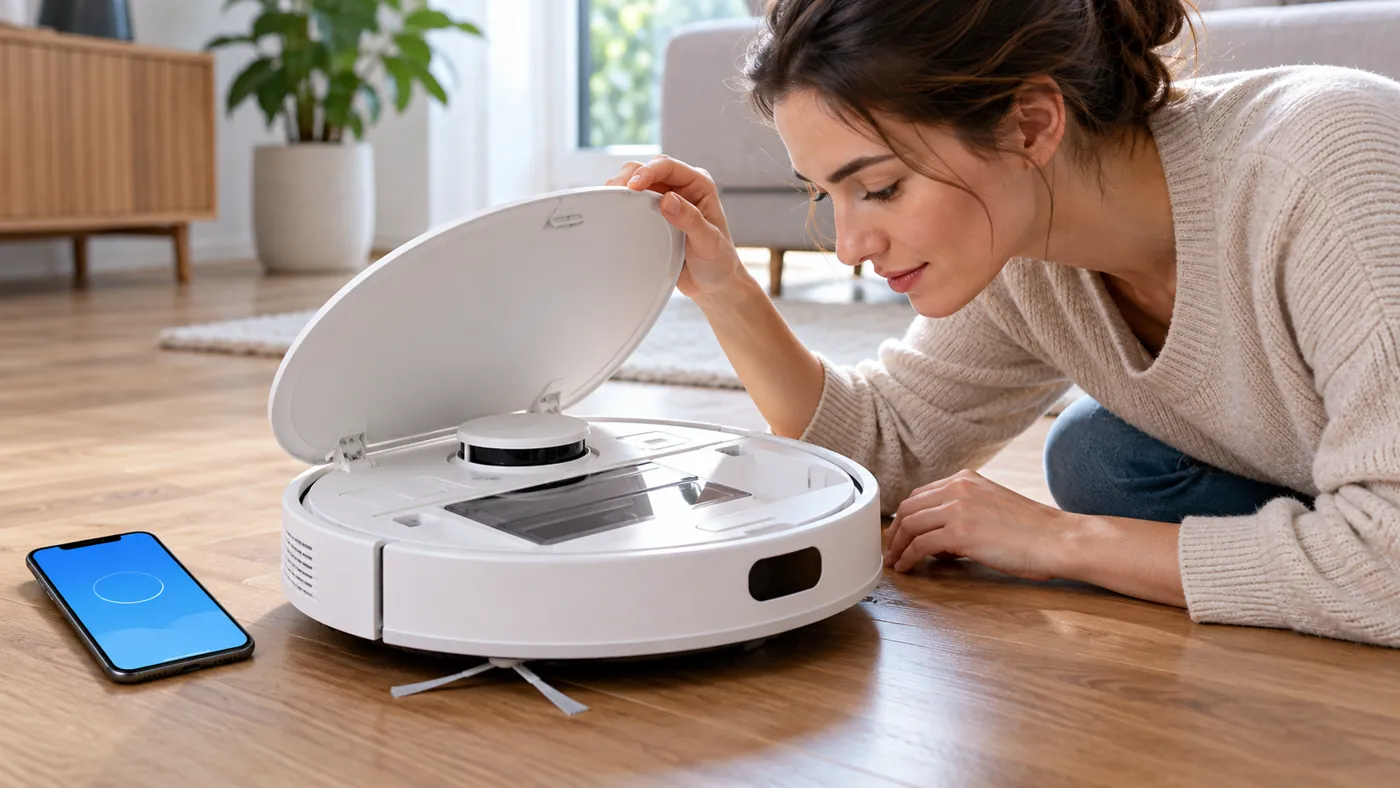
3. Perform a factory reset only when needed
Before proceeding, take screenshots of room settings, schedules and map restrictions you may want to recreate. These screenshots are a reference, not an app backup. Dreame support warns that a factory reset deletes cleaning data and restores cleaning settings to their defaults.
Open the top cover and locate the recessed Reset button shown in the manual. Press and hold it for three seconds. Follow the robot’s voice prompts, allow the reset to finish, then reconnect it in Dreamehome as needed.
Review the saved maps, schedules, no-go zones and cleaning preferences afterward. Recreate anything missing before starting an unattended clean. Test one small, clear area first.
If resetting does not solve the problem
Record the exact voice message, app error and circumstances. A reset does not remove trapped hair, clear blocked water channels or repair damaged components. Return to the relevant symptom guide or contact Dreame support rather than repeating factory resets. More model-specific help is available in our Dreame troubleshooting hub.
FAQ
Is restarting the same as factory resetting?
No. Restarting uses the power button. Factory resetting uses the recessed Reset button under the top cover and clears cleaning data.
Should I factory reset an offline robot?
Start with the connection checks and Wi-Fi reset. See the L10s Ultra offline guide before erasing settings.
Will a factory reset fix a damaged wheel or brush?
It cannot repair physical damage. If a mechanical error returns, inspect the relevant component and seek service when necessary.
Sources: Dreame original L10s Ultra manual; Dreame support’s factory-reset instructions and data-loss notice.