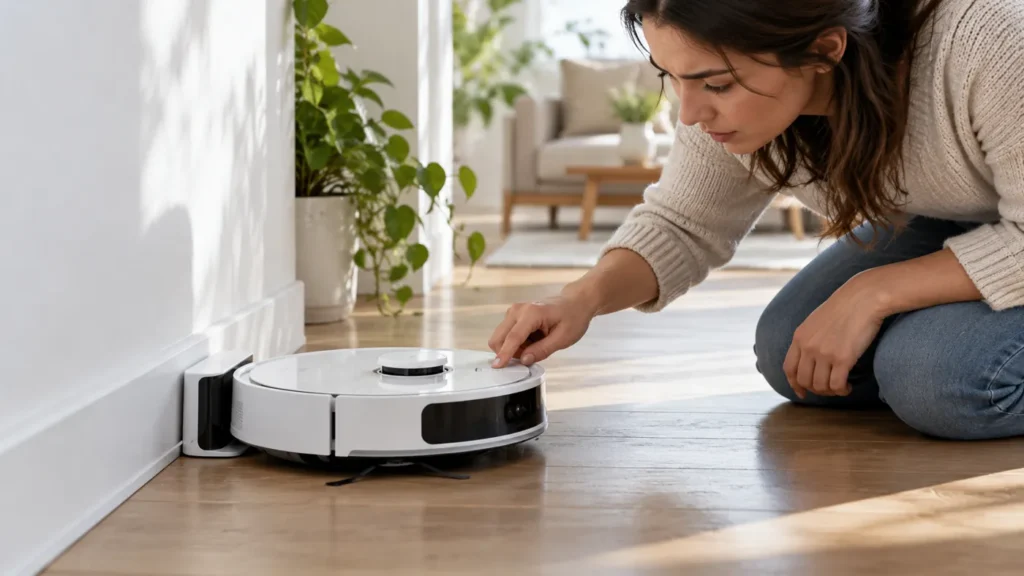
Begin with the quick checks. Stop if a step requires tools or experience you do not have.
If your Roborock S8 will not turn on, check charging before assuming the battery has failed. The robot may be too low on power to respond normally. If it is online in the app but its buttons do nothing, check child lock instead.
This guide covers the original S8. Use the manual and supplied charging equipment for your exact variant.
Separate a power problem from a control problem
| What you observe | Start here |
|---|---|
| No lights, voice or app response | Dock power and charging contact |
| Online in the app, buttons unresponsive | Child lock |
| Lights or voice respond, but cleaning will not start | Exact error or task status |
| Charging starts, but the robot dies off the dock | Record the behaviour for support |
1. Try the normal power control
Press and hold the Power/Clean button to turn the robot on. A brief press starts cleaning on a powered robot; it is not the same action. If there is no response, place it on its powered dock to charge.
Check whether the robot shows a charging indication or reports charging in the app. Give it time to recover before retrying. Avoid repeatedly moving it on and off the dock during this check.
2. Check the dock and seating
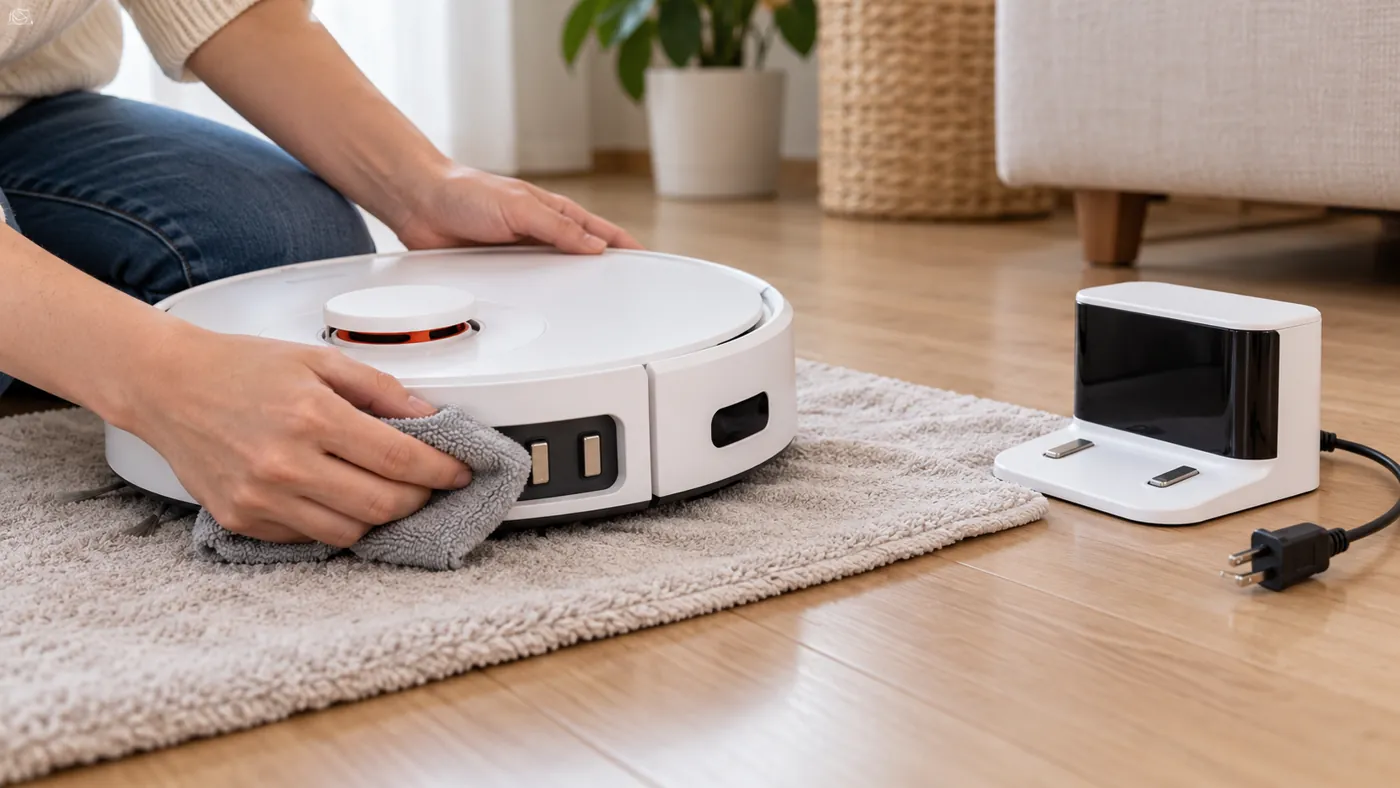
With the robot removed, inspect the dock’s power indication and make sure its cable is connected at both ends. If the outlet is uncertain, check it with another ordinary appliance or try a known working outlet.
Unplug the dock before cleaning. Gently wipe the robot and dock charging contacts with a soft, dry cloth, then reconnect the station and seat the robot correctly. For the full charging route, see Roborock S8 not charging.
3. Consider the room temperature
The S8 manual specifies operation between 4°C and 40°C. If the robot has been stored in a very cold or hot location, move it to a suitable indoor room and allow it to reach normal room temperature naturally. Do not use a heater or cooling appliance to speed this up.
4. Check child lock if the robot is already powered
If the app can communicate with the robot, it is not completely without power. Review child lock in the app. The manual also gives a three-second hold of the Spot Clean/Child Lock button to toggle it.
After disabling the lock, try the normal control again. If only app communication fails while the robot still responds locally, follow S8 Wi-Fi troubleshooting rather than treating it as a dead robot.
5. Escalate an unresolved failure
A system reset is a later step for a powered but unresponsive robot. The S8 manual warns that it restores settings such as Wi-Fi and schedules to defaults. Do not press Reset casually while troubleshooting an unpowered machine.
If verified dock power and correct seating produce no response, contact Roborock with the model, serial number, dock indication and checks already completed. Mention whether it responds on the dock but stops immediately when removed. That observation is useful, but it does not prove which internal component has failed.
FAQ
Does an offline app mean the S8 is switched off?
No. Check lights and local controls. An app connection problem can occur while the robot is powered.
Should I buy a battery immediately?
Check the charging setup first and request diagnosis if the failure persists. A silent robot alone does not identify a faulty battery.
Can child lock explain buttons that do nothing?
Yes, when the robot is powered and stationary. Check the lock setting before using a reset.
More model-specific guides are in our Roborock troubleshooting hub.
Source: original Roborock S8 manual.