Begin with the quick checks. Stop if a step requires tools or experience you do not have.
If your Roborock Qrevo Curv will not connect to Wi-Fi, check whether it has never paired or has merely gone offline after working normally. For a new setup, start with a 2.4 GHz home network, the password, and phone permissions. For a previously connected robot, check power, home internet, and signal at its dock before starting a new pairing attempt.
Not sure which check to try next?
Follow guided questions and report what changes after each check.
Start step-by-step diagnosisThe Qrevo Curv manual gives pairing only a five-minute waiting window. If the app cannot find the robot after a long attempt, start the model’s Wi-Fi reset procedure again. This is separate from the recessed system Reset button.
First identify the failure
- Offline in the app, but buttons work: Check the app, router, and Wi-Fi coverage where the dock stands.
- Cannot join during first setup: Check the 2.4 GHz network, password, and phone permissions.
- Robot no longer appears during pairing: Its waiting window may have expired; start a fresh Wi-Fi reset.
- No lights or button response: Investigate charging and power before Wi-Fi.
1. Check power and the home connection
Press the Power/Clean button once. If the robot responds, it has power even if the app says Offline. Check whether your phone can load a website on the home Wi-Fi. This does not prove the robot has a good signal, but it reveals a wider network outage. If the robot has no sign of power, use the Qrevo Curv charging checks first.
Close and reopen the Roborock app. If several household devices have also lost internet, restart the router with its normal controls and allow it to reconnect fully. Check the robot’s status again before changing its saved app entry or resetting anything.
2. Use a 2.4 GHz home Wi-Fi network
The Qrevo Curv manual specifies 2.4 GHz Wi-Fi. If your router displays separate 2.4 GHz and 5 GHz names, choose the 2.4 GHz home network when the app asks for the network and password. Do not select the temporary Wi-Fi network broadcast by the robot as your home network. A combined network name may work; if repeated setup attempts fail, consult the router’s instructions for making a separate 2.4 GHz name available.
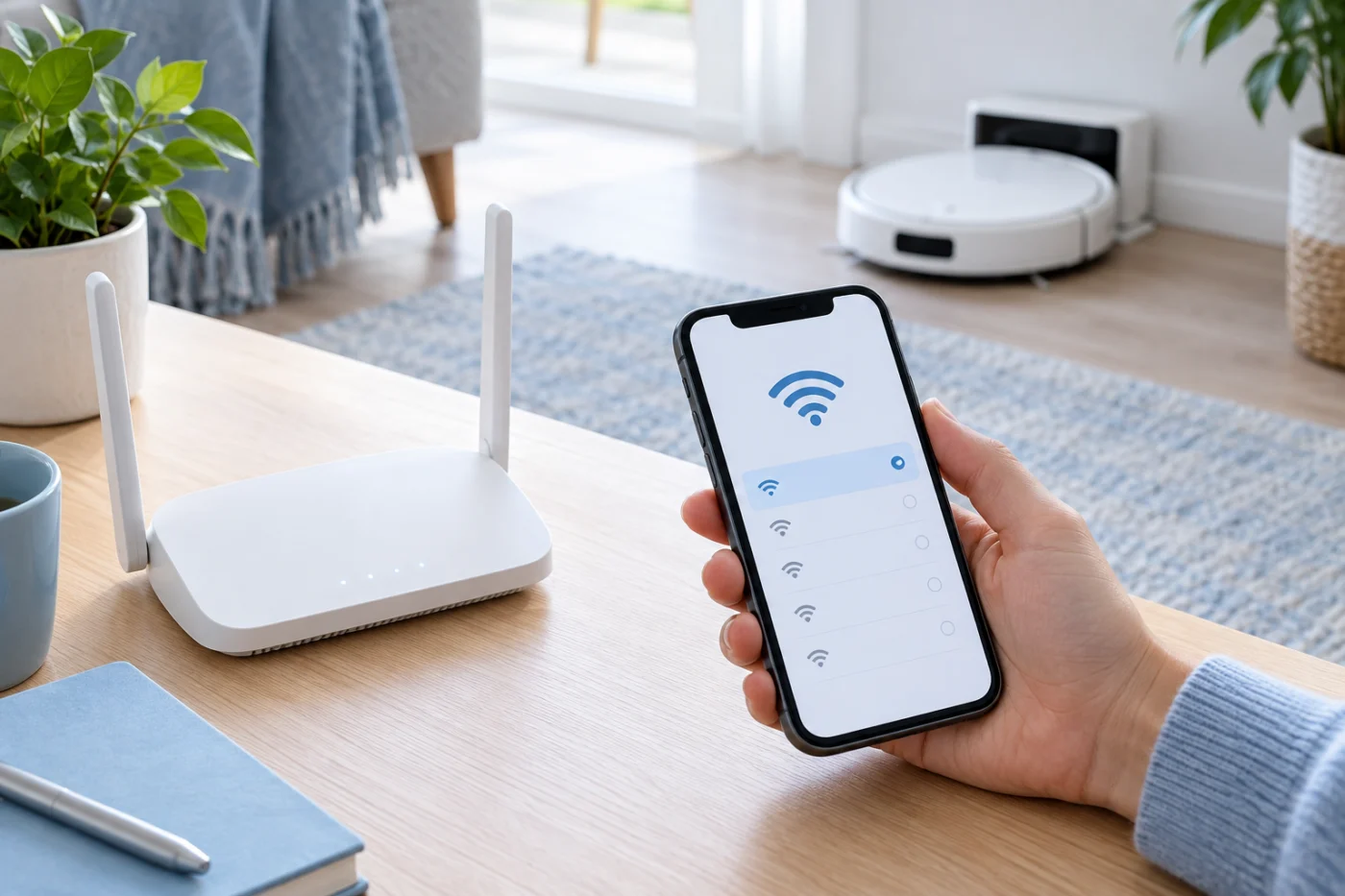
Enter the current password carefully, particularly if the router or its credentials recently changed. Roborock’s connection guidance also says to enable location permission for the app and, on iPhone, Local Network access. Names of phone settings vary by software version. If setup still fails, temporarily disconnect a VPN or cellular data for one pairing attempt, as Roborock suggests, then restore your normal phone settings afterward.
3. Check coverage at the dock
If the robot connects near the router but goes offline at its usual station, test whether your phone can use the home Wi-Fi beside the dock. Phone reception is only an indication, since the radios differ. The manual recommends placing the dock where Wi-Fi coverage is good. Improve router placement or 2.4 GHz coverage if the signal is poor there; avoid repeatedly moving the dock during cleaning because its position matters to the robot’s navigation.
4. Open a fresh Wi-Fi pairing window
On the Qrevo Curv, press and hold Power/Clean and Dock together until the robot announces “Resetting WiFi.” A slowly flashing blue power indicator means it is waiting for a connection. Then open the Roborock app, choose Add Device or +, and follow its current instructions. Select your 2.4 GHz home network and enter its password.
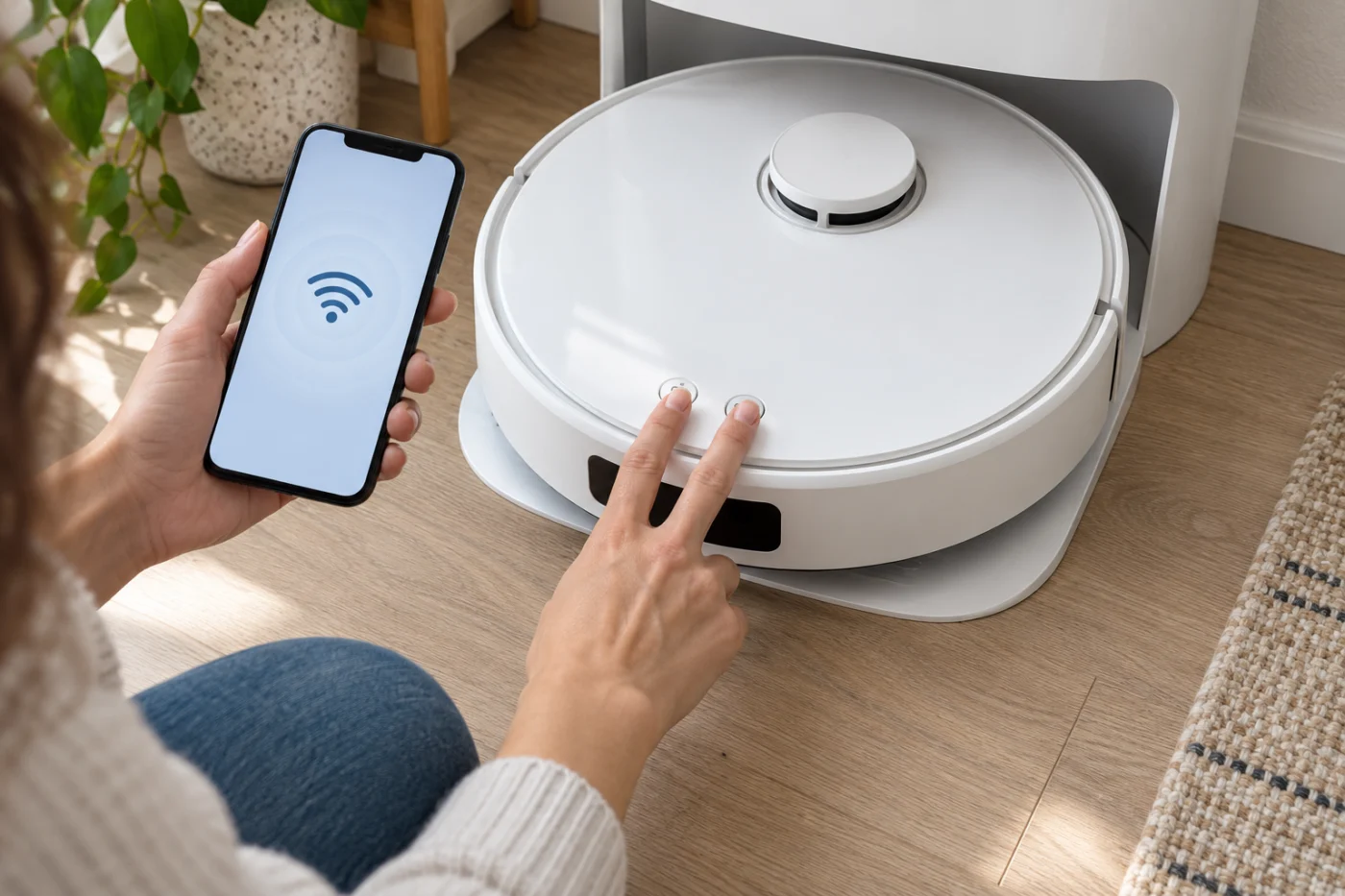
Complete setup promptly. According to the manual, Wi-Fi is disabled if the robot waits more than five minutes for a connection; repeat the button procedure before another attempt. The light flashes blue quickly while connecting. Do not use the recessed system Reset button under the top cover for an ordinary Wi-Fi failure: the manual says a system reset can restore settings such as schedules and Wi-Fi to factory defaults.
Where did the fresh attempt fail?
The app cannot find the robot: Look for the slow blue flash and restart pairing if five minutes have elapsed. Recheck phone permissions.
The robot is found but cannot join: Recheck the chosen home network, current password, and 2.4 GHz availability.
It connects, then drops offline at the dock: Check coverage at the dock and whether other devices lose internet there.
When to contact support
Note the exact app message, the stage that failed, the robot’s light pattern, and your router model. If other devices use the 2.4 GHz network normally but a fresh attempt still fails, send those details to Roborock Support. If the robot connects and only its map seems missing or inaccurate, use the Qrevo Curv mapping guide before deleting a saved map.
Common questions
Will basic cleaning work without Wi-Fi?
The physical controls can start cleaning and send the robot to its dock. App controls need the connection.
Can I use a 5 GHz-only network?
No. The Qrevo Curv manual specifies 2.4 GHz Wi-Fi. Enable that band on your router if it is unavailable.
Sources: Qrevo Curv user manual and Roborock Wi-Fi troubleshooting.