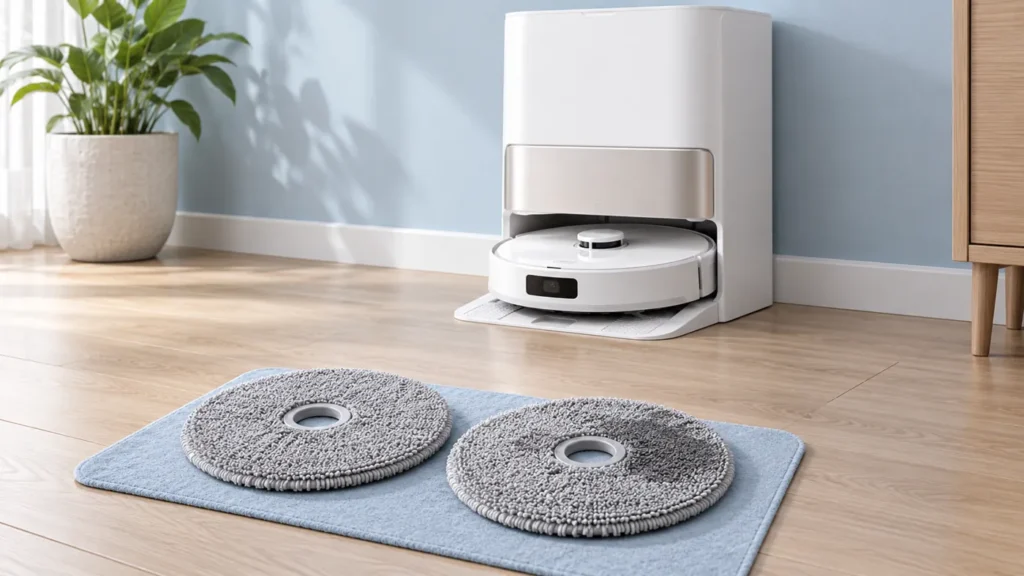
Begin with the quick checks. Stop if a step requires tools or experience you do not have.
Dreame L10s Ultra mop drying not working? First establish whether drying starts at all or starts but leaves the pads damp. Check that the robot is properly docked, the station has power and the preceding wash has finished. Then observe one drying attempt without interrupting it.
This guide covers the original L10s Ultra, not the Gen 2, Gen 3 or Pro Ultra versions. Use the original model’s controls and manual when identifying the station buttons.
Choose the matching symptom
| What you observe | Start here |
|---|---|
| Dry button does not respond | Confirm station power and that the robot is on the base. |
| Washing has not completed | Resolve the wash interruption first. |
| Drying starts, pads are damp when checked early | Let the configured cycle finish before judging the result. |
| Completed cycle, pads repeatedly remain wet | Record pad condition and the cycle behavior for support. |
1. Check docking and station power
The original L10s Ultra manual says station buttons work only while the robot is placed on the base. If the robot is away from the station, an unresponsive dry button does not establish a fault.
Check whether the robot settles in its normal docked position and acknowledges charging. If charging is also missing, begin with the L10s Ultra charging checks. Note any recent move, unplugged cable or change to the station’s power supply.
Docking confirmation is useful information, but it does not prove the drying mechanism works. Record those two observations separately rather than describing every station problem as a failed dryer.
2. Confirm the washing stage has finished
Dreame describes the final sequence after a completed cleaning task as dust emptying, mop washing and drying. Let that sequence progress. A mid-task return to wash the mops is a different event from the final return after cleaning.
Read any app warning before dismissing it. If the washboard retains water or the wash cycle stops with an abnormal-water-level message, use the L10s Ultra water-not-draining guide first. Drying is difficult to assess when the previous stage has not completed normally.
3. Make one deliberate drying attempt
The original manual identifies a station dry button: a brief press starts or stops mop drying. Use its drawing to locate the button and confirm the robot is on the base. Avoid pressing it repeatedly; a second press can stop the operation you just started.
Note the time and any available app status when you make the attempt. If your app exposes a drying duration, record the selected value rather than assuming a fixed runtime from another model’s guide. Menu wording and available options can vary.
Keep the robot docked while observing the cycle. Do not unplug the station, start another task or remove a pad midway and then treat that interrupted result as a completed drying test.
4. Inspect the pads after the cycle
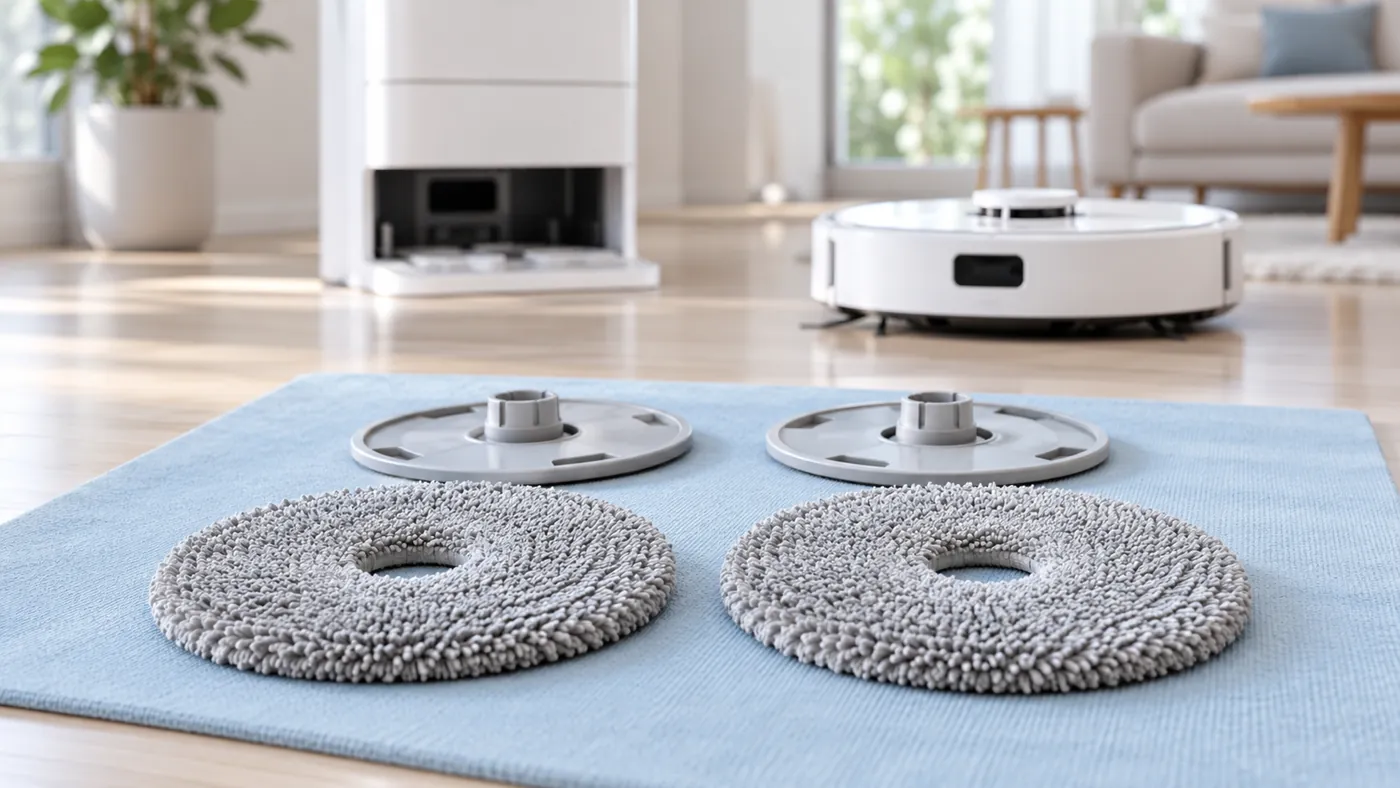
Once drying has ended and the equipment is stopped, inspect both pads. Note whether they feel similarly damp, whether one side differs, and whether the same result occurs after another normal completed wash and dry sequence.
Check that the pads sit normally on their holders without folded edges. If replacement pads were fitted just before the issue began, confirm their exact model compatibility. Different fabric or fitting is a useful detail to report, not proof of a fault by itself.
The manual shows removal of the pad from its holder for replacement. Follow that arrangement when inspecting or changing a pad. Do not add a second layer of fabric or improvise with a household heater to test the station.
Keep your comparison simple: use the same pads and settings when practical, and record any change you make. A photograph documents fit; your notes document moisture and timing.
When to ask for service
Contact Dreame if drying cannot be started with a powered station and properly docked robot, or if completed cycles repeatedly leave the pads wet. Send the exact model, app version, selected settings, timings and a short recording of the start attempt.
Describe whether the wash completed and whether charging works. Avoid naming a failed fan, heater or control board from pad moisture alone. Those possibilities require diagnosis beyond the external checks in this guide.
FAQ
Does moisture immediately after washing prove drying failed?
No. Judge the pads after an uninterrupted drying cycle has ended, and record the selected duration if available.
Why does the dry button do nothing with the robot away?
The original manual requires the robot to be on the base for station-button operation.
Should I reset the robot first?
Start with power, docking, the wash stage and one deliberate drying attempt. Record the behavior before discussing broader software steps with support.
Reference and related care
- Original L10s Ultra manual — station controls and final washing/drying sequence.
- Water-tank care.
- All Dreame troubleshooting guides.
If pressing the station Dry control produces no response, start with Dreame L10s Ultra Station Buttons Not Working.
For worn or damaged fabric, follow How to Replace Dreame L10s Ultra Mop Pads.
If the complaint is an odor around the robot or station, use Dreame L10s Ultra Smells Bad.