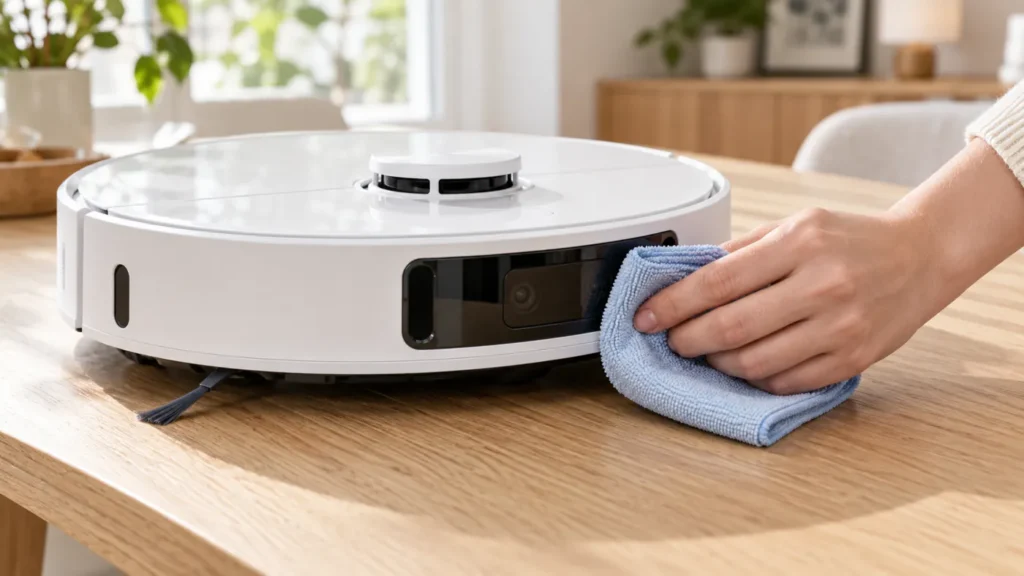
Begin with the quick checks. Stop if a step requires tools or experience you do not have.
To clean Dreame L10s Ultra sensors, use a soft, dry cloth on the accessible exterior surfaces. Work through the robot systematically so that the underside sensors, side window, and front windows receive attention as well as the top lidar area.
Cleaning is a maintenance step, not proof that a navigation fault has been repaired. Record any warning before you begin and compare the robot’s behavior afterward. This guide covers the original L10s Ultra, not the Gen 2 or other models with similar names.
Prepare a dry cleaning area
End the current cleaning task and switch the robot off before handling it. Choose a stable surface with room to support the robot. Have a clean, soft cloth ready; if it contains grit or feels damp, use another cloth.
The manual warns that moisture can damage sensitive elements in the robot and station. Keep sensor maintenance separate from washing removable parts. A cloth used on a water tank or wet mop is unsuitable for this job.
Sensor checklist
| Area | Parts identified in the original manual | What to inspect |
|---|---|---|
| Underside | Cliff sensors and carpet sensor | Dust, lint, or marks on exposed windows |
| Side | Edge sensor | Visible film on the exterior window |
| Top | Laser distance sensor (LDS) | Accessible surfaces and loose exterior dust |
| Front | Bumper, AI visual sensor, line laser sensors | Dust or smudges on accessible surfaces |
| Rear | Charging contacts | Visible residue; these are contacts rather than navigation sensors |
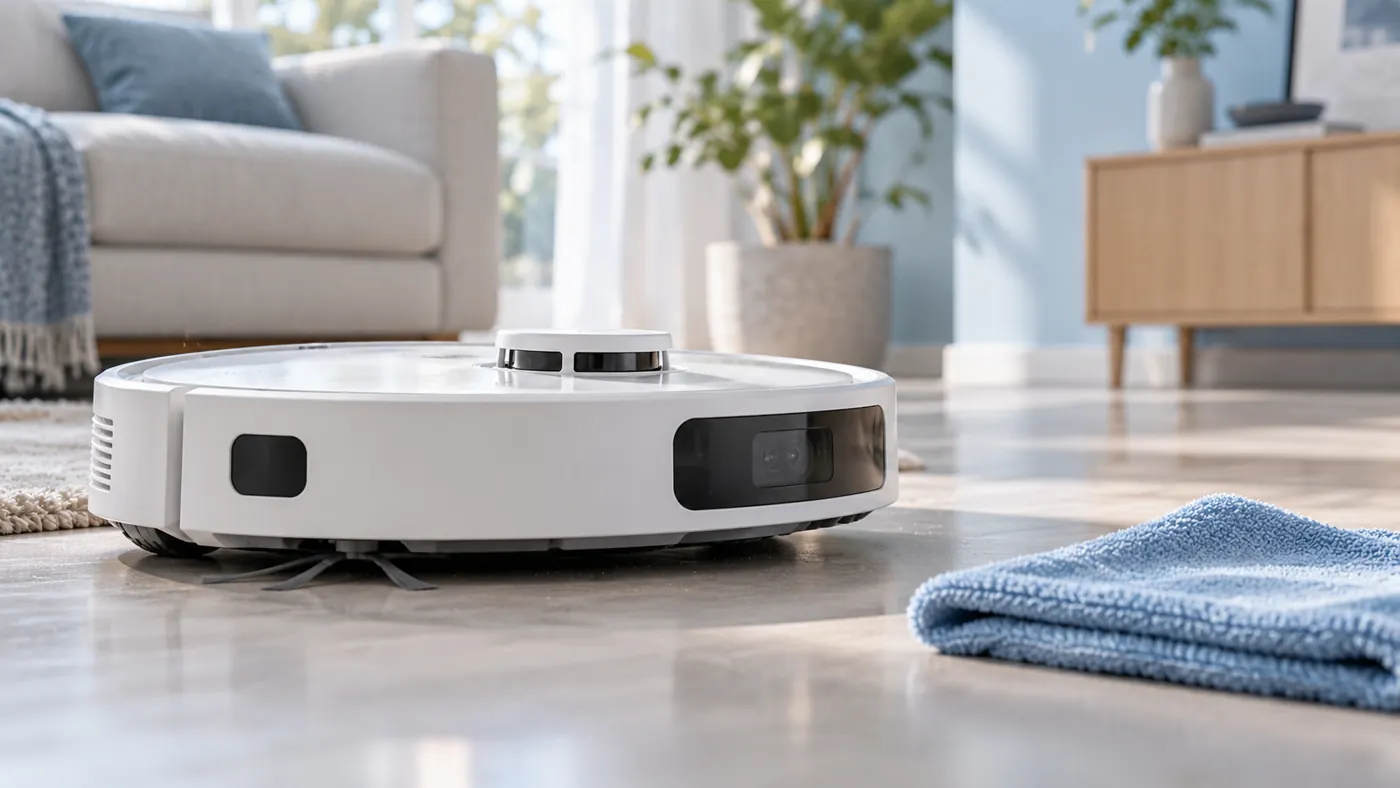
Use the parts diagram in your model’s manual to identify the windows. The illustration below shows the general cleaning context and should not be used as a precise sensor-location diagram.
1. Clean the underside windows
Support the robot securely while accessing its underside. Gently wipe the exposed cliff and carpet sensor windows with the dry cloth. Look at each window in good light; a quick pass over the whole bottom can miss a small patch of residue.
Keep the cloth away from tangled brush hair as you move between areas. If a cloth picks up debris, use a clean section for the next window. Avoid scraping a mark that does not lift with gentle wiping.
Do not tape over cliff sensors to work around a warning. After cleaning, test on a clear, level area away from stairs. If the same warning returns, preserve its exact wording rather than assuming the sensor only needs more pressure or repeated cleaning.
2. Wipe the side and front surfaces
Return the robot upright and wipe the side sensor window, then the front sensor surfaces and bumper exterior. Use light pressure and check for remaining smudges from more than one angle.
Clean accessible surfaces without opening the front assembly. A crack, deeply scratched window, or residue behind a cover needs a different response from ordinary surface dust. Photograph it and ask support for model-specific advice.
3. Check the top lidar area
Wipe accessible LDS surfaces with the same dry method. Keep the cleaning external; do not pry off the turret cover or push tools into its gaps. If a navigation warning persists, use the L10s Ultra LDS error guide to organize the next checks.
Dry-wipe the rear charging contacts as a separate maintenance step. If the battery is not charging, see the charging troubleshooting guide; sensor cleaning alone does not establish that power is reaching the robot.
4. Test and compare the result
Return the robot to its normal operating position and start a small task on a clear, level floor. Note whether the original warning returns, whether it follows the selected area, and whether the problem happens in one location or everywhere.
If navigation improves but docking still fails, continue with the docking failed guide. If the same fault remains, save a short video, the exact warning, and photos of the cleaned windows. These details help support distinguish a surface obstruction from a problem requiring service.
FAQ
Can I use a wet cloth or cleaning spray?
Use a soft dry cloth for sensors and contacts. Keep liquids away from these sensitive areas.
Are charging contacts sensors?
They belong to the charging connection. Include them in dry maintenance, but assess charging separately from navigation.
Will cleaning fix every sensor error?
No. Compare the warning before and after cleaning. Persistent errors, damaged windows, or contamination inside a cover warrant further diagnosis.
Related maintenance guides
For debris around moving parts, see main brush cleaning. Browse the Dreame guide hub for other L10s Ultra maintenance tasks.
Manufacturer reference: Dreame L10s Ultra user manual, English sections on DND, troubleshooting, and routine maintenance. This guide covers the original L10s Ultra; check the manual matching your exact model.
For repeated suspended-wheel warnings after cleaning the cliff sensors, follow Dreame L10s Ultra Wheels Are Suspended Error.
If cleaning the front sensor windows does not improve recognition, follow Dreame L10s Ultra Obstacle Avoidance Not Working.