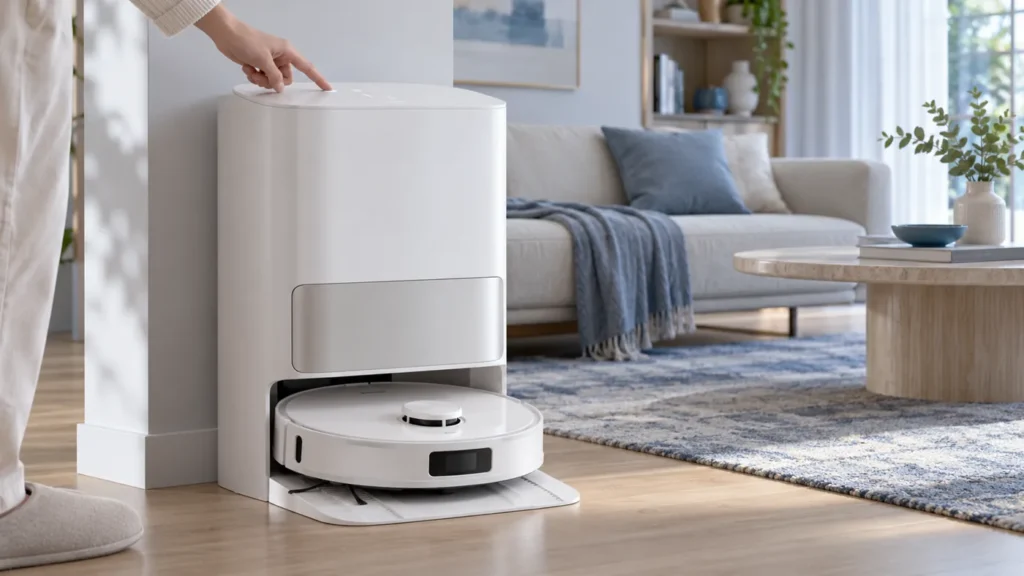
Begin with the quick checks. Stop if a step requires tools or experience you do not have.
If Dreame L10s Ultra station buttons are not working, check Child Lock, station power, and the robot’s position before treating the control panel as defective. A command that cannot reach the robot can look like an unresponsive button.
Note which control fails and what happens when you press it: no response, an error prompt, or a function that starts but does not complete. This guide covers the original L10s Ultra station, whose controls differ from newer similarly named models.
Quick control checks
| What you observe | Next check |
|---|---|
| Robot and station buttons are both unresponsive | Check whether Child Lock is enabled. |
| The robot is away from the station | Return it to the base before the normal control test. |
| The station has no apparent power and charging fails | Check the power connection and charging guide. |
| A command produces an error | Investigate the reported fault rather than pressing repeatedly. |
| One function fails but others work | Compare that function through the app. |
1. Confirm the station has power
Inspect the station’s indicator and the charging status. The original manual describes a solid white station indicator as connected to power and a blinking orange indicator as an error. Record an error before changing anything.
Check that the power cord is properly connected at both ends. If the robot is docked but charging does not progress, follow the charging checklist. Resolve the observed power or charging issue before assessing button response.
Do not open the station housing or probe its electrical connections as part of this check. If the exterior panel or cable is visibly damaged, photograph the condition and seek service advice.
2. Check Child Lock
The original manual states that Child Lock disables buttons on both the robot and station. Check the lock status through the available app controls or follow the Child Lock procedure in the manual’s base-station diagram.
Use the actual symbols shown for your model. The illustration in this article is not a button-location reference. Avoid trying arbitrary long-press combinations: on this station, some long presses invoke other functions.
After disabling the lock, test one intended command and note the response. If controls return to normal, restore the lock later if needed for your household.
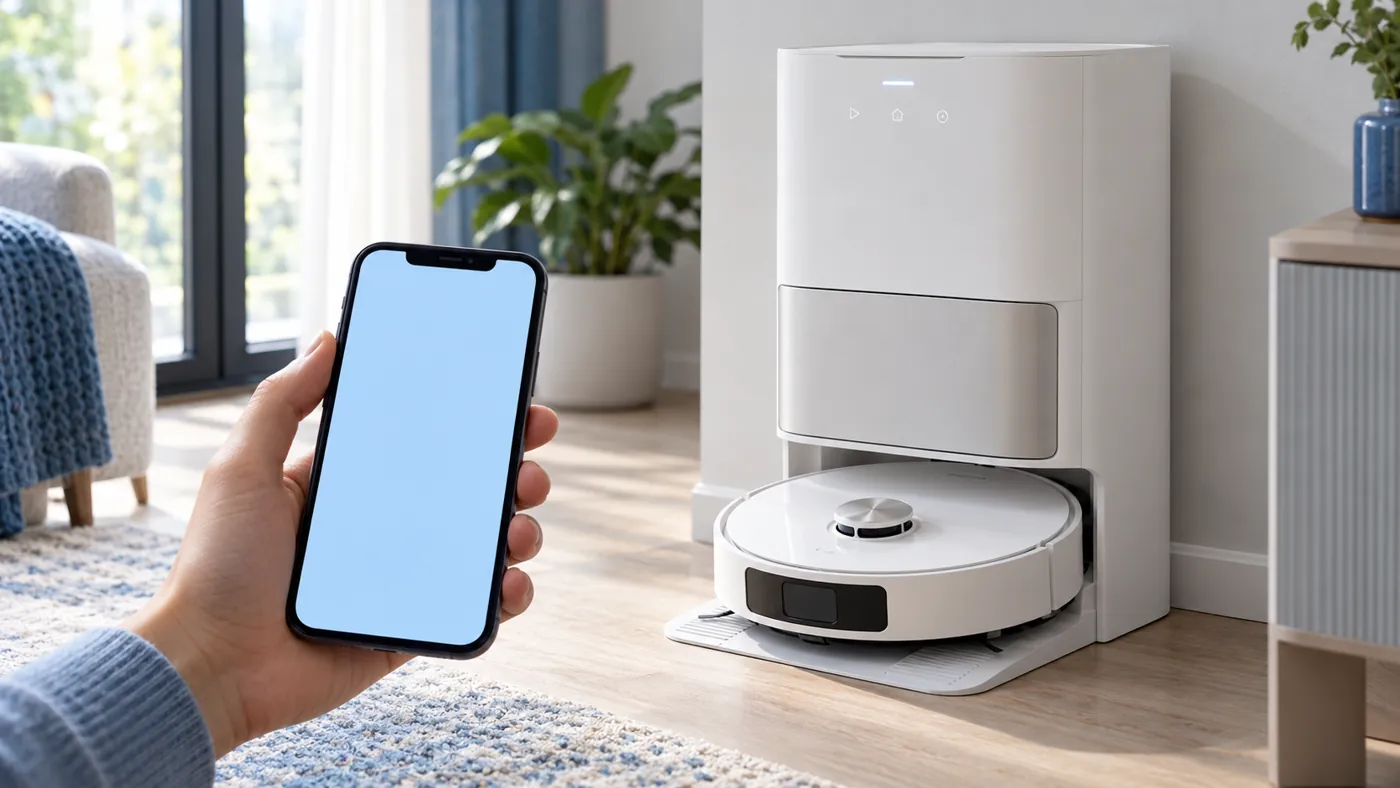
3. Return the robot to the base
For a normal control test, place the robot correctly at the station and confirm that it connects. The manual’s troubleshooting section notes that the robot may be outside the station’s wireless range and recommends returning it manually or through the app.
This robot-to-station check is separate from a home Wi-Fi diagnosis. Do not reset your router solely because a station button failed. If the app also reports the robot offline, use the offline guide to restore visibility and collect the robot’s status.
If the robot cannot enter the station properly, see the docking guide. Establish normal placement before repeating the panel test.
4. Match the button press to the function
The original station provides Leave, Clean, and Dry controls. Its manual describes short presses for leaving the base, cleaning all areas, and starting or stopping mop drying. Identify the control from the model’s diagram before testing it.
A short press and a long press are not interchangeable. The Leave control also has a separate long-press station-cleaning procedure when the robot is out of the base. Use that procedure only when you intend to perform base cleaning, with the manual open.
Press once for the intended action and observe the robot or station. If a voice prompt or app error explains why the action cannot proceed, record it rather than classifying the panel as completely dead.
5. Compare the same action in the app
If your current app provides the corresponding function, try it under the same conditions after the button test. A successful app command with a repeatedly unsuccessful panel command is useful evidence, though it does not prove which internal component is faulty.
If both controls fail to dry the mops, use the mop drying guide. If a command begins but encounters standing dirty water, see the drainage checklist. These are function-specific faults rather than proof of a damaged button.
When to contact support
Report persistent failure with Child Lock excluded, station power present, and the robot correctly docked. Include the exact control, press type, indicator state, error text, and app comparison result. A short video showing the sequence helps support assess what responds and what does not.
FAQ
Can Child Lock disable the station panel?
Yes. The original manual applies the lock to both robot and station buttons.
Does a failed station button mean Wi-Fi is broken?
No. Check placement and station communication as well as app status.
Should I keep holding a button until something happens?
Use the specified press for the intended function; long presses can have different actions.
Find related checks in the Dreame troubleshooting hub.
Manufacturer reference: Dreame L10s Ultra user manual, English edition. Model-specific care and control instructions follow that manual; comparison tests are practical troubleshooting suggestions. This guide covers the original L10s Ultra.
If the robot itself remains powered on, follow the charging-state checks and button holds in Dreame L10s Ultra Won’t Turn Off.