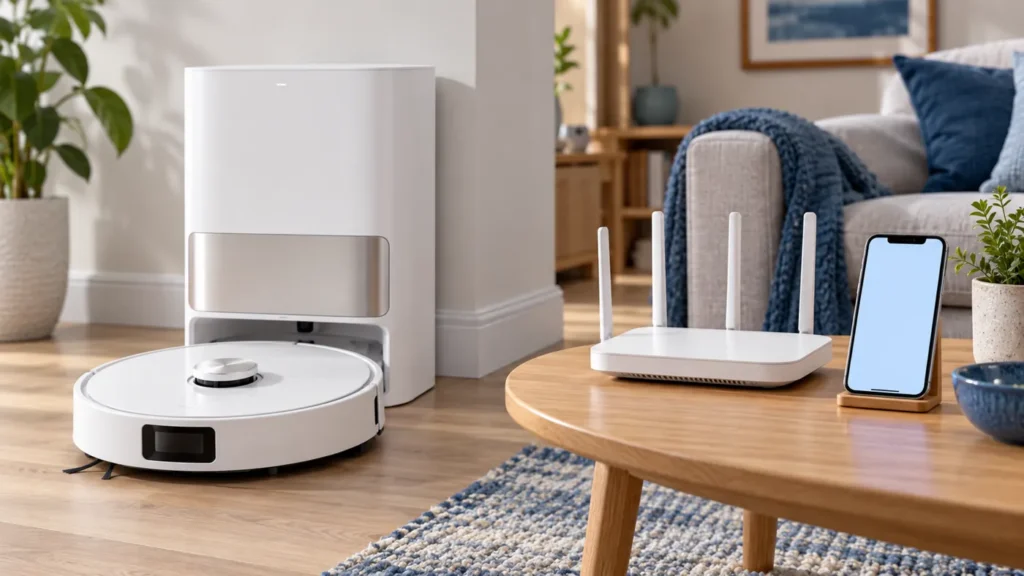
Begin with the quick checks. Stop if a step requires tools or experience you do not have.
If your Dreame L10s Ultra is not connecting to Wi-Fi, check the selected network, password, and pairing state before repeating setup. The original model supports 2.4 GHz Wi-Fi, so a 5 GHz-only network will not complete the connection.
This guide concerns adding the robot to the app or reconnecting it after network changes. If it was already connected and now appears unavailable, start with the L10s Ultra offline guide.
Quick pairing checks
| Observation | Next check |
|---|---|
| The selected network is 5 GHz only | Use an available 2.4 GHz network. |
| Setup fails after entering credentials | Verify the exact network name and password. |
| The Wi-Fi indicator is not ready for pairing | Follow the model’s Wi-Fi reset procedure. |
| Setup begins but repeatedly fails at the dock location | Check coverage in that area. |
| The robot is added, then goes offline later | Investigate the established connection separately. |
1. Confirm the network and password
Check your router’s configuration to establish that 2.4 GHz is available. A Wi-Fi network name alone may not identify its band. If your router uses one name for multiple bands, consult its instructions rather than assuming that the network is 5 GHz only or disabling settings at random.
Enter the password for the selected network carefully, including capitalization. Check whether a saved password predates a router change. Keep passwords private when capturing screenshots or contacting support.
2. Use the original model’s setup path
The manual describes adding the original L10s Ultra through Dreamehome using the robot’s QR code and the app’s device-add flow. Confirm the exact model, then follow the prompts in your current app. Dreame notes that app operations can change with software updates.
Allow the permissions requested for the connection step when you intend to use that step, and read any error before dismissing it. Record whether failure occurs before device discovery, after password entry, or while completing registration. That sequence is more useful than “it will not connect.”
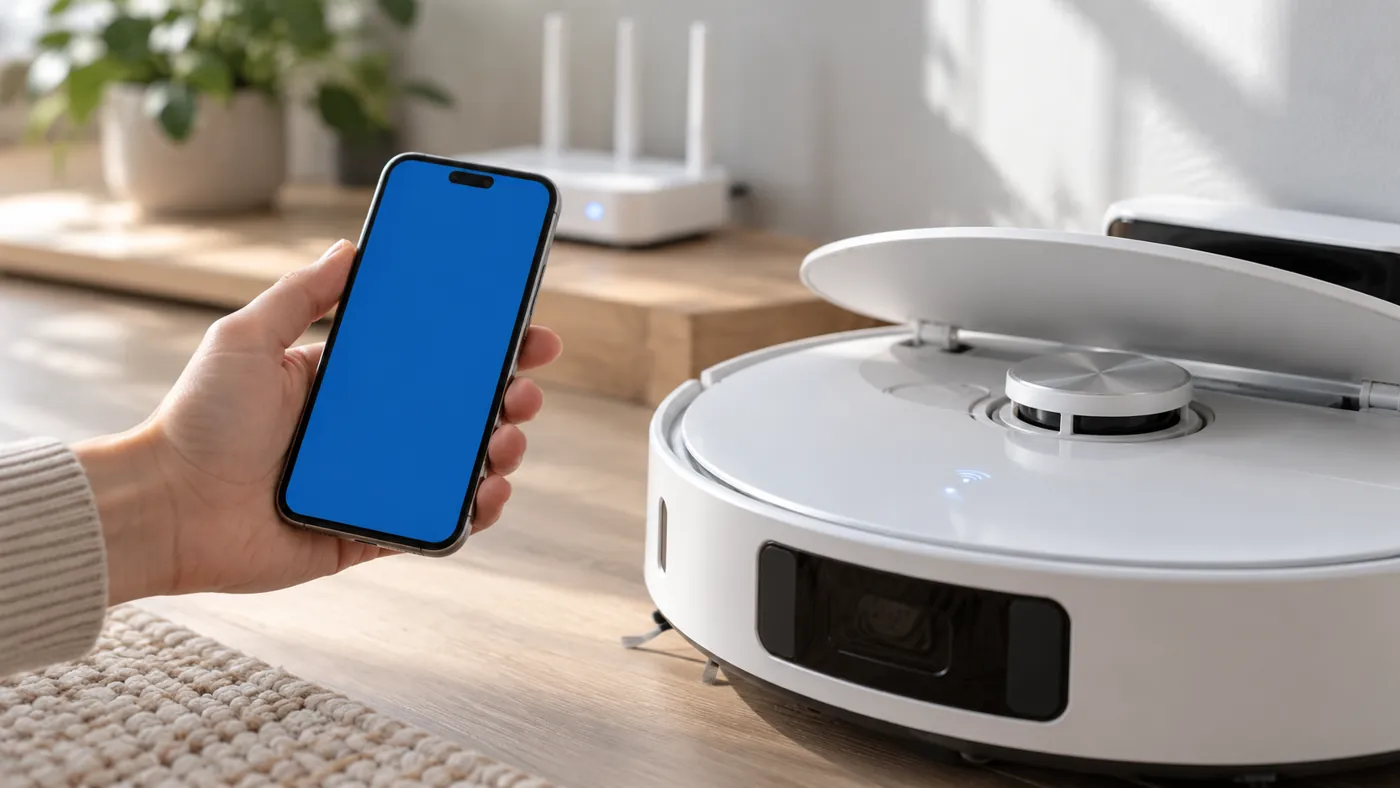
3. Put the robot into Wi-Fi configuration mode
For the original L10s Ultra, the manual instructs you to hold the robot’s Power and Dock buttons together until the voice prompt indicates network configuration. The Wi-Fi indicator should then blink slowly. This is the Wi-Fi reset procedure, not a reason to try arbitrary reset-button presses.
Use the button diagram in the manual to identify the controls. Once configuration mode is confirmed, add the device again through the app. Do not keep resetting it while an attempt is in progress.
| Wi-Fi indicator | Meaning in the original manual |
|---|---|
| Slow blink | Ready to be connected |
| Fast blink | Connection in progress |
| On | Connected |
4. Check coverage and retry once
The manual lists weak Wi-Fi coverage among connection problems. Assess coverage where the robot is being configured, particularly if the base is far from the router or behind several walls. A connection that succeeds nearby but repeatedly fails at its usual location is useful evidence of a location-related issue.
After correcting an identified password, band, or coverage issue, leave and reopen the app’s setup flow and make one fresh attempt. Record the indicator progression and final message. Avoid changing several router settings together, since that makes it harder to identify what helped.
When to contact support
If configuration mode works but setup repeatedly fails on the verified 2.4 GHz network, send the exact model, app version, phone operating system, router model, failure stage, and sanitized error screenshot. Mention whether the result changes with location. Do not assume that a setup failure identifies a broken wireless module.
If the robot does not respond to its controls, check the button and Child Lock guide. If it will not power on, use the power-on checklist before network troubleshooting.
FAQ
Can the original L10s Ultra join a 5 GHz-only network?
No. Its manual specifies 2.4 GHz support.
Does a fast-blinking indicator mean setup is complete?
It indicates a connection attempt. Check the final app result and indicator state.
Should I factory-reset it first?
Use the documented Wi-Fi configuration procedure for a connection problem. Preserve existing settings and evidence while checking the cause.
Browse the Dreame troubleshooting hub for related guides.
Manufacturer reference: Dreame L10s Ultra user manual, English edition. Model-specific instructions follow the manual; observation and comparison steps are practical troubleshooting suggestions. This guide covers the original L10s Ultra.
Once the robot is connected again, if installation still fails, follow Dreame L10s Ultra Firmware Update Failed.
Before using the recessed Reset button, see how to reset the L10s Ultra for the difference between restarting, resetting Wi-Fi and restoring factory settings.