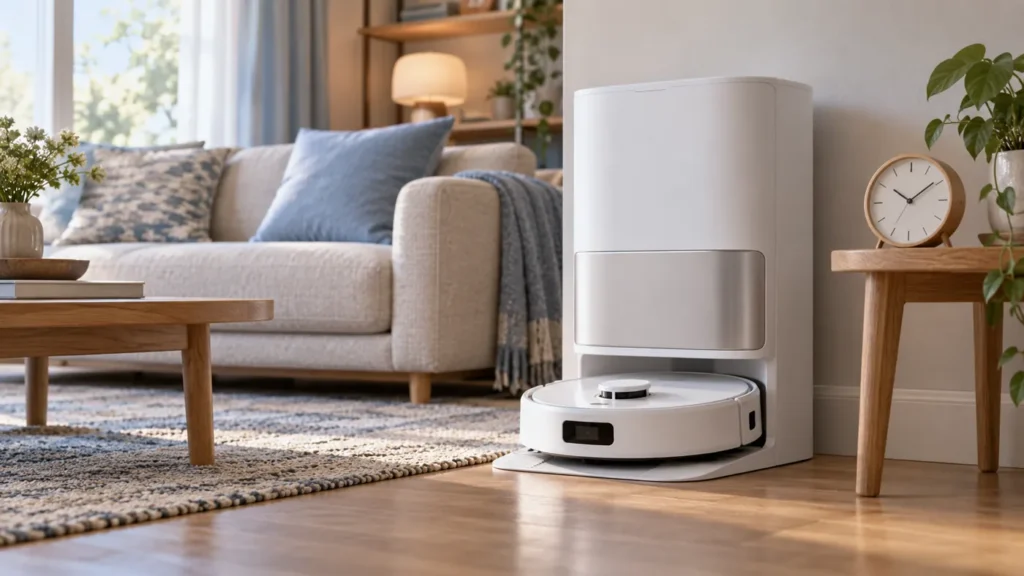
Begin with the quick checks. Stop if a step requires tools or experience you do not have.
If the Dreame L10s Ultra is charging slowly, compare the time and battery trend before assuming a fault. The original manual gives about six hours to charge fully when the battery is low. A short wait after a long cleaning run is not enough to establish unusually slow charging.
Slow progress and no charging are different observations. If the percentage never increases or the robot repeatedly loses its charging connection, use the not charging guide alongside the checks below.
Quick charging checks
| Observation | Next check |
|---|---|
| The battery was low and has been charging briefly | Allow for the manual’s approximate full-charge time. |
| The robot or room is unusually hot or cold | Check the environment before comparing charge times. |
| Charging connects and disconnects | Inspect seating and accessible contacts. |
| Charge increases steadily but an unfinished run stays paused | Investigate cleaning continuation separately. |
| Slow charging persists in ordinary conditions | Record a timed comparison for support. |
1. Record the starting charge and time
Note when charging begins, the displayed battery percentage, and any voice or app confirmation. Check again later and record the new reading. A log of actual progress is more informative than the impression that the robot has been at the station “all day.”
Do not calculate the full charge time from a single small percentage change or expect every part of the cycle to progress at the same rate. The six-hour figure is approximate, and comparisons need similar starting charge and conditions.
Keep the robot docked during the observation. A new cleaning run interrupts the comparison, so note it if one starts.
2. Check the temperature and station surroundings
The manual says charging slows outside the specified temperature range to protect the battery. Its operating guidance gives 0–40°C (32–104°F). Avoid treating the ends of that range as ideal charging conditions.
Check for a cold storage area, strong direct sun, or a nearby heat source. Let the robot settle naturally in normal indoor conditions before comparing again. Do not use a heater, hair dryer, or refrigerator to change its temperature quickly.
Record the approximate room temperature and whether the robot has just finished a demanding run. These observations provide context; they do not establish the battery’s internal temperature or health.
3. Inspect and dry-clean the contacts
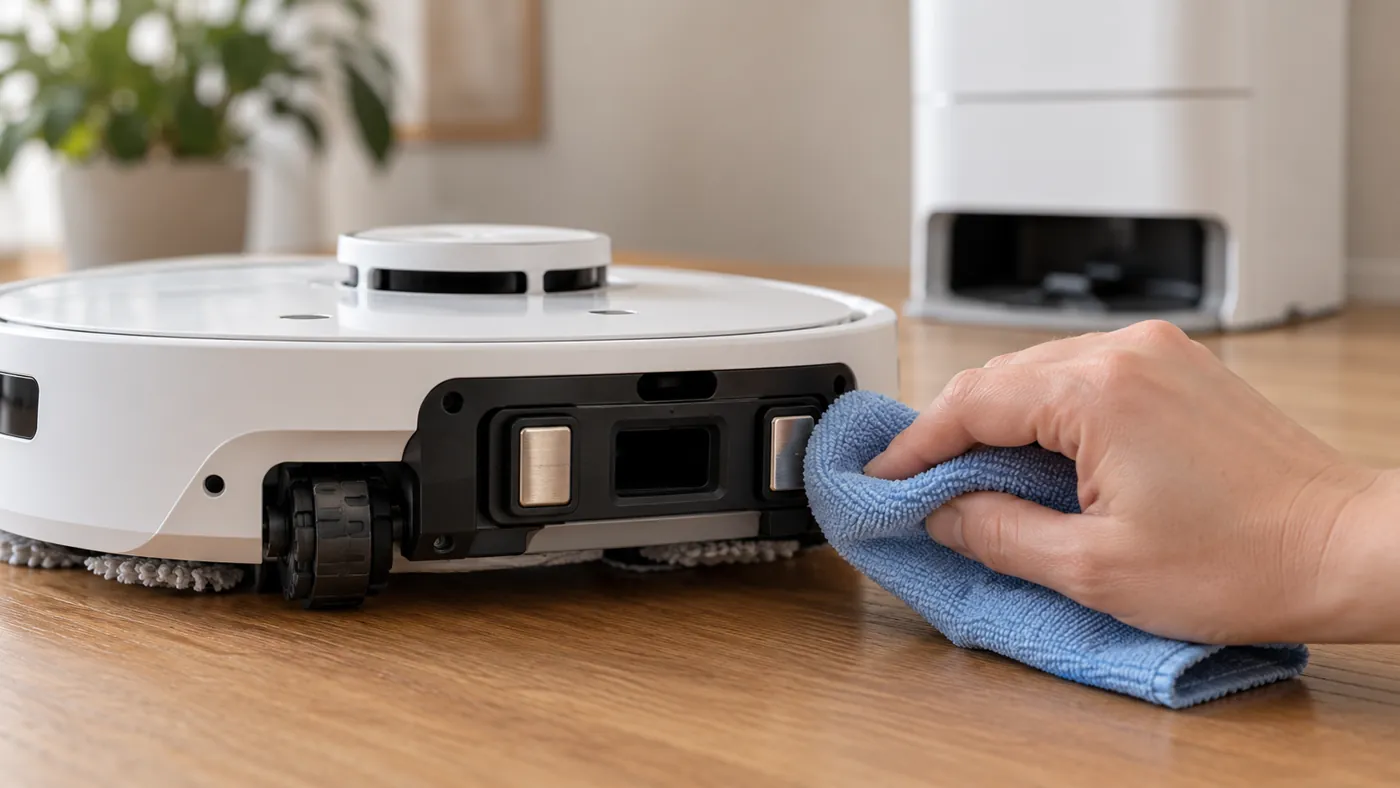
Dreame recommends wiping dirty charging contacts with a dry cloth. End the task, move the robot off the station and switch it off. Disconnect station power before cleaning its accessible contacts, then use a soft dry cloth on both sets.
Keep the cleaning external. Do not scrape the contacts, bend them, or apply liquid as an improvised repair. Use the original manual’s diagram to locate them; the illustration here is general maintenance context.
Restore power and dock the robot normally, then confirm that charging begins. If placement is unreliable, continue with the docking failed checklist rather than forcing the robot against the station.
4. Observe a comparable charging period
- Record the battery reading and start time after charging is confirmed.
- Leave the robot at its normal powered base.
- Note later readings, any disconnection, and any new task.
- Compare with the earlier observation under similar conditions.
If the app is offline or readings appear stale, restore visibility using the offline guide before judging a displayed percentage. A stale screen alone does not prove a charging fault.
When to contact support
Seek advice if unusually slow progress repeats after the environment, seating, and accessible contacts have been checked, or if an explicit charging error appears. Send the time-and-percentage log, room conditions, exact model, app and firmware versions, and any error.
A slow cycle alone does not identify whether the battery, station, or charging electronics need replacement. Preserve the evidence before buying parts or opening the robot.
FAQ
How long should a full charge take?
The original manual gives approximately six hours when the battery is low. Treat it as a reference, not an exact deadline for every cycle.
It charged but did not continue cleaning. Is that slow charging?
Check the cleaning continuation guide. DND and manual return commands can affect continuation separately.
Should I replace the battery after one slow charge?
First record progress and check conditions and contacts. Repeated results are more useful for diagnosis.
Find more checks in the Dreame troubleshooting hub.
Manufacturer reference: Dreame L10s Ultra user manual, English edition. Model-specific instructions follow the manual; observation and comparison steps are practical troubleshooting suggestions. This guide covers the original L10s Ultra.