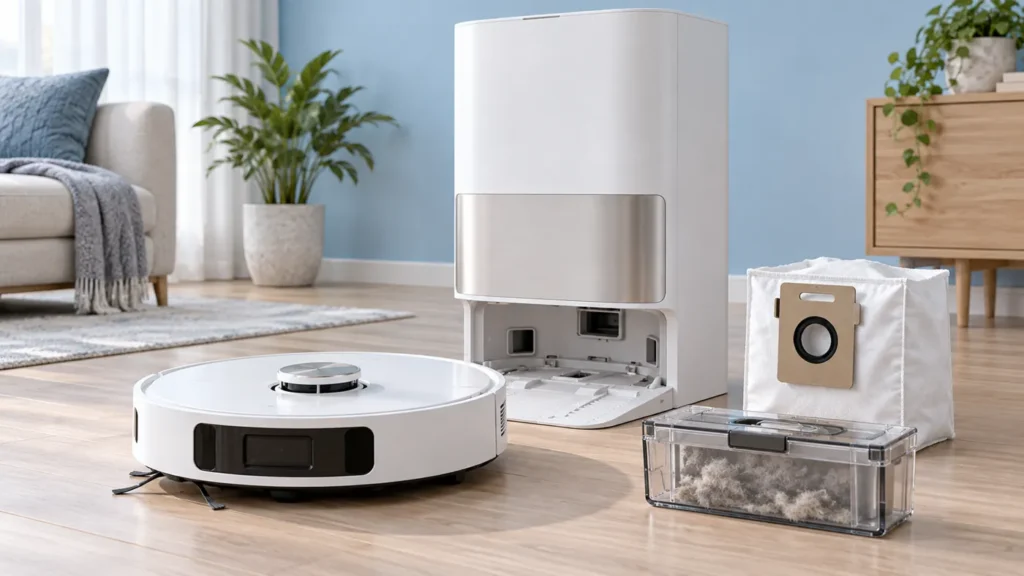
Begin with the quick checks. Stop if a step requires tools or experience you do not have.
Dreame L10s Ultra auto-empty not working? First check whether the robot has finished its cleaning task or has only returned to wash its mop pads. Then separate a missing emptying cycle from a cycle that runs but leaves debris behind. These observations lead to different checks and help you avoid replacing a part without evidence.
This guide covers the original L10s Ultra, rather than the Gen 2, Gen 3 or Pro Ultra variants. Keep the model name handy when looking up accessories or sending a support request.
Quick checks by symptom
| What you observe | Start here |
|---|---|
| Robot briefly returns during mopping | Wait for the task to finish; a mid-task mop wash does not trigger auto-emptying. |
| Completed task, no emptying sound | Check the app’s auto-empty option and frequency, then station power. |
| Emptying sound, bin still contains debris | Inspect the collection bag and accessible dust-transfer openings. |
| Robot cannot settle on the dock | Resolve docking or L10s Ultra charging trouble before judging auto-emptying. |
1. Confirm that an emptying cycle was due
The original Dreame L10s Ultra manual says auto-emptying follows a completed cleaning task. It also explains that intermediate returns to wash mop pads do not empty the bin. Auto-emptying can be disabled in the app, and its frequency follows the app setting.
Open the settings for this robot and record the current option before changing it. Menu wording can vary with the app version. If emptying is enabled, compare the configured frequency with the cleaning session you just observed. A single quiet return is not enough to establish a fault.
For a useful comparison, start a short normal cleaning task from the station and let it finish without sending the robot home early. Watch the final return and note whether an emptying sound occurs. Do not scatter extra dust or add liquid to the bin to create a test.
2. Check the bag and dry dust-transfer path
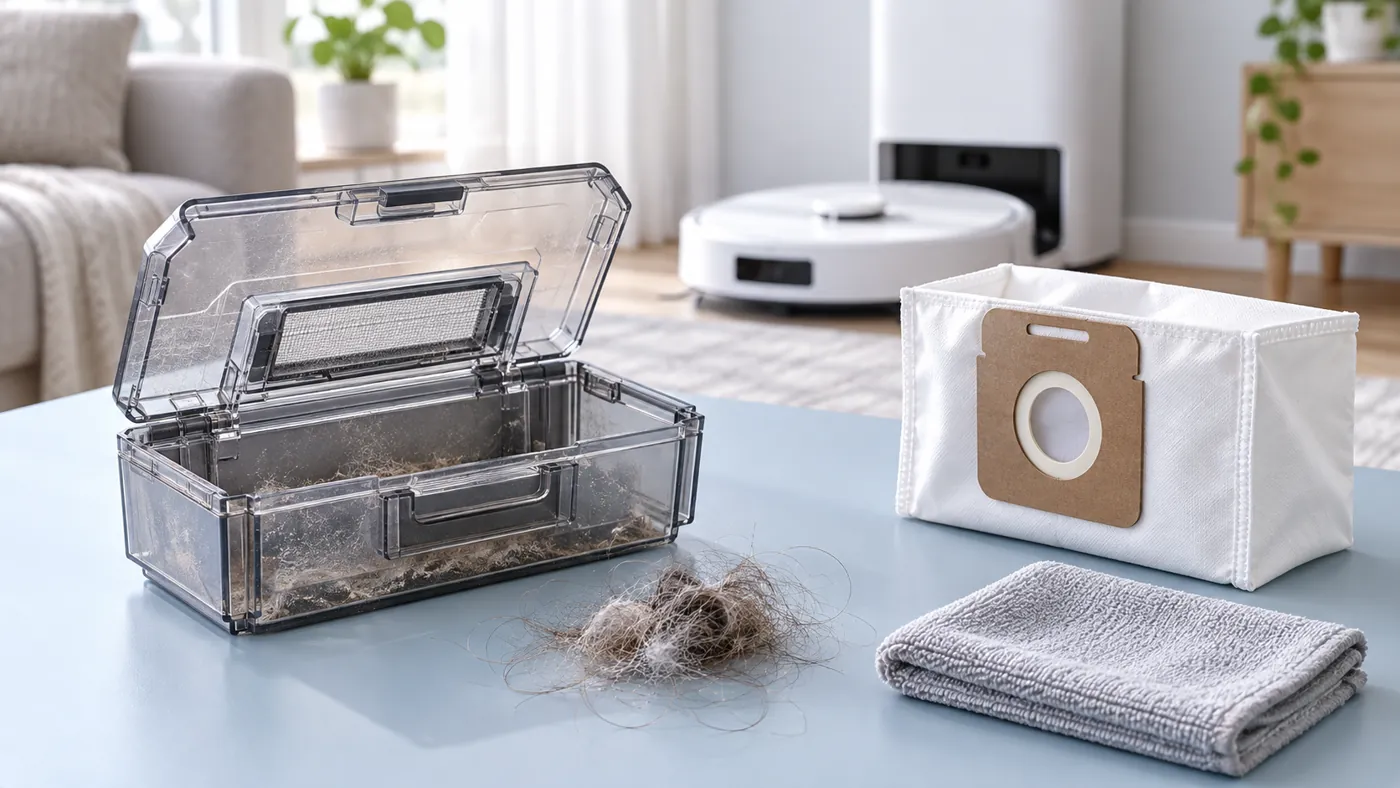
Switch off and unplug the station before inspecting its dust compartment. Check whether the bag is full; replace it with a compatible bag when needed. Follow the manual’s fitting illustration and close the compartment normally.
Dreame’s troubleshooting table points to obstructions at the robot, station and dust-bin auto-empty openings when the bag is not full. Wipe the accessible robot and station vents with a soft, dry cloth. Remove loose visible debris without pushing it deeper or forcing a flap.
Look at the debris that remains in the robot bin. A packed clump and a light coating on the walls are different observations; photograph the bin before clearing it. After reassembly, that photograph gives you a baseline for comparing the next completed task.
Keep this inspection to the removable parts and openings shown in the manual. If material is beyond reach, stop and ask Dreame how to proceed. Removing station panels or probing hidden ducts is not necessary for this first check.
3. Confirm station power and docking
If neither charging nor emptying works, the shared station deserves attention before the dust bag. Dreame’s L10s Ultra charging advice calls for checking both power-cord connections and the station’s rear power switch. Use the supplied regional power arrangement and keep the cable clear of the robot’s route.
Record whether the robot successfully docks and acknowledges charging. Charging confirmation is a useful separate observation, but it does not prove that the emptying mechanism works. Likewise, a station that makes an emptying sound has not necessarily transferred the debris successfully.
4. Repeat one controlled check
After replacing a full bag or removing a visible obstruction, restore power and run another short completed task. Compare the same three points: the final docking event, the emptying sound and the amount left in the bin. Change one thing at a time so a successful result has a clear explanation.
If the station empties the bin but the robot still leaves dirt on the floor, use the separate L10s Ultra not picking up dirt guide. Floor pickup and transferring collected dirt into the station are different stages of cleaning.
When to contact Dreame
Contact support if a completed task repeatedly produces no cycle with the setting enabled, or if the cycle runs but the bag and accessible openings are clear. Send the exact model, app version, settings screenshot and a video covering the final docking and emptying attempt. Include before-and-after bin photographs and list the checks already completed.
Describe the behavior without assuming a failed motor, sensor or control board. The observations above help support decide which further check is appropriate.
FAQ
Should it empty the bin every time it washes the mops?
No. The original manual excludes mid-task mop-washing returns. Check the final return after the cleaning task completes.
Why can I hear emptying while debris stays in the bin?
The sound alone does not confirm transfer. Inspect the bag and accessible openings, then compare bin contents before and after one completed task.
Should I factory-reset it first?
Start with the recorded settings, bag and visible openings. A reset would change the conditions of your test; discuss broader software troubleshooting with support if these checks do not resolve it.
Manufacturer references and related guides
- Original L10s Ultra user manual — How to Use, Routine Maintenance and FAQ.
- Dreame: L10s Ultra robot cannot charge.
- All Dreame troubleshooting guides.
For the replacement procedure, see How to Replace Dreame L10s Ultra Dust Bag.
For the accessible dry port maintenance procedure, follow How to Clean Dreame L10s Ultra Auto-Empty Vents.