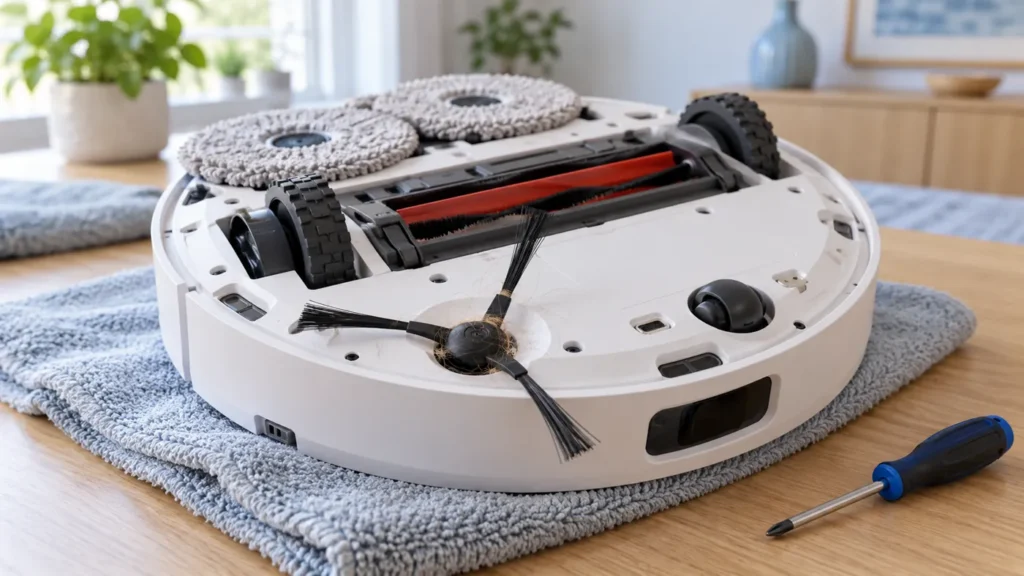
Begin with the quick checks. Stop if a step requires tools or experience you do not have.
Quick answer: If your Roborock Q Revo side brush is not spinning, pause the robot and check for hair or thread around the brush hub. On the original Q Revo, the brush is held by a central screw: remove it, clean the accessible brush and mounting area, then reinstall it. Test on clear hard floor. A brush that works there but catches on one rug needs a different response from a brush that remains stationary everywhere.
This guide covers the original Q Revo. If you have the curved-base model, use our Qrevo Curv side-brush guide. The small sweeping brush at the edge is separate from the main roller and the two rotating mop pads.
Start with one useful observation
Watch a short cleaning run from a safe distance. Does the side brush remain still as the robot moves across an open floor, or does it stop only when it reaches fringe, a cable or a tight corner? Save the wording of any app alert before clearing it.
A stationary brush while the robot is charging does not establish a cleaning fault. Observe it during an actual cleaning task. Do not lift the running robot to look underneath.
| What happens | What to check next |
|---|---|
| Stops beside rug fringe or a cable | Remove the obstacle and compare with clear hard floor |
| Problem starts just after brush cleaning | Brush seating, retaining screw and trapped strands |
| Brush wobbles or scrapes while moving | Visible damage or an incorrectly seated brush |
| Stays still on clear floor after cleaning | Record the test and ask support to diagnose the drive |
1. Turn the robot off before touching the brush
Pause the task, move the robot away from its dock, and switch it off. The Q Revo manual calls for switching off and disconnecting power before maintenance. If you will clean the dock too, unplug it.
Support the robot securely on a soft towel without putting pressure on its raised LiDAR housing. Keep the screw in a small dish. You only need access to the removable side brush; this check does not require opening the body.
2. Remove the side brush and clear the hub
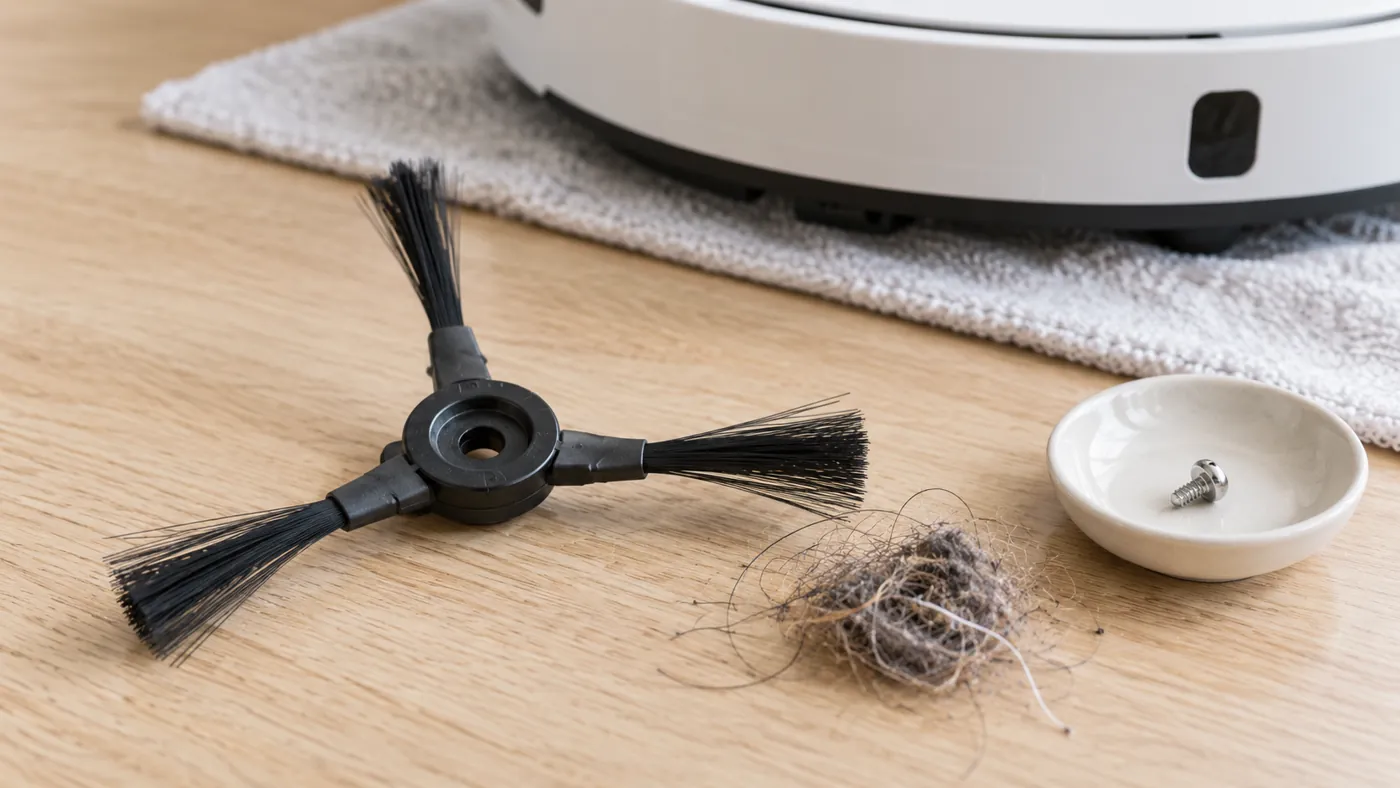
Use a screwdriver that fits the central screw. Unscrew it, lift away the brush, and remove visible hair and thread from the brush and the accessible mounting area. This follows the side-brush maintenance procedure in the original Q Revo manual.
Look beneath the brush hub as well as along its arms. A few tight strands near the center are easier to miss than a large tangle at the tips. Remove loose material gently; do not pull on the drive shaft or push a tool into the opening.
3. Inspect the brush before reinstalling it
Check for a cracked center, a distorted arm, or an object lodged beneath the brush. A damaged brush is a reason to check a compatible replacement; a stationary brush alone is not proof that the motor has failed.
Return the brush to its mount and tighten the retaining screw as the manual instructs. Make sure no strands are caught underneath. If the screw will not seat normally or the brush sits at an angle, stop and check the fit rather than applying more force.
Do not add oil or spray cleaner into the mounting point. Do not try to straighten the brush with boiling water. Neither is part of the original Q Revo side-brush maintenance procedure.
4. Compare a clear-floor test with the problem area
- Place the robot upright on a clear, level hard floor away from stairs.
- Start a short cleaning task and watch the brush from the side.
- Stop the task before inspecting or touching any part.
- If the brush runs normally, remove fringe, cords or loose fabric from the original problem area before trying it again.
This comparison is our practical troubleshooting method, not a manufacturer motor test. It narrows the circumstances: successful operation on hard floor shows that the brush can turn in that test. It does not guarantee that the drive is healthy under every load.
If the brush is catching because the whole robot gets stranded, use the separate Q Revo keeps-getting-stuck guide to check the route and floor obstacles.
If it still does not spin
Send Roborock support the exact model, alert wording, and a short video of the clear-floor test. Explain whether the problem began after maintenance or fitting a replacement, and whether you removed a tangle. Those details are more useful than simply reporting “brush broken.”
Grinding, unusual heat, a burning smell, or visible damage calls for stopping use. A drive or electrical fault needs qualified diagnosis. Avoid ordering a motor based only on a brush that will not move.
Frequently asked questions
Why did the side brush stop after I cleaned it?
Check the installation you just changed: the brush should sit correctly, the screw should be secured, and no hair should remain underneath. If those checks do not help, record a clear-floor test for support.
Can I keep cleaning with the side brush stationary?
The robot may still collect some debris through its main roller, but a stationary side brush leaves the edge-sweeping problem unresolved. Pause and inspect it rather than running repeated tasks with a possible obstruction.
Should I reset the robot first?
A reset does not remove wrapped thread or correct a poorly seated brush. Start with the physical inspection. If support later recommends a reset, check what settings it will erase before proceeding.
Does this guide cover a side brush that will not extend?
No. Check your exact model: this article covers the original Q Revo’s side brush. For Qrevo Curv, use the model-specific guide linked above.
Related Q Revo checks
- Q Revo troubleshooting hub
- Auto-empty not working if debris remains in the bin after docking
- Robot vacuum maintenance tips for routine care
Sources and method: The official original Q Revo manual, sections D2 and Safety Information, provides the brush removal and maintenance instructions. The location comparison and observation checklist above are RoboFixGuide’s practical troubleshooting suggestions; they do not identify a failed internal part by themselves.
RoboFixGuide is independent of Roborock. Illustrations are generated editorial images, not service diagrams.