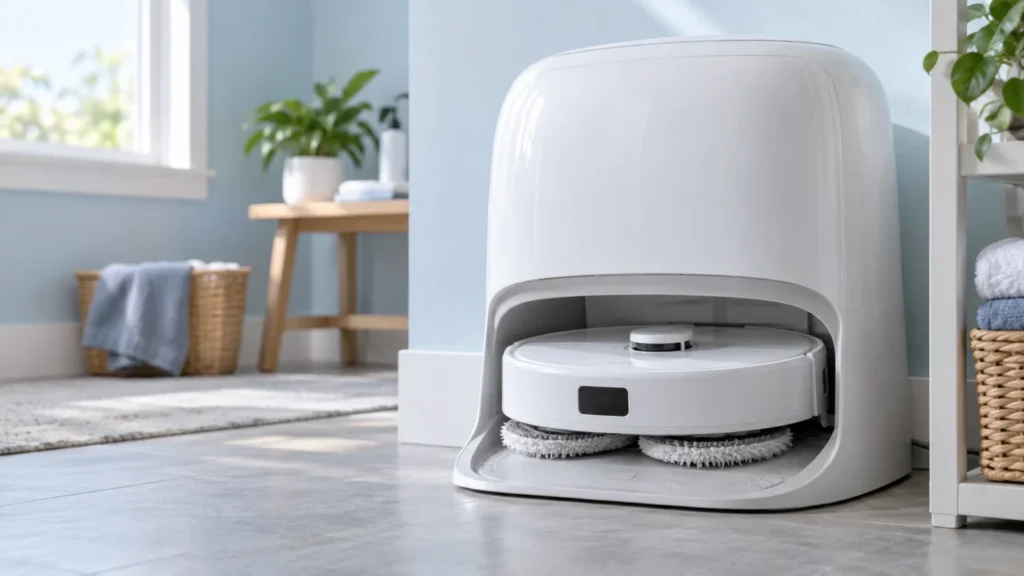
Begin with the quick checks. Stop if a step requires tools or experience you do not have.
If Qrevo Curv mop drying does not start, first check whether the pads were used and washed, then check auto-drying and Do Not Disturb settings in the Roborock app. If drying starts but the pads are still damp after a completed cycle, check its duration, whether the robot remained docked, and the accessible exterior air outlets. Roborock says drying runs as needed after washing or cleaning; a quiet dock after a vacuum-only run does not establish a fault.
Not sure which check to try next?
Follow guided questions and report what changes after each check.
Start step-by-step diagnosisFind which part of the cycle fails
- No automatic drying: Confirm a mop wash took place, then check the auto-drying and DND options.
- Manual drying works, automatic drying does not: The dock can run a drying cycle; review the triggering run and app settings.
- Drying starts but stops early: Check whether the robot departed the dock or a new task interrupted it.
- A full cycle finishes but the pads remain wet: Review duration, room humidity, pad condition and standing water in the tray.
1. Confirm a wash and an automatic-drying setting
Look at the last cleaning run. If it only vacuumed or the mop cloths were not washed, test after a short mopping run that starts from the dock and finishes normally. If the dock does not wash the pads either, follow the Qrevo Curv mop-washing guide before judging drying.
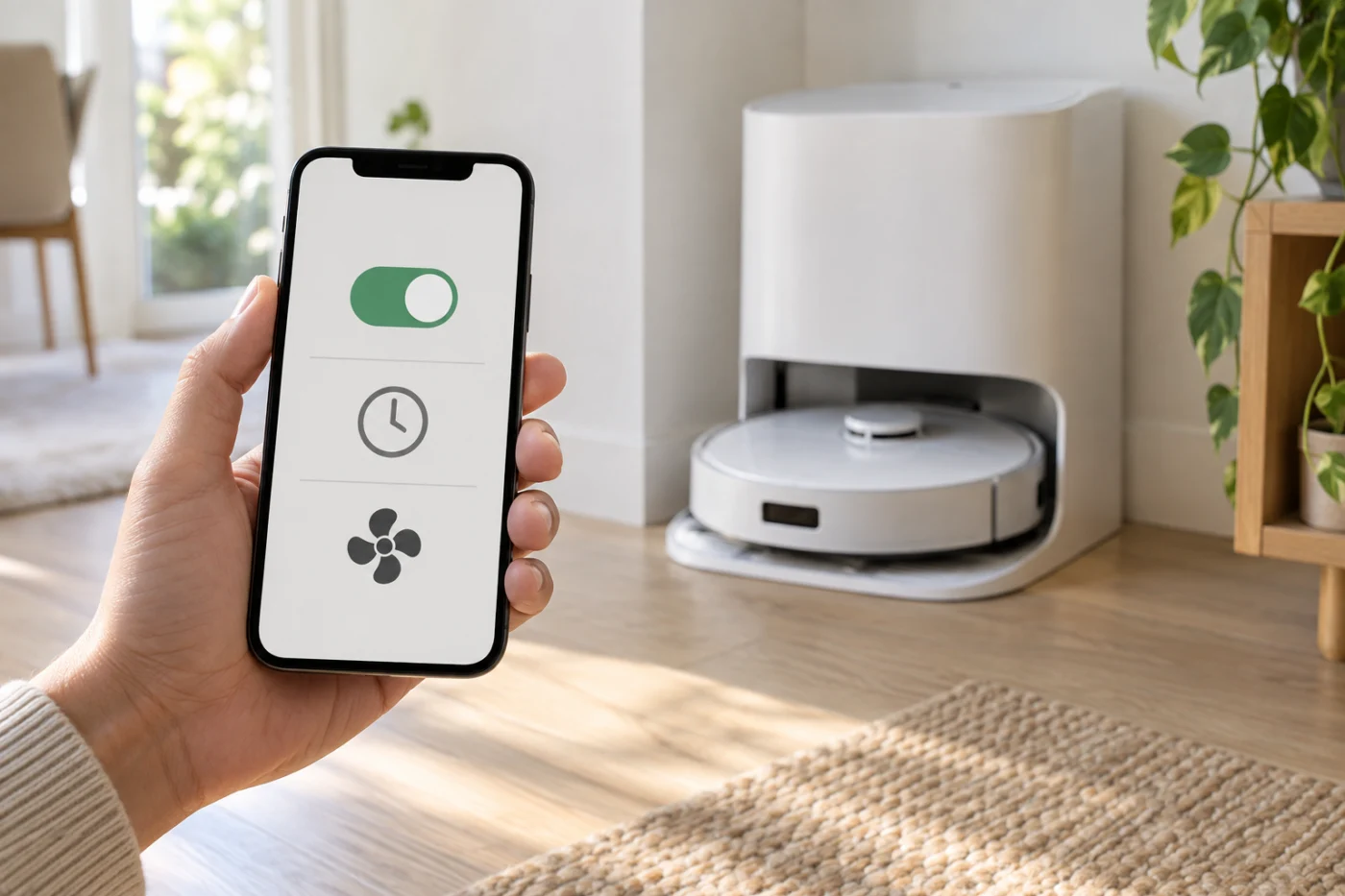
Open the dock or mop-care settings for your robot in the Roborock app and check whether auto-drying is enabled. Note the current duration before changing it. The exact menu labels may change with app updates. If the feature was disabled, enable it and observe one normal mop-and-return cycle.
2. Check overnight Do Not Disturb options
If pads stay damp mainly after late cleaning, review the Do Not Disturb (DND) schedule. The manual gives a default period of 22:00–08:00 and says the app lets you control whether drying is enabled during DND. Check your own setting; DND does not necessarily mean drying is disabled. Test outside the DND period or allow drying within it if that fits your routine.
3. Start one manual drying cycle
With the robot properly seated, use the drying control in the app to start a manual cycle. Leave the robot at the dock and watch what the app reports. Roborock says drying can be started or stopped manually there. If it runs normally, focus on auto-drying, DND and whether the preceding mop wash occurred. If the command fails or an error appears, record its exact wording instead of repeatedly issuing the same command.
Keep hands away from drying air outlets while the dock operates. Do not judge its heater by touching an outlet.
4. Check whether the cycle ended early
Roborock’s troubleshooting section says drying ends early if the robot departs the dock. For a controlled test, avoid starting another task or moving the robot. Check that it remains seated and charging. If it cannot return to or enter the station, use the docking checks; if it sits there but does not charge, use the charging guide.
5. If the cycle completes, check duration and visible blockage
Let the selected drying cycle finish before checking the pads. In a humid room, Roborock recommends extending the drying duration in the app. Check that the cloths lie flat and are not loaded with dirt. If water remains in the wash tray or the cloths are dripping, investigate dirty-water drainage; a longer drying time will not clear standing water.
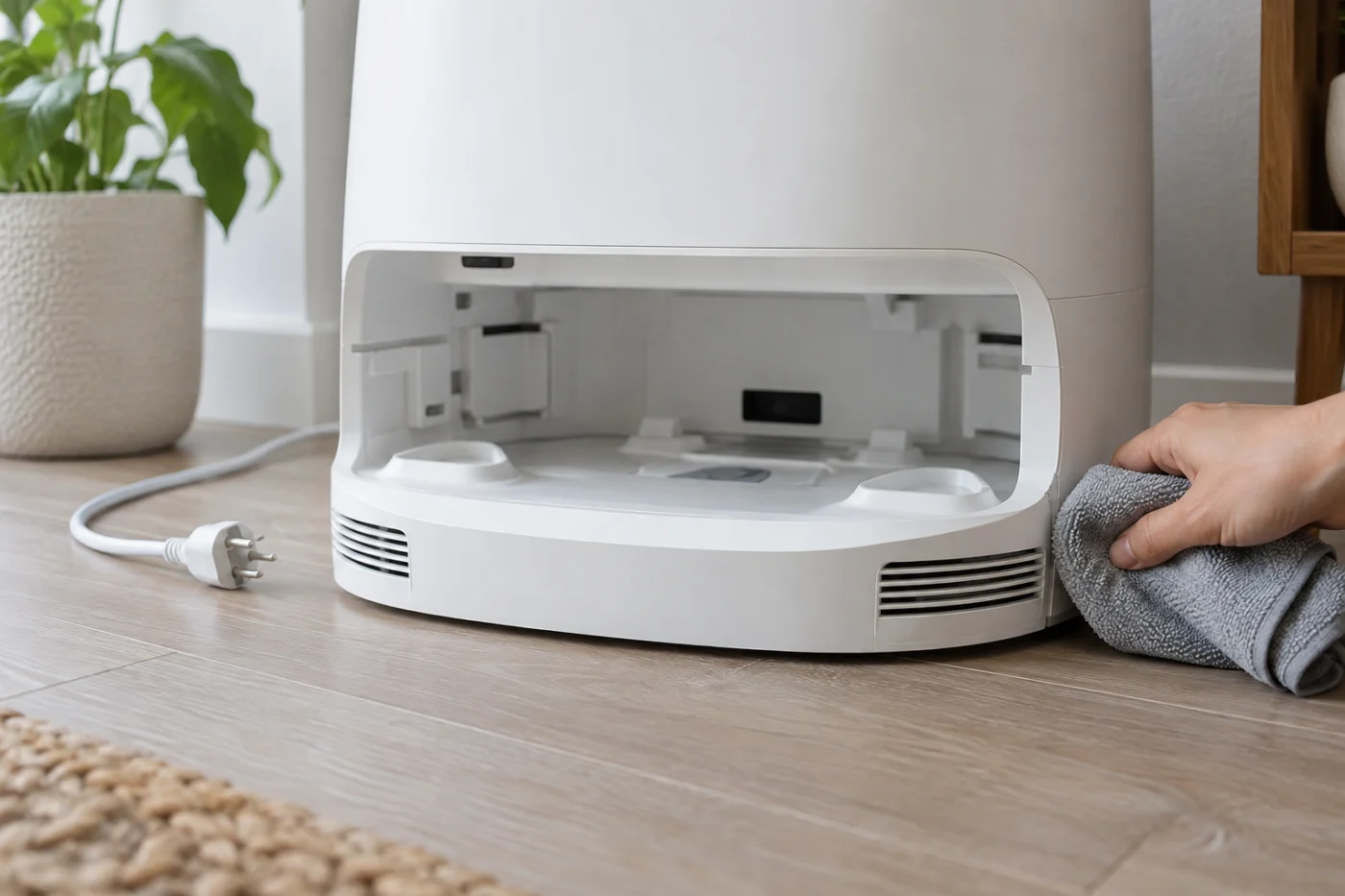
If both pads remain unusually wet after a full cycle, stop drying, unplug the dock and allow it to cool. Look only at its accessible exterior air openings for an obvious cover, dust or lint; wipe loose surface lint with a soft, dry cloth. Do not put a tool into an outlet, rinse the dock, spray cleaner inside, or open its housing.
Choose the next step from your test
Manual drying runs: Recheck auto-drying, DND and whether a mop wash happened during the preceding run.
The robot leaves the dock: Resolve the docking or interrupted-task issue before diagnosing drying.
A complete cycle leaves pads wet: Extend duration in humid conditions; inspect pad condition, standing water and exterior airflow.
Manual drying will not start: Save the app error and contact support after confirming dock power and seating.
If manual drying repeatedly fails or a full uninterrupted cycle still leaves both pads very wet after these checks, contact Roborock support with the app message, selected duration, DND setting and result of your test. Internal fan or heater faults require service inspection.
Model reference: Roborock Qrevo Curv user manual, “Drying,” “DND Mode” and “Common Issues.”