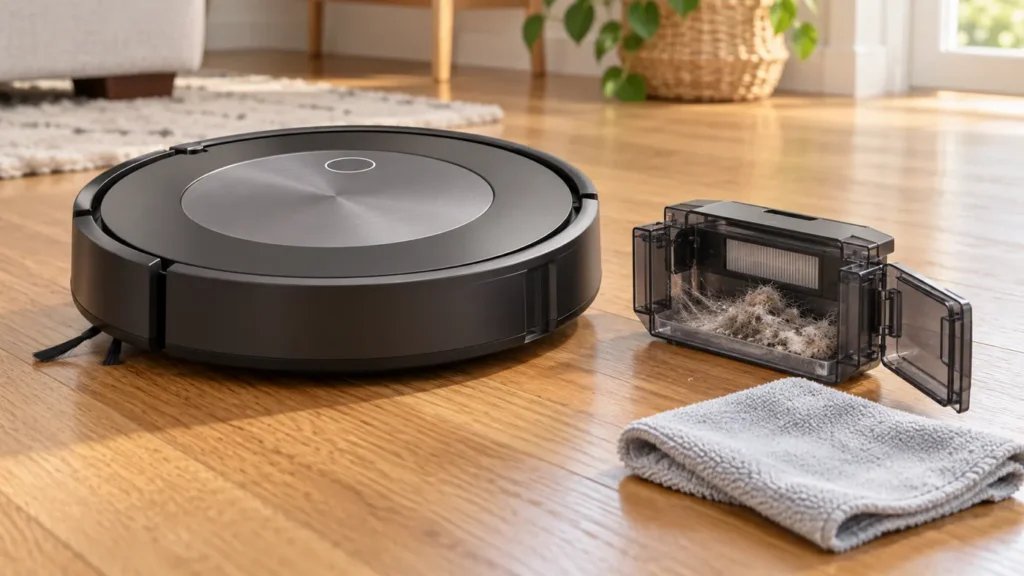
Begin with the quick checks. Stop if a step requires tools or experience you do not have.
If your Roomba j7 keeps saying the bin is full after you empty it, inspect the full-bin sensors and the matching ports on the container. Empty space inside the bin does not mean those optical areas are clean. If you use a Clean Base, also check whether debris actually leaves the robot.
This guide covers the vacuum-only j7 and j7+. A standard charging base does not automatically empty the bin. Read the exact message before treating every bin-related alert as the same problem.
Start with the bin’s actual condition
| What you observe | Start here | What to compare |
|---|---|---|
| Bin is packed with hair | Empty it and inspect the debris path | How quickly does it fill again? |
| Bin is empty but the warning remains | Sensors and inner/outer bin ports | Does the warning clear after cleaning? |
| Warning appears after automatic emptying | Remaining debris and exact error | Did the Clean Base remove the contents? |
| Problem started after washing the bin | Dryness and correct refitting | Are all parts ready to reinstall? |
| Robot also leaves clumps behind | Filter, rollers and airflow | Is poor pickup happening at the same time? |
1. Empty the container and record the message
Stop the task, remove the bin with its release button and open its door over a trash container. Look for a compacted clump rather than relying on the amount of loose dust you can see. Note whether the app reports Bin Full, Error 36 or a different message.
If the bin is genuinely filling quickly, clearing the warning once will not reduce the amount of debris collected. Compare a smaller cleaning area and inspect the bin afterward. This is especially useful after a period of missed cleaning or when there is a large amount of pet hair.
2. Clean the sensors and all matching ports
iRobot’s full-bin guidance calls for cleaning both the robot’s sensors and the bin’s inner and outer ports. Use the official images linked below to find them; wiping only the main interior of the bin can miss the relevant areas.
Wipe accessible robot sensors with a clean, dry microfiber or soft cotton cloth. Work gently and keep liquid away from the robot body. Inspect the port surfaces on the removed bin for residue before reinstalling it.
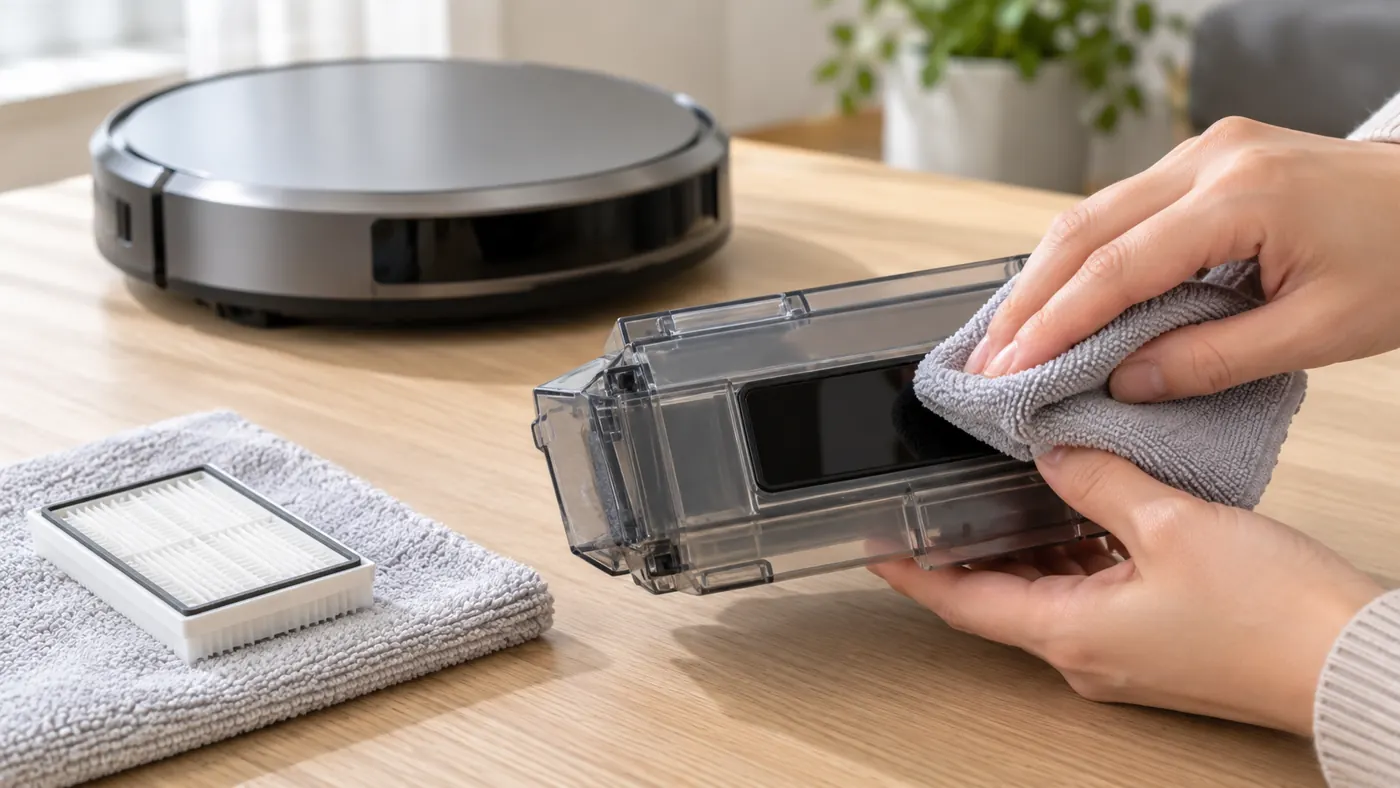
After refitting, check whether the same alert appears before starting another long task. A clean bin that immediately triggers the warning is a different pattern from one that fills during cleaning. Record which of those patterns you see.
3. Keep the filter dry if you rinse the bin
For the j series, iRobot permits hand-rinsing the bin with warm water after removing the filter. The filter must not be washed or exposed to liquid. Let the container dry completely before reinstalling the filter and bin; do not put it in a dishwasher.
If the problem began after maintenance, check what was removed and how it was refitted. Do not force the door or latch closed. Visible damage or a part that no longer seats properly deserves a compatibility check in the parts reference, rather than repeated attempts to run with it.
4. Check the debris path if pickup is also poor
Inspect the accessible path around the rollers and bin entrance for trapped debris while the robot is stopped. If it leaves clumps or collects very little, use the detailed j7 pickup guide. It covers filter and roller care without turning a bin warning into a guessed motor failure.
Compare the alert and the cleaning result separately. A setting that allows the job to continue does not clean a dirty sensor or remove a physical blockage. Do not use continued operation as proof that the underlying issue has been fixed.
5. If you have a Clean Base, verify evacuation
After an emptying attempt, inspect the robot bin. If debris remains, the warning may describe a real full bin. iRobot’s Error 36 guidance includes blocked dock airflow and sensor cleaning among the checks, so do not assume the sensor has failed just because the base made a noise.
Check the correct dock’s bag, lid and accessible evacuation openings using its maintenance instructions. Unplug the base before handling its accessible parts. The same Error 36 guidance also notes that charging can work while contact quality is insufficient for dock communication; the j7 contact-care guide explains the cleaning procedure.
Record whether manual emptying clears the warning and whether it returns specifically after using the Clean Base. That comparison helps support separate a bin-sensing problem from an evacuation problem.
When cleaning does not clear the warning
iRobot suggests a reboot after the sensor and port checks if the warning persists. Follow the current j-series procedure in the j7 reboot guide. A reboot is a follow-up check, not a substitute for removing residue.
If the alert returns with an empty, dry, correctly fitted bin and clean sensor areas, contact iRobot. Include the exact message, photographs of the bin and ports, whether you have a Clean Base, and the result of manual versus automatic emptying. Those observations do not by themselves identify a failed sensor, bin or dock.
Use the j7 maintenance schedule for ongoing care. If the app is unavailable, restore connection with the j7 Wi-Fi guide before relying on its status display.
FAQ
Why does an empty bin still trigger Bin Full?
Residue on the optical areas is a useful first check. Clean both the sensors and their matching ports, then compare the result.
Can I wash the filter with the bin?
No. Remove the filter before rinsing the container and keep the filter dry.
Does a Clean Base noise prove the robot bin is empty?
No. Inspect the remaining contents. An emptying attempt and successful debris removal are different observations.