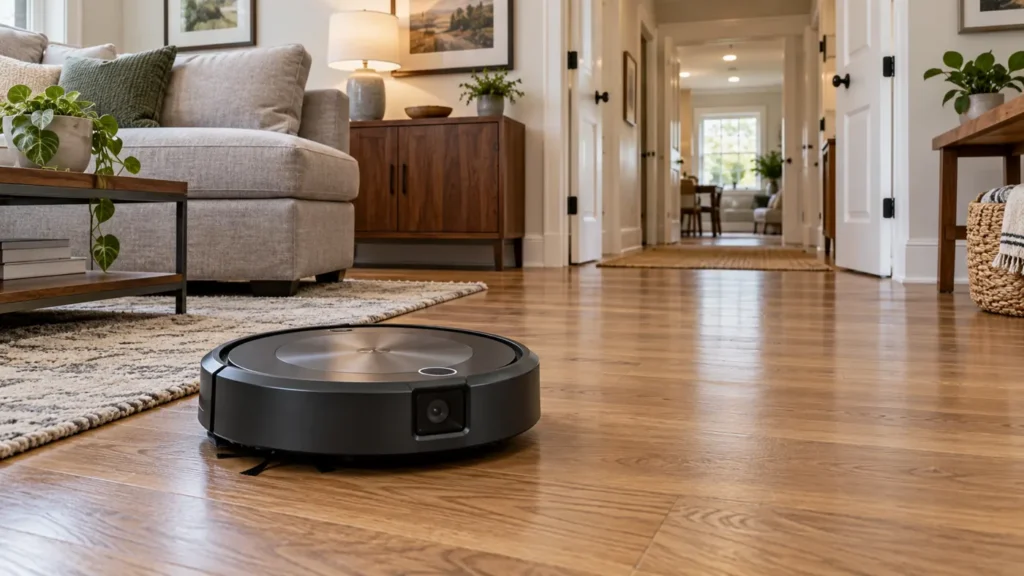
Begin with the quick checks. Stop if a step requires tools or experience you do not have.
If your Roomba j7 has mapping problems, start by checking what the robot does on the floor, not only the shape shown in the app. A missing room, a misplaced divider and a job that stops early need different next steps. Save screenshots before changing the map.
This guide covers the vacuum-only Roomba j7 and j7+. Their Imprint Smart Maps use visual navigation. Instructions for newer ClearView LiDAR models or the mopping system on a Combo j7 are different.
Identify the map problem
| What happens | First check | Useful comparison |
|---|---|---|
| A room is missing | Doorway access and lighting | Does the robot enter the room? |
| A familiar room has the wrong name or boundary | Map customization | Is the floor covered despite the label? |
| The map changed after rearranging furniture | An exploration task | Does a broader run improve the layout? |
| The robot stops before exploring everything | Job history and battery status | Was the run interrupted? |
| The map looks usable but dirt remains | Coverage and pickup | Did the robot pass over the debris? |
1. Compare the saved map with the actual job
Take a screenshot of the saved Smart Map and the report for the problem job. Note the selected rooms, any alert and the point where the robot stopped. A map used to choose rooms and a history report describing one completed job serve different purposes.
Observe one area that seems wrong. If the j7 enters it and cleans normally, a room label or divider may be the issue. If it never crosses the doorway, inspect access before editing boundaries. If it enters but immediately turns away, record what happens at that location.
2. Prepare the room for visual navigation
iRobot recommends lighting the rooms and clearing access because visual navigation uses recognizable landmarks. Open the doors to the intended area and remove loose cables, clothing and other hazards. Keep safety barriers in place near stairs or drop-offs.
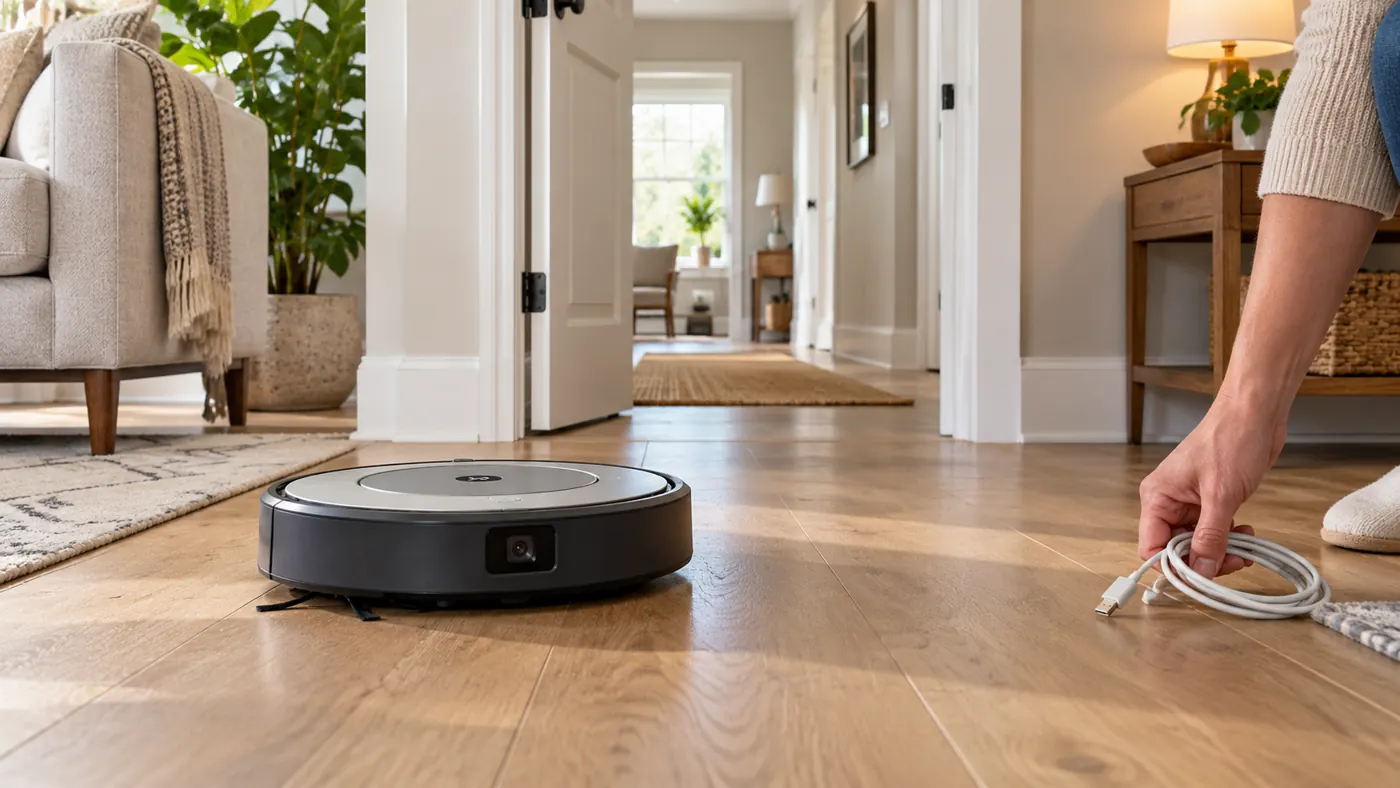
For a useful comparison, keep the lighting, door positions and dock location consistent. Changing several conditions between jobs makes it harder to identify the cause. Do not assume obstacle avoidance will make a cluttered floor suitable for a mapping run; remove pet waste and anything the rollers could catch.
If the robot repeatedly circles rather than exploring, use the j7 wheel, bumper and sensor checks. A movement problem can interrupt the job without making the saved map itself the cause.
3. Choose an exploration task
A Mapping Run explores without vacuuming. In the classic iRobot HOME app, open Maps and follow the option to create a map or add a Mapping Run to the selected one. A job directed only to familiar rooms is not the best comparison when you want the robot to discover additional space.
Start from the base for a same-floor comparison, keep its location fixed and let the task finish. Watch the entrance to the missing room without carrying the robot directly into it. If it cannot physically reach that space from the rest of the home, a map edit will not create a usable route.
If charging interrupts progress, follow the j7 charging guide. If the robot has no response at all, use the j7 won’t turn on guide before trying another mapping task.
4. Review dividers and keep-out zones
Check whether the room exists but has been grouped with its neighbor. Adjust its divider or name rather than deleting the entire floor plan. Also review whether a keep-out zone blocks the intended route. Preserve restrictions protecting hazards.
Make one edit and compare a task to the affected room. Record whether the robot reaches the correct place after the change. Avoid large batches of map edits followed by a single full-home job: that makes it difficult to tell which edit mattered.
5. Consider a previous map version
iRobot describes restoring a preferred layout through History: open a suitable Clean Map report, then use its menu’s Update Smart Map option. Read the warning before applying it; that update cannot simply be undone. The option may be unavailable for an unsuccessful job.
Choose a report because it represents the desired layout, rather than because its date is recent. Keep screenshots of the current state and recheck room choices, restrictions and scheduled jobs afterward. If the available reports are all incomplete, another well-prepared run may be more informative.
When to rebuild or contact support
Rebuilding is reasonable when the saved layout remains unusable after access, lighting and task checks. Read the app’s deletion warning first and be prepared to customize the new map. A screenshot preserves your reference; it is not a restorable backup.
If a controlled attempt repeats the same failure, send iRobot the robot model, app and robot software versions, job report, alert and a video of the affected doorway. Describe whether the problem happens in one room or throughout the home. Repeated map deletion does not diagnose a failed camera, wheel or internal component.
If coverage is normal but crumbs remain, continue with j7 pickup troubleshooting. For routine care, see the vacuum-only j7 maintenance schedule.
FAQ
Does the j7 use a raised LiDAR sensor?
No. This model uses visual navigation and Imprint Smart Maps. A newer Roomba’s LiDAR mapping procedure should not be substituted.
Should I delete the map immediately?
Check access and the job report first. A usable map with a misplaced room divider may only need an edit.
Why does room-specific cleaning fail to add a missing room?
Use a task intended to explore the wider area, then watch whether the j7 can actually enter the missing space.