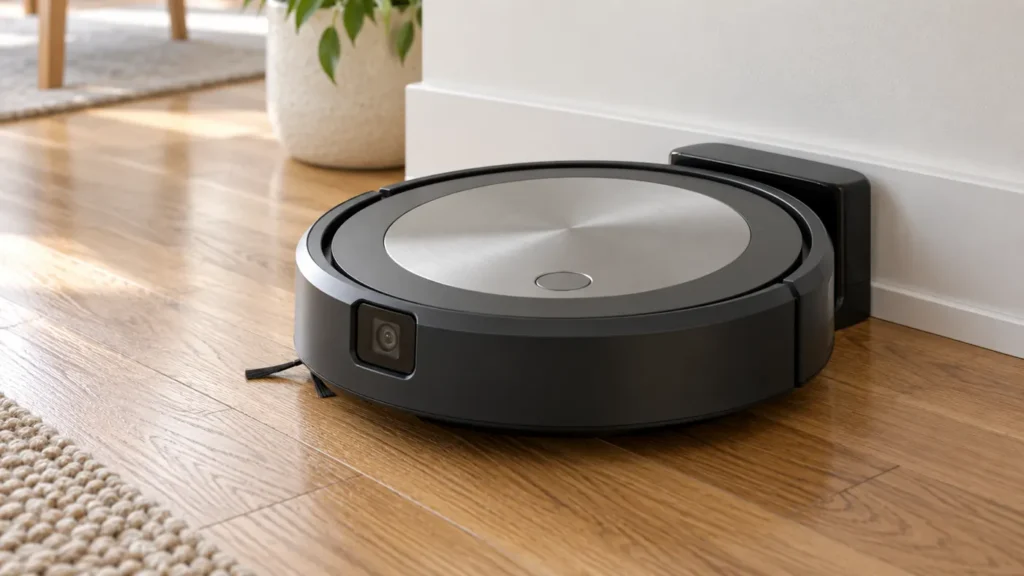
Begin with the quick checks. Stop if a step requires tools or experience you do not have.
If your Roomba j7 won’t turn on, first check whether it responds to its button, the app or placement on a powered base. A robot that is silent everywhere needs different checks from one that lights up but refuses to clean. Start with those observations before ordering a battery.
This guide covers the vacuum-only j7 and j7+. If the robot is responsive but its charge does not rise, use the detailed j7 charging guide instead.
What does “won’t turn on” mean here?
| What happens | First check | Useful comparison |
|---|---|---|
| No light, sound or button response | Powered base and seating | Does charging restore any response? |
| Button produces a light or sound | App message and task status | Is it powered but unable to start? |
| Robot responds locally but app says offline | Connection troubleshooting | Is the problem limited to app control? |
| Robot stopped during a job with no indicator | App error and a reboot | Does it resume after the matching check? |
| Response disappears shortly after leaving the base | Charge behavior and exact error | Does it retain usable power off the base? |
1. Try the button and note any response
Press the j7’s single button once and watch for a light, sound or movement. Check the classic iRobot HOME app for a message if it can connect. Write down the exact wording rather than describing every refusal to clean as “dead.”
iRobot’s guidance for a j-series robot that stops without an indicator starts with checking the app, pressing the button and trying a reboot if needed. It also directs a depleted robot back to its base for charging. These checks do not establish which internal component is faulty.
If the j7 responds but gives an alert, follow that alert with the error and alert reference. A robot reporting a problem is powered; the next question is why it cannot complete the task.
2. Verify the base supplies power
Check the wall outlet with another small device, then inspect the base cord and its connections. Use the compatible base supplied or specified for the exact model. Stop if a cord is damaged, contacts are burned or liquid has entered the equipment.
iRobot’s j7 setup instructions place the base on a level surface against a wall and align its metal contacts with those underneath the robot. Seat the j7 carefully, without pressing down on it to force contact. A rug edge or trapped debris can make its resting position uneven.
Do not judge charging solely by whether an indicator stays lit. Observe whether the robot responds after being correctly seated and whether a connected app shows changing charge. For a new j7, iRobot recommends three hours of charging before its first complete cleaning job; this is not a guaranteed recovery time for a faulty battery.
3. Address poor charging contact
If moving the robot slightly makes it respond, inspect seating and the accessible contacts. Follow the contact cleaning instructions in the charging guide, including unplugging the base and letting cleaned surfaces dry before reconnecting.
Make a note of whether the robot wakes only on the base or also responds after you lift it off. This distinction helps support assess the problem, but it does not prove that the battery alone needs replacement. Avoid shorting contacts or using an improvised charger to test it.
4. Perform a reboot if appropriate
If the robot has enough power to respond but appears stuck, use Product Settings → Reboot Roomba in the classic iRobot HOME app. For a manual reboot, take it off the dock and hold its single CLEAN button until the reboot cue. iRobot’s current model table lists approximately nine seconds for the j series.
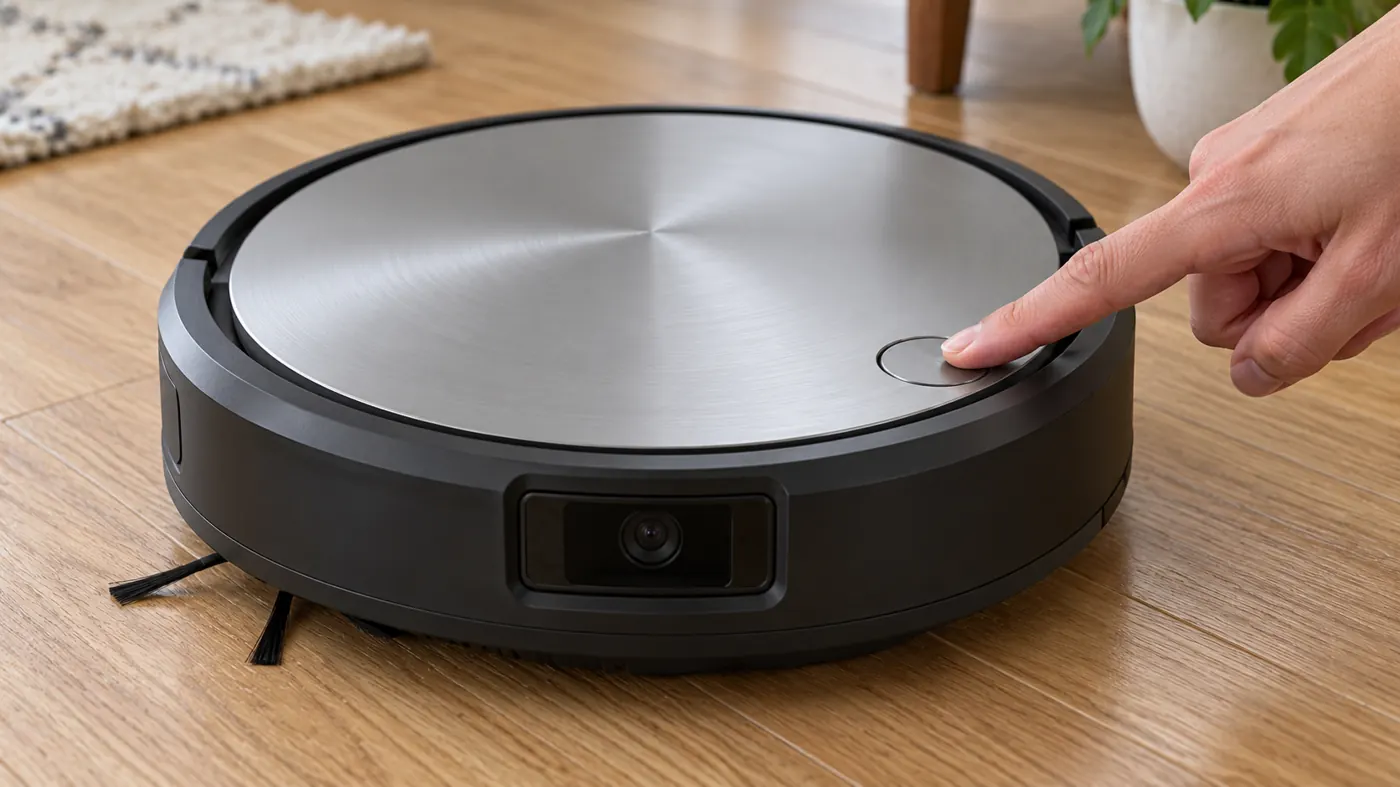
Release after the cue and allow the restart to finish; iRobot says this can take up to about 90 seconds. A reboot preserves maps and schedules. Try the button once afterward, then return the robot to its base if it needs charge.
If there is no cue after the charging checks, repeated long button holds are not evidence that a reset occurred. Record the lack of response. Do not substitute a factory reset or battery-removal procedure from another model.
5. If it wakes but still will not clean
Read the resulting message and follow the relevant branch. If it starts but repeatedly turns in one direction, use the j7 movement guide. If a room job fails while ordinary movement works, review the j7 mapping checks. If only the app remains unavailable while local controls work, treat that as a connection issue.
Test a small ordinary cleaning task once the robot is responsive and charged. Record whether it completes the task or loses power quickly. Do not use repeated full-home runs to diagnose a robot that keeps shutting down.
When to contact iRobot
Contact support if the j7 stays unresponsive on a verified powered, correctly seated base, or if it repeatedly loses response after charging. Include the exact model, serial number, purchase details, any error and whether a reboot cue appeared. Mention recent storage, liquid exposure or a part change.
If support recommends a battery, verify the model and official part information in the j7 battery compatibility reference. A low app percentage alone does not identify a failed battery. Stop using a robot that becomes unusually hot, smells burned or shows battery damage.
FAQ
Does no light mean the battery must be replaced?
No. Check for button response, base power and correct contact first. The symptom alone does not identify a failed part.
Will a reboot erase the map?
A normal reboot preserves the map and schedules. Factory reset is a different operation and should not be confused with it.
What if the robot works but the app says offline?
That shows the robot has power. Check connection and app status rather than treating it as a completely unresponsive robot.
Official references
- iRobot: j-series stops without an error indicator.
- iRobot model-specific reboot instructions.
- iRobot j7/j7+ base setup and initial charging.
If the j7 responds to its button but the app remains offline, continue with the j7 Wi-Fi connection guide.