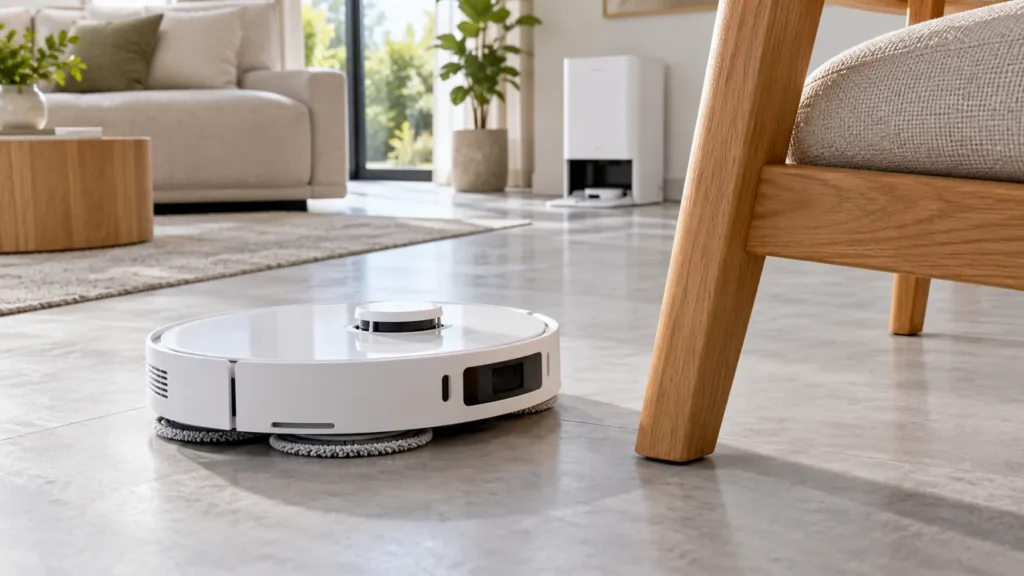
Begin with the quick checks. Stop if a step requires tools or experience you do not have.
If your Dreame L10s Ultra obstacle avoidance is not working well, clean the front sensor surfaces and improve the room’s lighting before changing the map or buying parts. Note which objects it hits: Dreame says small, dark and highly reflective obstacles can be harder to recognize.
This guide covers the original L10s Ultra. One missed object is different from repeated hard collisions with broad obstacles across a room.
Match the symptom to the next check
| What happens | What to check |
|---|---|
| Small or dark objects are missed | Remove them from the route; consider recognition limits. |
| Avoidance seems poorer in a dim room | Repeat a supervised run with good, even lighting. |
| Many objects are hit after dust builds up | Clean the accessible front sensor windows. |
| The whole route is disordered or an LDS error appears | Use the separate navigation or LDS troubleshooting guide. |
1. Identify the object it fails to avoid
Dreame Support’s reply for the original L10s Ultra explains that short obstacles, small table or chair legs, black objects and highly reflective objects may be missed. Do not use a cable, pet waste, glass ornament or other vulnerable item as a detection test.
Remove loose cords, cloths, toys and sharp objects before cleaning, as the manual directs. If a particular furniture area keeps causing trouble, restrict that area in the app while investigating rather than allowing another collision.
2. Give the camera a well-lit view
The original manual says the AI visual sensor works best when the cleaning area is well lit. Turn on the room lights and leave a clear route. Avoid standing directly in front of the robot or blocking a narrow doorway during the check.
Observe a short run around ordinary, sturdy furniture. Compare the same area after improving the lighting; do not rearrange the room at the same time. That comparison helps separate an environmental pattern from a persistent problem.
3. Clean the accessible sensor surfaces
Pause the robot and switch it off away from its charging base before wiping it. Use a soft dry cloth on the front AI visual sensor and line-laser sensor surfaces identified in the manual. Keep the cloth free of grit and wipe gently.
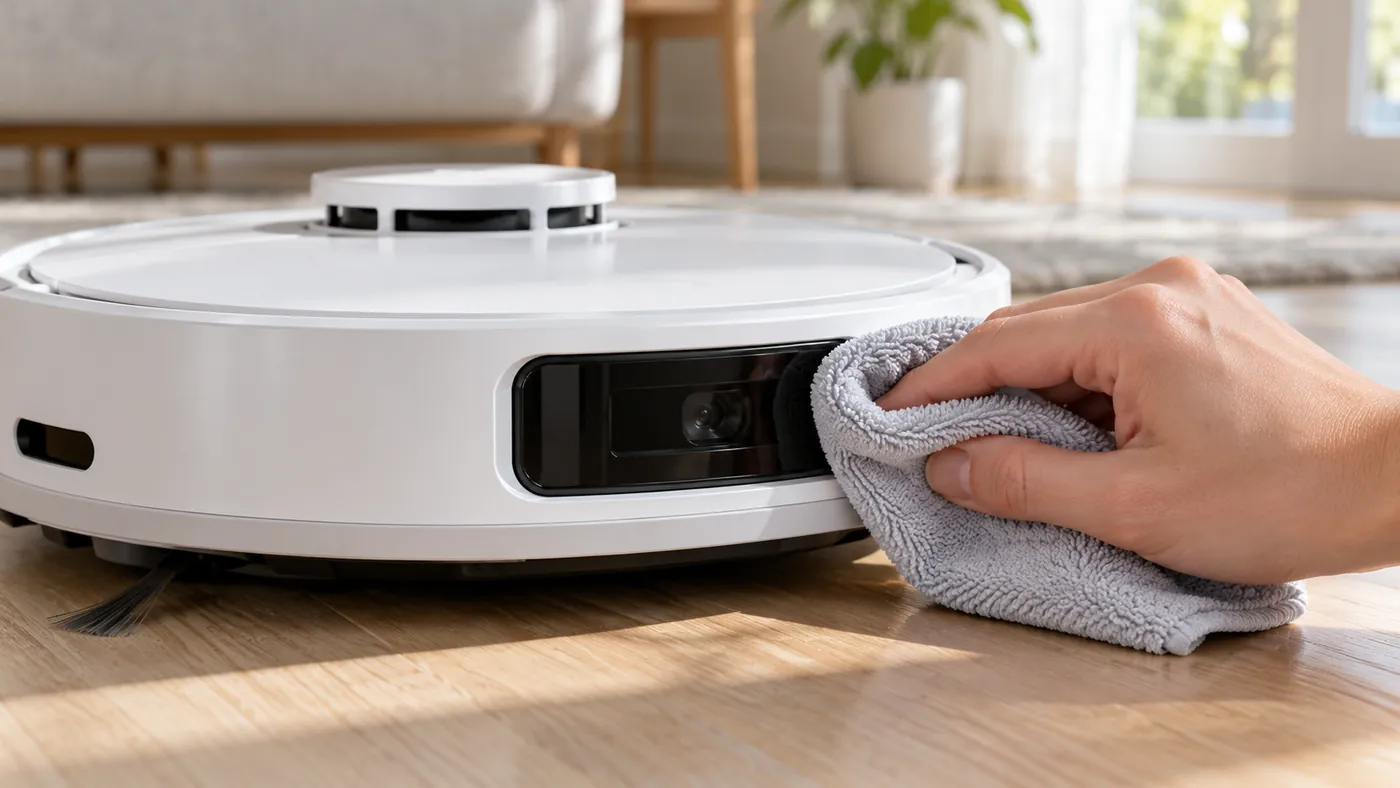
Do not spray cleaner onto the sensor windows or open the robot’s housing. Check for visible dirt or anything covering the windows. For the full maintenance procedure, see how to clean L10s Ultra sensors.
4. Repeat one supervised comparison
Use a clear, level area with a broad, sturdy furniture leg already in place. Stay nearby and pause the robot if it approaches hard enough to risk damage. You are checking whether it slows or changes course, not trying to prove that it can avoid every object.
Dreame’s general obstacle-avoidance guidance notes that flexible items such as curtains or partly open doors may receive a light bump. Record the difference between that behavior and repeated hard impacts against broad, fixed objects.
5. Check software and related errors
Dreame’s general support guidance recommends checking for an official firmware update. If one is available, install it with the robot charging and the network stable. For a failed installation, follow L10s Ultra firmware update failed.
If there is an LDS warning, use L10s Ultra LDS error. If the robot gets lost or follows a disordered route, see L10s Ultra mapping problems. For physical snags, use L10s Ultra keeps getting stuck.
When to contact support
Contact Dreame if broad obstacles are repeatedly hit after cleaning and a well-lit comparison, or if the problem began suddenly. Send a short video, firmware version and description of the object and lighting. A missed object alone does not identify a failed camera or laser module.
FAQ
Should it avoid every cable and small item?
No. Clear loose objects before a run. Recognition has limits, especially with small, low, dark or reflective items.
Does a new map fix obstacle recognition?
Not necessarily. Check the sensors, lighting and object first. Investigate the map separately when the route itself is wrong.
Can I wash the front sensors?
Use a soft dry cloth, as the manual specifies. Keep liquids out of the robot.
Sources: Original L10s Ultra manual, Dreame Support’s L10s Ultra recognition-limit reply (German), and general Dreame obstacle-avoidance guidance. The supervised comparison is a practical check, not a guaranteed fix. Browse all Dreame guides.