Begin with the quick checks. Stop if a step requires tools or experience you do not have.
If your Roborock S8 scheduled cleaning is not working, first check its charge and the saved task. The original S8 manual requires the battery level to be above 20% for scheduled cleaning to begin. A wrong weekday, disabled task or outdated room selection needs a separate check.
These steps cover the original S8. Menu names vary between app versions, so use the schedule or timer controls shown on your robot’s page.
Start with what actually failed
| Observation | Next check |
|---|---|
| No clean started at the expected time | Battery and saved task settings |
| Cleaning starts on the wrong day or time | Repeat days and displayed time |
| Only certain rooms are missing | Map, room selection and access |
| Task starts but remains unfinished after charging | Resume behaviour and Do Not Disturb |
1. Verify charge at the scheduled time
Leave the S8 on its powered dock between tasks. Check that the battery reading is increasing and comfortably above the manual’s start threshold before the next schedule runs.
If charge is low every morning, investigate the charging setup. Use S8 charging troubleshooting. Changing the schedule alone will not fix a dock that is not providing power.
2. Open the saved schedule and inspect it
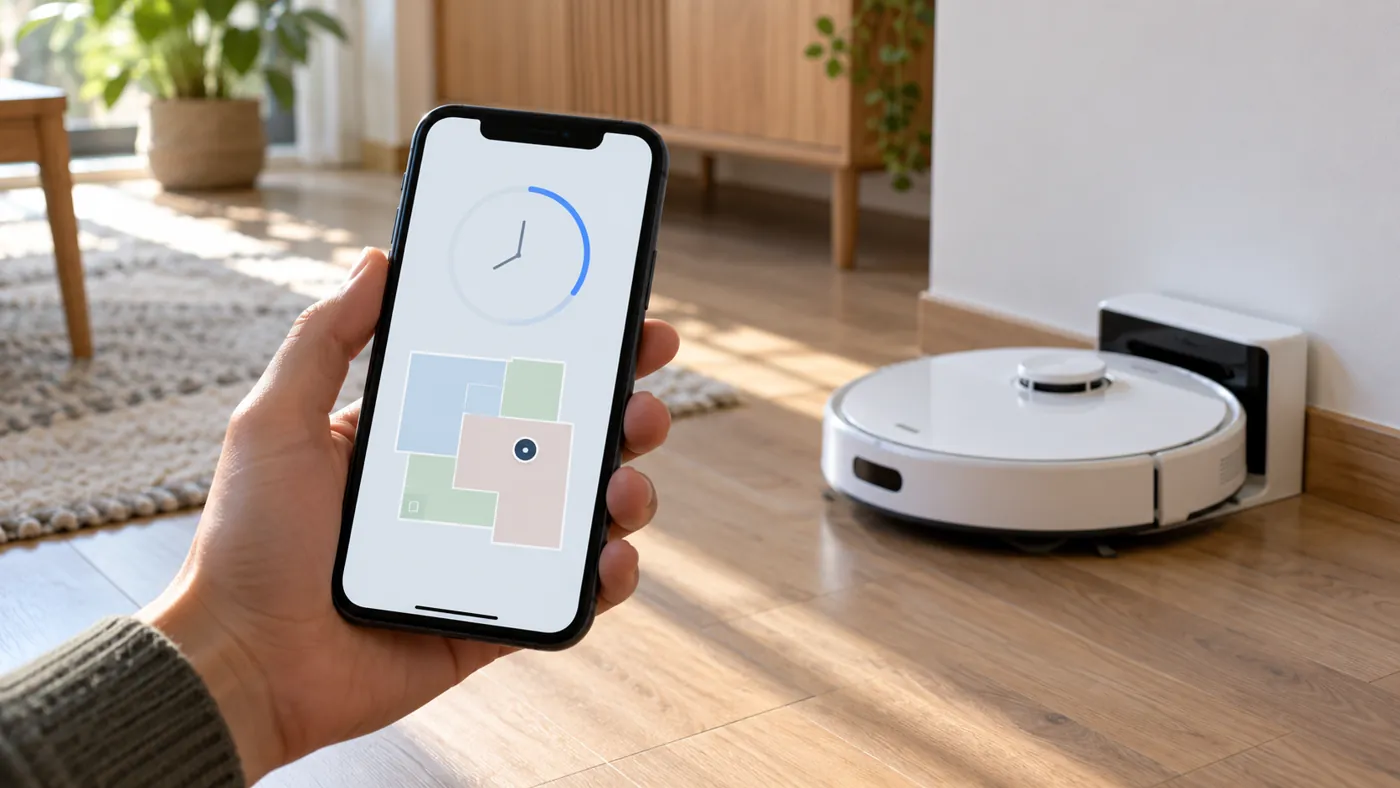
Check that the task is enabled, then read its time, repeat days and cleaning selection. Confirm any edits and reopen the task to verify that the values were saved.
A useful practical check is to write down the next expected run: the day, displayed time and selected area. This makes it easier to distinguish a task that never starts from one that starts correctly but cleans a smaller area than expected.
3. Review room selections after map changes
If you recently remapped the home or changed room divisions, reopen any room-based task and compare its selection with the current layout. Reselect the intended rooms where needed rather than assuming the old selection still matches your home.
Also check doors and no-go zones. A robot that starts cleaning but cannot enter a room has an access problem, not necessarily a timer failure. See S8 mapping troubleshooting for distorted or incomplete maps.
4. Create one supervised test task
With the robot charged and ready, create one simple test schedule for an upcoming time while you are home. Select a small, accessible area and avoid overlapping it with an existing task.
Before that time, leave the robot idle on its dock. Observe whether it starts and note any warning. Remove the temporary test afterward so it does not become an unwanted recurring clean.
If the test works, compare its settings with the original task. If it fails, keep screenshots of the task, battery reading and app status for support. This is a practical isolation test, not a guaranteed repair.
5. Distinguish scheduling from resuming
If cleaning started at the right time, the schedule has triggered. An unfinished clean after a battery top-up needs another route: S8 not resuming after charging.
The S8 manual describes Do Not Disturb as preventing automatic resumption. Do not assume that explanation applies to every task that never starts. Identify the stage that failed before changing quiet-hours settings.
If tasks disappeared after a reset
The manual warns that a system reset restores schedule and Wi-Fi settings to defaults. Check whether your tasks still exist and recreate missing ones. Avoid resetting again as the first response to a missed clean.
FAQ
Can a low battery stop a scheduled clean?
Yes. The original S8 needs more than 20% charge to start scheduled cleaning.
Should I delete the map to fix a timer?
Start with charge and task settings. Deleting a working map can create additional setup work.
What should I send to support?
The expected time, task settings, battery reading, exact warning and result of one supervised test.
Browse related guides in our Roborock troubleshooting hub.
Source: S8 manual: scheduled cleaning, Do Not Disturb and system reset.