Begin with the quick checks. Stop if a step requires tools or experience you do not have.
Roborock S8 mapping problems can look similar in the app but need different checks. A room missing from the map, a tilted floor plan and a robot that cannot locate itself are not the same fault. Before deleting anything, save screenshots and watch where the robot actually travels.
This guide covers the original S8. It focuses on access, map selection and repeatable checks, rather than treating every odd map as a failed LiDAR sensor.
Match the map problem to the next check
| Symptom | Start here | What to observe |
|---|---|---|
| One room is absent | Open the door and inspect the threshold | Does the robot enter the room? |
| The whole map appears tilted | Dock position and a comparison run | Is the shape wrong or only its orientation? |
| The layout belongs to another floor | Saved maps and floor selection | Does the displayed layout match this floor? |
| Map looks normal but dirt remains | Coverage and pickup | Did the robot cross the dirty patch? |
| A sensor alert interrupts the run | Exact alert and external inspection | Does it return after basic care? |
1. Keep a record before editing the map
Take screenshots of the current floor plan, room divisions, no-go zones and any message. Note whether the issue began after moving the dock, carrying the robot upstairs, rearranging a room or changing settings. This gives you something concrete to compare after the next run.
Check that you are viewing the intended robot and floor. If the device is offline and the app is not showing its current state, use the S8 Wi-Fi guide before drawing conclusions from an old display.
2. Give the robot access to the missing room
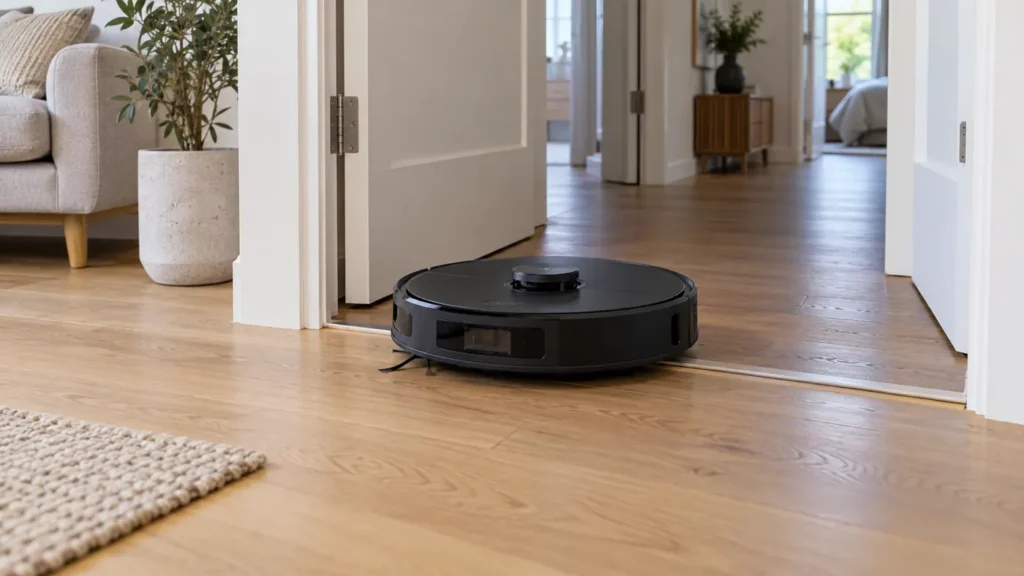
Open the doors to rooms you want included. Look at the path from the dock to the absent room: a cable, a closed door or an awkward threshold can explain why an otherwise familiar layout is incomplete. Remove movable obstacles, then observe whether the S8 actually crosses the doorway.
Roborock’s first-map guidance calls for map saving, a start from the dock, access to the whole intended area and a successful return to the unmoved dock. Follow the map creation controls shown in your current app; the manufacturer’s illustrated menus use another model as an example and can differ by firmware.
If the room outline exists but the robot avoids part of it, review virtual restrictions separately. Do not remove boundaries protecting stairs or other hazards just to obtain a fuller map. Preserve a physical barrier where a fall is possible.
3. Keep the dock stable during the comparison
Use one dock location while comparing runs. Start the task there and avoid carrying the robot to another room halfway through. If it cannot return, resolve the S8 docking problem before repeatedly rebuilding a map.
For a tilted map, Roborock suggests checking dock placement and, if needed, creating a fresh map. First decide what is actually wrong: a rotated but recognizable floor plan is a different observation from overlapping walls or a room drawn in the wrong place. Record both the display and the robot’s behavior.
4. Check the exterior before suspecting LiDAR hardware
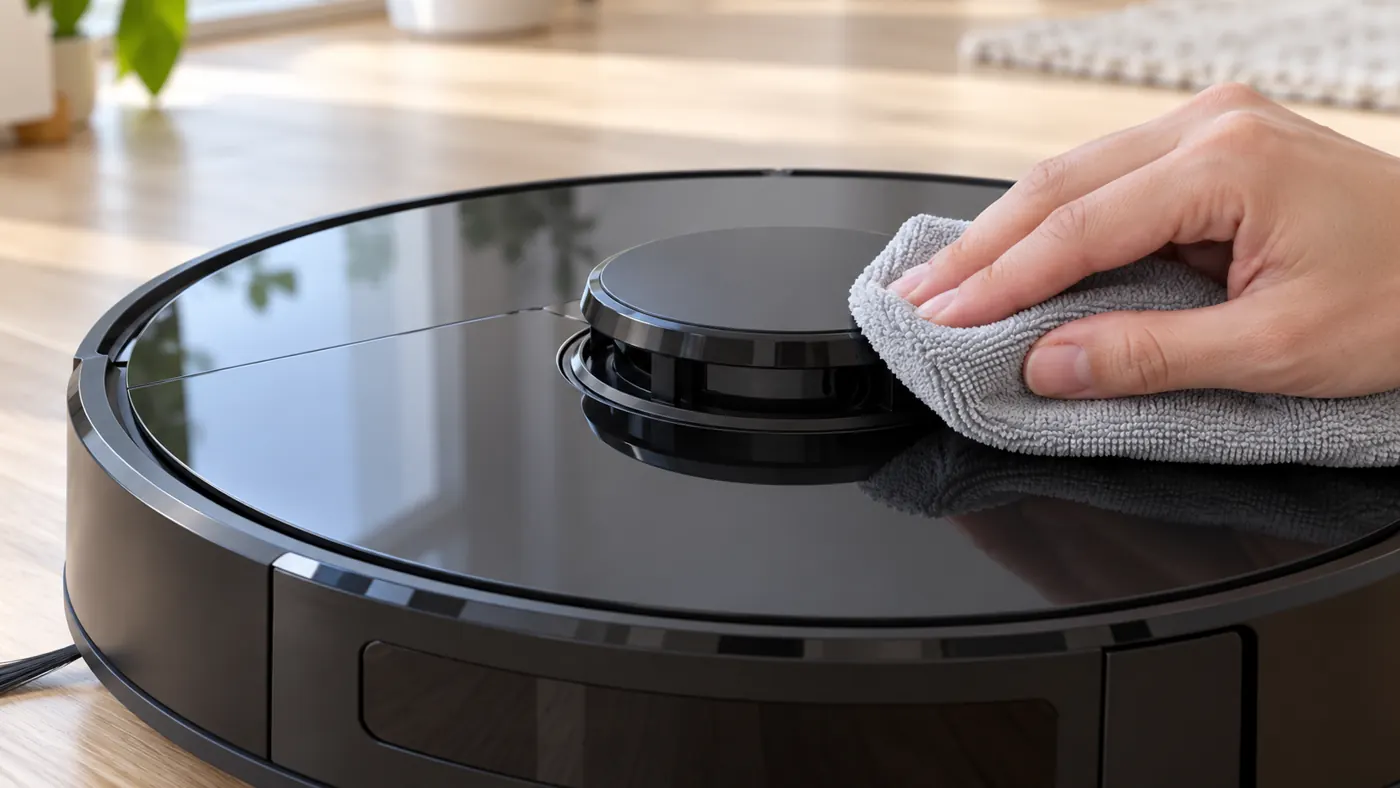
Turn the robot off away from its dock. Look for dust, a loose object or an accessory covering its sensor areas or crowding the raised turret. The S8 manual specifies a soft, dry cloth for its external sensor maintenance. Use gentle exterior care; do not press, force-spin or dismantle the turret.
An untidy map alone does not establish a LiDAR motor fault. If there is a recurring sensor alert, record its exact wording and use the error and alert guide. A message that returns after basic checks is more useful evidence for support than a guess based on the map’s appearance.
5. Check multi-floor maps separately
Roborock lists the S8 among models supporting multi-floor maps. Use the app’s multi-floor workflow when adding another level, rather than repeatedly replacing the downstairs map. The manufacturer says the charging dock does not need to be carried to each additional floor.
Before changing a saved map, confirm which layout is selected and which level the robot is on. If it navigates normally on one floor but becomes confused after being carried elsewhere, include that distinction in your troubleshooting notes.
When a new map is worth trying
Consider rebuilding after access and dock checks if the saved layout remains unusable. Read the app’s warning before deleting or replacing it, and be prepared to verify room names, virtual restrictions and schedules afterward. A screenshot preserves your reference, not a restorable backup.
If a clean mapping attempt repeats the same distortion or stops with the same alert, contact Roborock with screenshots, a route video and the checks already completed. Avoid repeated factory resets without a reason tied to the symptom.
If the map looks right but the floor remains dirty, continue with S8 pickup checks. Routine care is covered in the S8 maintenance schedule.
FAQ
Should I delete the map as the first step?
Start with screenshots, correct floor selection and room access. Deleting a usable map before checking these adds setup work and removes a useful comparison.
Does the S8 support more than one floor?
Yes. Use its multi-floor mapping workflow and check the current app instructions when creating another floor.
Does a tilted map mean LiDAR is broken?
No. Dock placement and map creation should be checked first. Repeated alerts or consistent failures need further diagnosis.
Official references
- Roborock multi-floor and first-map guidance.
- Roborock guidance for an angled map.
- Original S8 user manual.
For a step-by-step external cleaning routine, see how to clean the S8 sensors before repeating navigation tests.