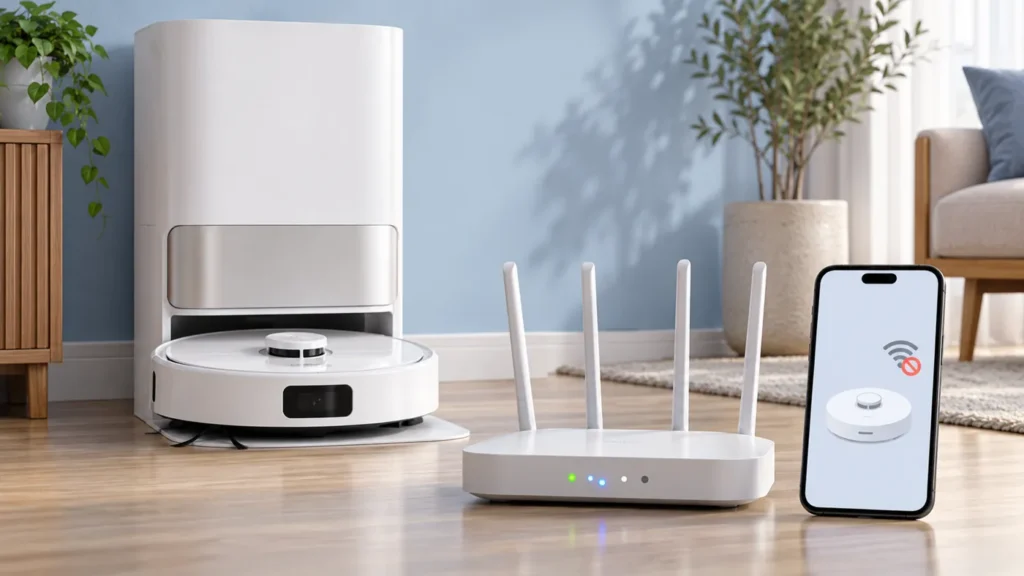
Begin with the quick checks. Stop if a step requires tools or experience you do not have.
Dreame L10s Ultra offline in the app? Check that the robot is powered on, observe its Wi-Fi indicator and confirm the network used for setup. The original L10s Ultra supports 2.4 GHz Wi-Fi. Record whether the problem affects initial pairing, the docked robot or only particular rooms before changing settings.
This guide covers the original L10s Ultra. The phone illustration below is conceptual, not a screenshot of the Dreamehome app. Follow the current app’s prompts when menu wording differs.
Start with the observed pattern
| What happens | First check |
|---|---|
| Robot has no power response | Check power and charging before network setup. |
| Setup fails after a router or password change | Confirm the current network credentials and 2.4 GHz connection. |
| Offline status appears in particular rooms | Record location and indicator behavior. |
| Indicator shows connected but app says offline | Refresh the app, then follow Dreame’s network reconfiguration advice. |
1. Confirm robot power
Dreame’s device-offline checklist begins with checking whether the robot is on. If it is switched off, turn it on before investigating Wi-Fi. If there is no response or charging confirmation, use the L10s Ultra charging guide.
Separate what the app reports from what the robot does locally. Does it respond to a button? Does it acknowledge docking? Write down both observations. An offline tile does not by itself identify a failed wireless component.
2. Read the Wi-Fi indicator
Open the upper cover and identify the indicator using the original L10s Ultra manual. Its legend distinguishes slow blinking while waiting for connection, faster blinking during connection and a steady light when connected.
Observe it during the actual setup attempt rather than looking only afterward. Record the pattern together with the app message. That pairing is more informative than saying the robot “will not connect.”
If the indicator shows connected but the app still lists the robot offline, Dreame recommends reconfiguring the network through Add Device. Before doing that, refresh the app and note the current device entry and account you are using.
3. Check the network and location
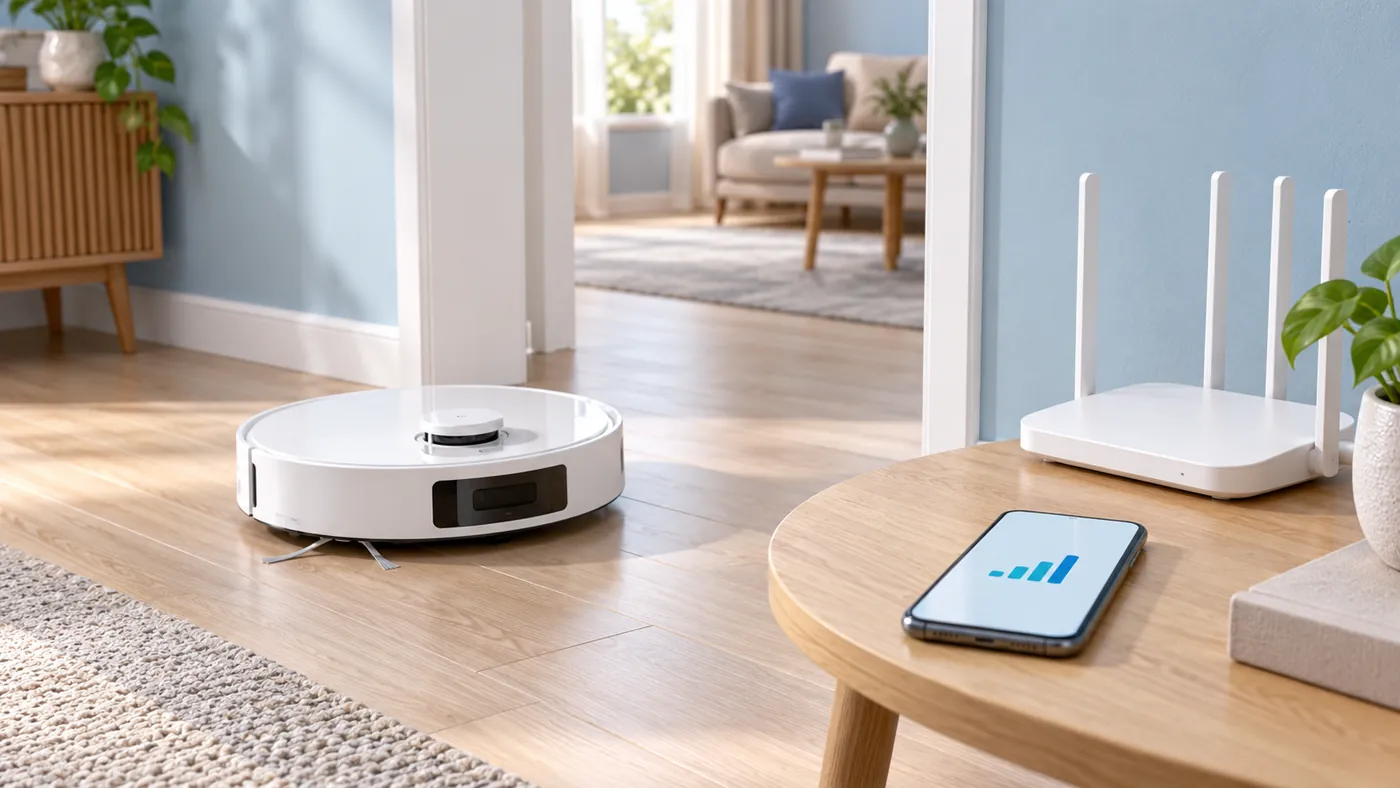
The original manual specifies 2.4 GHz Wi-Fi and identifies incorrect passwords and weak signal as possible setup problems. Verify the credentials for the intended network. A phone’s ability to browse the internet does not establish which band the robot is trying to join.
If your router combines bands under one name, use its documentation to identify how to provide the supported connection during setup. Avoid copying unrelated advanced router settings from another robot’s guide.
Compare behavior near the station with behavior where offline status appears. Keep a short record of the room, time and indicator pattern. This is an observation of the pattern, not a measurement of signal strength; a phone’s bars are only context.
Dreame also recommends restarting the router if connection problems persist. Do this when other users can tolerate a brief interruption, then refresh the app after the router is back online.
4. Reconfigure Wi-Fi when needed
Use the current app’s Add Device flow and select the correct L10s Ultra. If a Wi-Fi reset is needed, the original manual instructs holding the robot’s power and dock buttons together until the network-configuration voice prompt, then adding it again through the app.
Confirm the button symbols in your manual before pressing them. This Wi-Fi procedure is different from using the small factory-reset hole. Dreame warns that a robot reset clears maps and settings; do not use it as an interchangeable shortcut.
Change one thing at a time and record the result. If the robot reconnects after a credential correction, retain that explanation rather than assuming a restart fixed the hardware.
When to contact support
Contact Dreame if the robot remains offline after power, supported network setup and the advised reconfiguration checks. Include the exact model, app version, router model, indicator behavior and error screenshots. Describe whether it ever connects and whether the issue depends on location.
Do not send your Wi-Fi password in a public screenshot. Support needs the error and setup conditions, not exposed credentials. If the robot is online but cannot return to its base, continue with the docking-failed guide.
FAQ
Can the original L10s Ultra connect to 5 GHz Wi-Fi?
Its manual specifies 2.4 GHz support and says it does not support a 5 GHz Wi-Fi connection.
Does offline status prove the battery is flat?
No. Check local power response and charging separately from the app status.
Should I delete the map first?
Start with the network checks. A factory reset affects saved data and should be considered separately.
Manufacturer references
- Dreame: device offline.
- Original L10s Ultra manual — Wi-Fi connection and indicator legend.
- All Dreame guides.
If the robot is reachable again but timed tasks still do not start, see Dreame L10s Ultra Scheduled Cleaning Not Working.
If the app is reachable but the station panel still does not respond, check Dreame L10s Ultra Station Buttons Not Working.
If you need to add the robot again after a network change and pairing does not complete, see Dreame L10s Ultra Not Connecting to Wi-Fi.
If the connection is restored but the pending update does not complete, follow Dreame L10s Ultra Firmware Update Failed.