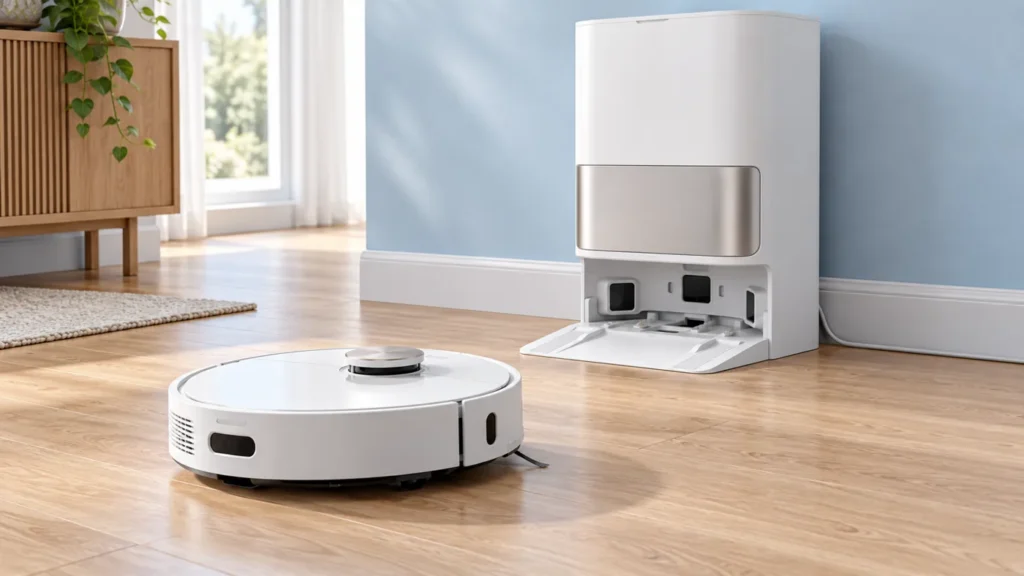
Begin with the quick checks. Stop if a step requires tools or experience you do not have.
Dreame L10s Ultra docking failed? First identify where the return breaks down: finding the station, entering it or confirming charging after arrival. Check station power and the approach route, then inspect the signaling area and charging contacts using a dry cloth.
This guide covers the original L10s Ultra. Follow its own regional manual for station placement and part locations. The illustrations are conceptual rather than exact engineering views.
Separate the stages of docking
| Behavior | Start here |
|---|---|
| Robot cannot find the base | Check whether the base was moved or lost power. |
| Robot reaches the area but cannot enter | Clear the route and check for a wet, slippery floor. |
| Repeated entry and backing away | Inspect contacts and record charging confirmation. |
| Robot settles but does not gain charge | Use the separate charging checks. |
1. Check the base and return route
The original L10s Ultra manual identifies a disconnected or moved station and nearby obstructions as reasons for a failed return. Confirm that the station has power and note whether it was moved while the robot was elsewhere.
Open doors along the return route and remove loose cables or objects in front of the base. The manual calls for 0.5 m of clear space on either side and 1.5 m in front. Keep the approach floor dry; Dreame notes that excess water can make the robot slip.
Watch one return from a distance without guiding the robot with your hands. Note where it stops or reverses. A recording that includes the final approach is more useful than a close-up taken only after the attempt fails.
2. Clean the signaling area and contacts
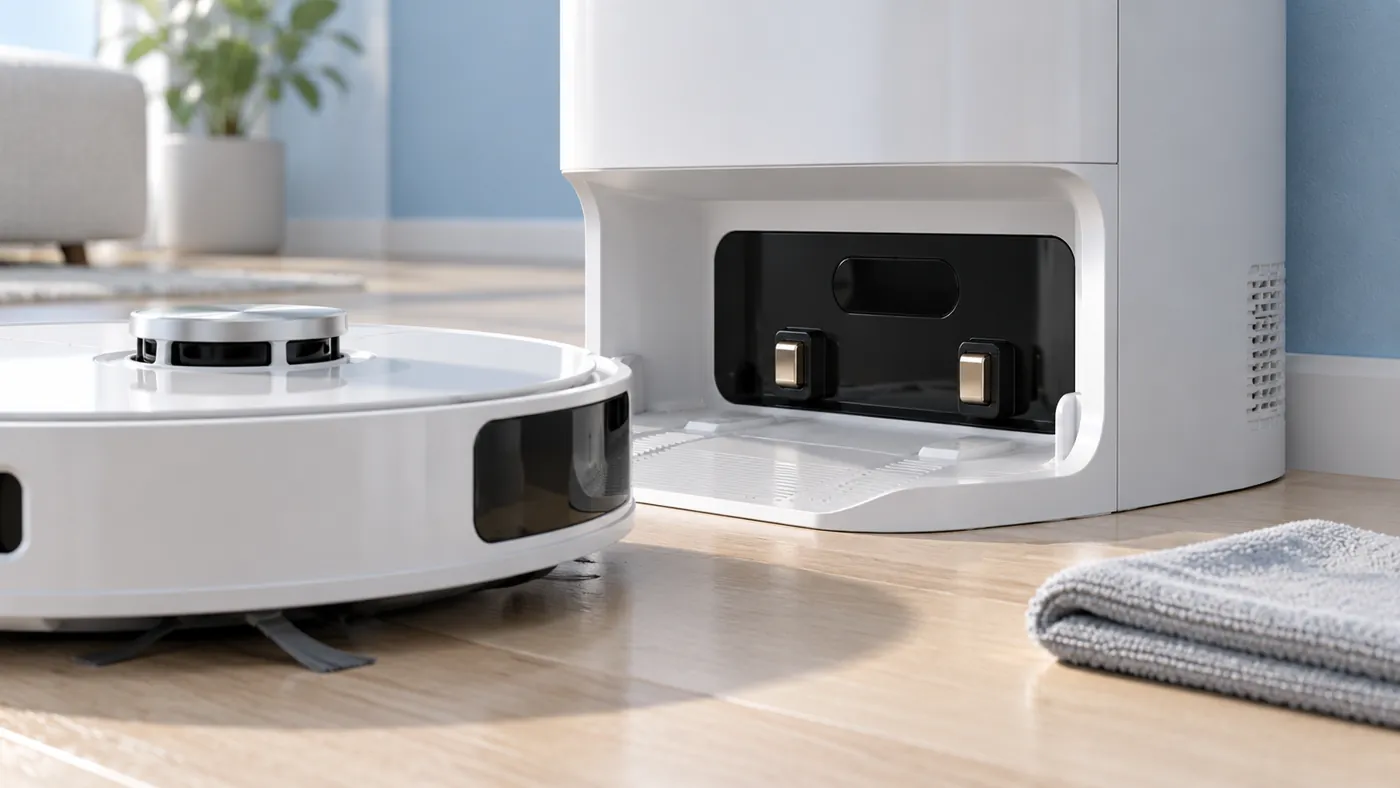
Remove the robot, switch it off and disconnect station power before cleaning. Wipe the station signaling area and charging contacts with a soft, dry cloth, following the manual’s parts drawings. Do not spray liquid into the base.
Dreame’s L10s Ultra docking checklist calls for removing dust or foreign matter from the robot contacts and checking whether charging pins are stuck. Inspect their appearance without bending or forcing them.
If you see damage or a pin that appears stuck, photograph it and ask support for the next step. Applying pressure to hold a connection does not provide a reliable fix.
3. Restart and check charging confirmation
Dreame recommends removing the robot from the dock, restarting it and retrying charging. For a normal restart, follow the original manual’s power-button procedure: hold for three seconds to switch off away from the base, then hold for three seconds to turn on.
Return it to the base normally and listen for the charging voice prompt. Record whether it stays in position afterward. Do not confuse reaching the dock with charging successfully.
If manual placement produces charging but an automatic return fails, report that difference. It narrows the observed problem without proving which sensor or mechanical part is responsible.
4. Keep one consistent test
After the checks, start a short normal task from the station and let it return. Leave the base in the same place. The manual recommends starting from the station and avoiding moving it during cleaning.
Compare the result with your first recording: did the robot find the station, enter it and acknowledge charging? List those events separately. If you moved the base and cleared several obstructions together, record all changes rather than attributing the result to one.
If the app is also offline, investigate that through the L10s Ultra offline guide. If a cleaning session repeatedly stops before any return attempt, use L10s Ultra keeps stopping.
Before considering a factory reset
Dreame’s docking article includes a factory reset as a later step and explicitly warns that it erases data, including maps. Record your observations and ask support about that step if the external checks and normal restart do not help.
A reset changes the conditions of the test. It should not replace checking a visibly blocked route or damaged contact. Keep Wi-Fi reconfiguration, a normal restart and a factory reset distinct.
When to request service
Send Dreame a video of the full docking attempt, photos of the contacts and station setup, and the exact model details. Include whether charging works with normal manual placement and list the checks completed. Persistent failure needs further diagnosis rather than a guessed motor or sensor replacement.
FAQ
Should I keep moving the station until it works?
First check the existing setup and route. Repeated moves make comparisons harder; follow the manual if a new location is needed.
Does backing away prove dirty contacts?
No. Contacts are one check in Dreame’s troubleshooting sequence, not a diagnosis from movement alone.
What if docking works but auto-emptying does not?
Continue with L10s Ultra auto-empty troubleshooting.
Manufacturer references
- Dreame: L10s Ultra docking failed.
- Original L10s Ultra manual — station placement, return and restart instructions.
- More Dreame guides.
If docking trouble follows a moved base or a changed map, check Dreame L10s Ultra Mapping Problems.