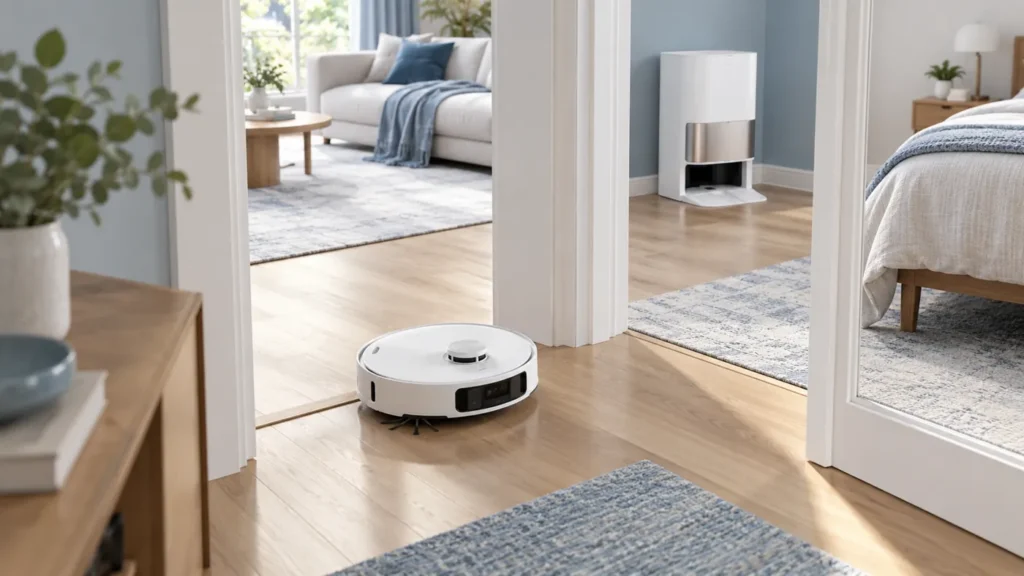
Begin with the quick checks. Stop if a step requires tools or experience you do not have.
Dreame L10s Ultra mapping problems can look similar while needing different checks. A room absent from the saved map, a room skipped during cleaning, and a robot that cannot recognize its position are three separate observations. Start by identifying which one you actually see.
Take a screenshot of the current map and the latest cleaning route. Keep the existing map during the first checks so you can compare results and retain your room divisions and restrictions. This guide covers the original L10s Ultra.
Find the right starting point
| Symptom | First check |
|---|---|
| A room is absent from the map | Check whether its doorway was accessible during mapping. |
| A mapped room is skipped | Review the task’s room selection and physical access. |
| The problem appeared after moving the robot or dock | Observe positioning from the normal base location. |
| An LDS warning appears | Follow the separate LDS error checklist. |
| The map looks normal but the robot stops | Record the actual stop or error before remapping. |
1. Check access to the missing room
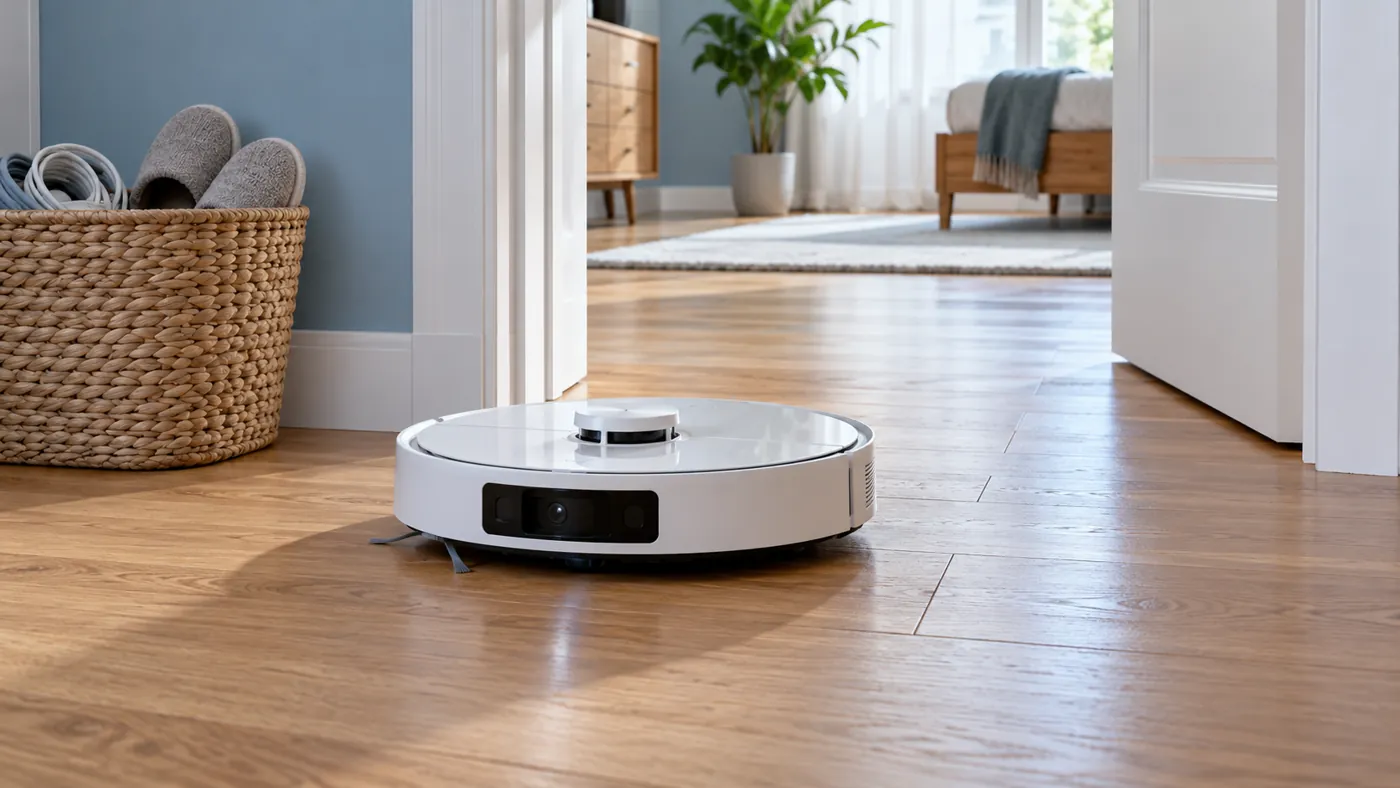
Open the door fully and inspect the route at floor level. A chair leg, cable, or slipper can obstruct a passage that looks clear when viewed from above. Dry any slippery wet patch around the doorway before another attempt.
The manual identifies closed doors, slippery entrances, and thresholds above 2 cm as reasons rooms may be missed. A new map cannot remove a physical step. If the robot reaches the doorway and repeatedly turns away, record that behavior and measure the threshold rather than repeatedly deleting the map.
Also check whether the room was selected for the cleaning task. If it exists on the map but was not selected, its absence from that run’s route does not establish a mapping failure. Review any restrictions visible in the current app and retain restrictions that protect stairs or other unsafe areas.
2. Keep the base location consistent
Check whether someone moved the station, carried the robot to another room, or began the problem run from an unfamiliar location. Dreame explains that moving the robot can trigger repositioning and, if that fails, map recreation.
For a useful comparison, start the next small task from the normal, powered station and leave the station in place. Keep its return route clear. If the robot can navigate the room but cannot return, use the L10s Ultra docking failed guide before treating the whole map as unusable.
Record whether the robot fails immediately near the base or only after reaching a particular doorway. That distinction helps separate a general positioning problem from a local obstacle.
3. Inspect and dry-clean the exterior sensors
Visible dust or smudges deserve a maintenance check. End the task before handling the robot and follow the sensor cleaning checklist, using a soft dry cloth on accessible surfaces.
Do not open the lidar assembly or cover cliff sensors to make the robot proceed. If the app reports an LDS abnormality, preserve the warning and use the LDS error guide. An explicit sensor fault is more useful diagnostic evidence than the general description “bad map.”
4. Decide whether a new map is needed
Consider a fresh mapping run when the saved layout itself is incomplete and the access issue has been corrected. First capture screenshots of room divisions and restrictions you may need to restore. Check the current app’s instructions before replacing or removing a saved map.
The original manual describes Fast Mapping as a run that creates the map without cleaning and saves it after the robot returns to the station. Let that sequence finish before assessing the result. Avoid picking up the robot midway or closing a doorway it still needs to explore.
Afterward, compare the missing area with the earlier screenshot. Check your room selections and safety restrictions before normal cleaning. If the room is now present but a cleaning task still skips it, investigate the task and doorway rather than building another map immediately.
When to contact support
Send before-and-after map screenshots, the exact model, app and firmware versions, any warning, and a short video of the failure location. Mention recent dock movement and whether the same doorway fails on each attempt. If runs end with a separate fault, see the keeps stopping guide and include that error in the report.
FAQ
Should I delete the map whenever a room is missed?
Check room selection and physical access first. A correct map cannot make a closed doorway accessible.
Does Fast Mapping vacuum the floor?
The original model’s manual describes it as mapping without cleaning. Assess map completion after the robot returns to its station.
Can a moved robot affect positioning?
Yes. Compare a run started from the normal base with the problem run and record any repositioning message.
Browse the Dreame troubleshooting hub for related navigation and maintenance guides.
Manufacturer reference: Dreame L10s Ultra user manual, English edition. Model-specific facts above follow that manual; the comparison tests are practical troubleshooting suggestions. App labels may change with software updates.
For repeated physical trapping at furniture or floor transitions, see Dreame L10s Ultra Keeps Getting Stuck.
If the robot’s mopping route crosses a rug that should stay dry, follow Dreame L10s Ultra Gets Carpet Wet While Mopping.
Adding another floor? Follow our L10s Ultra multi-floor setup guide to save a separate map and plan station access.