
Begin with the quick checks. Stop if a step requires tools or experience you do not have.
If your Ecovacs T20 OMNI reports a D-ToF sensor error, save the exact message before changing the map or replacing a part. The specific prompt asking you to gently tap the D-ToF sensor has its own short manufacturer procedure. A distorted map without that prompt is a different starting point.
Begin with the documented action and a normal restart. If the warning remains, collect a clear record for Ecovacs rather than applying increasingly forceful taps. This guide covers the alert and the observations that help support assess it; it does not require opening the sensor assembly.
Match the symptom to the next step
| What you observe | Check next |
|---|---|
| Specific prompt about gently tapping the D-ToF sensor | Use the matching Ecovacs instructions |
| Same prompt returns after restart | Save timing and contact support |
| Sensor housing looks damaged after an impact | Stop manipulating it and report the damage |
| Map is distorted without this sensor prompt | Use separate mapping checks |
| Alert identifies anti-drop sensors instead | Follow underside sensor guidance |
| Robot is caught under furniture | Record the physical obstruction separately |
1. Confirm the D-ToF message
Ecovacs’ T20 D-ToF troubleshooting page addresses the prompt “Please gently tap the D-ToF Sensor.” Its steps describe gently shaking the D-ToF assembly, then shutting down and restarting. It directs persistent problems to ECOVACS Customer Care.
Keep a screenshot or short recording of the actual alert. Note whether it happens before movement, partway through cleaning or after the robot was handled. That timing is useful even if you cannot see anything unusual on the exterior.
Do not translate every navigation interruption into this error. If the wording refers to dusty anti-drop sensors, use the anti-drop sensor guide. It concerns a different documented procedure.
2. Follow the gentle action without adding a repair procedure
Stop the task before handling the robot. Identify the D-ToF assembly from the original T20 documentation and read the linked instruction before acting. If you cannot confidently identify the assembly or what gentle movement means, ask support to demonstrate the step for your model.
The manufacturer gives no force measurement or repeated-impact routine in that page. Do not convert a gentle instruction into striking the housing with a tool, twisting it or attempting to pull it apart. Keep the robot stable while carrying out the applicable step.
If the housing looks cracked, displaced or loose after an impact, photograph it instead of trying to push it back into position. An exterior photo lets support assess what you see without another change to the assembly.
3. Shut down and restart normally
Use the T20’s ordinary shutdown and restart controls after the documented action. A normal restart is different from a factory reset. Keep the saved map and current settings available for the comparison.
Do not interrupt an active firmware installation to test the alert. If an update is currently in progress, follow its instructions through completion first. For an update failure, the firmware troubleshooting guide covers that separate process.
After restarting, note whether the same wording appears immediately. If you can start a normal task, watch from a safe position on a clear level floor away from open drops. Record the outcome without lifting or repositioning the robot during the comparison.
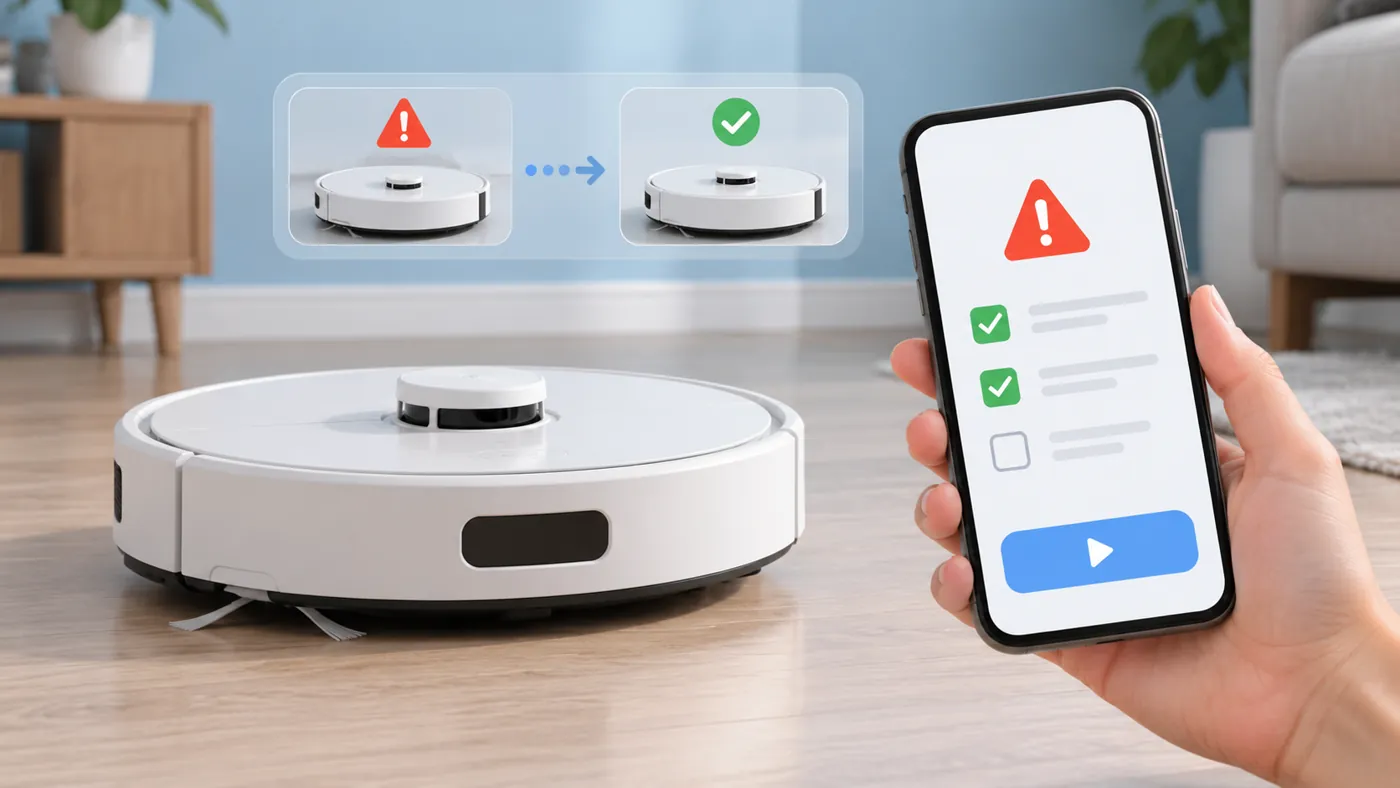
4. Preserve a useful before-and-after record
Use the same simple task for the comparison where possible. Record the original alert, the action taken, the restart and the next result. Changing the map, task and furniture arrangement at the same time makes it harder to tell what changed.
If the alert clears, retain the record in case it returns. One completed task is an observed result, not proof that a component has been repaired. If the warning returns later, add its timing and location to the same record.
If the prompt is gone but the route still looks wrong, use the mapping guide. If a completed task leaves one room untouched, use the missed-room checks. Keep those observations distinct from a sensor alert that is no longer present.
5. Contact support when the warning persists
The manufacturer explicitly directs a persistent D-ToF problem to Customer Care. Send the exact wording, whether it returns immediately after restart, and photos of any visible damage. Include the app and firmware versions and mention a recent impact, spill or move if relevant.
Describe what you did using ordinary words. Avoid reporting a failed motor, belt or internal sensor unless a technician has established that diagnosis. The warning does not identify a replacement part by itself.
Ask Ecovacs to confirm the next service step and any warranty implications before opening the assembly or buying parts. If they request a video, show the alert and normal behavior from a safe position; do not stage a collision to reproduce it.
Frequently asked questions
Should I keep tapping until the warning disappears?
No. Follow the gentle documented action and restart; persistent warnings belong with support.
Should I rebuild the map first?
For this specific prompt, start with its matching instructions. Preserve the map so you retain the original evidence.
Does the message prove the sensor needs replacement?
No. It identifies a troubleshooting path, not a confirmed failed part.
See the Ecovacs hub for other T20 OMNI guides.