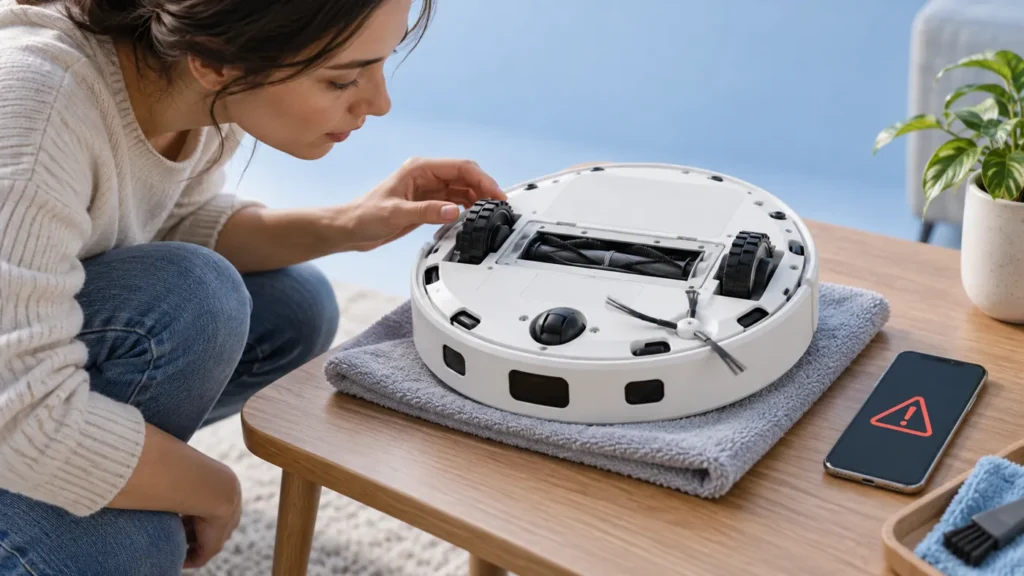
Begin with the quick checks. Stop if a step requires tools or experience you do not have.
An Ecovacs T20 OMNI anti-drop sensor error needs a different check from a general navigation complaint. Save the exact app message before clearing it. If the warning identifies dust on the anti-drop sensors, start with the underside sensor-cleaning procedure documented by Ecovacs.
These checks do not require opening the robot. Keep it away from stairs and other drops while the warning is unresolved. Do not cover sensor windows with tape or try to defeat their protective function to make the robot continue.
Match the warning to the next action
| What you observe | Check next |
|---|---|
| Message identifies dust on anti-drop sensors | Inspect and wipe the underside sensors |
| Warning returns immediately after cleaning | Record the result after a normal restart |
| Warning appears at one location | Save that location and compare on safe level floor |
| Robot is physically trapped | Check the obstruction separately |
| Saved map looks wrong without this warning | Use the mapping guide |
| Sensor window looks damaged | Stop further probing and ask support |
1. Confirm the exact alert
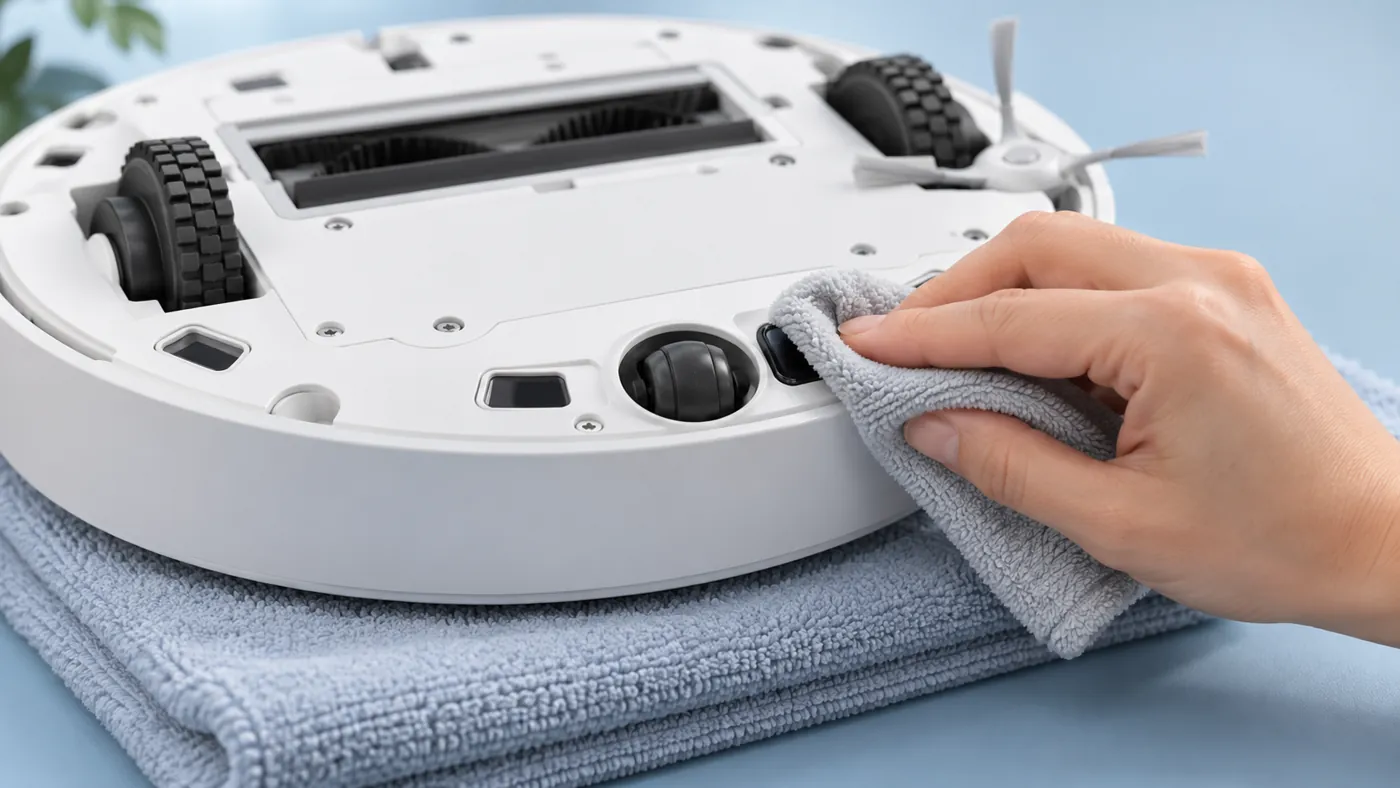
The manufacturer’s T20 anti-drop sensor guidance addresses a message about dust covering the sensor. Its procedure is to gently turn the robot over, wipe the anti-drop sensors on the bottom, then shut down and restart.
Take a screenshot and note when it appeared: at startup, during a route or after you moved the robot. Do not replace the wording with a broad label such as “laser error.” A warning about the underside sensors and one about another sensor can call for different instructions.
If the robot is visibly caught on an object, record that too. The getting-stuck guide covers physical traps. Clearing a trap does not remove the need to check a sensor warning that remains afterward.
2. Prepare for a gentle underside inspection
Stop the active task and power the robot off before handling it for maintenance. Use a clear stable surface and support the robot while turning it over. Avoid pressing its upper sensor housing against a hard surface.
Consult the original T20 layout to identify the anti-drop sensor windows. The illustrations here show a general maintenance scene rather than an exact count or placement. If you cannot identify a window confidently, use the manufacturer documentation before wiping random openings.
Look at each relevant surface in good light. Photograph visible dust or contamination before cleaning so you can compare the result. Do not remove a cover, loosen screws or insert a tool into a sensor opening for this check.
3. Wipe the windows without creating a new problem
Use a clean soft dry cloth for the exterior window surfaces. Wipe gently and inspect again for remaining loose dust. The purpose is to leave an unobstructed window, not polish it aggressively or push dirt inside the robot.
Do not spray the underside, use an abrasive pad or scrape a window with a blade. If residue will not come away with a gentle exterior wipe, ask Ecovacs for the suitable cleaning method rather than escalating to solvents.
Check the cloth itself before moving from one window to the next. A dusty cloth can move contamination around without making the surfaces clearer. If a window appears cracked, loose or deeply scratched, photograph it and stop pressing on it.
4. Restart and compare on safe level floor
After cleaning, return the robot upright and follow the ordinary shutdown and restart controls for the T20. A restart is the second step in the documented sensor procedure. Do not substitute a factory reset, which is a broader change.
Choose a clear level floor area away from any open drop. Observe a normal permitted task from a safe position and record whether the same warning returns. This is a comparison of the alert, not a test of whether the robot will stop at a staircase.
If the message returns immediately, save that result. If it returns only at one point in a route, photograph the location and note the task. A location pattern is useful evidence for support, but it does not by itself establish a damaged sensor or a particular floor incompatibility.
5. Keep sensor and coverage problems separate
If the alert clears but the robot still omits a room, use the missed-room guide to review the completed task and doorway access. Repeatedly cleaning sensors will not tell you whether that room was selected in the first place.
If the map is overlapping or distorted, use the mapping checks. Keep screenshots from before any map changes. A map reset should not become the automatic response to every alert.
For an unrelated brush warning, follow the matching main-brush guide. Report each symptom in its own words instead of combining several alerts into a presumed navigation failure.
When to contact Ecovacs
Contact support if the same anti-drop warning remains after gentle cleaning and a normal restart, or if a window looks damaged. Send the exact message, underside photos, timing of recurrence and any recent impact or spill. Mention whether the alert returned immediately or at a repeatable location.
Keep the robot away from exposed drops until the problem is resolved. Do not order a sensor solely from a general error label: ask support to confirm the diagnosis and the correct service route.
Frequently asked questions
Can I tape over the sensor to keep cleaning?
No. Leave the protective sensors uncovered and address the warning.
Is a factory reset the first step?
The documented procedure uses cleaning and a shutdown/restart. It does not call for a factory reset.
Does repeated warning mean the sensor must be replaced?
It is a reason for support assessment, not proof of a specific failed part.
Find other T20 guides in the Ecovacs hub.