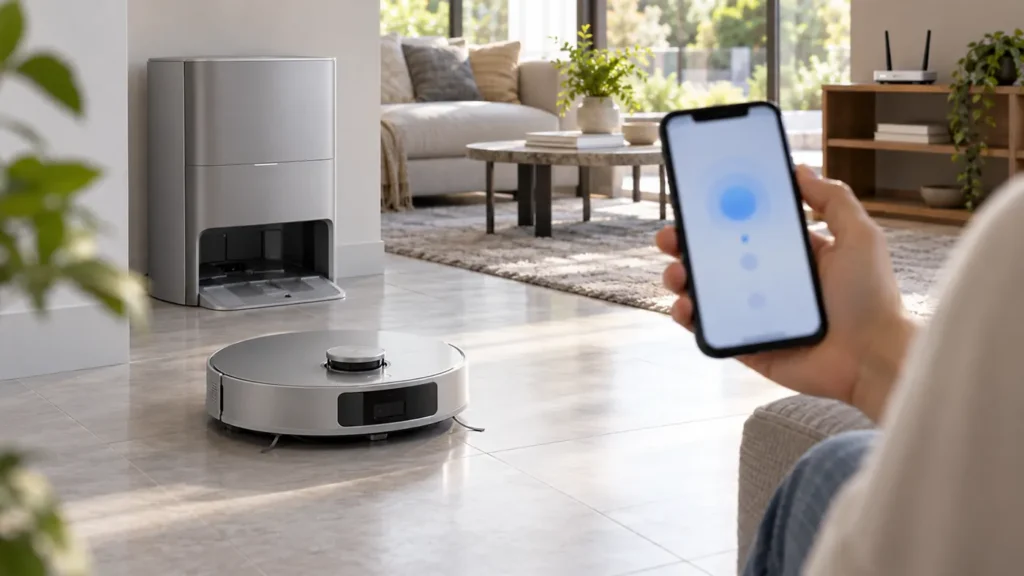
Begin with the quick checks. Stop if a step requires tools or experience you do not have.
If your Ecovacs T20 OMNI is not connecting to Wi-Fi, first distinguish a failed initial setup from a robot that was connected and now appears Offline. Keep the exact screen where setup stops. A phone reaching the internet does not establish that the robot completed the same connection.
Start here: use ECOVACS HOME, confirm the phone is on your home Wi-Fi and follow the T20 setup prompts. Check app permissions and the selected network before deleting the robot or changing the entire router configuration.
Find the connection symptom
| What you notice | Next check |
|---|---|
| First setup does not complete | Check app permissions and the selected network. |
| Only a separate 5 GHz network is selected | Use the home 2.4 GHz network for setup. |
| Wi-Fi name is hidden | Make the network visible for configuration. |
| Robot used to connect but now shows Offline | Follow the app’s offline checks and compare locations. |
| Connection fails around mesh nodes | Try setup with the main router as Ecovacs describes. |
| Setup works on another suitable network | Compare the home-network conditions before assuming hardware failure. |
1. Confirm the app and setup stage
Ecovacs says to add the T20 OMNI by scanning its QR code in ECOVACS HOME or selecting the model manually, then follow the app. Use those model-specific prompts for entering connection mode instead of borrowing a button sequence from another DEEBOT.
Write down whether failure occurs before selecting Wi-Fi, while joining the robot’s temporary network or after entering the home password. This makes the next check specific. Keep passwords out of screenshots you send to support, and avoid deleting a saved device just to repeat an unexplained failure.
2. Check phone permissions and connectivity
Ecovacs recommends the current app and enabled location permission. On iOS it also specifies Local Network permission and Precise Location. During setup, its troubleshooting guidance suggests temporarily disabling mobile data and VPN software. Restore your normal phone settings after the comparison.
While connected to home Wi-Fi, check whether a browser can access the internet. If the phone cannot do that, resolve the home connection before repeating robot setup. If it can, continue: internet access on the phone is one useful check, not proof that all pairing conditions are correct.
Change one thing at a time and repeat from the same setup stage. Record whether granting a permission changes the error or simply allows you to reach a later screen. That difference is more useful than describing every attempt as “it still does not connect.”
3. Select a supported home network
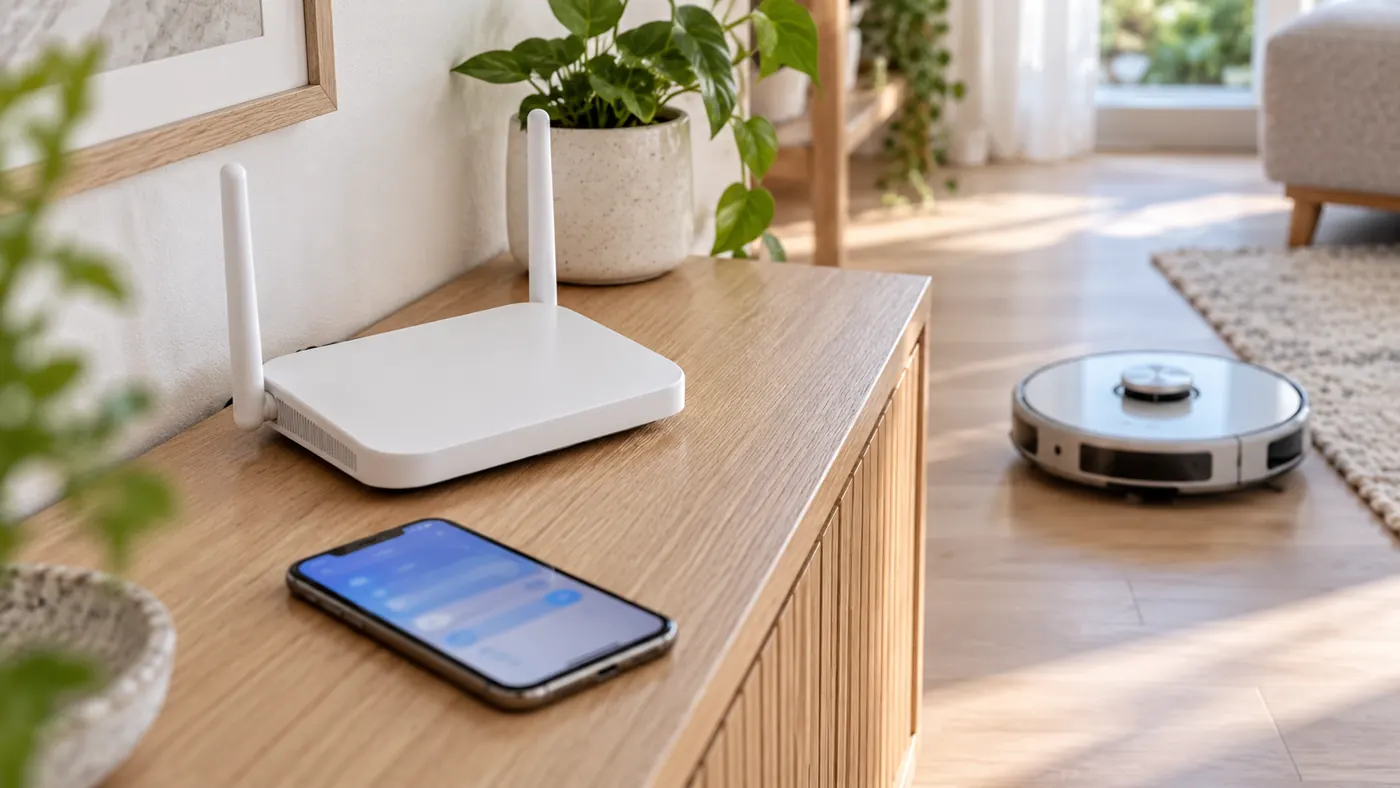
The T20 supports 2.4 GHz Wi-Fi and mixed 2.4/5 GHz networks. Ecovacs says that if the router broadcasts separate names, temporarily ignore the 5 GHz signal during setup. A shared dual-band name does not automatically require separating the bands.
Ecovacs also excludes hidden networks, VPN or proxy connections and networks requiring web authentication. Confirm the Wi-Fi password carefully. A hotel-style sign-in page is different from entering an ordinary home Wi-Fi password, so repeated attempts on that network may not be a useful test.
4. Retry a stalled temporary-network step
If the ECOVACS_XXXX network appears but cannot be joined, Ecovacs recommends switching the robot off and restarting it, waiting two to three minutes and trying configuration again. Follow the app afterward. This is a normal restart, not a factory reset.
Observe whether the same stage fails again. A different error after restart may show that the process progressed, even if setup is still incomplete. Keep both messages rather than assuming the first problem and the later one have the same cause.
5. Check Offline behavior after successful setup
For a previously connected robot with one router, Ecovacs directs users to the app’s troubleshooting instructions. If several routers have different names and passwords, its guidance describes adding those networks through Wi-Fi Management while the robot is online.
For mesh systems or extenders, Ecovacs recommends turning extenders off for initial connection to the main router, then turning them back on afterward. Compare whether the robot stays connected near the main router and becomes Offline elsewhere. Record the location rather than immediately rebuilding its map.
If the layout itself is distorted, use the separate T20 mapping guide. If the robot will not power on or recognize the station, start with the charging checks.
6. Use a second network as a comparison
Ecovacs offers a two-phone hotspot test when the earlier checks fail: one phone runs the app and the other provides the hotspot. Use its detailed instructions and a suitable network. Success there narrows the investigation toward the home-network setup; it does not identify one faulty router setting.
If both attempts fail, send support the setup stage, error, phone system, app version and network arrangement. Avoid diagnosing a failed Wi-Fi module from a single unsuccessful pairing attempt.
FAQ
Must I split a mixed 2.4/5 GHz network?
Not necessarily. Ecovacs explicitly supports a mixed network; check the setup result first.
Does Offline mean the robot is broken?
No. Compare its power state, location and network behavior before considering hardware service.
Should I factory-reset immediately?
Complete the permission and network checks first, and keep the error details.
Browse the Ecovacs hub. If you need firmware access for a dust-bag warning, return to the auto-empty guide after restoring connectivity.
Official sources: Ecovacs T20 connection setup, pairing troubleshooting and Offline and mesh-network checks.
If the robot is online but an update fails, follow the T20 OMNI firmware-update checks.
If the robot is online but voice commands fail, use the T20 OMNI YIKO guide.