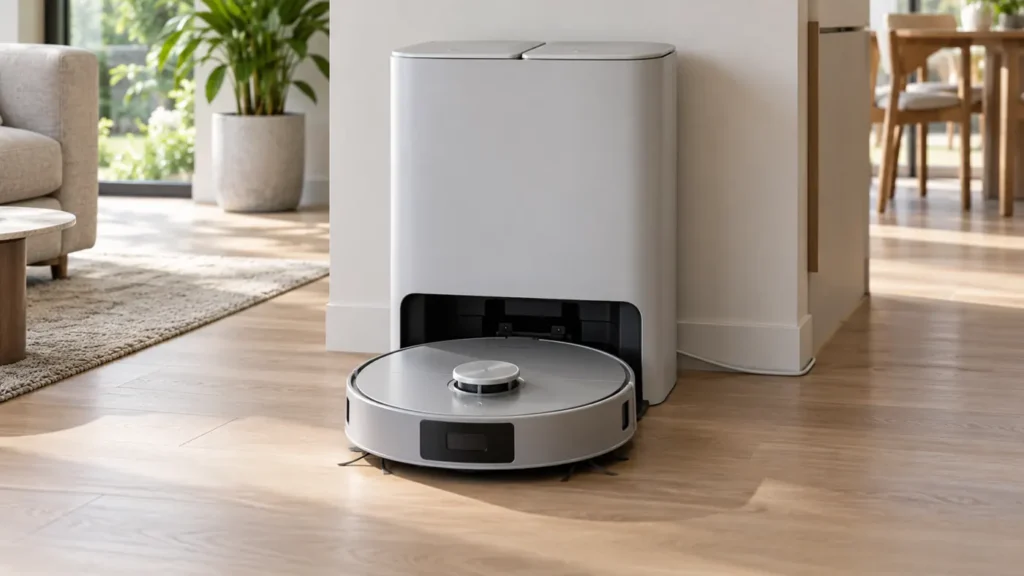
Begin with the quick checks. Stop if a step requires tools or experience you do not have.
If your Ecovacs T20 OMNI is not charging, begin with the station’s power connection and the robot’s position. A robot that cannot reach the contacts needs a different check from one that docks normally but gains no charge. Keep the exact light pattern and voice message in your notes; they are more useful than an assumption about the battery.
Quick check: confirm station power, set the robot’s switch to I, and watch one docking attempt. If charging starts, allow the manufacturer’s recommended charging period before testing cleaning again.
Choose the right charging check
| What you see | Next check |
|---|---|
| Robot cannot enter the station | Inspect the entrance and watch where docking stops. |
| Robot docks but gives no charging indication | Check power, contact cleanliness and seating. |
| Robot will not power on | Use the T20 OMNI manual docking procedure. |
| White AUTO light flashes after docking | Leave it charging and compare the later result. |
| Red light flashes or a warning is spoken | Record and follow the specific warning. |
| Charging begins but runtime remains short | Separate charging from battery-runtime assessment. |
1. Confirm power at both ends of the cable
Ecovacs recommends checking the plug at the wall and the cable connection at the back of the station, and trying a different outlet. Inspect the visible cable for damage before reconnecting it. A station sitting in its usual place does not establish that its power connection is secure.
If a switched socket or extension is involved, check its position and compare with a known-working outlet where practical. Keep the station stable during the test. Note whether anything changes after you restore power; do not repeatedly move the station while also adjusting the robot, because that makes the result harder to interpret.
2. Check the robot’s power switch
Lift the robot’s top cover and confirm its switch is at I, the on position. If it responds normally, Ecovacs says to place it in front of the station and hold AUTO for three seconds to request docking. Watch the entire attempt rather than leaving as soon as it turns toward the station.
Does it enter smoothly, stop at the entrance, or reverse away? A short video can show a repeated stopping point. When the problem began after maintenance, pay particular attention to anything you removed or replaced. Restore the normal setup before judging whether the charging system has failed.
3. Compare automatic docking with correct seating
For a robot that cannot power on, Ecovacs describes manually docking its rear end into the station’s cleaning sink. Follow the T20 OMNI instructions and guide it gently; do not force it against resistance. The expected charging signs are a voice prompt and a flashing white AUTO button. Ecovacs advises checking again after four to five hours.
If correct seating starts charging but automatic docking does not, that narrows the investigation toward access or alignment. It does not prove that a particular sensor is faulty. If neither approach produces a charging indication, continue with the accessible contact checks.
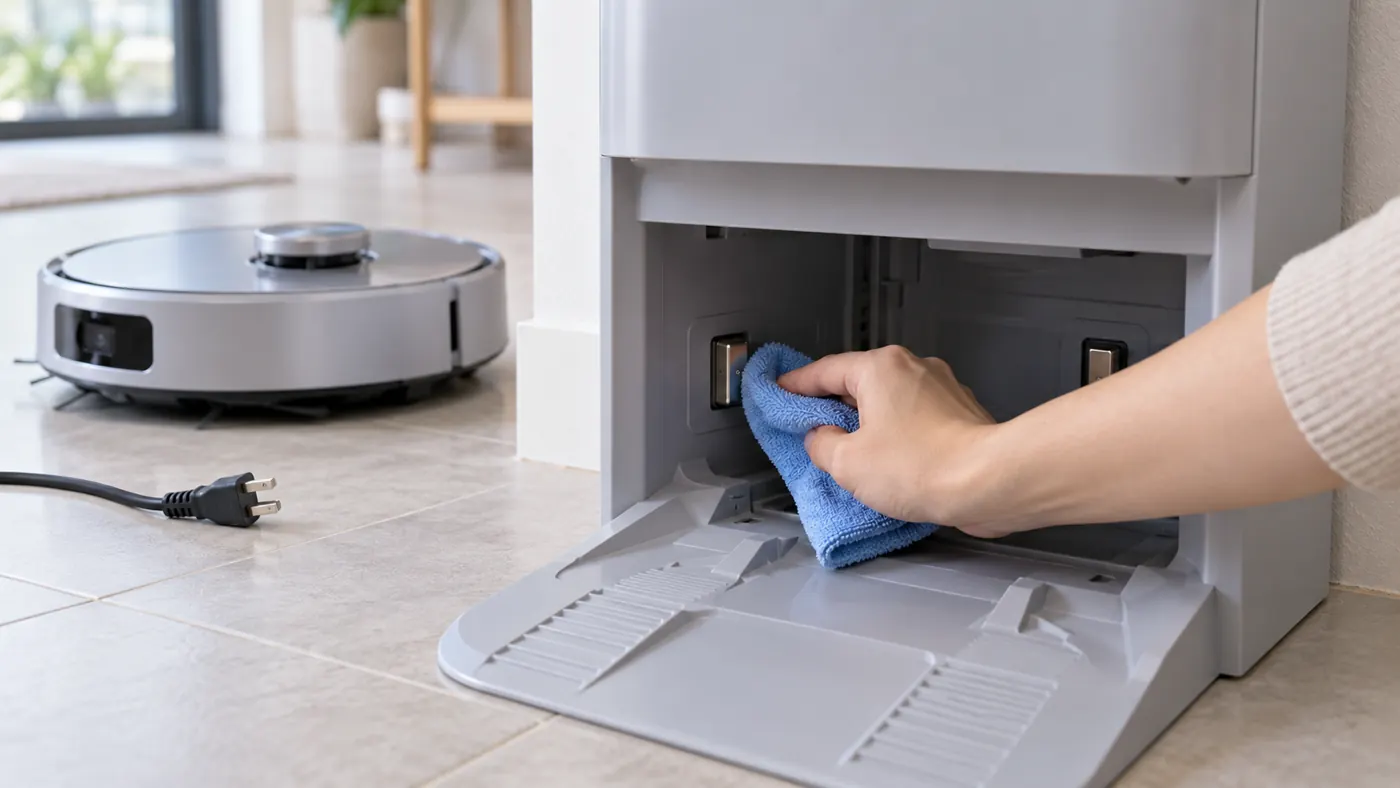
4. Inspect the sink and charging contacts
Switch off the robot and unplug the station before maintenance. Ecovacs includes a dirty cleaning sink and charging electrodes among its charging checks. Remove accessible debris and gently wipe the contact surfaces with a soft dry cloth. Avoid abrasive tools, bending electrodes or putting liquid into the station.
Reconnect and repeat the same docking test. Compare the light, spoken response and final position with the first attempt. If the result changes after cleaning, retain that observation for your maintenance notes. If nothing changes, avoid treating more pressure on the robot as a repair.
5. Check recent mop-pad changes
Ecovacs also recommends genuine mopping pads when investigating this symptom. If charging trouble began immediately after fitting different pads, compare their fit with the specified parts and check that the pad assemblies are installed correctly. See the T20 OMNI parts compatibility guide before ordering anything.
A timing connection is a clue, not a diagnosis. Record whether returning to the specified setup changes docking. Do not buy a new battery solely because the robot stopped charging after a consumable change.
6. Assess the result after charging
If charging starts, leave the robot in place for the recommended period, then run a small task. Record whether it can start, how long it operates and whether the battery indication changes unexpectedly. A robot that accepts charge but has poor runtime needs further assessment; that differs from never recognizing the station.
For a battery purchase, use the battery finder to check the exact model. Persistent failure after power, seating and contact checks belongs with Ecovacs support. Provide the robot and station model details, alert wording and docking video.
FAQ
Does an offline app mean the robot is not charging?
Check the physical charging indications too. An app connection problem does not by itself establish a charging failure.
Should I reset the robot first?
Complete the power and seating checks first. A reset does not clean contacts or secure a loose cable.
What if charging works but the mop pads stay dry?
Continue with the separate T20 OMNI water checks.
Browse the Ecovacs troubleshooting hub or the T20 maintenance schedule.
Official sources: Ecovacs charging troubleshooting and T20 OMNI charging instructions. RoboFixGuide is independent of Ecovacs.
If your T20 OMNI cannot reach or enter the station, follow the docking checks. If its saved layout is distorted or overlapping, use the mapping guide.
If charging is recognized but an unfinished task does not continue, use the T20 OMNI cleaning-continuation guide.
If charging is recognized but the app reports station disconnection, use the T20 OMNI station-connection guide.