Begin with the quick checks. Stop if a step requires tools or experience you do not have.
If your Roborock S8 won’t dock, watch where the return attempt fails. Searching in another room, stopping near the base and reaching the contacts without charging point to different next checks. Begin with the dock’s power and approach area, then compare a short return attempt.
This guide covers the original S8 with its compact charging dock. It does not cover mop-washing or refill failures on an S8 Pro Ultra or S8 Max Ultra station.
Where does the return attempt stop?
| Symptom | Start here | What to observe |
|---|---|---|
| Robot searches elsewhere in the home | Starting location, access and map | Does it know the route back? |
| Robot reaches the base but cannot settle | Floor and approach clearance | Does anything interrupt alignment? |
| Robot settles but does not charge | Power and charging contacts | Is this a charging problem? |
| Failure follows carrying the robot | Repeat a task started at the dock | Does the same failure happen without moving it? |
| Short return succeeds, long return fails | Route and room access | Where does the longer route break down? |
1. Separate docking from charging
If the robot reaches its normal resting position but no charging status appears, use the S8 not charging guide. Rebuilding a map is unlikely to clarify a problem that occurs only after the robot reaches the contacts.
Before a return test, check the dock cable connections and powered outlet. The dock’s light is not interpreted the same way while charging as when the robot is away, so compare it with the S8 manual rather than assuming an unlit dock always means a fault. Do not test with damaged cables or a wet dock.
2. Clear the approach to the compact dock
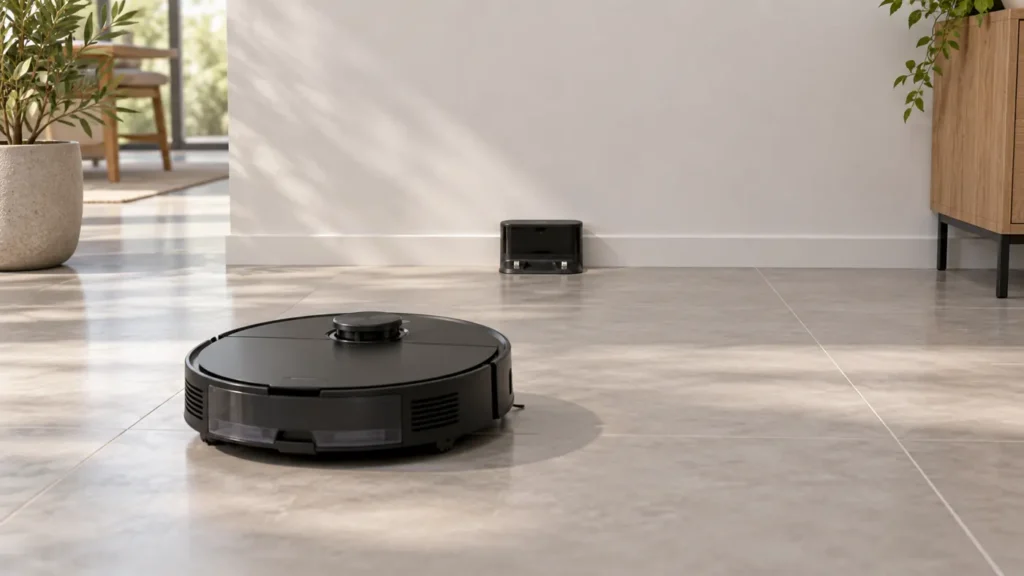
Roborock specifies a level position against a wall, with at least 0.5 m of space on each side and 1.5 m in front. Move shoes, loose cables and other objects out of that area. Keep the dock out of direct sunlight and leave its location beacon unobstructed.
Look at the last part of the approach as well as the wider room. A loose mat, a rug edge or a cord can interfere even when the dock is visible from across the floor. Watch whether the base shifts when the robot approaches. Do not build a makeshift ramp to compensate for a poor location.
3. Clean the signal surfaces
Roborock’s docking support article recommends cleaning the dock’s front signal area and the robot’s front sensor. Unplug the dock and turn off the robot for exterior care. Use a soft dry cloth, and follow the S8 manual when identifying sensor and contact areas. Reconnect the dock before testing.
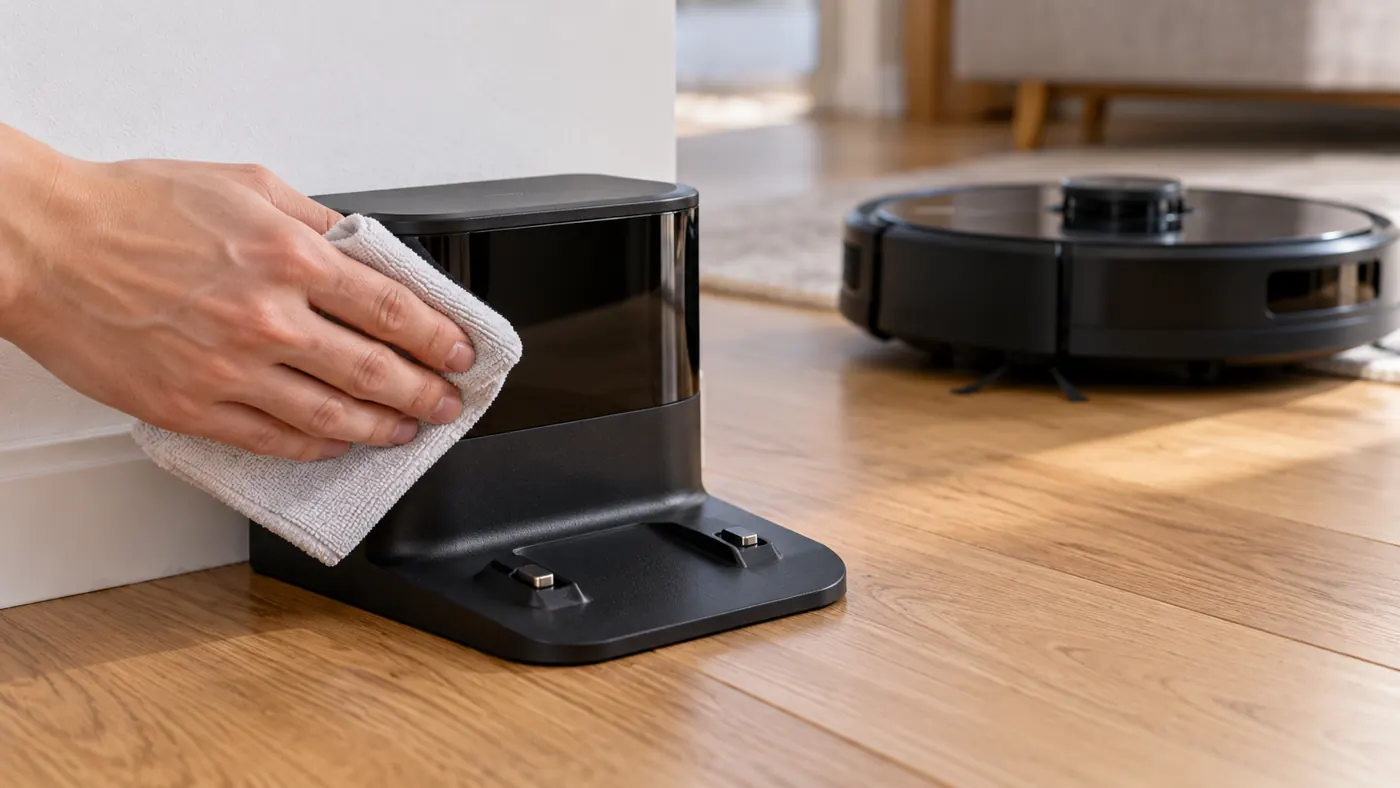
A film of dust is worth addressing, but cleaning is not proof that the beacon or receiver works. If the robot repeatedly approaches and abandons the base, record that behavior rather than assuming another wipe will solve it.
4. Compare a short return started from the dock
With the robot charged, begin a small nearby cleaning task from the dock. Keep the base in place and do not carry the robot during the task. Pause once it has moved into the clear nearby area, then send it back using the Dock control. Observe the approach without pushing it into position.
If the short return works, compare a normal task from the same starting point. This does not prove every component is healthy, but it helps separate a local approach problem from one that appears only after navigating farther away.
The S8 manual notes that spot cleaning returns the robot to its starting point. A robot stopping where a spot task began is therefore not automatically a failed normal docking attempt. It also warns that manually placing a paused robot on the dock ends the current cleanup.
5. Trace a failed longer route
Check whether a door closed during cleaning or an obstacle now blocks the way home. If the app shows a wrong floor layout, a displaced dock position or confusing room outlines, use the S8 mapping guide. Keep screenshots before changing the map.
If the robot cannot move normally or stops with a brush alert, resolve that interruption first with the S8 main brush guide. A task stopped by an active error is a different situation from a robot freely moving but failing to find its base.
When to stop repeating the test
Contact Roborock if the powered dock has a clear approach and clean signal surfaces but nearby return attempts still fail. Send a video showing the final approach, the exact dock and robot model, any alert and whether manual placement produces charging. Those observations are more useful than simply reporting that it “doesn’t work.”
If the battery is running low, place the robot on the dock to recharge instead of allowing repeated searches to drain it. Stop using equipment with damaged contacts, a burning smell or visible liquid damage. Persistent faults should be diagnosed before ordering a dock or internal sensor.
Find related guides in the S8 troubleshooting section and routine care in the S8 maintenance schedule.
FAQ
It charges when I place it on the dock. What does that tell me?
Charging can occur in that position. It does not establish why automatic approach fails; compare the signal surfaces, clearance and route.
Should I move the dock during cleaning?
Keep it in one position during a task and comparison run. If you need a better location, change it between tasks and recheck navigation.
Should I factory-reset the S8 immediately?
Check power, access, signal surfaces and a short return first. A reset adds setup work without showing which stage of docking failed.
Official references
- Roborock support: robot cannot find its dock.
- Original S8 user manual — dock installation, spot cleaning and return behavior.
If charging or docking works but an unfinished task does not continue, see S8 not resuming after charging for quiet-hours and manual-docking checks.
For a step-by-step external cleaning routine, see how to clean the S8 sensors before repeating navigation tests.