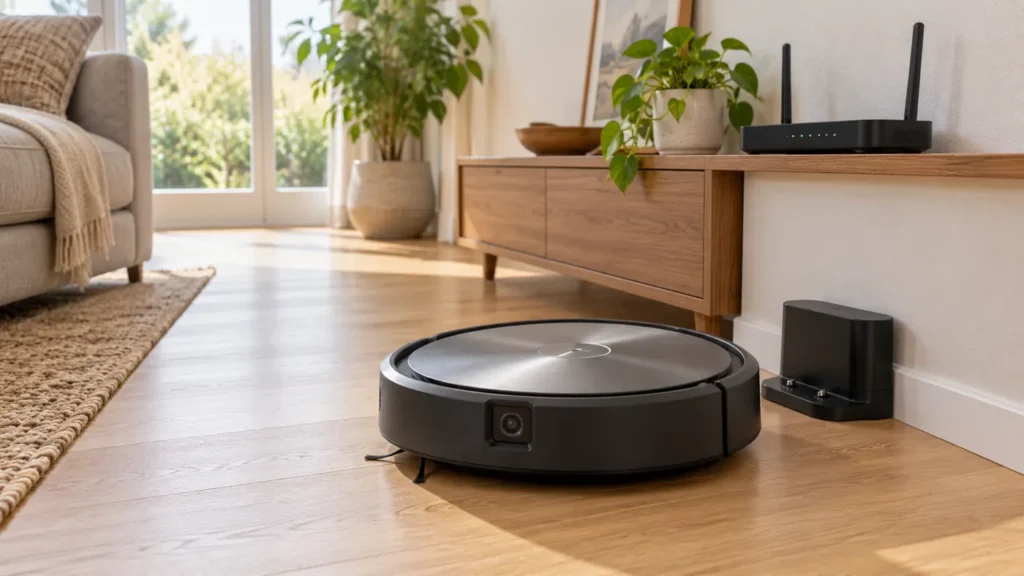
Begin with the quick checks. Stop if a step requires tools or experience you do not have.
If your Roomba j7 is not connecting to Wi-Fi, first identify where the process stops: the phone cannot find the robot, the network password is rejected, or a previously connected robot now appears offline. Keep the exact app message and make one change at a time.
The vacuum-only j7 and j7+ use the classic iRobot HOME app. iRobot lists the j7 as supporting both 2.4 GHz and 5 GHz Wi-Fi. It is not a 2.4-GHz-only robot, so disabling 5 GHz is not a universal fix.
Match the symptom to the next check
| What you observe | Start here | What to compare |
|---|---|---|
| No robot found during setup | Power, Bluetooth and app permissions | Can the phone discover the nearby j7? |
| Password rejected | Selected network and typed password | Is this the intended home network? |
| Previously connected robot is offline | Charging, internet access and exact code | Did the problem follow a router change? |
| Robot works from its button only | Connection status | Is power available while app control fails? |
| App reports another account owns the robot | Official ownership-transfer process | Is this an account issue rather than Wi-Fi? |
1. Confirm the j7 is operational
iRobot’s connectivity guidance begins by checking charge and starting a task from the robot’s button. If the j7 responds locally but the app cannot control it, you have a useful connection symptom to investigate. If there is no response anywhere, use the j7 won’t turn on guide first.
Keep the robot properly seated on its powered base during setup. If charging is unreliable, complete the j7 charging checks. Repeated connection attempts are difficult to interpret when the robot is losing power.
2. For first-time setup, check discovery
Use the current classic iRobot HOME app on a phone, enable Bluetooth and allow the permissions requested during setup. Connect the phone to the intended home Wi-Fi. Choose the j7 when adding a product and follow the app’s model-specific activation prompts; do not substitute a multi-button sequence from another Roomba.
Stay near the robot while completing setup. If the app cannot discover it, note whether the robot gives the expected activation response. A missing response points you back to power and activation checks before any router setting change.
A message about registration to another account is a separate branch. Follow iRobot’s ownership-transfer instructions or contact support; retyping the Wi-Fi password will not resolve account registration.
3. Check the network you actually selected
Confirm the network name, then type its Wi-Fi password carefully. Distinguish the home-network password from your iRobot account password. If several similarly named networks appear, write down which one you selected so the next attempt tests the same connection.
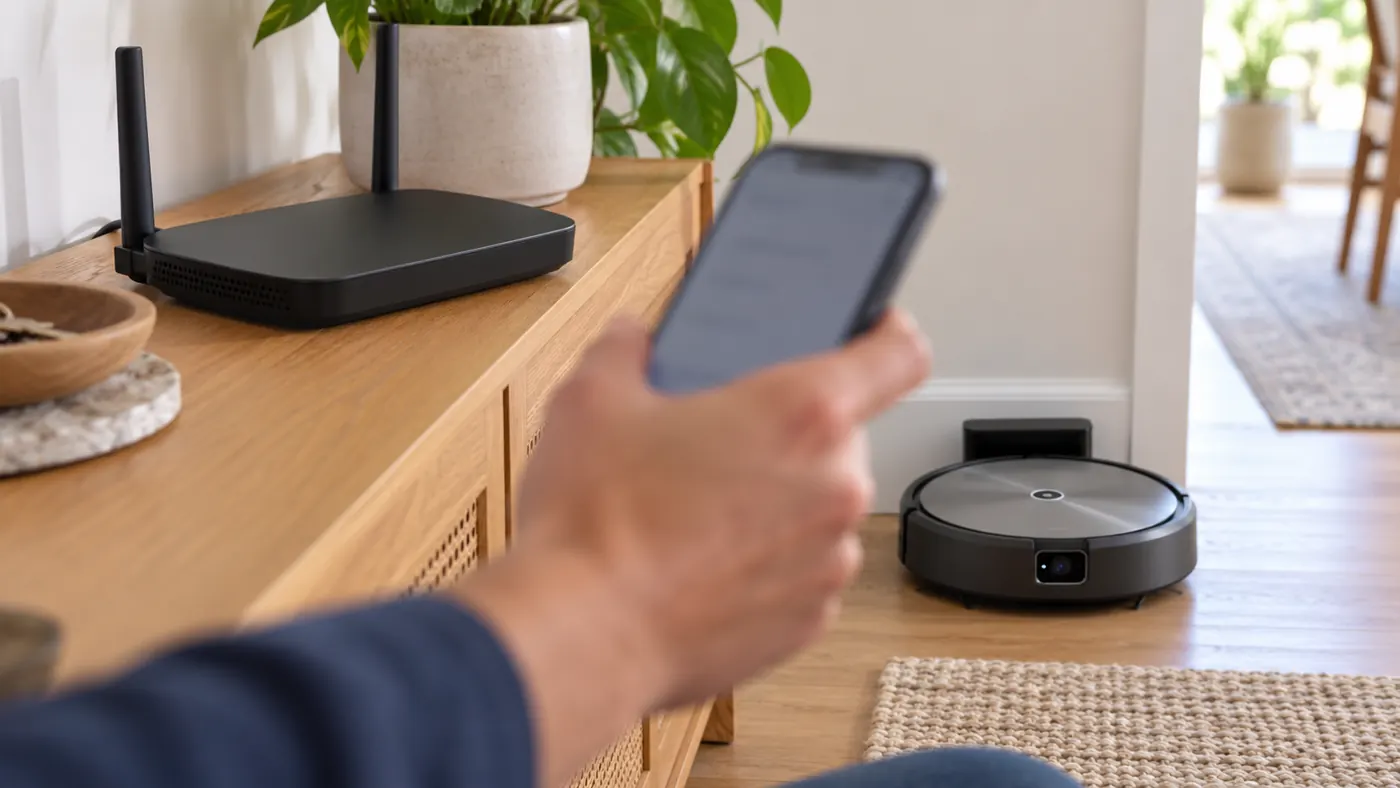
Test internet access on another device using that same network. A phone browsing successfully through cellular data does not show that the home Wi-Fi has internet access. iRobot specifies a home network that permits device discovery; an isolated guest or managed network may need its owner’s configuration guidance.
For a coverage comparison, try setup where the dock has a stronger connection to the router. If your router offers separate bands, you can compare them deliberately because the j7 supports both. A successful attempt on one band is useful evidence about that network setup, not proof that the other band is unsupported.
4. If a previously connected j7 went offline
Note what changed: router replacement, new network name, password change or a power outage. If the credentials changed, use Product Settings → Wi-Fi Settings → Reconnect or Change Product Wi-Fi in the classic app and follow its prompts.
If the credentials did not change, check the app’s exact connectivity code. iRobot provides different steps for different codes; follow the matching row instead of applying a generic reset sequence to all failures. Record the code before restarting anything.
Close and reopen the app as appropriate to that code. If a robot reboot is indicated, use the current j-series reboot procedure and give reconnection time to complete. Avoid deleting the robot from the account or factory-resetting it as the first response to an offline label.
5. Compare the phone and network separately
If available, repeat setup with another supported phone while keeping the robot and network the same. A different result helps narrow the phone or app side of the problem. Then, if the manufacturer’s error instructions call for it, compare another permitted home Wi-Fi network.
Change only one part of the comparison at a time and keep its result. Do not disable all router protections to make a test work. Consult the router’s instructions or its administrator for network compatibility questions.
When to contact iRobot
Send support the exact j7 model, app and robot software versions, router model, network band and error code. Explain whether discovery fails, the network join fails, or a connected robot later goes offline. Include whether local button control works and which comparison changed the result.
If Wi-Fi reconnects but room-specific cleaning remains wrong, use the j7 mapping guide. A restored app connection and an accurate Smart Map are separate checks. More model-specific help is in the Roomba guide section.
FAQ
Is the j7 limited to 2.4 GHz?
No. iRobot lists support for both 2.4 GHz and 5 GHz on this model.
Does “offline” mean the robot cannot clean?
Check its local button response. It may have power and local control while the app connection needs attention.
Do I need to rebuild the map after changing Wi-Fi?
Use the app’s reconnect workflow first. Do not delete a usable map merely because the network credentials changed.