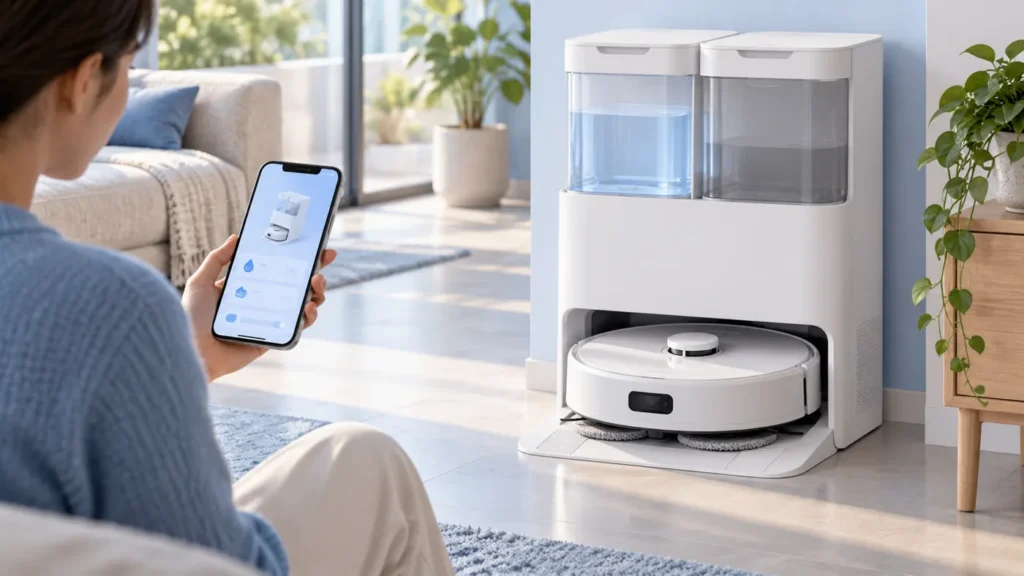
Begin with the quick checks. Stop if a step requires tools or experience you do not have.
If your Ecovacs T20 OMNI hot-water mop washing is not working, start by identifying which station operation you watched. Cold water at the beginning of a task is not enough to diagnose a heater fault. The station has several water-related operations, and they do not all use hot water.
Write down whether you started mop-pad washing, began an ordinary cleaning task or used station self-cleaning. Then check the relevant app setting and tank status. This short record makes the next comparison much clearer than judging a damp pad long after the cycle ended.
Match the observation to the check
| What you observe | Check next |
|---|---|
| Cold water when a task begins | Distinguish initial pad moistening from washing |
| Cold station self-cleaning water | This operation is documented as cold-water cleaning |
| Pad washing runs with hot-water option disabled | Review the station setting |
| No water arrives at all | Water supply rather than temperature |
| A tank alert interrupts the cycle | Resolve the exact tank message |
| Washing completes but heating remains uncertain | Record the cycle and contact support |
1. Separate normal cold-water stages from washing
Ecovacs’ T20 hot-water troubleshooting instructions explain that a task begins with cold-water pad moistening, followed by hot-water washing. Station self-cleaning uses cold water. The manufacturer also notes that temperature can be lower early in heating and that excessive temperature can temporarily stop the function for protection.
Use those distinctions before deciding that the station needs repair. A cold self-cleaning cycle cannot demonstrate a failed hot-water wash. Likewise, a pad inspected much later does not tell you what happened during the wash itself.
Do not reach into an active wash, touch discharged water or dismantle the station to feel the heater. Keep the comparison to the operation selected, what the app reports and whether it completes normally.
2. Check the hot-water option in ECOVACS HOME
The same manufacturer instructions direct you to Smart Cleaning > Station to check the hot-water option for mop-pad cleaning. They say it is enabled by default, but disabled operation does not dispense hot water. They also require enough water in the clean-water tank.
Open the correct robot’s station controls and save a screenshot of the setting. If your app wording differs, use its current guidance to identify the equivalent control. Do not assume a default setting proves the option is still enabled today.
If the app cannot reach the station, address the station connection issue first. A screen that cannot refresh is a weak basis for comparing a setting with a live cycle.
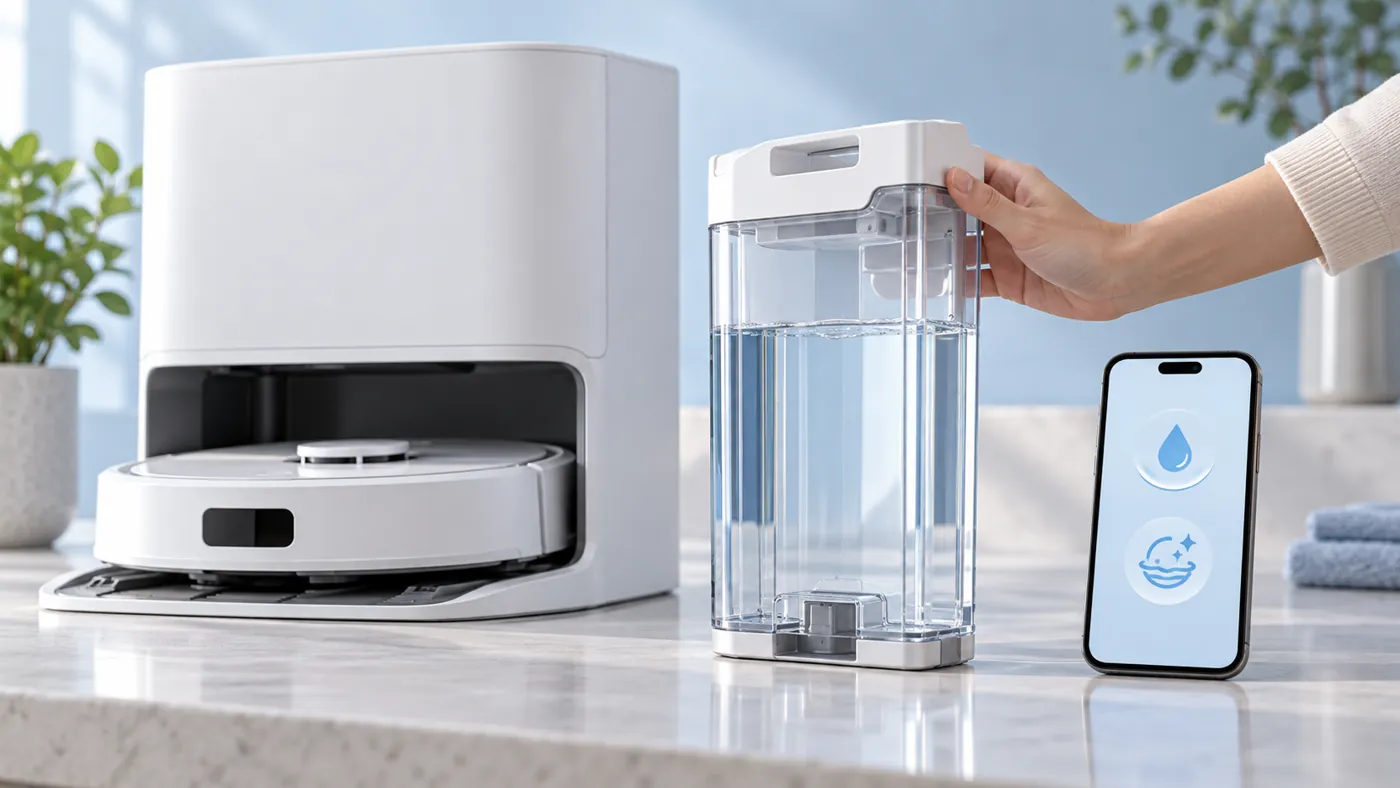
3. Start the intended mop-pad cleaning operation
Ecovacs’ station-function guide identifies Station > Clean Mopping Pads as the app route for a pad wash. It also documents tank notifications and a flashing red station light when clean water is running low or the waste-water tank is full.
Use the documented pad-cleaning operation for the comparison. Note its start time and whether the app shows it running or stops with a warning. Keep children and pets away while the station is operating.
If you normally use voice control, starting through the app gives you a clearer record of the requested function. For a voice request that never starts the wash, use the YIKO guide before treating that missed request as a temperature problem.
4. Follow the water symptom you actually have
If the pads remain dry because no water arrives, follow the T20 water-supply guide. Record that as absent flow, rather than saying the station produces cold water. Those descriptions lead to different checks.
If water remains in the wash area or a waste-water alert blocks the operation, use the dirty-water recycling guide. A cycle interrupted by a tank warning has not established how a complete hot-water wash behaves.
Drying is another separate result. Pads that stay wet after washing need the mop-drying checks; their wetness alone cannot identify the wash temperature.
5. Make the support report specific
If you still suspect a heating problem after checking the correct operation, enabled option and tank status, contact Ecovacs. Ask how they want you to confirm temperature safely. Avoid improvised tests with fingers, boiling water or a probe inserted into the station.
Send the exact operation, setting screenshot, any warning, app and firmware versions, and whether water flow and drainage appeared normal. State what you observed directly and what remains uncertain. “The pad wash completes with the option on, but I cannot confirm heating” is more useful than guessing that a heating element has failed.
If the behavior began after an update, keep that timing in the report. Use the firmware guide for an update error; do not interrupt an installation to repeat a wash.
Frequently asked questions
Should station self-cleaning use hot water?
The T20 instructions describe that operation as using cold water.
Does a cool pad prove the heater is broken?
No. Identify the operation and cycle stage, then ask support for an approved temperature check if needed.
Should I buy a heater before contacting support?
A temperature concern does not identify a failed component. Have Ecovacs assess the recorded symptoms first.
See the Ecovacs troubleshooting hub for related guides.