Begin with the quick checks. Stop if a step requires tools or experience you do not have.
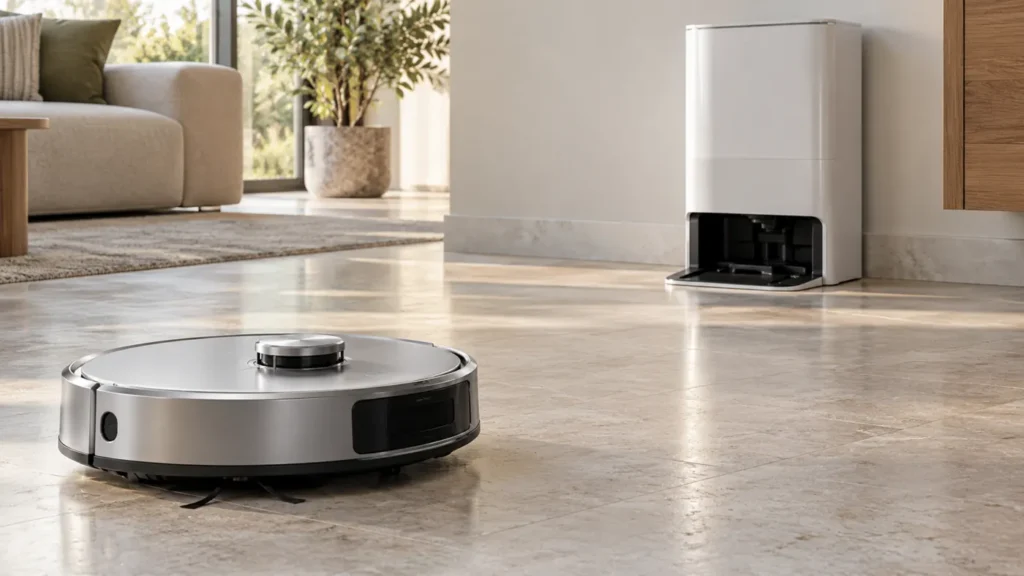
If your Ecovacs T20 OMNI is disconnected from the station, first keep the exact wording shown in ECOVACS HOME. A station connection warning, an Offline robot and a robot that cannot physically dock describe different problems. Choose the procedure from the message and what you can observe.
Note whether the warning appeared after a restart, after an update or during an ordinary cleaning run. Also record whether the robot is charging and whether the app can still control it. These details help you avoid changing Wi-Fi settings to solve an unrelated station-control issue.
Choose the next check
| What happens | Check next |
|---|---|
| Station-disconnection warning | Connection status and documented re-pairing |
| Station button does not respond | Local control lock and task state |
| App shows the whole robot Offline | Wi-Fi and app connection |
| Robot cannot enter the dock | Physical docking procedure |
| Robot enters but charging is not recognized | Charging checks before pairing |
1. Review what changed immediately before the warning
Ecovacs’ station-disconnection instructions say to allow three minutes after an upgrade or restart before using the robot. If it is far from the station, the manufacturer recommends app control instead.
Make this comparison only after the update or restart has completed. Do not use a connection warning as a reason to disconnect power during an active firmware installation. Keep the app’s current update status if you are unsure which stage the robot is in.
A warning that appears once during a transition is a different pattern from one that recurs every time the robot returns. Record the recurrence and location. Avoid repeatedly restarting before checking whether the message cleared on its own.
2. Distinguish button locking from lost communication
Check the Child Lock setting in Smart Cleaning > Settings > Child Lock. Ecovacs states that enabling it locks station buttons and the robot start/pause buttons, with the button light off.
If you deliberately use this setting, keep it in mind when assessing an unresponsive control. Temporarily review the local controls only when no update or station-care cycle is active. A button press that is blocked by a setting does not prove a station pairing failure.
Check whether the app explicitly reports the station as disconnected. Keep a screenshot rather than relying on an older notification. If the app cannot reach the robot at all, follow the T20 connection guide before trying to read current station status.
3. Restore pairing using the T20 sequence
For a nearby robot with a confirmed disconnected status, Ecovacs directs owners to reconnect station power, restart the robot and place it in the station. Once charging is recognized, wait ten seconds for re-pairing, then check the connection status in app settings.
Use the normal restart procedure from the model instructions. This sequence is not a factory reset and does not call for opening the station housing. Perform it after any update or care cycle has ended, with the station and robot ready for normal operation.
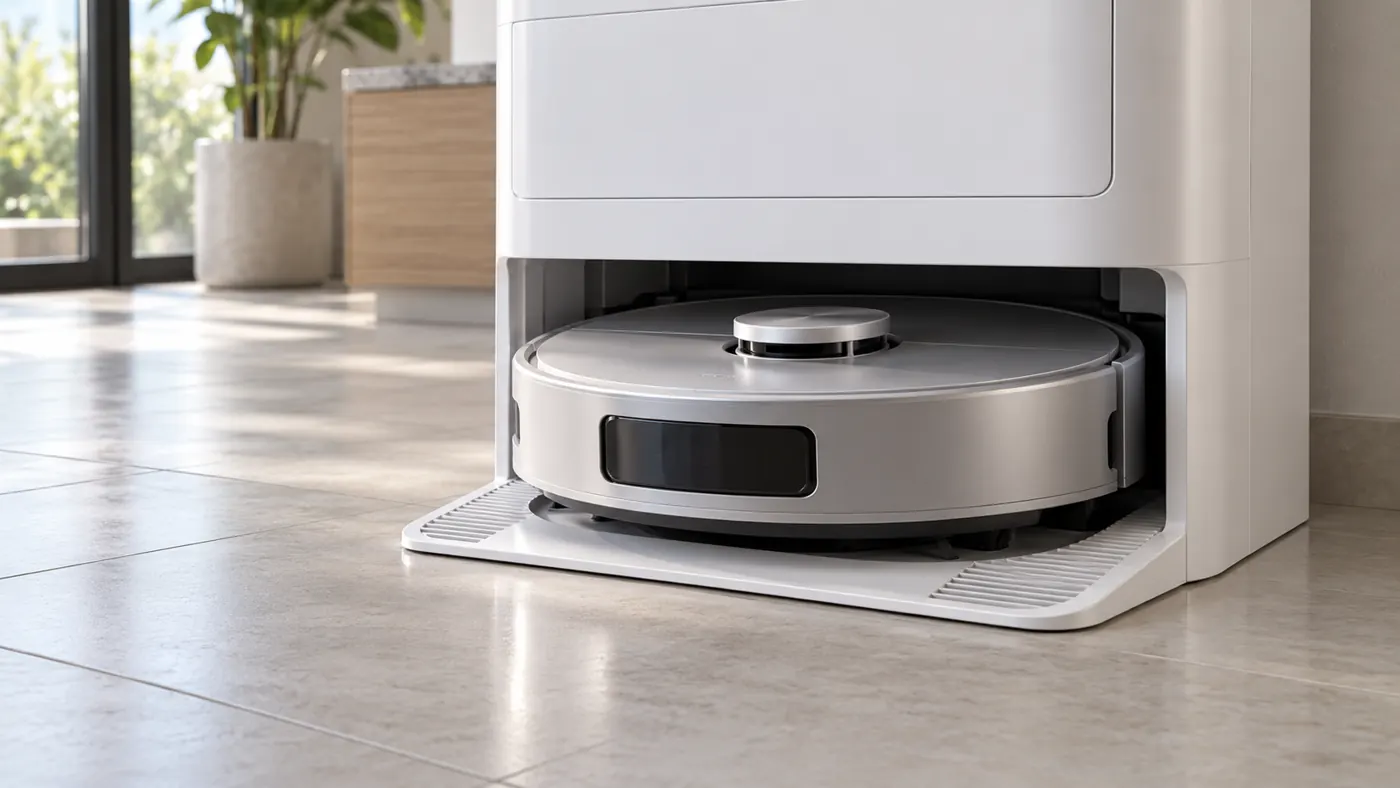
Record the status before and after this single sequence. If the app still shows disconnection, keep that result instead of repeating the same power cycle indefinitely. A clear failed comparison is more useful to support than a list of many restarts with no status recorded.
4. Resolve unrecognized charging first
The pairing sequence depends on recognized charging. If the robot merely sits at the entrance or the app never indicates charging, that prerequisite is missing. Follow the T20 charging checks and record the outcome before judging pairing.
If entry itself fails, use the docking guide. Keep the approach clear and watch whether the robot completes entry. Do not force it against the charging area or change internal contacts to obtain a connection.
5. Compare control and station activity
Once the app reports normal connection, compare one ordinary control action outside a care cycle. Note whether the robot responds and whether the station activity is correctly shown. A single successful action is useful evidence that control has returned.
Ecovacs’ station-function guidance explains that tank notifications can appear in the app and that mop cleaning can be requested through Station > Clean Mopping Pads. A tank warning or failed wash deserves its own checks; it does not automatically mean the connection is lost again.
For water left in the station sink, follow the dirty-water guide. If the connection issue prevents a prepared firmware attempt, use the firmware-update guide after restoring normal control.
Frequently asked questions
Is station disconnection the same as Wi-Fi Offline?
Use the exact message. Check whether the app reaches the robot and what it says about the station before choosing a procedure.
Should I delete the robot from the app first?
Start with the documented station sequence and current status. Removing the device changes the setup you are trying to assess.
When should I contact support?
Contact Ecovacs if disconnection persists with recognized charging after the documented sequence. Send the warning, app and firmware versions, restart history and before-and-after status.
See the Ecovacs troubleshooting hub for other T20 OMNI checks.
If the connection is restored but physical controls remain unresponsive, use the T20 OMNI buttons not working guide.