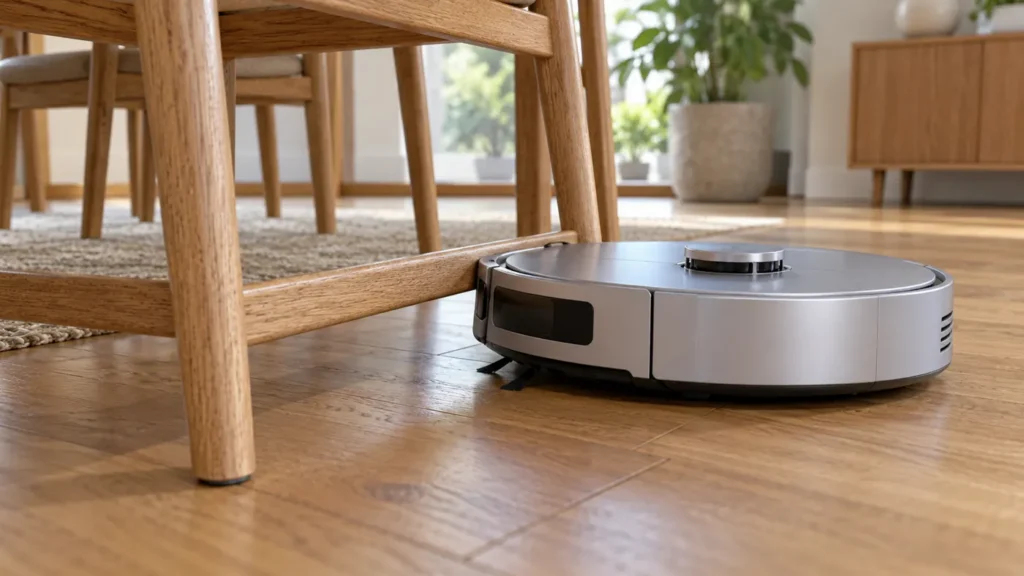
Begin with the quick checks. Stop if a step requires tools or experience you do not have.
If your Ecovacs T20 OMNI keeps getting stuck, record where it stops before changing the map or replacing parts. A chair crossbar, rug fringe, tangled wheel and a room that the app considers blocked are different situations. The useful first question is whether the robot is physically trapped or whether it ends the task without reaching the room.
Watch a short cleaning run in the problem area. Take a photo showing the robot and surrounding furniture before moving it. Keep the exact alert and task type. This makes the next check more precise than repeatedly lifting the robot to another spot and restarting the same full-house clean.
Match the stop to a practical check
| Observed symptom | Next check |
|---|---|
| Trapped beneath the same furniture | Clearance, crossbars and an exclusion area |
| Snags at rug fringe or loose cords | Remove the snag from the route |
| Drive wheel warning on open floor | Accessible wheel debris and movement |
| Area cleaning ends with DEEBOT is blocked | Room access and the documented auto-cleaning check |
| Anti-drop sensor dust warning | Clean the underside sensors using Ecovacs guidance |
| Only fails while returning to the station | Use the docking guide |
1. Remove a repeated physical trap
Stop the task before freeing the robot. Move loose cords, lift rug fringe out of the route and check low furniture rails. If a sofa or chair repeatedly catches the same part of the body, inspect the clearance across the whole space, including the exit. An entrance that looks wide enough may lead into a narrower section.
Reposition movable furniture or mark the troublesome space as an exclusion area using the app’s map controls. Keep that exclusion local so the rest of the room remains accessible. The T20 mapping guide explains the separate checks for distorted layouts and restricted routes.
Do not repeatedly send the robot into a location where it scrapes or becomes wedged. A successful pass on open floor is a better comparison than another attempt under the same low rail. Observe the next ordinary run after removing the trap.
2. Check the driving wheels with the power off
Ecovacs’ stuck-wheel instructions include checking that the shipping protection strips have been removed, then switching off the robot before gently turning it upside down. Inspect accessible strands around each drive wheel without opening the wheel housing.
For routine cleaning, Ecovacs recommends pressing and rotating the wheels to clear entangled debris and wiping their surfaces with a semi-dry cloth. Use gentle movement and compare the two sides. Do not pour water into the wheel opening or force a wheel that resists movement.
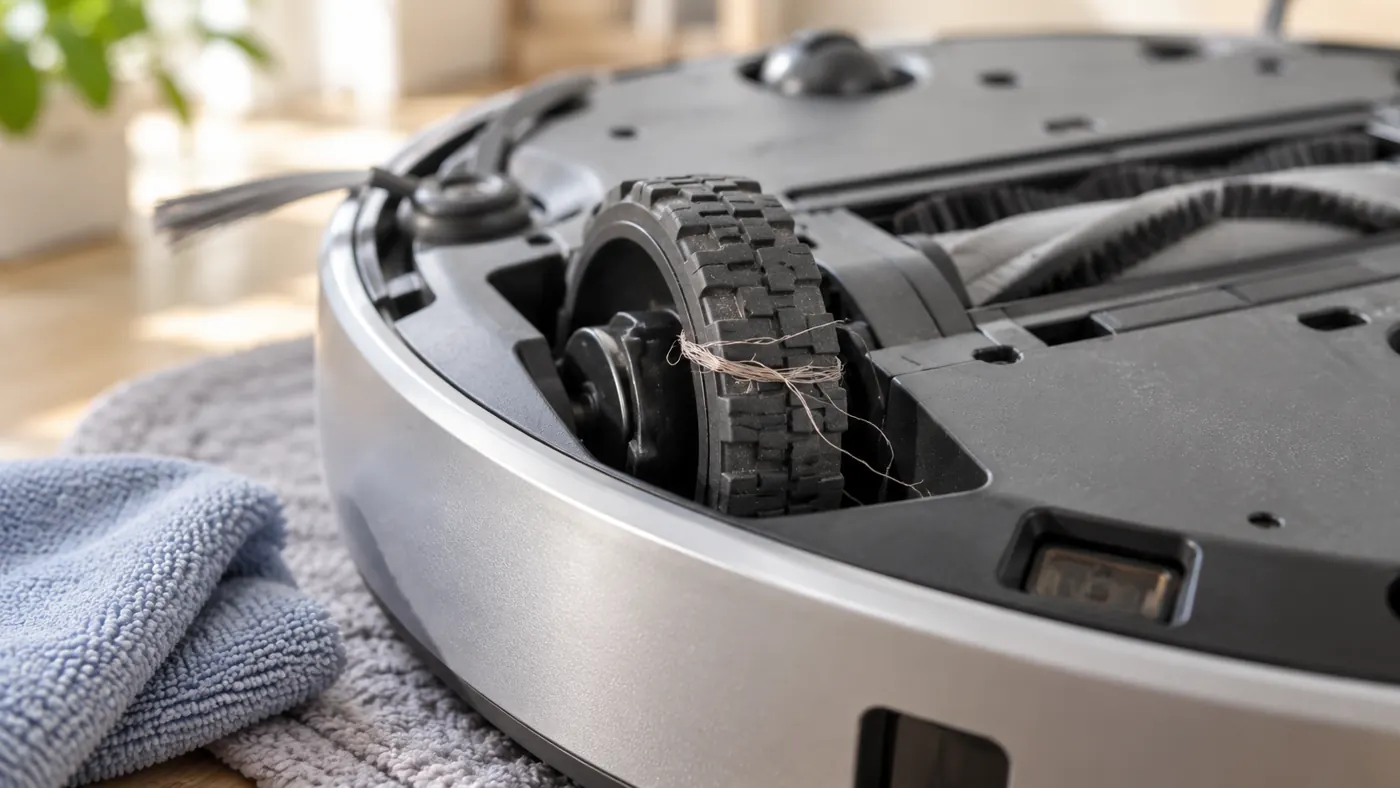
Note whether one wheel catches, looks damaged or behaves differently during accessible inspection. Keep those findings for support. A wheel warning does not tell you which internal part failed, and replacing a wheel assembly without establishing the cause can leave the original problem unresolved.
3. Treat a blocked-room message separately
If area cleaning ends with a blocked message but the robot is not trapped, check the doorway. Ecovacs describes a case where a door was closed during the previous clean: the next area task can end with that message. Its documented solution is to open the door, allow a complete auto-cleaning cycle and then retry area cleaning.
Use that sequence when it matches the history of the room. Keep the doorway open throughout the comparison and check the selected room in the app. Save a map screenshot before making larger changes. A blocked-area message by itself is not a reason to factory-reset the robot.
4. Follow a specific sensor alert
For the alert saying the anti-drop sensor is covered with dust, Ecovacs recommends gently turning the robot over, wiping the underside sensors and shutting down and restarting. Follow its anti-drop sensor guidance with the power off while handling the underside.
Keep the sensors unobstructed. Do not tape over them to force the robot across a surface it refuses to enter, and do not test beside stairs or an unprotected drop. If the same warning returns after cleaning, record the location and surface and contact support.
5. Repeat the original task and compare
With all parts fitted, return the robot upright and repeat a short task on a clear, level floor away from drops. Change one relevant condition at a time. Did removing the fringe resolve the snag? Does the room task work with its door open? Does a wheel warning also occur in the open test area?
If the failure happens only at the station entrance, use the T20 docking checks. If a central brush entanglement is the actual alert, follow the main-brush guide. Keep the app message and physical observation together when choosing a procedure.
Frequently asked questions
Should I rebuild the map immediately?
Start with the location and alert. A recurring furniture trap needs a route change, while the documented closed-door case has a specific cleaning sequence.
Can I cover the anti-drop sensors?
No. Clean them according to Ecovacs guidance and preserve their protective function.
When should I contact support?
Do so when a warning persists on clear floor after accessible cleaning, a wheel remains difficult to move or the robot shows visible damage. Send a short video, exact message and the changes already tried.
Use the T20 maintenance schedule and Ecovacs hub for other faults.
For damp rugs or carpet contact during mopping, follow the T20 OMNI carpet-wetting guide.
If the app specifically reports dust on the anti-drop sensors, follow the T20 OMNI anti-drop sensor guide.
If accessible debris or dirty tread affects a driving wheel, follow the T20 OMNI stuck driving-wheel guide.